Sunday, November 14, 2021

How to Update XENTRY Diagnosis VCI Firmware

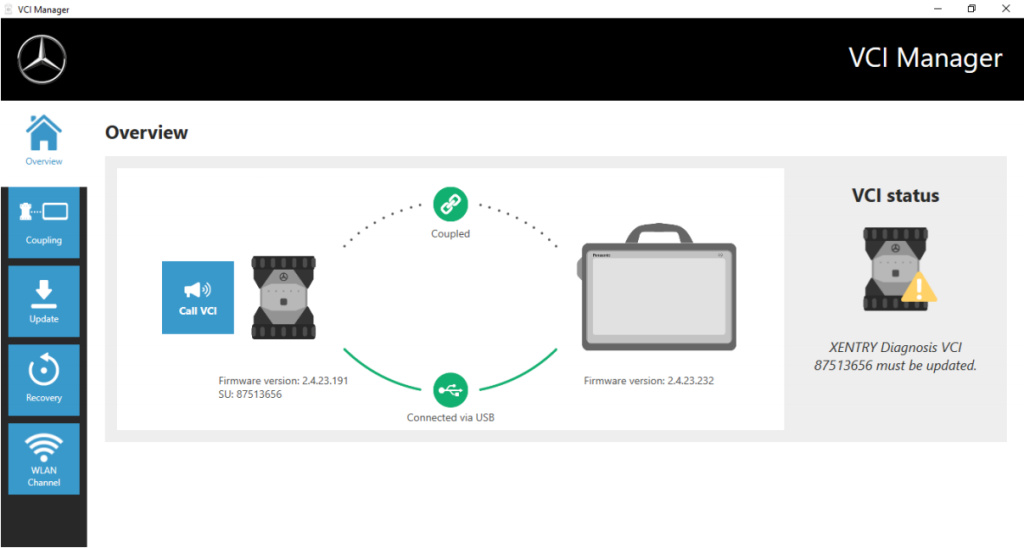
After an update to the XENTRY Diagnosis Pad 2, you may then need to update the firmware for the Xentry diagnosis VCI.
You can also see this in the VCI Manager on the overview page:

How-to-Update-XENTRY-Diagnosis-VCI-Firmware-1

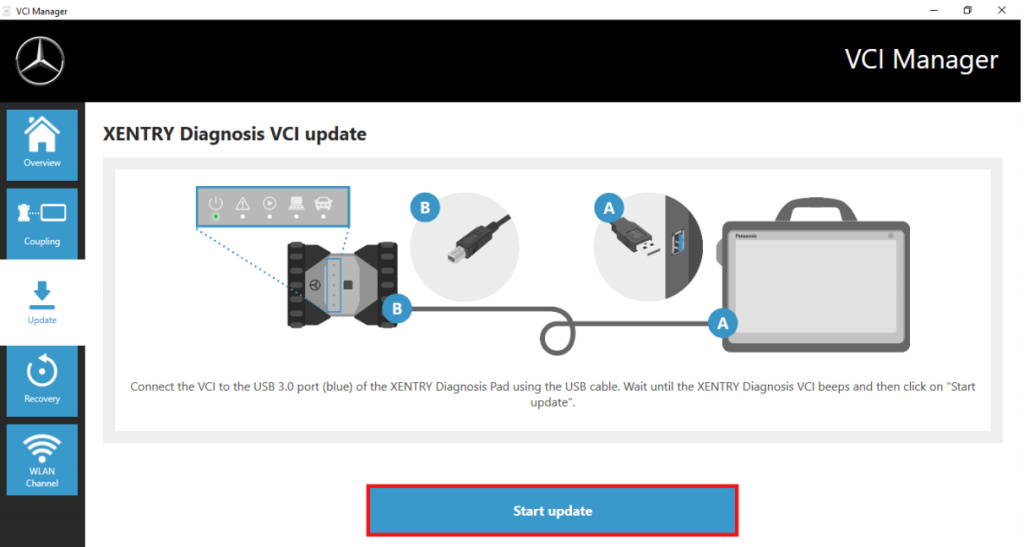
Click in the “Update” menu item in the VCI Manager and then on the “Start update” button.

How-to-Update-XENTRY-Diagnosis-VCI-Firmware-2

When executing the update, please ensure that the USB connection between XENTRY Diagnosis Pad and VCI is not
interrupted.
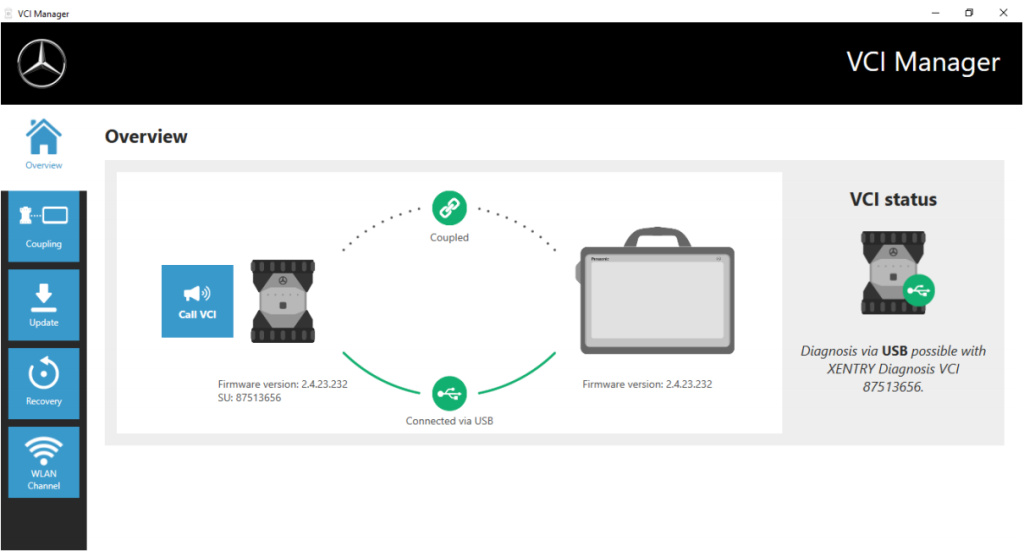
Once the update has completed, you can then continue to work with XENTRY Diagnosis Kit 4 as usual.

How-to-Update-XENTRY-Diagnosis-VCI-Firmware-3

Saturday, November 13, 2021

How To Use Star Diagnosis Coding Out ABC on R230 Cars

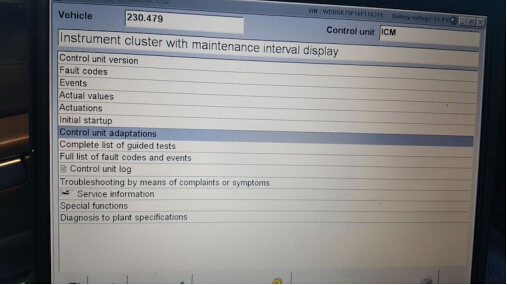
To do this, you need a Star diagnostic SD Connect C4 with Developer mode. Hook up SD Connect diagnostic system to your car and when it reads your car, select Control Units, pick Information and Communication and you will see ICM :

After ICM, you will see Control Unit Adaptions :

How-To-Use-Star-Diagnosis-Coding-Out-ABC-on-R230-Cars-1

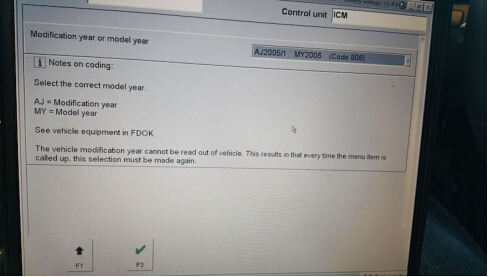
From there, choose the year of your model :

How-To-Use-Star-Diagnosis-Coding-Out-ABC-on-R230-Cars-2

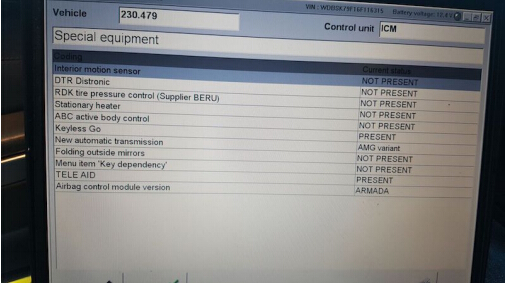
From there, select Special Equipment

How-To-Use-Star-Diagnosis-Coding-Out-ABC-on-R230-Cars-3

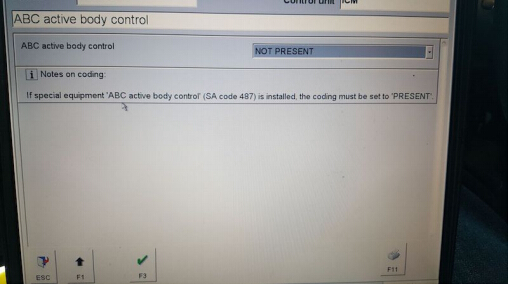
Select ABC :

How-To-Use-Star-Diagnosis-Coding-Out-ABC-on-R230-Cars-4

• Then go to the drop down tab and change it from PRESENT to NOT PRESENT, and click F3.
• After that, turn off the car, with the doors closed.
• Wait 1-2 mins and start the car back up (no more ABC codes and no white or red lights).

How to Link WIS ASRA standalone to XENTRYDAS

I had XENTRY DAS installed and no help link were working from DAS, it was going to some URL every time I clicked on help button, so I decided to install WIS/ASRA as standalone option on same laptop.

This is how to get WIS/ASRA to link both XENTRY&DAS together so I can get help working from XENTRY/DAS.

You just need configure your WIS mode:

Open SDNC at your taskbar

>>Click tab Configuration

>>click Yes

>> click Tab Server

>> Click Wis offline

>> then Press OK

Then Xentry and DAS will be linked with the WIS program

(Big thanks to Yudi from the MHH community)

Tuesday, November 9, 2021

How to change SDconnect IP for Das fault (1.1) -1.501.9878


How-to-change-SDconnect-IP-for-Das-fault-(1.1)--1.501.9878

SD connect C4 fails to connect and comes up with the error message:

Das fault (1.1) -1.501.9878

The mux is connecting, with diagnosis computer both by lan cable or wifi ( passed and respond to all self tests), no lcd problems or blocked (!) . The fault comes when das try to initialize the mux green led blinks about 10 sec,and this fault comes no matter is from das standalone or launched from xentry.

Software & install:

xentry 12.2015 , das bin, blacklist fixed etc on a dell d630 appid 253 and ……

Solutions:

You must change IP address in windows.172.29.127.119:

Go into “Control Panel”, “Network Connection”, “Local Network Connection”> right click > properties > choose this one with TCP/IP, select this, chose properties, choose manually ip, and put this ip “172.29.127.119”, mask 255.255.0.0 (as you will get when type ip), rest of field, leave blank.
if it does not work

Try one more time make update of these 2 package.

Tips to fix MB SD C4 HDD internal error though change IP address

500G HDD is compatible with MB Star SD C4 Plus/ MB SD Connect C5, has two versions: WIN7 & WIN10 for choice. How to solve if the Mercedes Benz diagnostic software detects that there’s a problem with the connection?

Issue:
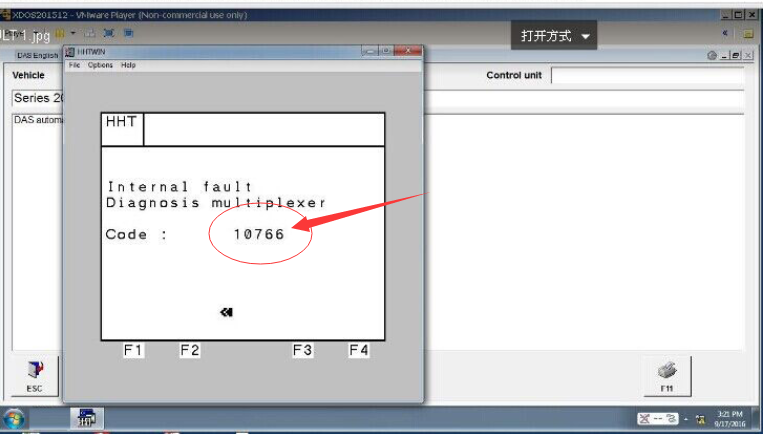
Internal fault, Diagnosis multiplexer, Code: 10766

Tips-to-fix-MB-SD-C4-HDD-internal-error-though-change-IP-address-1

Solution:

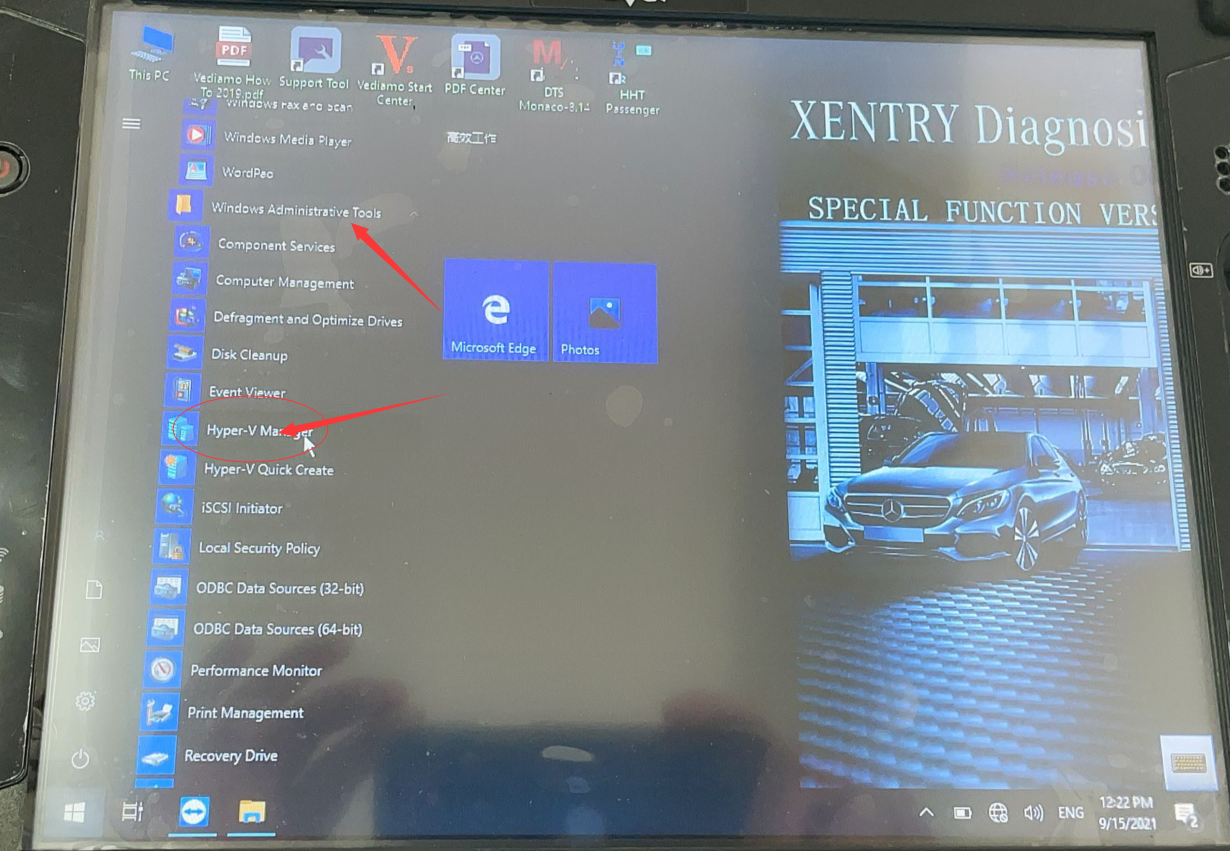
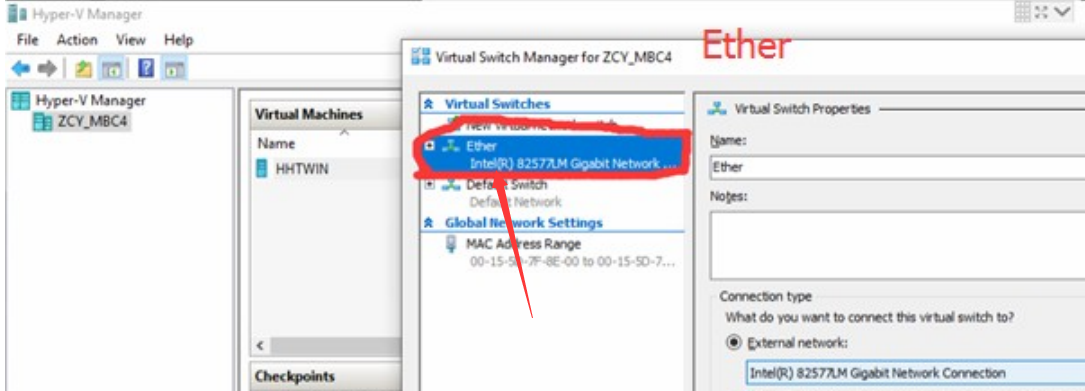
1. In the system files, find Hyper-V Manger in windows administrative tools, then click it.

Tips-to-fix-MB-SD-C4-HDD-internal-error-though-change-IP-address-2

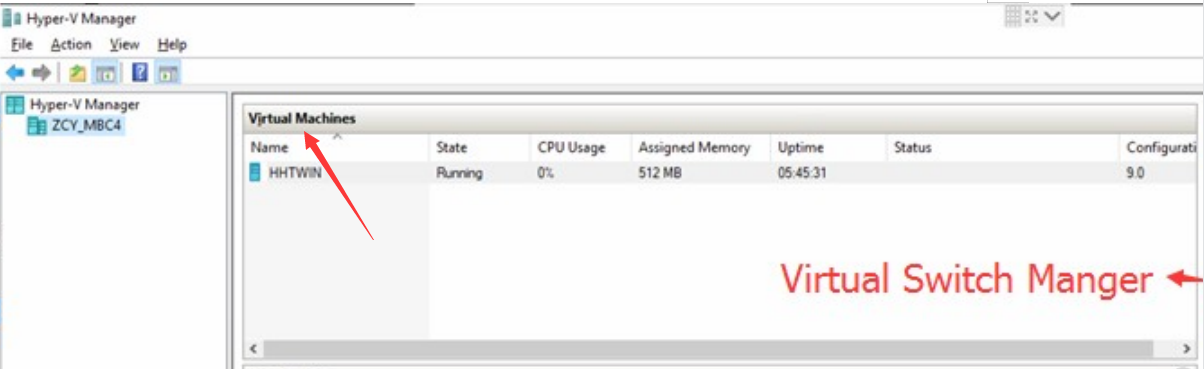
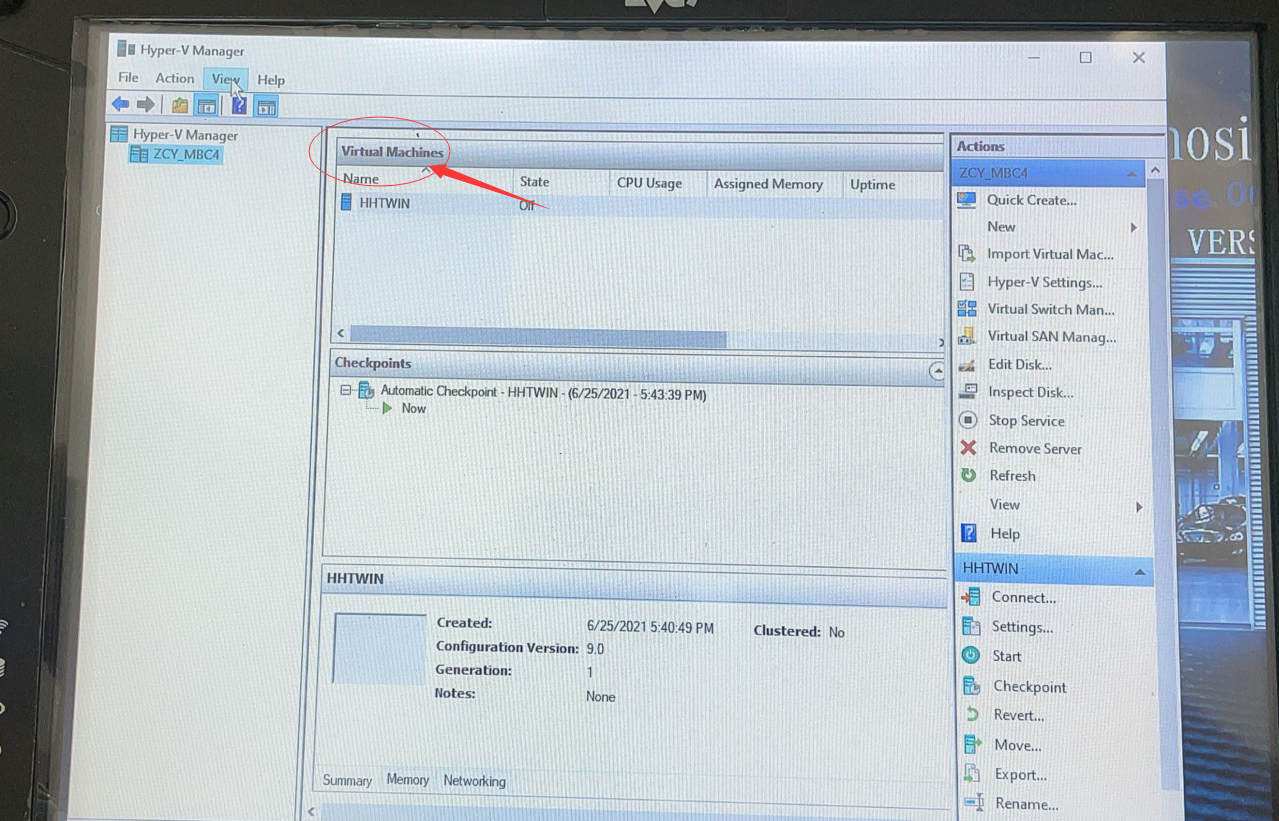
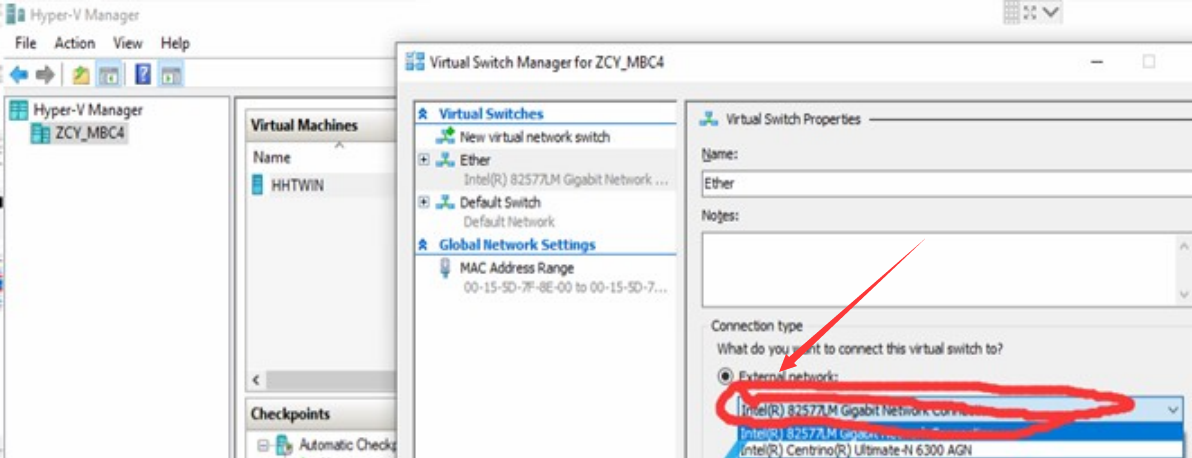
2. Click Virtual Switch Manager >> Ether, choose your computer Network card here.

Tips-to-fix-MB-SD-C4-HDD-internal-error-though-change-IP-address-3
Tips-to-fix-MB-SD-C4-HDD-internal-error-though-change-IP-address-4
Tips-to-fix-MB-SD-C4-HDD-internal-error-though-change-IP-address-5
Tips-to-fix-MB-SD-C4-HDD-internal-error-though-change-IP-address-6

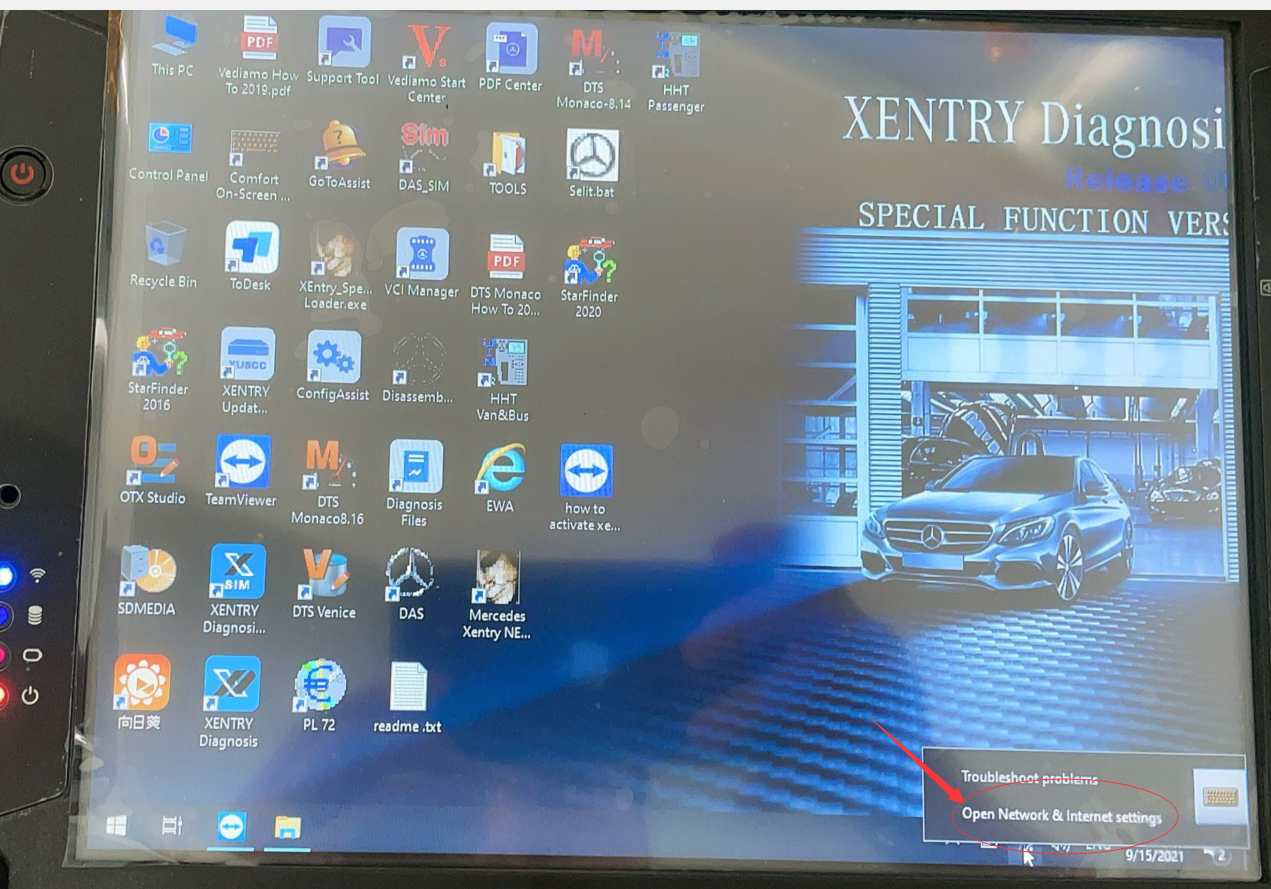
3.  Right click on the Network, open Network & Internet settings.

Tips-to-fix-MB-SD-C4-HDD-internal-error-though-change-IP-address-7

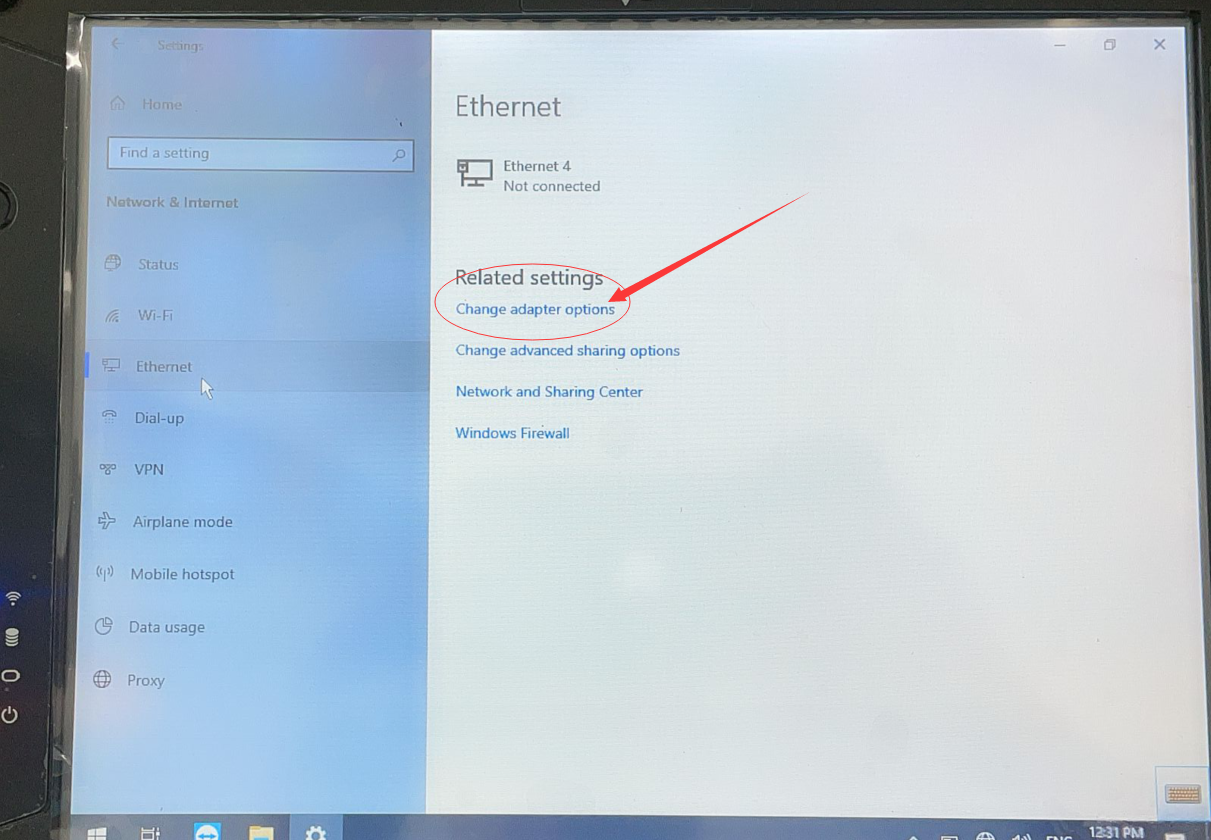
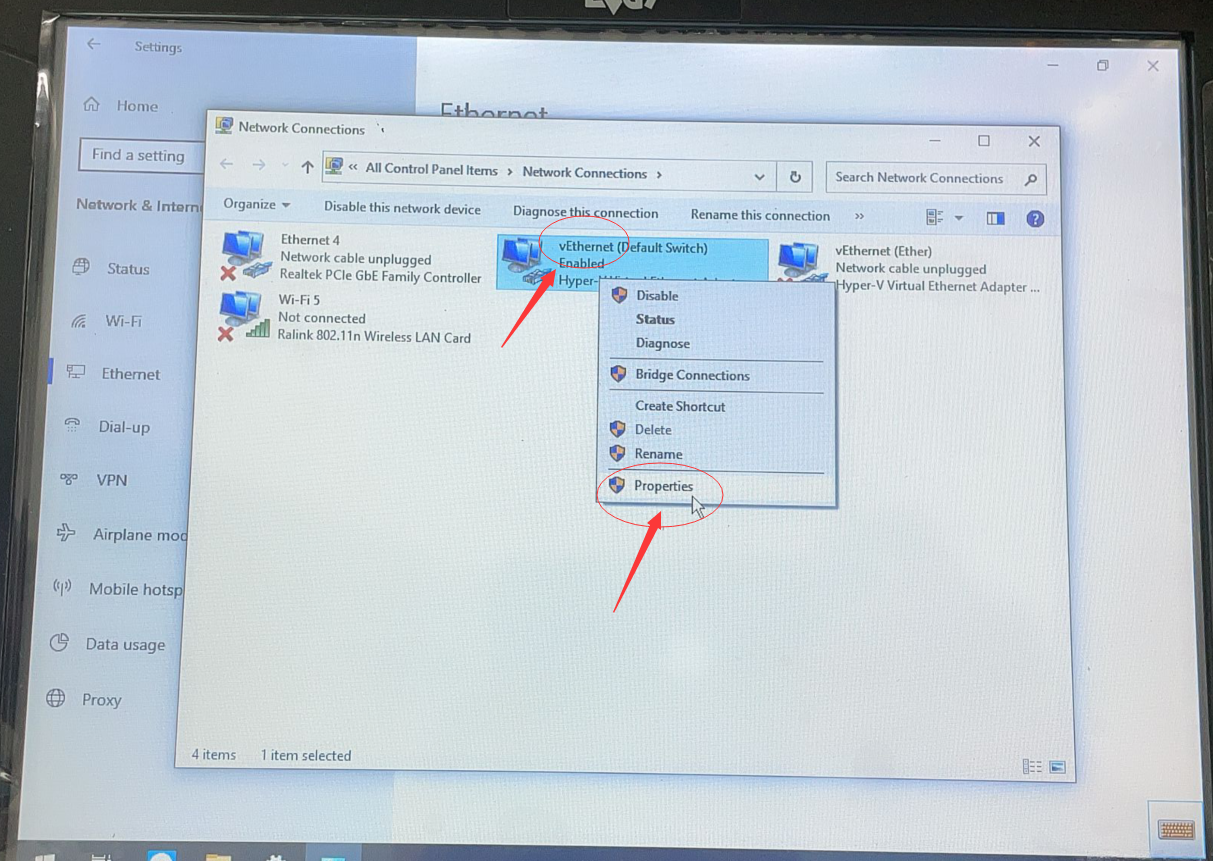
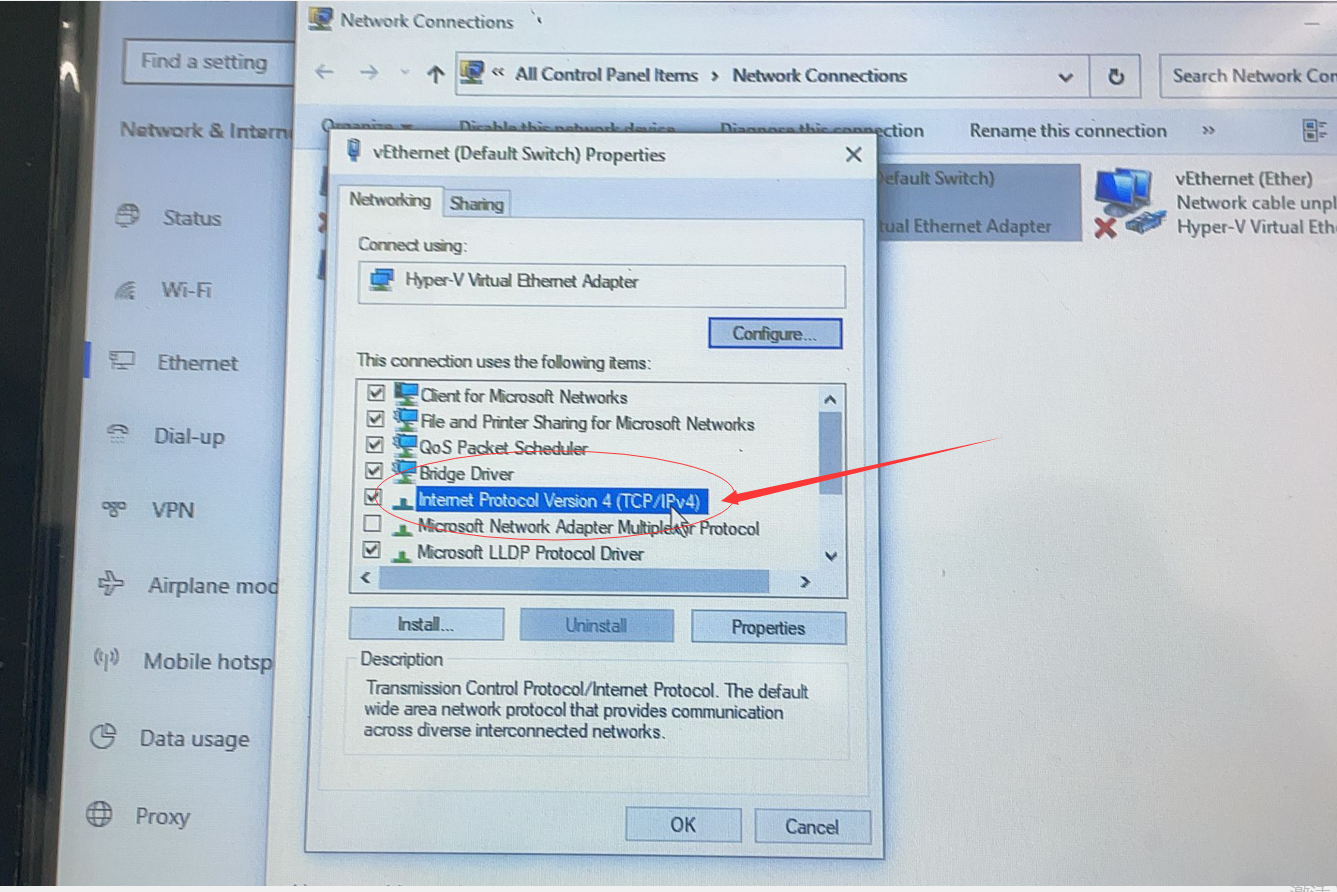
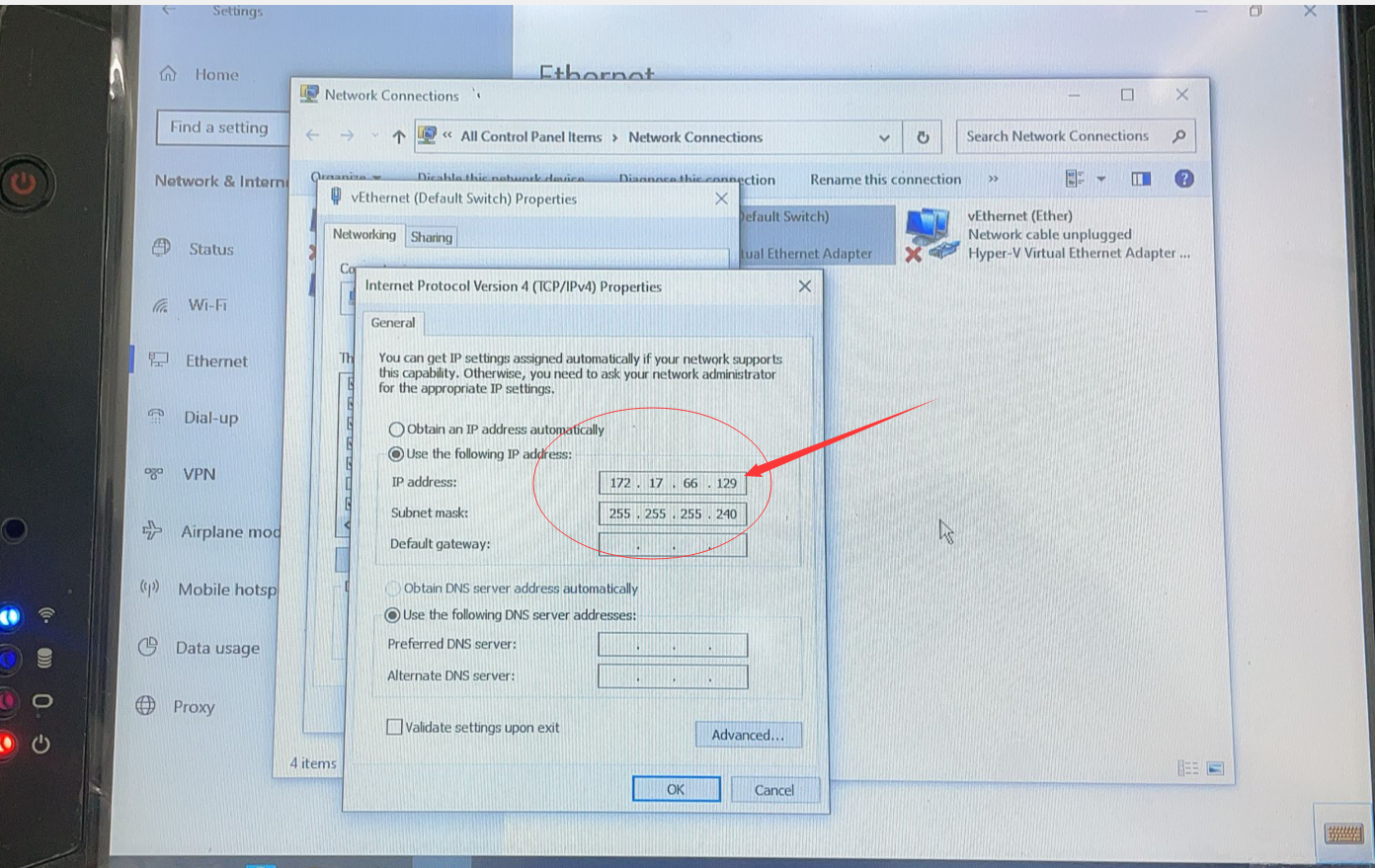
4.  Click Ethernet >> Change adaptor options >> Right click vEtherent >> Properties >> Double click Internet Protocol Version 4(TCP/IPv4) >> Select Use the following IP address, enter the IP address.
Set IP address as following
IP address: 172.29.127.124
Subnet mask: 255.255.0.0

Tips-to-fix-MB-SD-C4-HDD-internal-error-though-change-IP-address-8
Tips-to-fix-MB-SD-C4-HDD-internal-error-though-change-IP-address-9
Tips-to-fix-MB-SD-C4-HDD-internal-error-though-change-IP-address-10
Tips-to-fix-MB-SD-C4-HDD-internal-error-though-change-IP-address-11

Done!

Hope this is helpful.

Sunday, November 7, 2021

How to update your mb sdconnect c4 firmware

What to prepare before update:

double A battery 6pcs, laptop with sd c4 software installed, c4 main part, lan cable, obd cable

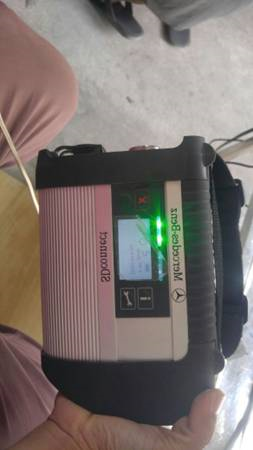
Step 1: input the double A battery 6pcs into the c4 multiplexer, like the picture showing

How-to-update-your-mb-sdconnect-c4-firmware-1
How-to-update-your-mb-sdconnect-c4-firmware-2
How-to-update-your-mb-sdconnect-c4-firmware-4

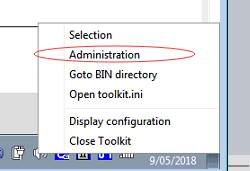
Step 2: connect the sd c4 to your car, click the connection icon at the right-bottom of laptop, see the picture below:

How-to-update-your-mb-sdconnect-c4-firmware-3

Open administration

How-to-update-your-mb-sdconnect-c4-firmware-5

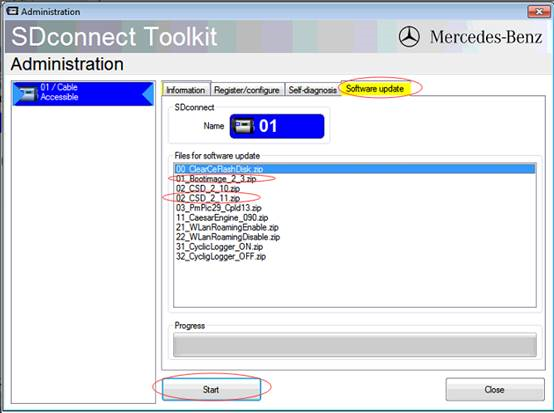
then update the bootimage 2_3zip and CSD_2_11 zip as the picture showing below:

How-to-update-your-mb-sdconnect-c4-firmware-6

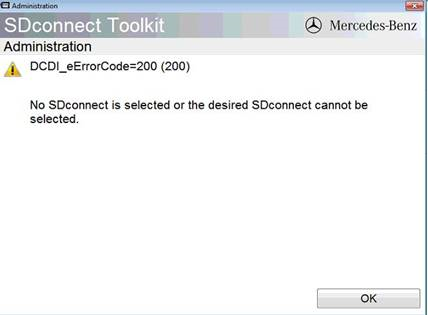
Notice: If you get this problem showing as blow when you open the administration, just need to restart your laptop, then the problem will be fixed.

How-to-update-your-mb-sdconnect-c4-firmware-7

If you want to know more about Mercedes Star Diagnostic Tools,  please click benz trouble repair.

Friday, November 5, 2021

How to Set up MB SD Connect C4 WIFI

MB SD Connect C4 is an MB Multiplexer C4 Mercedes Benz diagnostic tool. Wifi / Wireless Mercedes Star Diagnosis MB SD Compact 4 Mux supports UDS chip. Many Benz MB Star Diagnostic SD Connect C4 system owners do not know how to set up / use the WIFI connection. Here the engineers at Gsunlight.com have created step-by-step instructions for connecting MB SD C4 via LAN and WLAN.

MB SD Connect C4 Mercedes Star Diagnosis Compact 4 Mux Wifi MB SD Benz C4 Multiplexer Support Firmware Update

Before we start, please make sure that:

1, The LAN driver and WLAN driver of your computer was installed well.
2, The LAN of MB Star C4 is work properly. (Use OBD cable to connect MB Star C4 and start it.
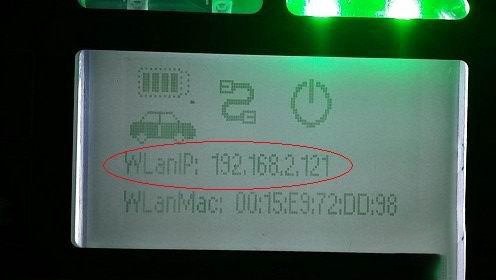
After start SDConnect C4 MUX can hear 3 beeps and the red LED will flash 3 times. Press ! 3–4 times can see WLAN IP address),
as shown below:

How-to-Set-up-MB-SD-Connect-C4-WIFI-1

After confirmation we can start connect.

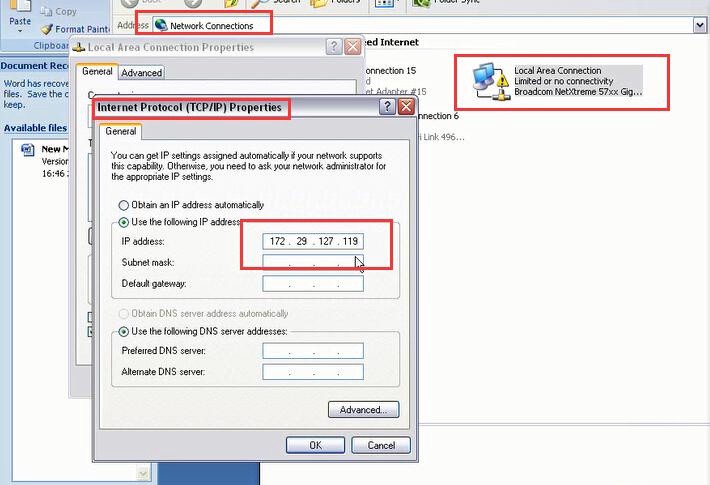
1. First, use green cable to connect MB SD C4 multiplexer and the computer, then use OBD cable connect MUX with the car or 12V power.
Set the LAN IP as 172.29.127.119. As shown below:

How-to-Set-up-MB-SD-Connect-C4-WIFI-2

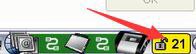
After modifying IP, you can see the lower right corner of the computer screen # 21 becomes unlocked state.
That means you have already connect the mux to the computer by LAN cable.

How-to-Set-up-MB-SD-Connect-C4-WIFI-3

2. Next use WLAN connect the computer and MB SD Connect C4.
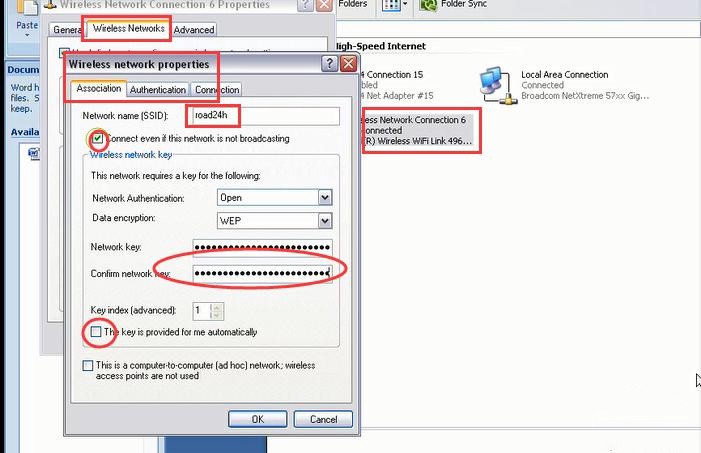
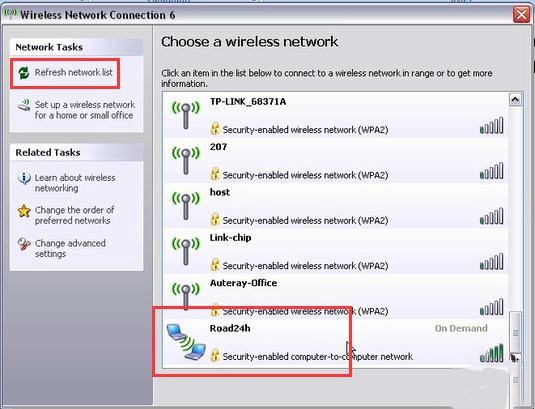
First, we need add road24h in WIRELESS NETWORK CONNECTION of the computer, the password is 26 * a. Photo as below.

How-to-Set-up-MB-SD-Connect-C4-WIFI-4

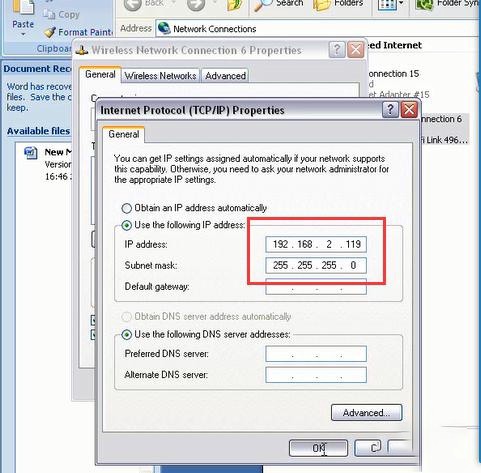
After setting up, then set the IP of WIRELESS into 192.168.2.119, as shown below:
Here should be noted that: the IP of computer WIRELESS must be different with the C4 MUX.

How-to-Set-up-MB-SD-Connect-C4-WIFI-5

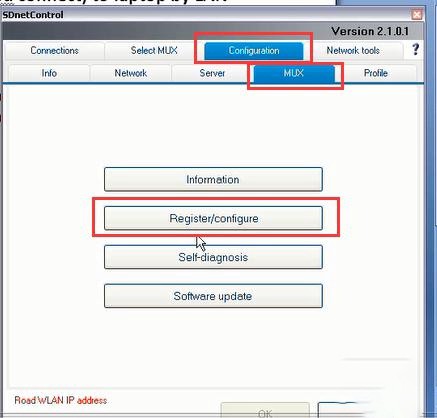
After setting the IP of WIRELESS, click # 21 (the lower right corner of the computer) into SDCONNECT TOOLKIT.

How-to-Set-up-MB-SD-Connect-C4-WIFI-6

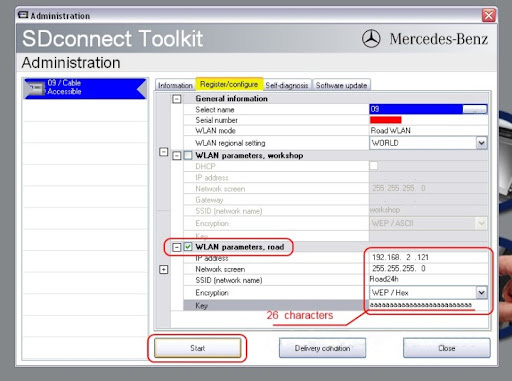
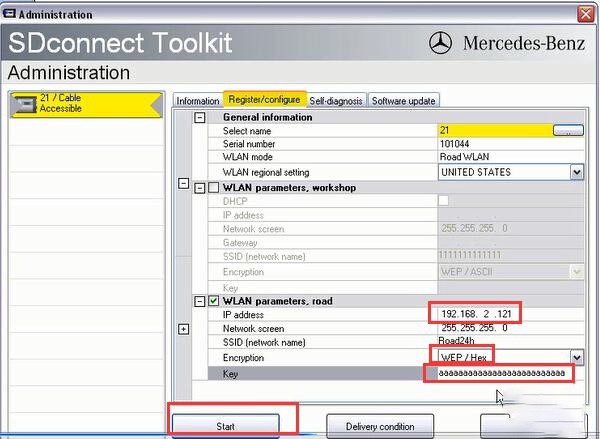
Then set the MUX as shown below, the password is 26 * a (26 digits)

How-to-Set-up-MB-SD-Connect-C4-WIFI-7

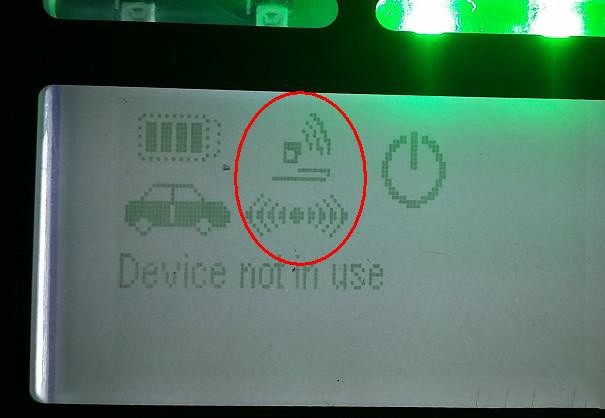
After setup unplug the LAN cable, you can see a RADIO icon on the small screen of MB Star C4. This icon means the WLAN of MUX is working now.

How-to-Set-up-MB-SD-Connect-C4-WIFI-8

The check all WIRELESS connection, you can see a road24h WIFI. Double click to connect, the password is 26 * a,
after connection then restart C4 mux.

How-to-Set-up-MB-SD-Connect-C4-WIFI-9

Here need to noted that: sometimes can not to see road24h, please try to restart the computer and SD C4 MUX.
If still can not find road24h, please connect the LAN cable and do the above steps again.

If you want to know more about Mercedes Star Diagnostic Tools,  please click benz trouble repair.