Showing posts with label DOIP MB SD C4 Plus. Show all posts

Sunday, February 20, 2022

How to reflash MB SD C4 Plus without battery

How to reflash MB SD C4 Plus without battery? You can edit Toolkit.ini to change the value of MinUpdateVoltageVbatt and MinUpdateVoltageVExt, and update the related files.

Step 1: Change MinUpdateVoltageVbatt/VExt Value
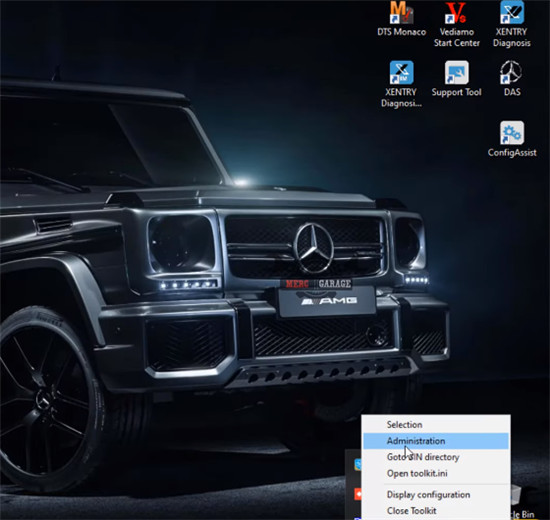
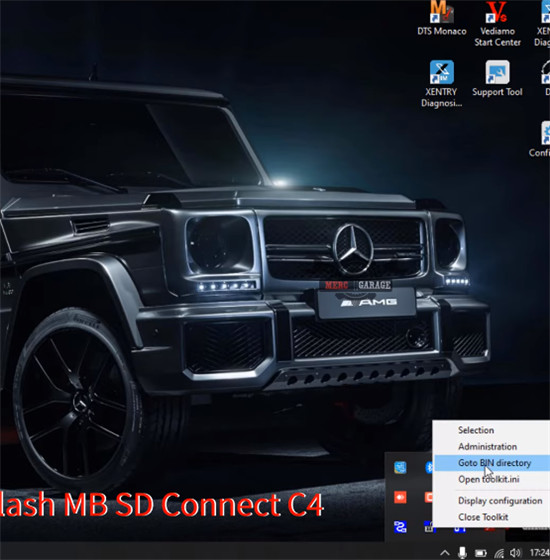
Right click the corresponding icon
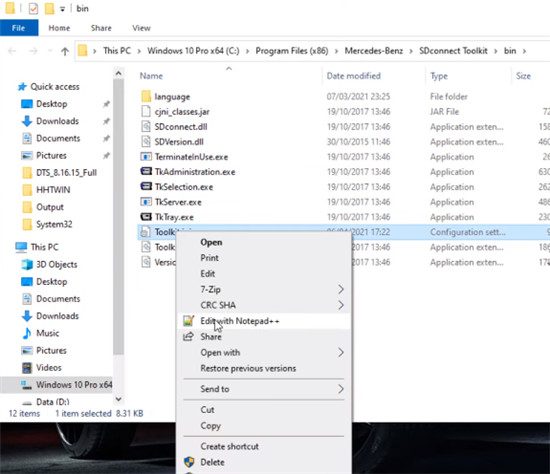
Select ‘Goto BIN directory’

How-to-reflash-MB-SD-C4-Plus-without-battery-1

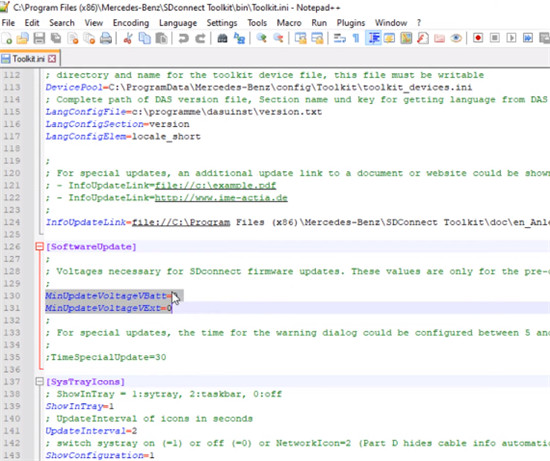
Then right click ‘Toolkit.ini’ and select ‘Editwith Notepad++’

How-to-reflash-MB-SD-C4-Plus-without-battery-2

You can see MinUpdateVoltageVbatt=7200 and MinUpdateVoltageVExt=11000.
Change these two values to 0
i.e MinUpdateVoltageVbatt=0
MinUpdateVoltageVExt=0

How-to-reflash-MB-SD-C4-Plus-without-battery-3

Remember to reboot the computer after changing.
Open ‘Administration’
How-to-reflash-MB-SD-C4-Plus-without-battery-4

It shows ‘the toolkit is being initialized.’

Step 2: Update 02 CSD_2_11.zip
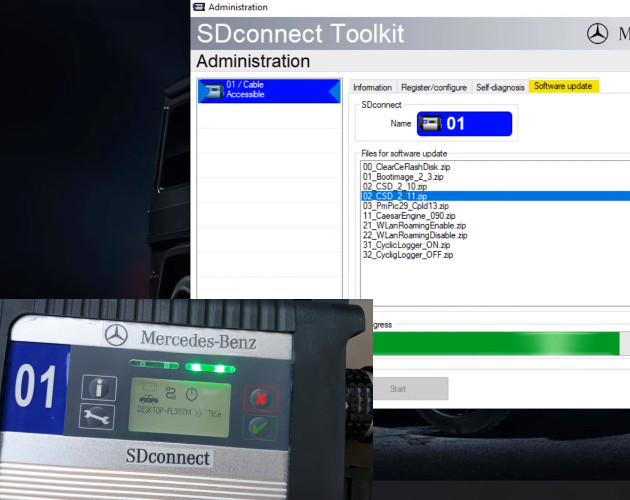
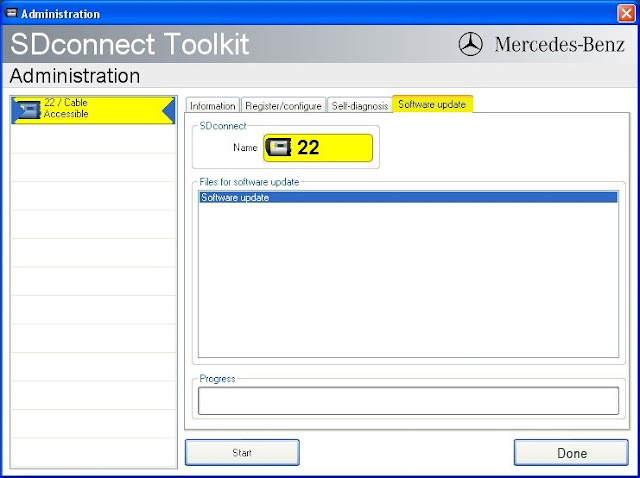
Click 01/Cable Accessible>> Software update>> 02 CSD_2_11.zip>> Start
It will take approx 2 min to update the software.
The indicators light up during the process.
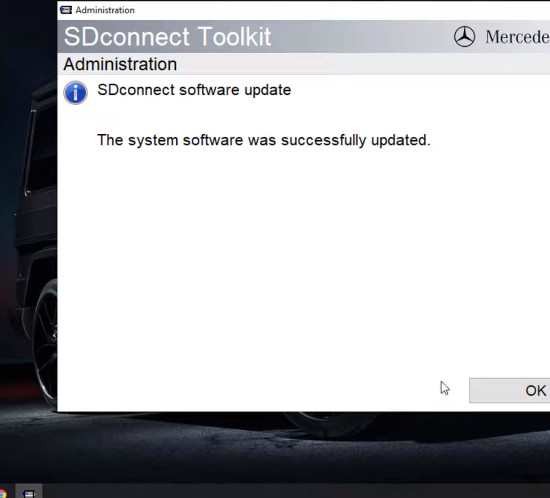
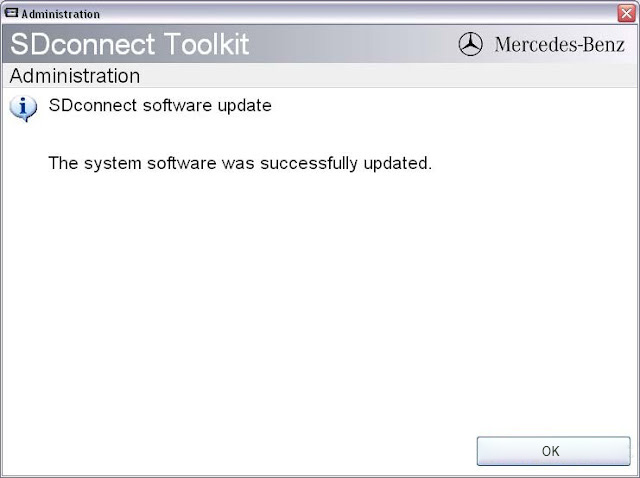
Update SDconnect software successfully

How-to-reflash-MB-SD-C4-Plus-without-battery-5

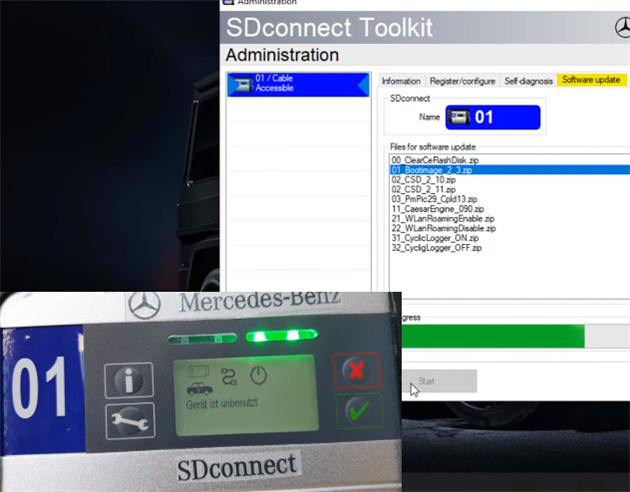
Step 3: Update 01_Bootimage_2_3.zip
Click 01/Cable Accessible>> Software update>> 01_Bootimage_2_3.zip>> Start
It also takes approx 2 min to update.

How-to-reflash-MB-SD-C4-Plus-without-battery-6

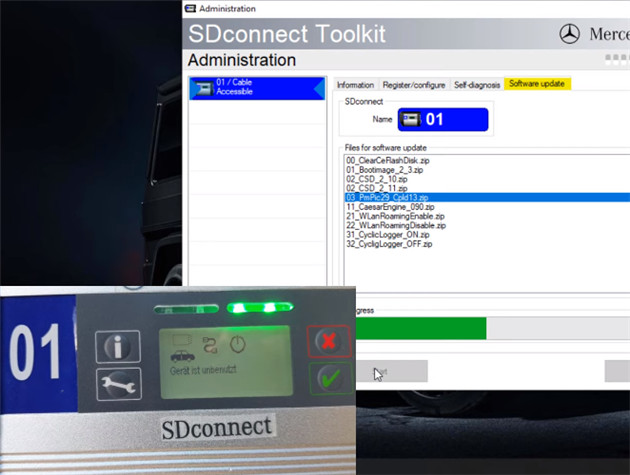
Step 4: Update 03_PmPic29_Cpld13.zip
Click 01/Cable Accessible>> Software update>> 03_PmPic29_Cpld13.zip>> Start
It also takes approx 2 min to update.

How-to-reflash-MB-SD-C4-Plus-without-battery-7

Update is completed.

How-to-reflash-MB-SD-C4-Plus-without-battery-8

Hope it helps!

Wednesday, November 24, 2021

How to Setup the DOIP of MB SD C4 Diagnostic Tool

Newest update V2021.09 MB SD C4 Plus supports mercedes benz cars and trucks till year 2020. MB SD Connect C4 diagnostic tool support doip, with free engineer software DTS Monaco Vediamo, software update via hdd.

SD C4 Plus support DoIP already come into market for a while. The new SD C4 DoIP is able to work for MB cars with DoIP. It’s the only C4 that supports Ethernet communication (DoIP) at the moment. VXDAS here would like to share the configuration procedure for C4 DoIP set up.

This article is available with the tool, MB SD C4 Plus, on its DOIP Setup User Guide for customers.

How-to-Setup-the-DOIP-of-MB-SD-C4-Diagnostic-Tool-1
Let’s get started with it.

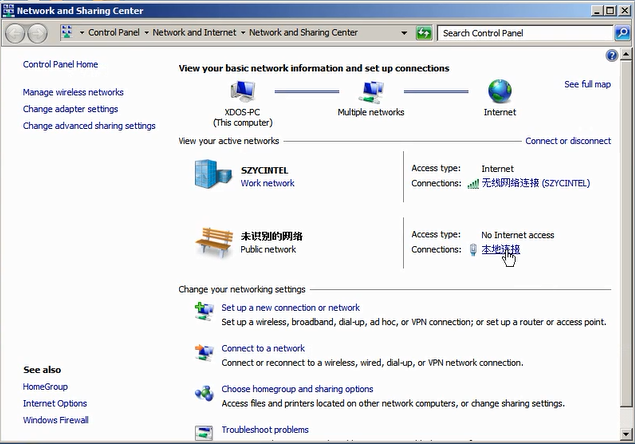
1.Open Local Connection of your PC

How-to-Setup-the-DOIP-of-MB-SD-C4-Diagnostic-Tool-2
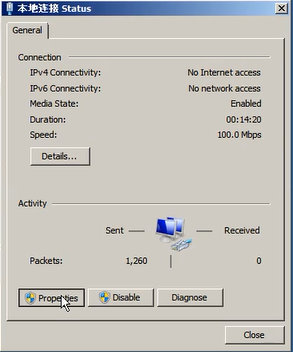
2.Click Propertities

How-to-Setup-the-DOIP-of-MB-SD-C4-Diagnostic-Tool-3

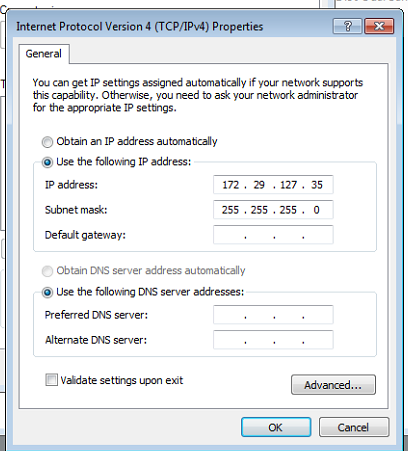
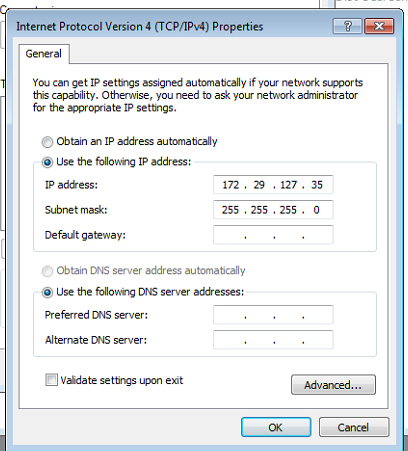
3.Click on “Internet Protocol Version 4(TCP/IPV4) and make settings

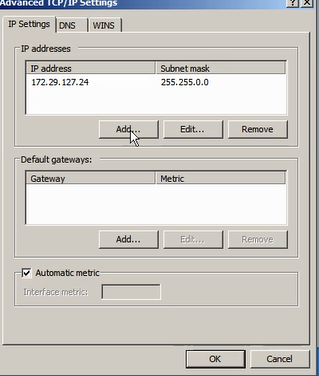
4.Set the IP address 172.29.127.35

How-to-Setup-the-DOIP-of-MB-SD-C4-Diagnostic-Tool-5
5.Choose Advanced and tick the “Use the following IP address”.

How-to-Setup-the-DOIP-of-MB-SD-C4-Diagnostic-Tool-6

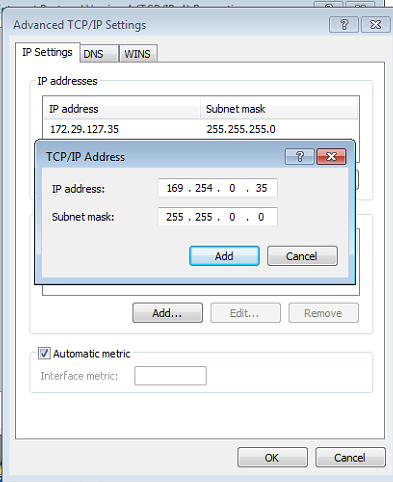
6.Click Add, Set Doip IP Address

How-to-Setup-the-DOIP-of-MB-SD-C4-Diagnostic-Tool-7

7.Set the IP to 169.254.0.35

How-to-Setup-the-DOIP-of-MB-SD-C4-Diagnostic-Tool-8

8.Click on Add, click on OK to finish the settings

Awesome, this tool is ready to be used perfectly on your cars.

Tuesday, November 9, 2021

How to change SDconnect IP for Das fault (1.1) -1.501.9878


How-to-change-SDconnect-IP-for-Das-fault-(1.1)--1.501.9878

SD connect C4 fails to connect and comes up with the error message:

Das fault (1.1) -1.501.9878

The mux is connecting, with diagnosis computer both by lan cable or wifi ( passed and respond to all self tests), no lcd problems or blocked (!) . The fault comes when das try to initialize the mux green led blinks about 10 sec,and this fault comes no matter is from das standalone or launched from xentry.

Software & install:

xentry 12.2015 , das bin, blacklist fixed etc on a dell d630 appid 253 and ……

Solutions:

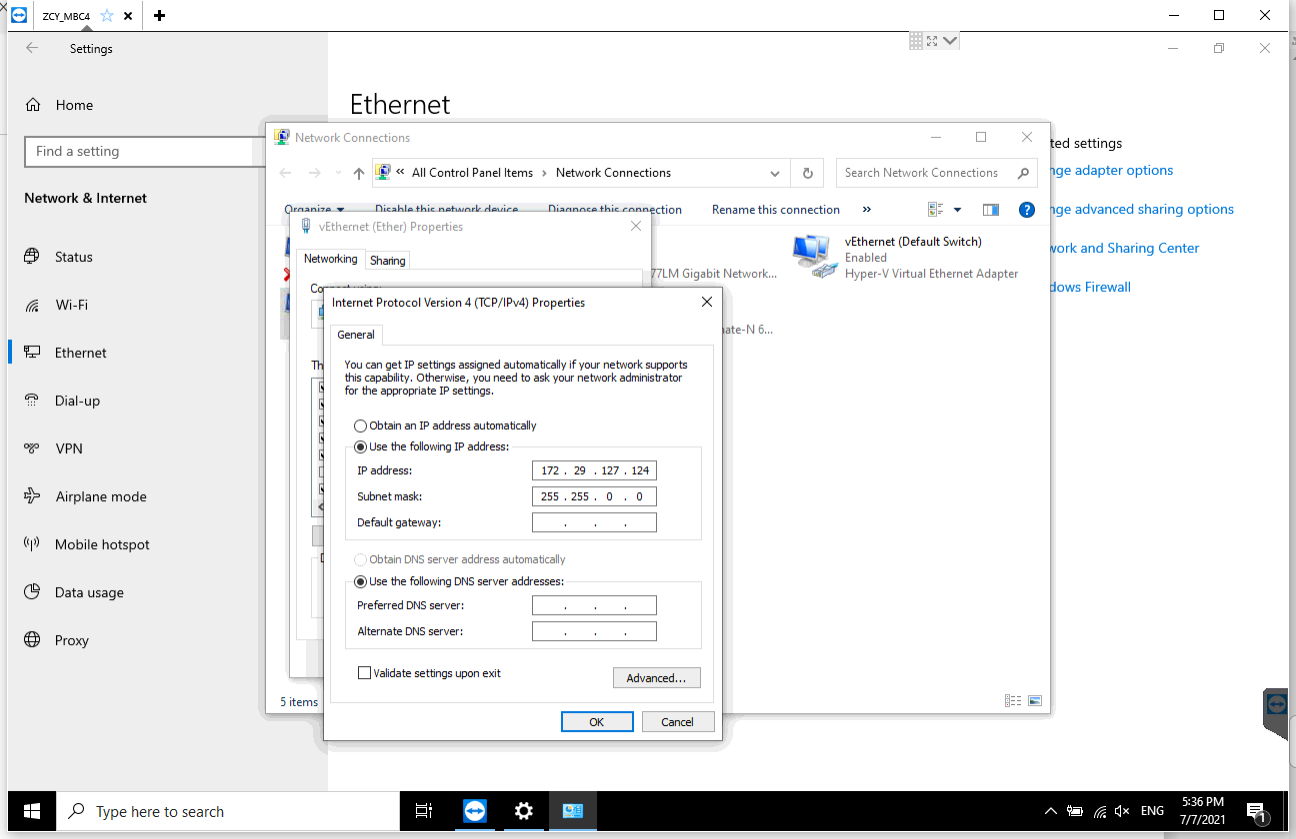
You must change IP address in windows.172.29.127.119:

Go into “Control Panel”, “Network Connection”, “Local Network Connection”> right click > properties > choose this one with TCP/IP, select this, chose properties, choose manually ip, and put this ip “172.29.127.119”, mask 255.255.0.0 (as you will get when type ip), rest of field, leave blank.
if it does not work

Try one more time make update of these 2 package.

Monday, October 4, 2021

How to Solve MB SD C4 PLUS Mercedes-Benz Connection Problem


Customers feedback recently from European areas have told OBD2 tools e-shop that they have detected the MB SD C4 Plus professional diagnostic tool has connection problem with Mercedes-Benz. What’s the problem gonna be like? And what solution our engineer would provide? Let’s check together.

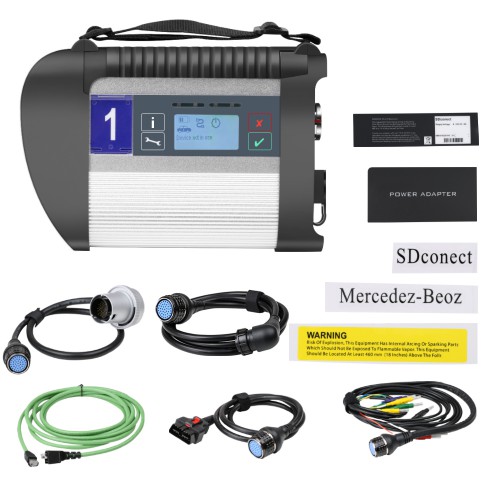
MB SD C4 Plus SD Connect Compact 4 Star Diagnosis Support Doip for Mercedes Benz Cars and Trucks Without Software

how-to-solve-mb-sd-c4-plus-mercedes-benz-connection-problem-1

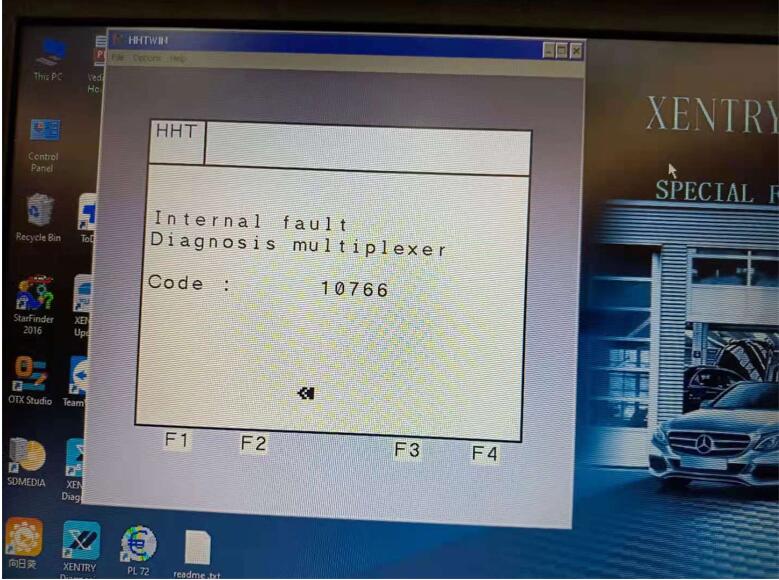
The Connection Problem is shown like below:
how-to-solve-mb-sd-c4-plus-mercedes-benz-connection-problem-2

Feasible Solution Provided for Customers:

how-to-solve-mb-sd-c4-plus-mercedes-benz-connection-problem-3

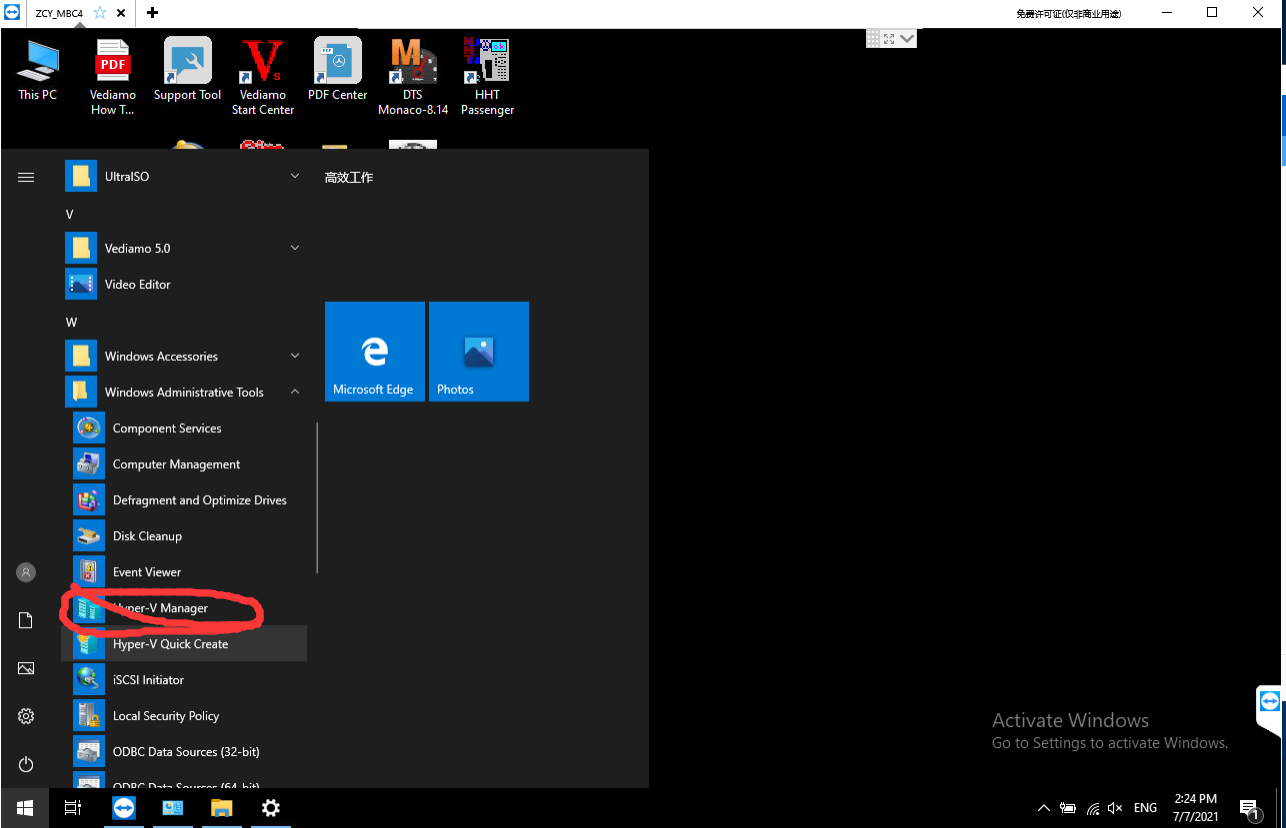
First step: In the system file, find Hyper-V manger in windows administrative tools ,then click it.

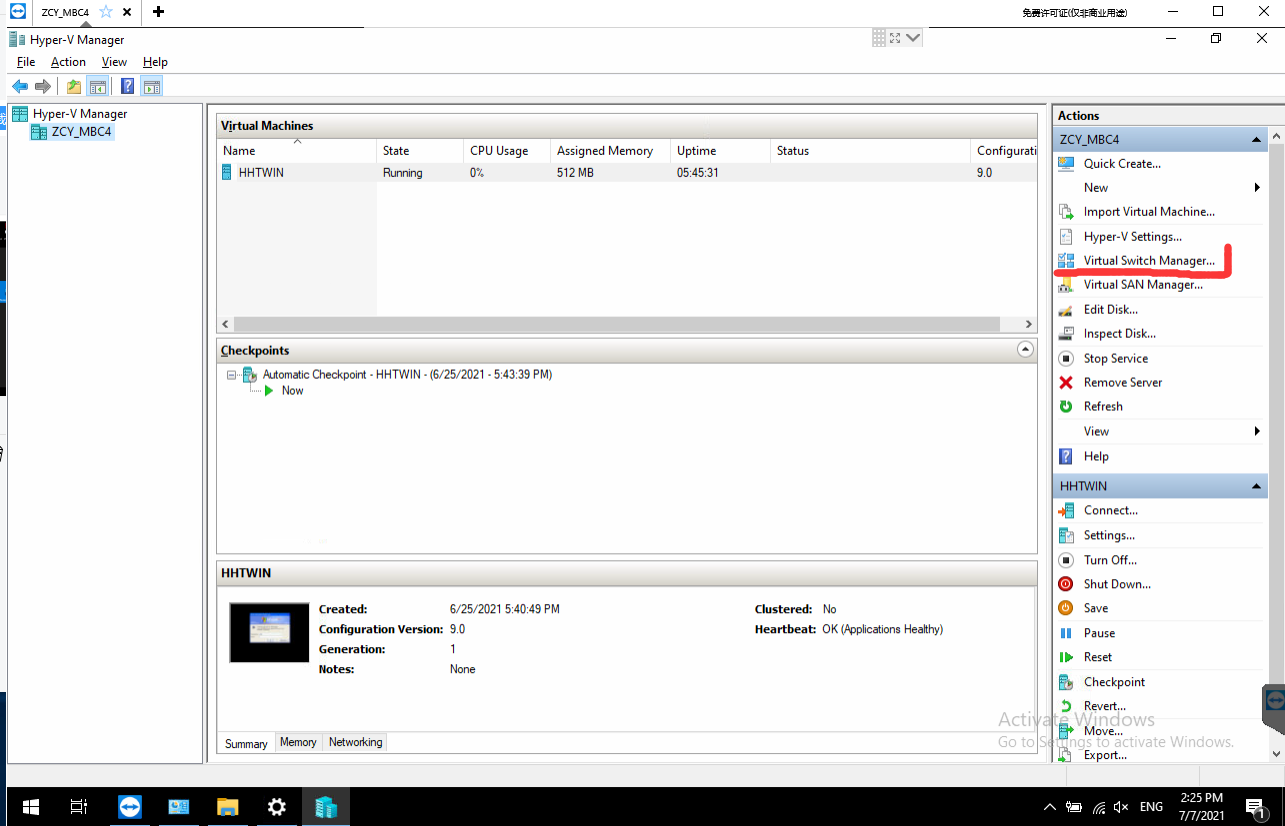
Second step:Click the  Virtual Switch Manger

how-to-solve-mb-sd-c4-plus-mercedes-benz-connection-problem-4

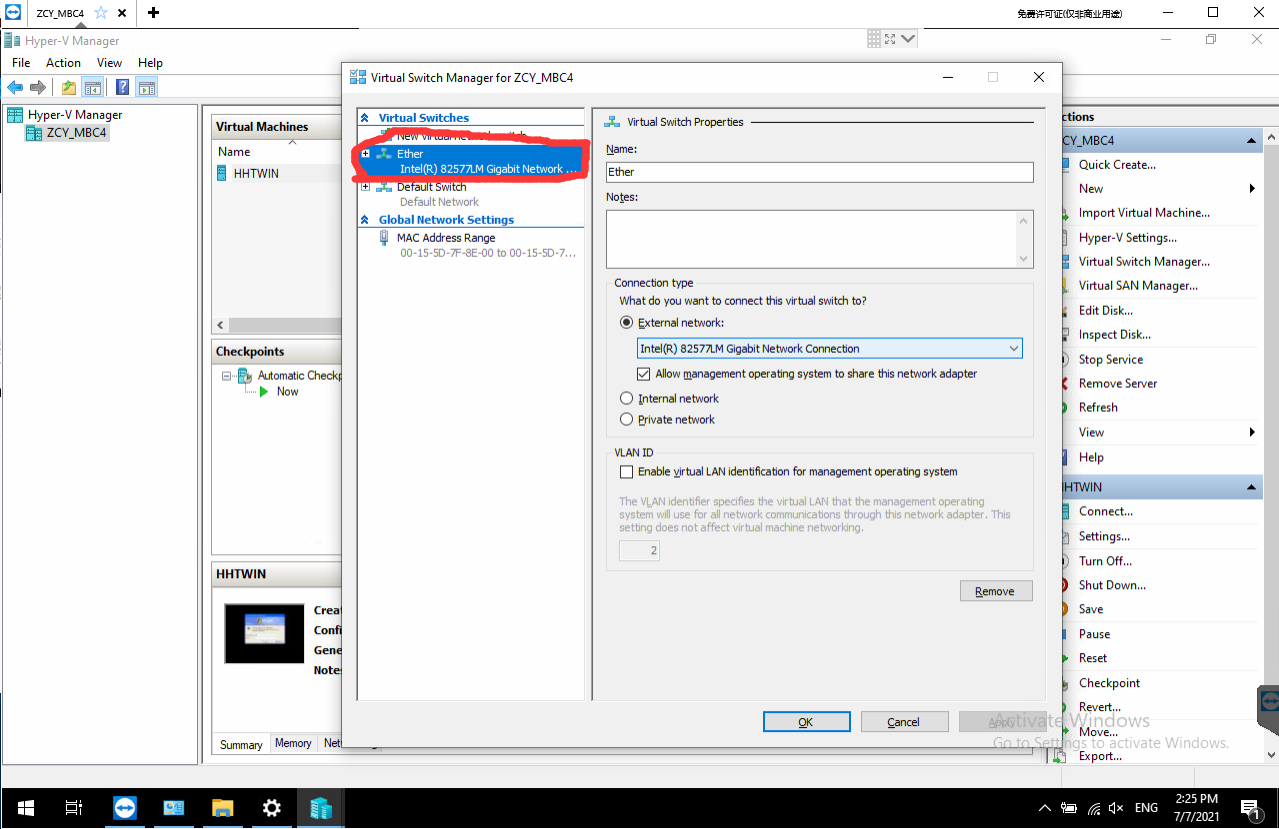
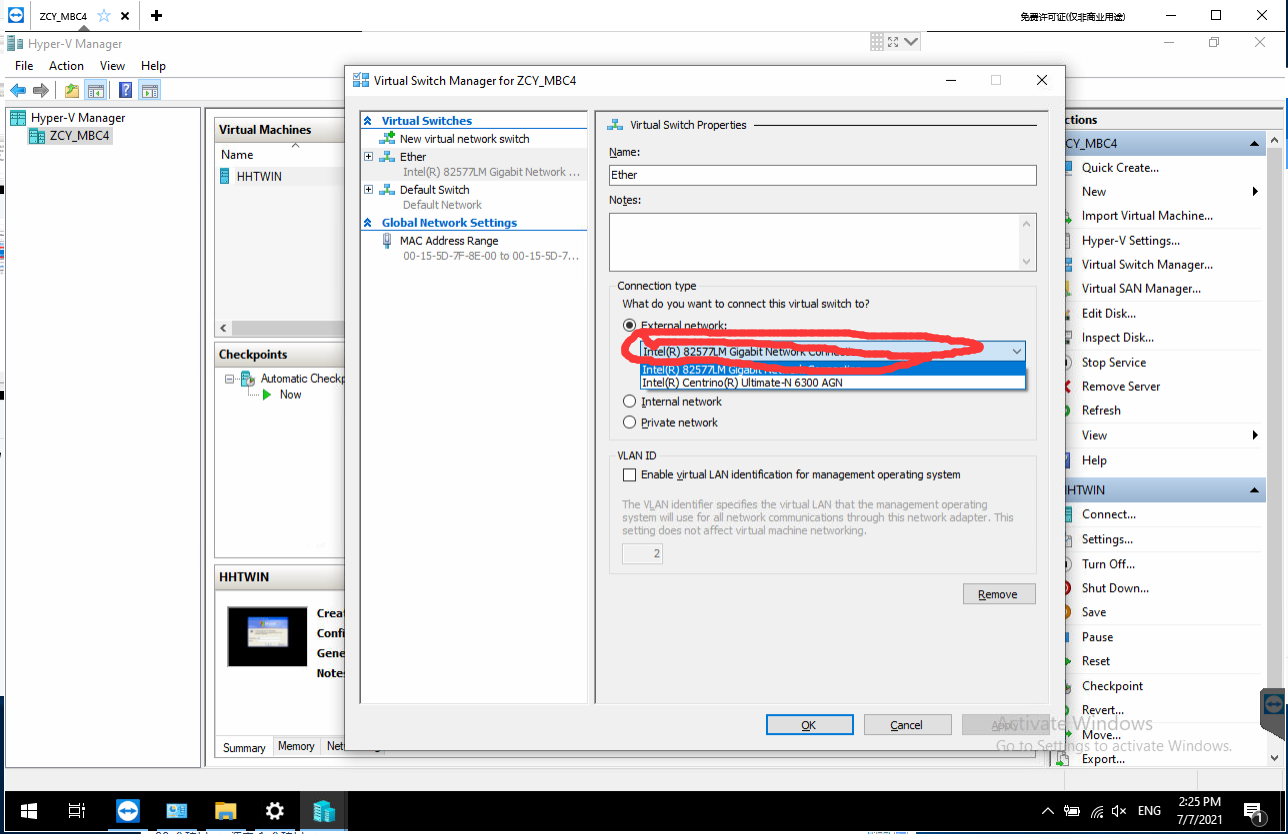
Third step:click the Ether

how-to-solve-mb-sd-c4-plus-mercedes-benz-connection-problem-5

Fourth step: Choose your computer network card in here

how-to-solve-mb-sd-c4-plus-mercedes-benz-connection-problem-6

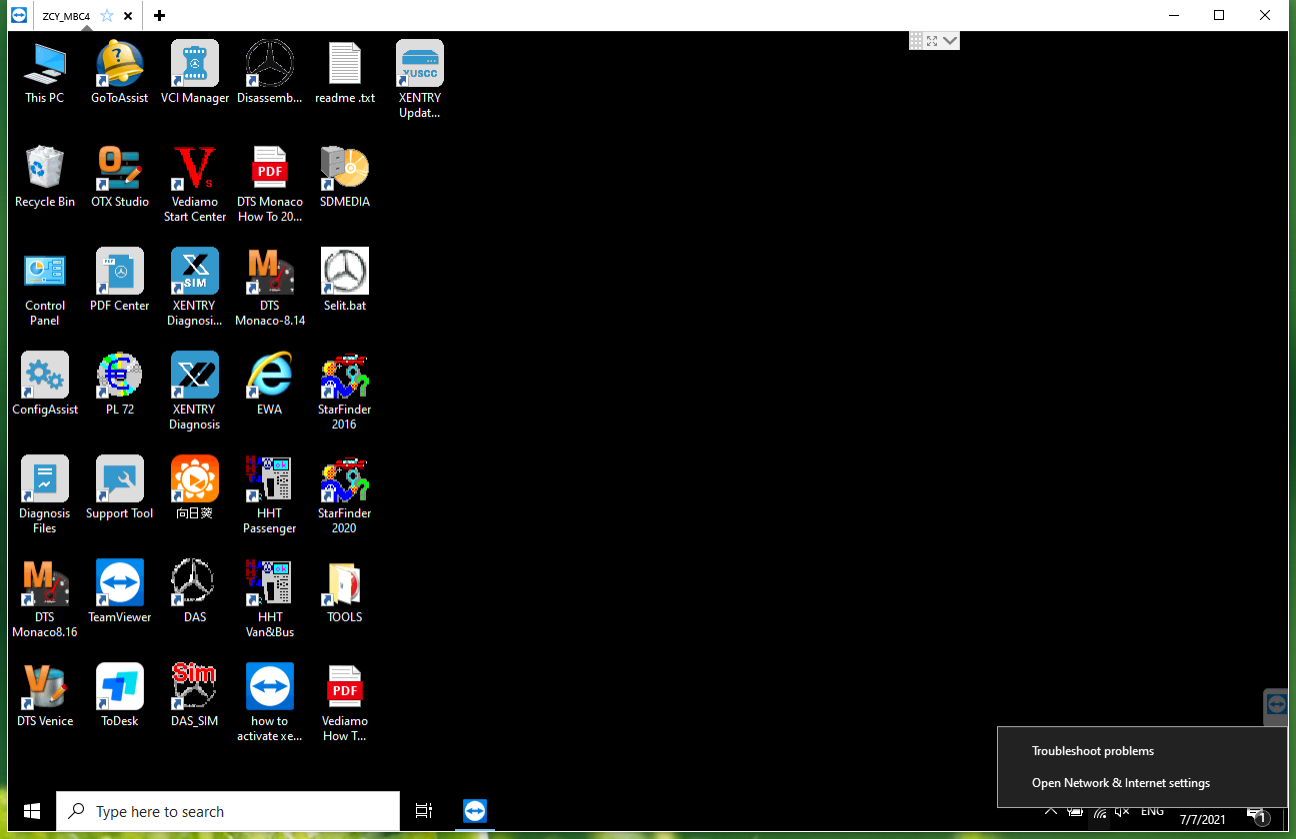
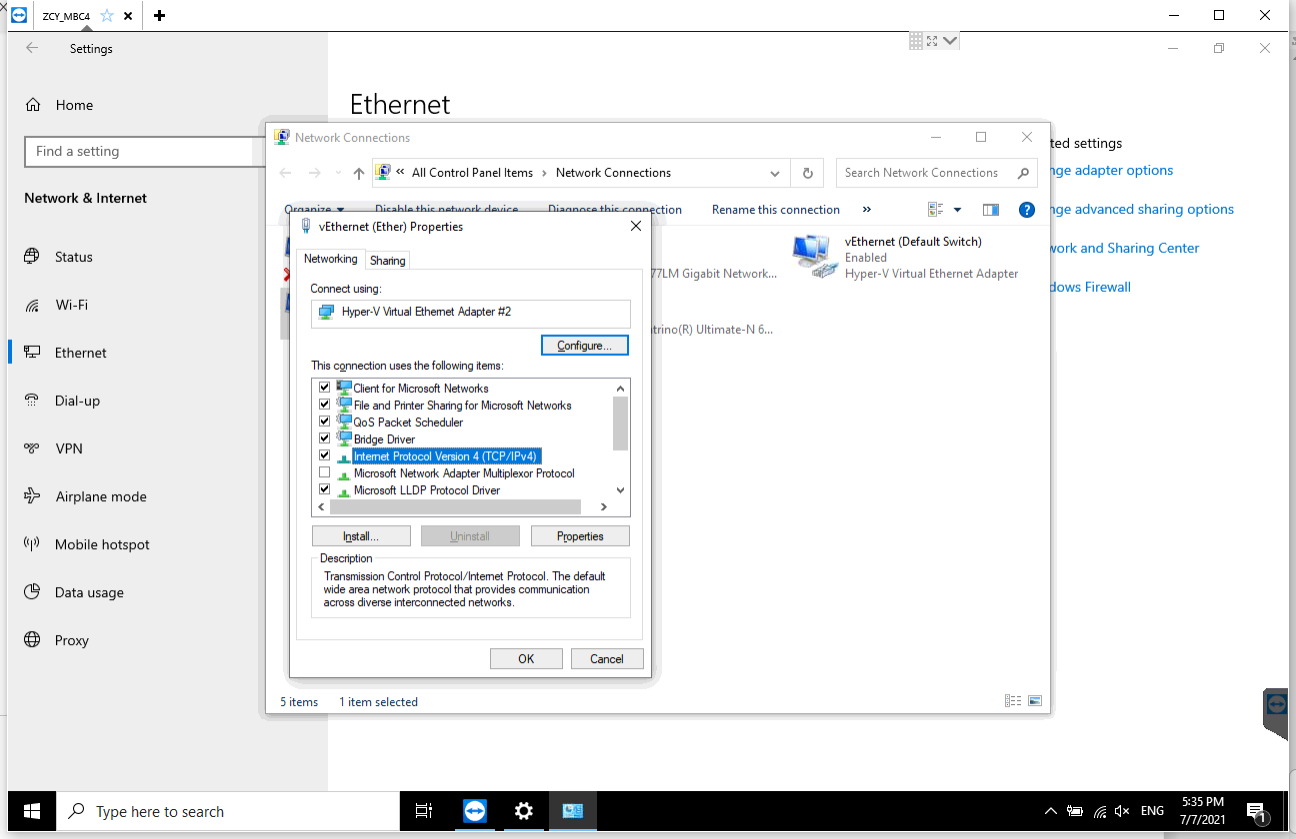
Fifth step: Right click on the network,Open network&internet settings

how-to-solve-mb-sd-c4-plus-mercedes-benz-connection-problem-7

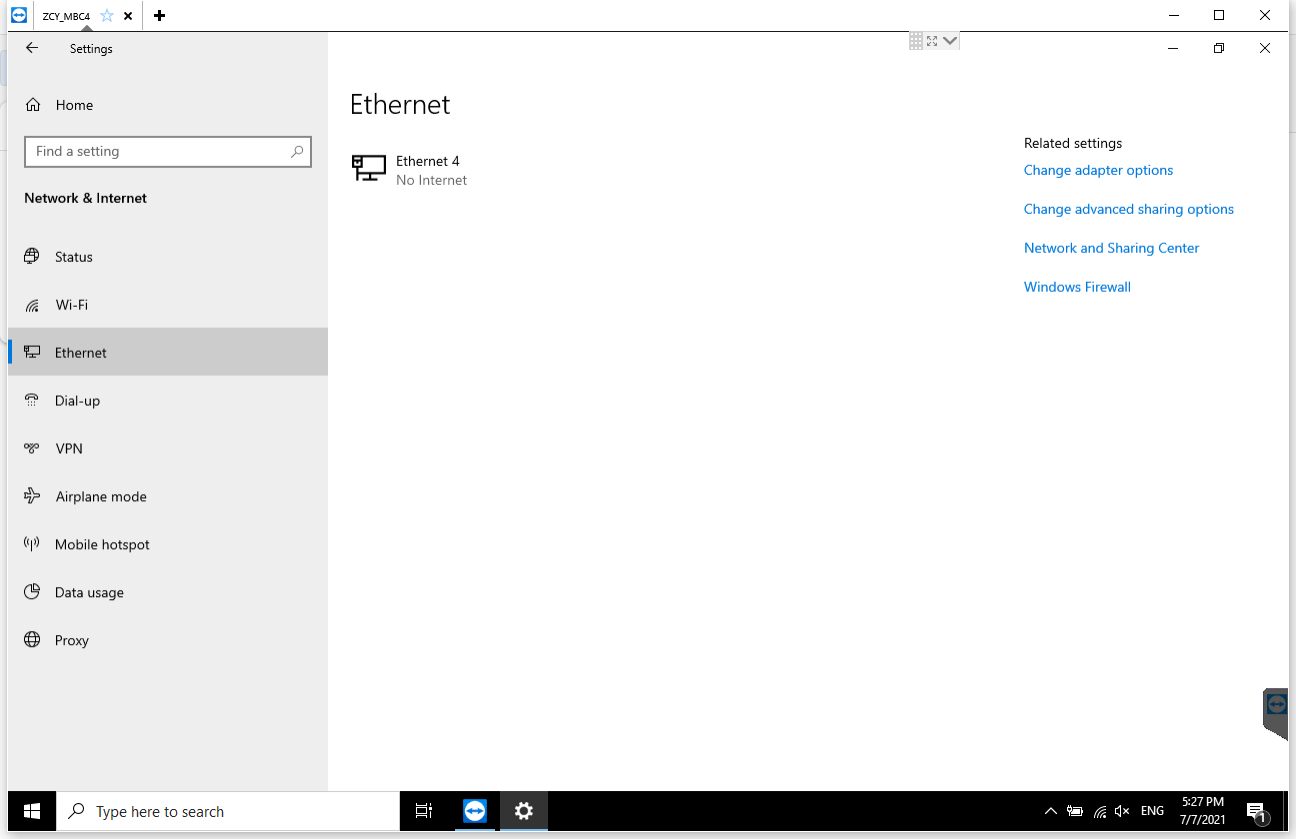
After entering this interface, select Ethernet, Then select the place marked by the arrow

how-to-solve-mb-sd-c4-plus-mercedes-benz-connection-problem-8

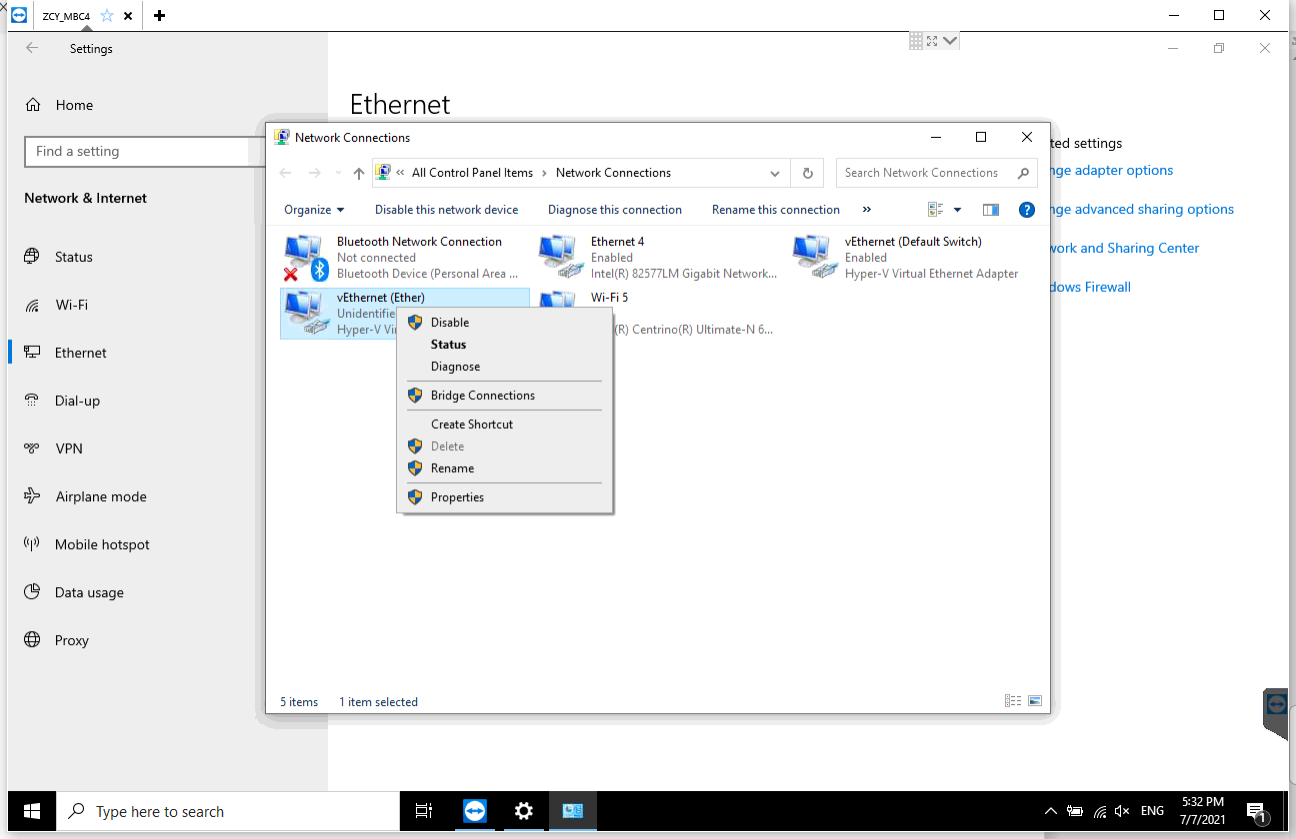
Right click vEtherent  Then select the place marked by the arrow

how-to-solve-mb-sd-c4-plus-mercedes-benz-connection-problem-9

Double click here

how-to-solve-mb-sd-c4-plus-mercedes-benz-connection-problem-10

Choose the  place marked by the arrow,Enter the following IP address.

how-to-solve-mb-sd-c4-plus-mercedes-benz-connection-problem-11

Amazing job! This is the solution for MB SD C4 PLUS professional diagnostic tool Mercedes-Benz connection problem.

That’s all. Thank you for sharing your time with us!

Sunday, July 18, 2021

FAQ SD C4 Plus WIFI working Update with Without Battery


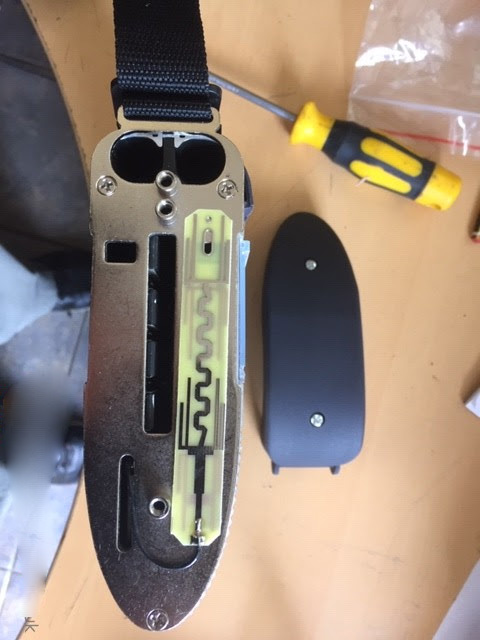
How to solve Chinese cloned SD Connect C4 DoIP : there is NO WiFi card inside, therefore wireless connection is not possible no ! There is NO 6 batteries holder/compartment no . Batteries are necessary for firmware upgrade if needed

In fact:
1. SD Connect C4 DOIP supports WIFI setting.ste
Take obdexpress.co.uk for example, the engineer made a operation guide on how to set SD Connect C4 DOIP WIFI on WIN10 & WIN7.

2.Mercedes Star Diagnostic SD connect C4 Plus firmware update does not require battery installation as the older sd c4.
Take this user’s feedback for example: I take a risk from here, only the battery pack is missing but work ok. I have it over an year and have no problems.

How to upgrade SD C4 Plus Xentry without battery?
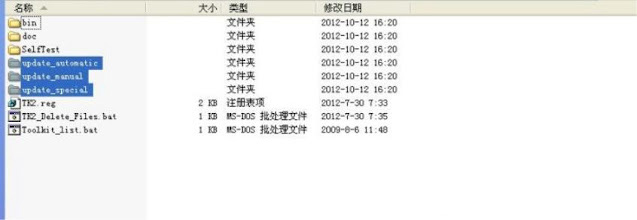
1. Open DAS software, enter the folder “C:\programm files\SDconnect
Toolkit”, check if there are the following three folders: Update_automatic, Update_manual
; Update_Special.. As shown in the figure below. If the name is wrong, please correct it.

How-to-upgrade-SD-C4-Plus-Xentry-without-battery-1
How-to-upgrade-SD-C4-Plus-Xentry-without-battery-2

2. Reboot the computer.

3. Start to upgrade the SD C4 Plus firmware, please follow the procedure below:
1) Closing Xentry Diagnostics/Xentry DAS diagnostics application
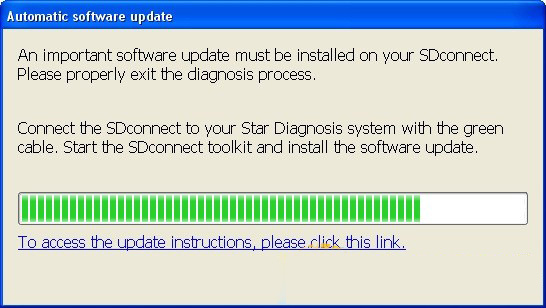
When accessing a vehicle in Xentry Diagnostics or Xentry DAS, the following message appears:

How-to-upgrade-SD-C4-Plus-Xentry-without-battery-3

Please exit the diagnostic application Xentry Diagnostics or Xentry DAS correctly and follow the next steps.

2) Connecting the SDconnect to the Star Diagnosis system
Connect the SDconnect to the Star Diagnosis system with the green LAN cable.
The SDconnect will be automatically selected and appear in the deskband on the Star Diagnosis system:

How-to-upgrade-SD-C4-Plus-Xentry-without-battery-4

3)SDnetControl
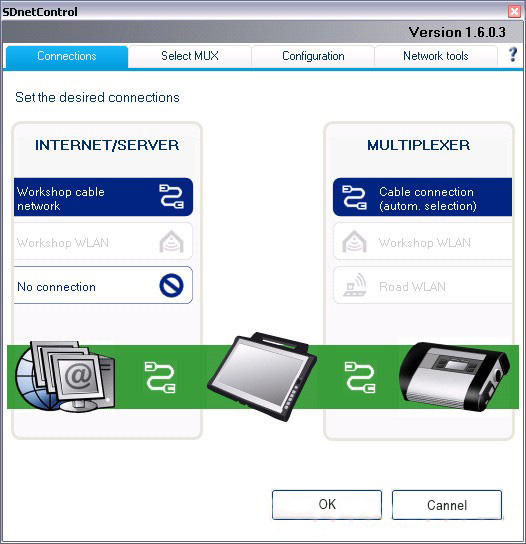
A) Start SDnetControl by clicking the deskband
Go to the “Connections” tab.
B)  Check whether automatic selection via the cable connection is active:

How-to-upgrade-SD-C4-Plus-Xentry-without-battery-5

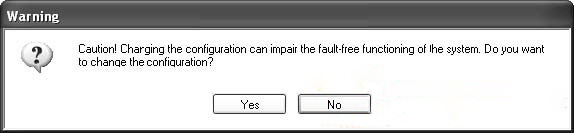
Go to the “Configuration” tab, and confirm the warning with “Yes”:
How-to-upgrade-SD-C4-Plus-Xentry-without-battery-6

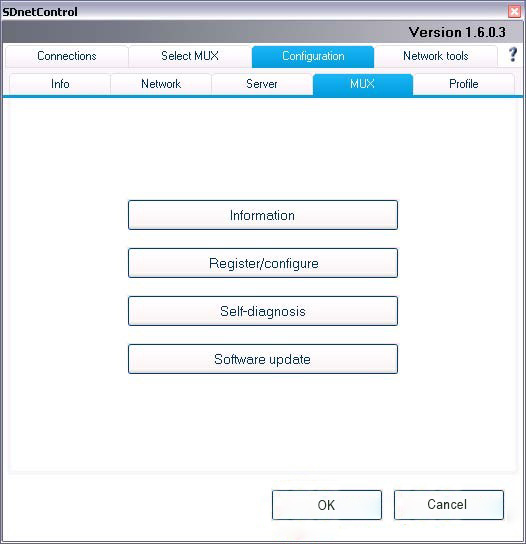
4). Software update
Go to the “MUX” tab in SDnetControl.
Click on the “Software update” button.

How-to-upgrade-SD-C4-Plus-Xentry-without-battery-7

The “SDconnect Toolkit Administration” program will start.

Go to the “Software update” tab in the SDconnect Toolkit.
Your SDconnect is already selected on the left-hand side.
Select the “Software update” packet under “Files for software update”.
Click “Start” to start the process.

How-to-upgrade-SD-C4-Plus-Xentry-without-battery-8

The update process will start. This takes approx. 4 minutes.

5) Complete the installation
Confirm the successful completion of the update.
After a successful update, a message indicating the successful update completion appears.
Confirm the message by clicking “OK”.

How-to-upgrade-SD-C4-Plus-Xentry-without-battery-9

Update not successful
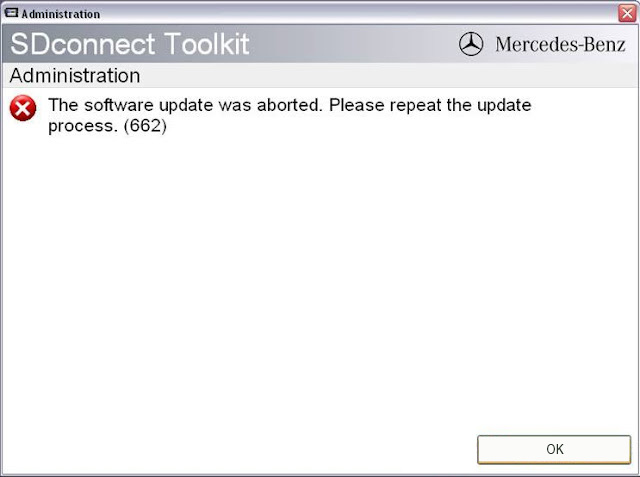
If the update was not successful, the message “The software update was aborted. Please repeat the update process” will appear.

Confirm this message by clicking “OK”. Check the SDconnect batteries if necessary and repeat the update process.

How-to-upgrade-SD-C4-Plus-Xentry-without-battery-10

6) Check the installed software
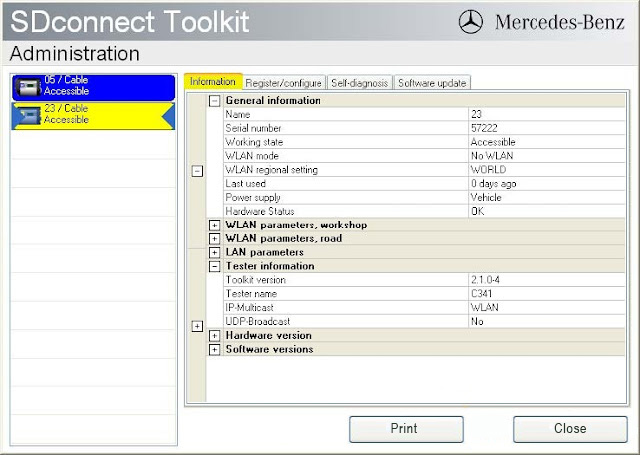
Go to the “Information” tab in SDconnect Toolkit
Select your SDconnect on the left-hand side.
• Check the information under “Software versions” at the right:
The versions of the Linux OS and the CommandServer must be at least 2:0:xxxxxx.

How-to-upgrade-SD-C4-Plus-Xentry-without-battery-11


Monday, June 14, 2021

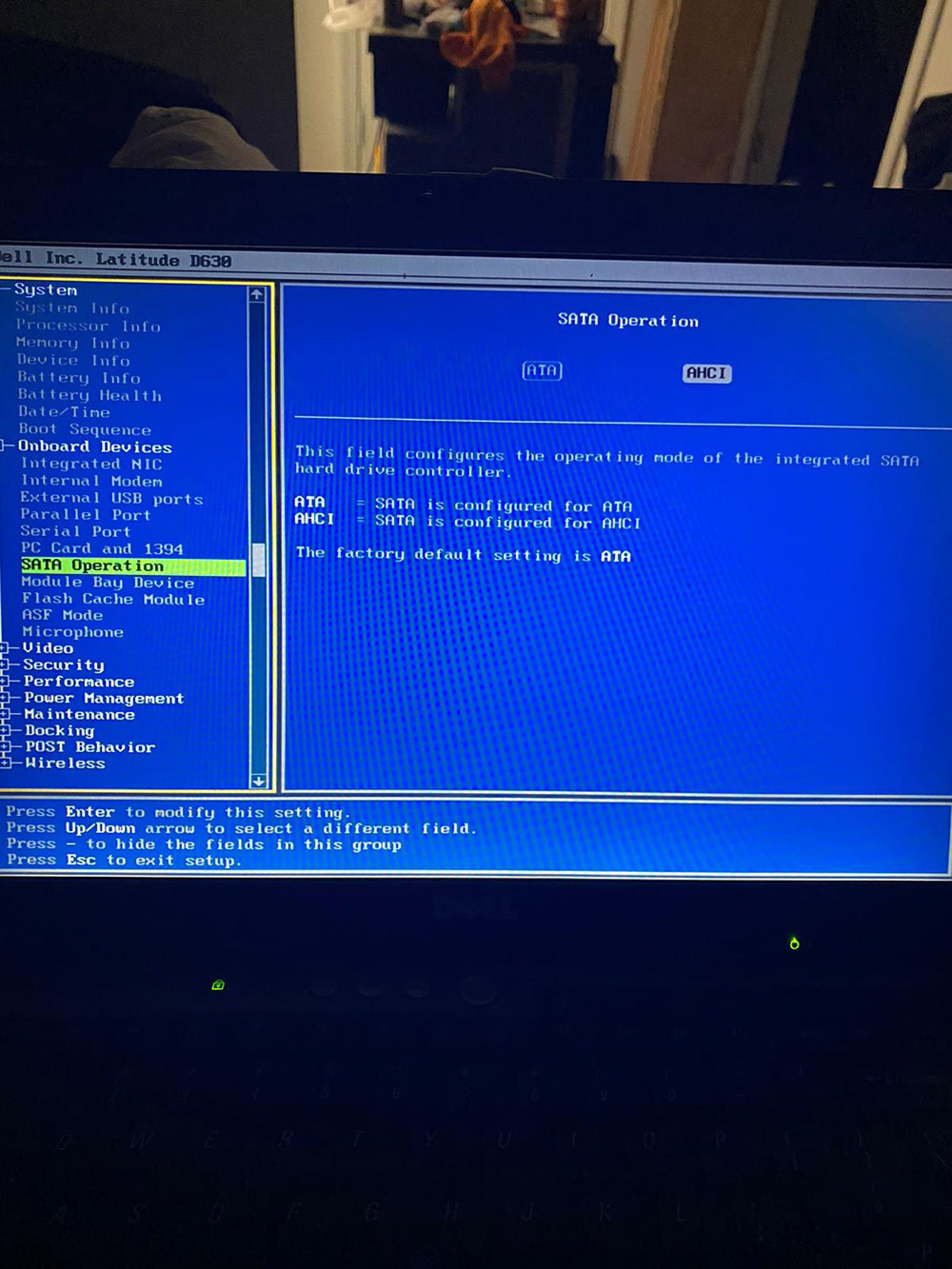
How to Change Bios to ACHI for MB SD C4 DoIP 2021.03 SSD


I ordered a DOIP MB SD C4 PLUS with software xentry 2021.3 and was able to use this hard drive for 2 hours then it crashes. I was told me to change Bios to ACHI . That did nothing.
How-to-Change-Bios-to-ACHI-for-MB-SD-C4-DoIP-SSD-1

obd2tool.com engineer replied:

Please refer to the following operation steps to fix your system.

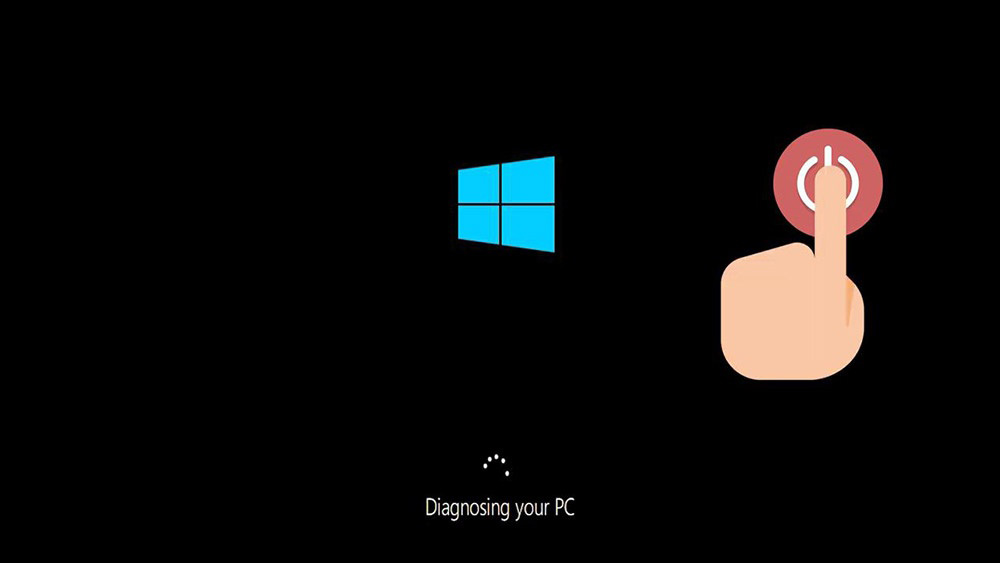
First start your PC and press the power button while it tries to load the windows to force it to shutdown, do this three times in a row to get the automatic repair screen.

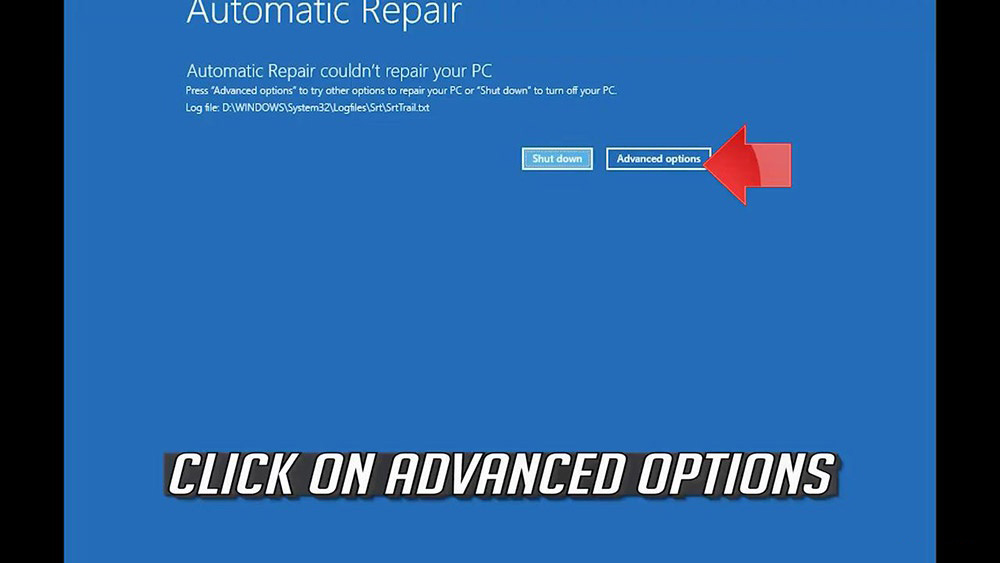
You could also disconnect it from the outlet, click on advanced options.

How-to-Change-Bios-to-ACHI-for-MB-SD-C4-DoIP-SSD-2
How-to-Change-Bios-to-ACHI-for-MB-SD-C4-DoIP-SSD-3

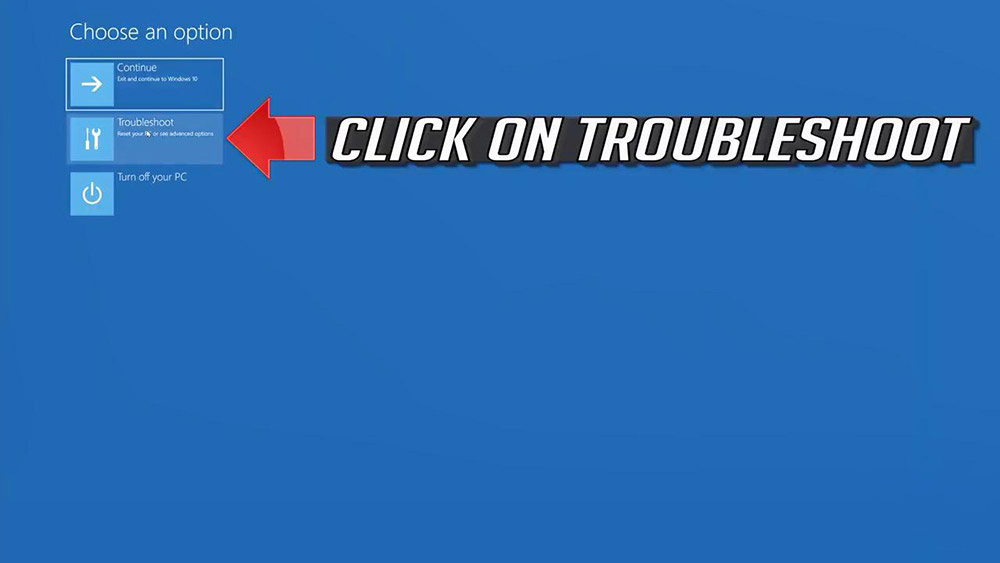
Click on troubleshoot.

How-to-Change-Bios-to-ACHI-for-MB-SD-C4-DoIP-SSD-4

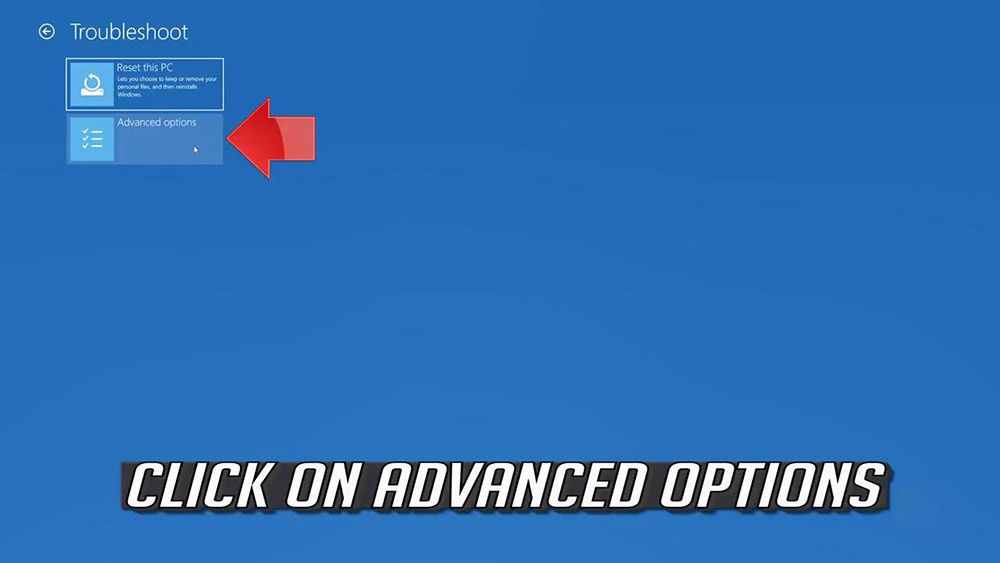
Click on advanced options.

How-to-Change-Bios-to-ACHI-for-MB-SD-C4-DoIP-SSD-5

Click on command prompt.

How-to-Change-Bios-to-ACHI-for-MB-SD-C4-DoIP-SSD-6

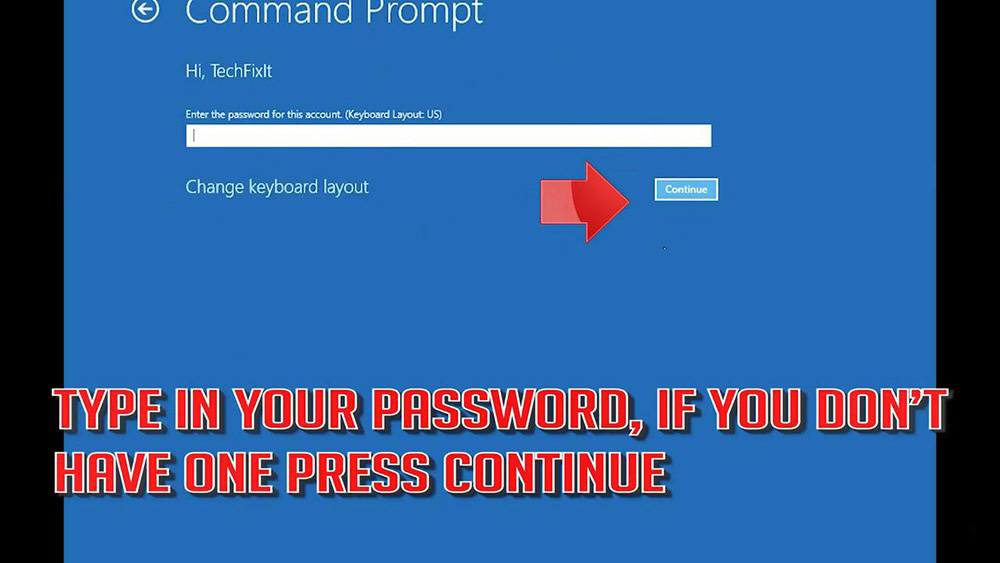
Type in your password, and if you don’t have one just press continue.

How-to-Change-Bios-to-ACHI-for-MB-SD-C4-DoIP-SSD-7

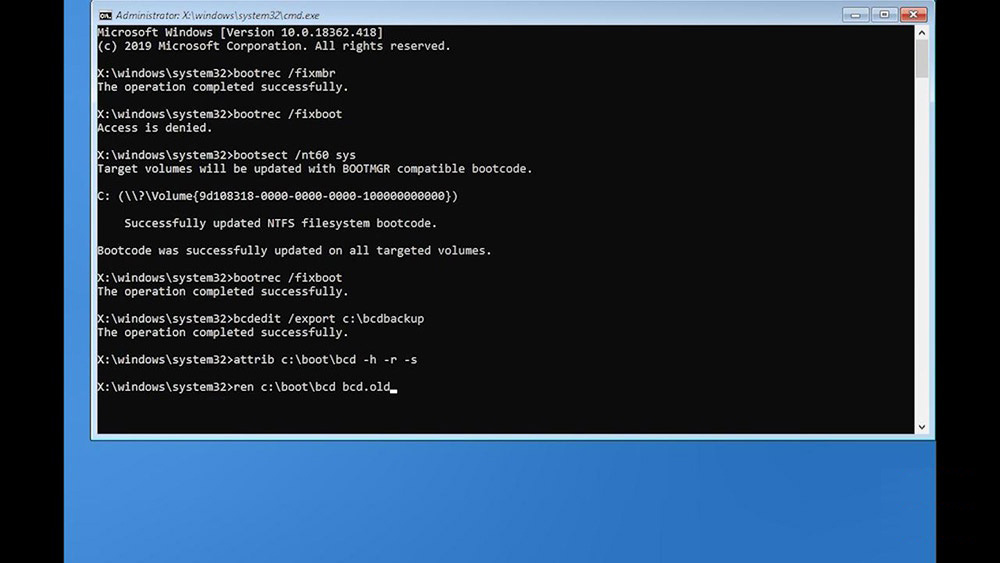
Now type BOOTREC / FIXMBR and then press enter.

Type BOOTREC / FIXBOOT and then press enter.

If you get access denied, type the following command and then try again.

Type: BOOTREC / FIXBOOT and then press enter.

Type: BCDEDIT /EXPORT C:\ BCDBACKUP and then press enter.

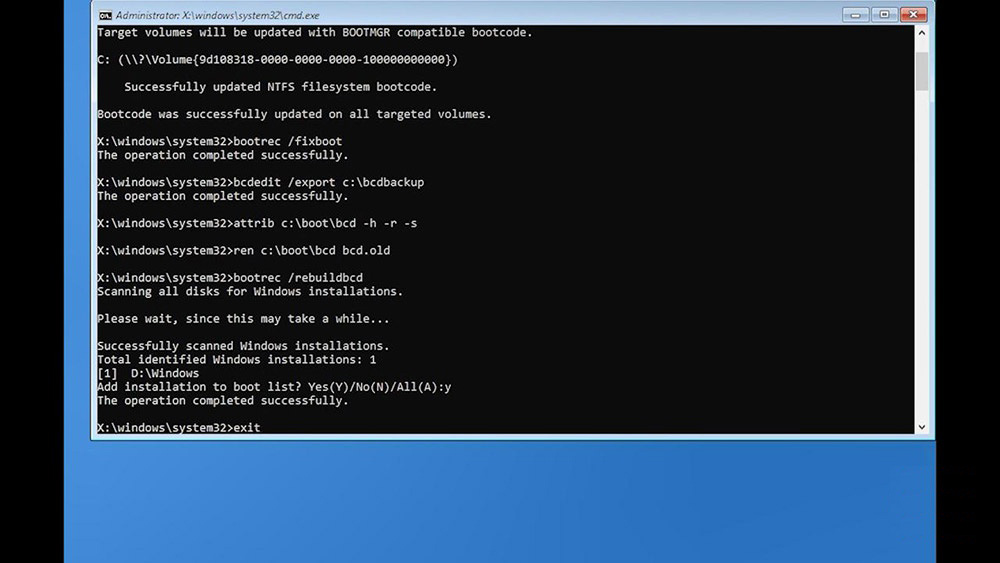
Type: ATTRIB C:\BOOT\BCD -H -R -S and then press enter.

Type: REN C:\BOOT\BCD BCD.OLD and then press enter.

Type: BOOTREC / REBUILDBCD and then press enter..

Type: Y and then press enter.

Type Exit and then press enter

How-to-Change-Bios-to-ACHI-for-MB-SD-C4-DoIP-SSD-8
How-to-Change-Bios-to-ACHI-for-MB-SD-C4-DoIP-SSD-9
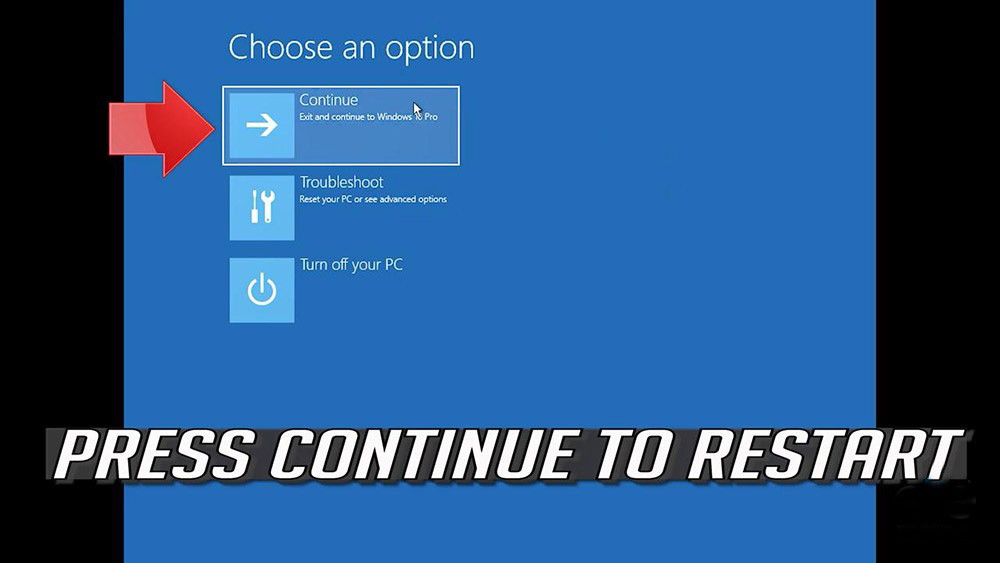
Press continue to restart.

How-to-Change-Bios-to-ACHI-for-MB-SD-C4-DoIP-SSD-10

Using tips:

Alright, if not lucky to repair by following the above method, you can find a USB flash drive to make the system boot, if you have a USB flash drive, contact at obdii365.com engineer who can make a USB flash drive for you remotely by teamviewer, then you follow the above operation to repair your system.

After I make a USB flash drive for you, you can insert the USB flash drive into the computer that cannot start, and then enter the PE system to repair it.

Alright, this is how to repair the windows system for DOIP MB SD C4 PLUS with SSD software 2021.3.