Showing posts with label MB SD C5 DoIP. Show all posts

Saturday, October 16, 2021

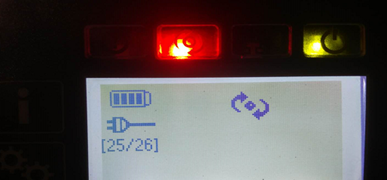
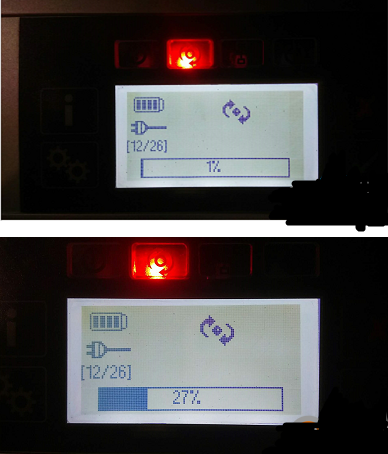
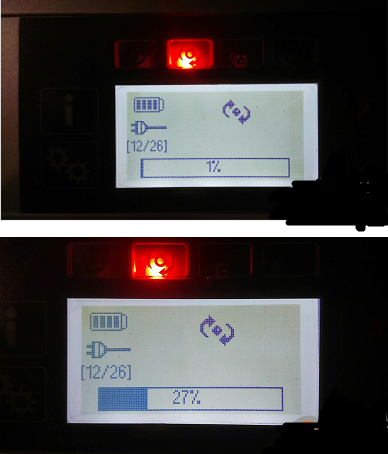
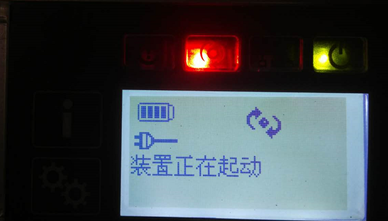
How to Update & Re-flash MB SD C5 C4Plus Firmware


Here we share the procedure to update and re-flash C5 DOIP/C4Plus, in case if something about firmware goes wrong you may need it.

1.Procedure to update firmware:

Notice: MB SD C5 needs six AA batteries while DOIP MB SD C4 Plus doesn’t.

Connect the device to OBD port or 12V power by main cable.

Path 1. C:\Program Files\Mercedes-Benz\SDConnect Toolkit

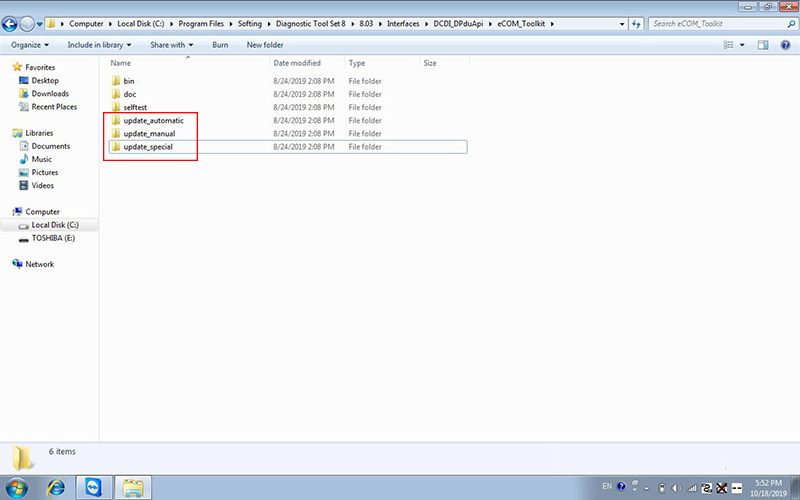
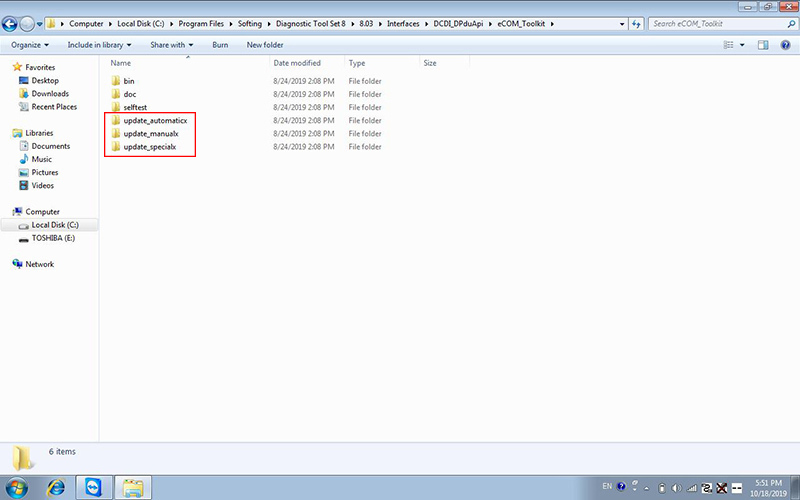
Path 2. C:\Program Files\Softing\Diagnostic Tool Set 8\8.03\Interfaces\DCDI_DPduApi\eCOM_Toolkit

In both folder, switch “update_automaticx”“update_manualx”“update_specicalx” into “update_automatic”“update_manual”“update_specical” (delete “x”).
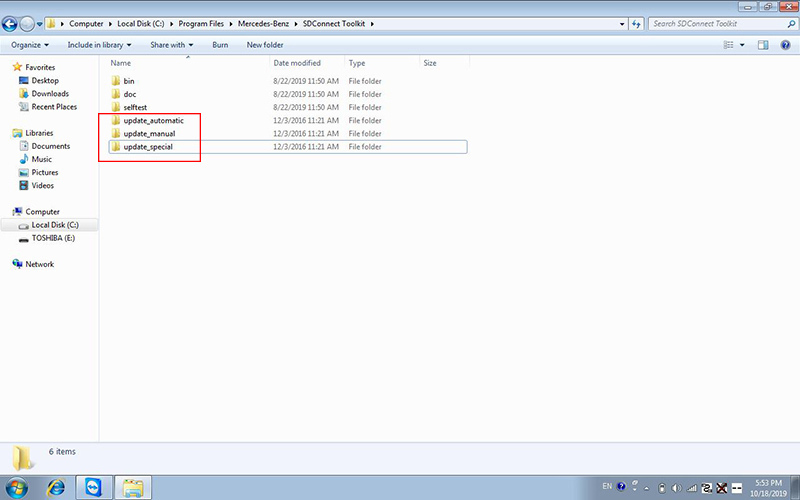
How-to-Update-&-Re-flash-MB-SD-C5C4Plus-Firmware-1
How-to-Update-&-Re-flash-MB-SD-C5C4Plus-Firmware-2
How-to-Update-&-Re-flash-MB-SD-C5C4Plus-Firmware-3

Reboot your computer as required.

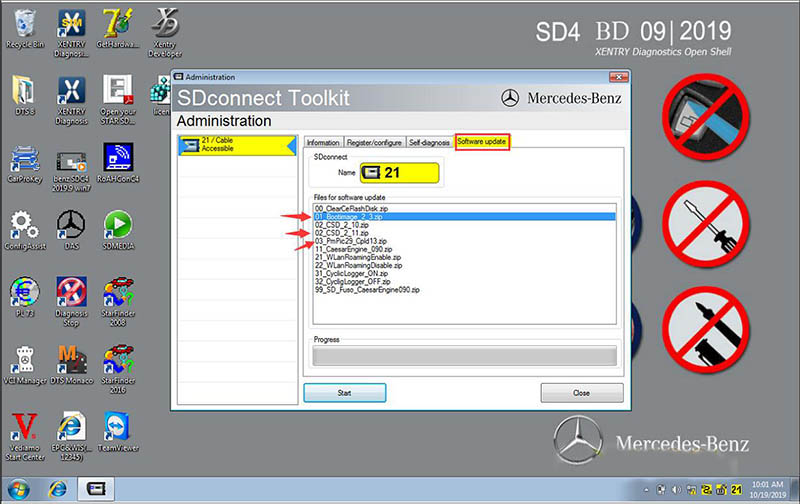
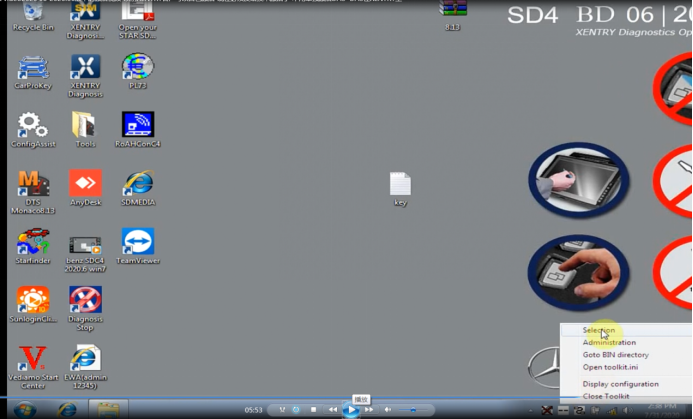
Right-click “SDconnect Toolkit” and select “Administration”.

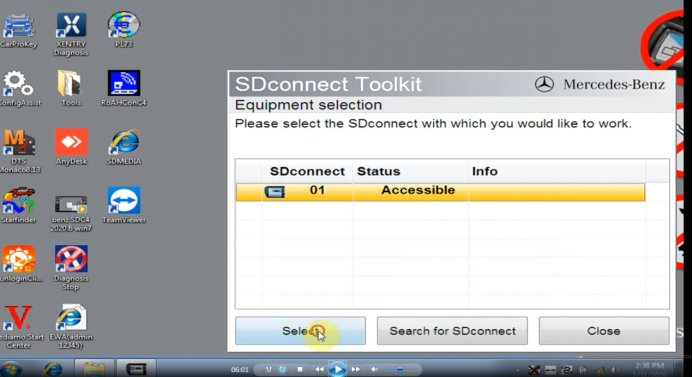
Select the device when it’s identified.

Go to “Software update”.

Download “00_ClearCeFlashDisk_zip”“02_CSD_2_11.zip”“01_Bootimage_2_3.zip”“03_PmPic29_Cpld13.zip” successively.

Update & Re-flash MB SD C5/C4Plus Firmware
How-to-Update-&-Re-flash-MB-SD-C5C4Plus-Firmware-4

2. Procedure to re-flash firmware(without battery):

Notice: Make sure to turn off PC’s firewall before operation.

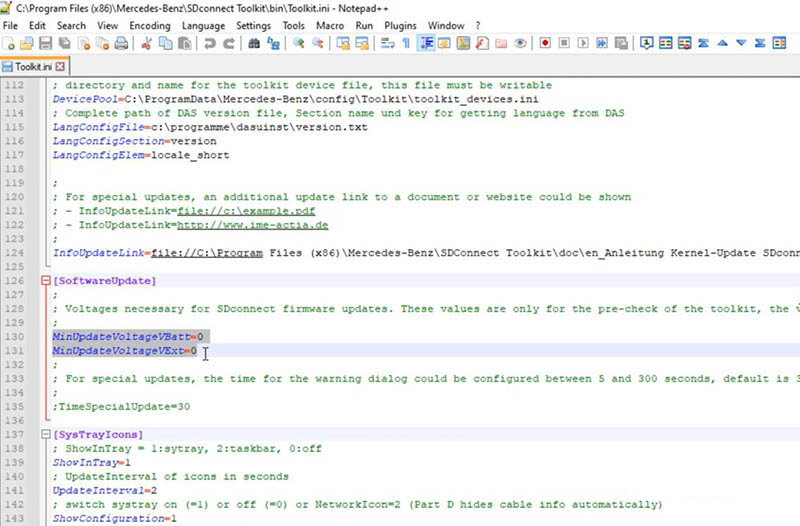
Right-click “SDconnect Toolkit” and select “Goto BIN directory”

Open “Toolkit.ini” by editing tool.

Find “MinUpdateVoltageVBatt=7200” and “MinUpdateVoltageVExt=11000”.

Switch two values into “0”.
How-to-Update-&-Re-flash-MB-SD-C5C4Plus-Firmware-5

Reboot your computer as required.

Right-click “SDconnect Toolkit” and select “Administration”.

Select the device when it’s identified.

Go to “Software update”.

Download “02_CSD_2_11.zip”“01_Bootimage_2_3.zip”“03_PmPic29_Cpld13.zip” successively.

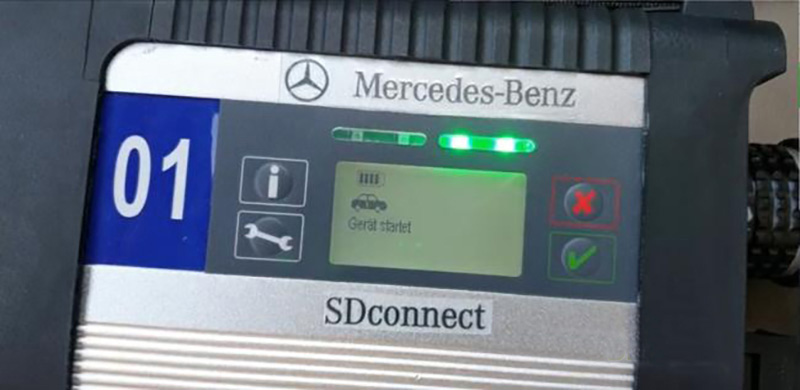
Device’s indicator will flash during downloading.

Update & Re-flash MB SD C5/C4Plus Firmware
How-to-Update-&-Re-flash-MB-SD-C5C4Plus-Firmware-6


Wednesday, July 28, 2021

How to update Xentry Connect C5 software


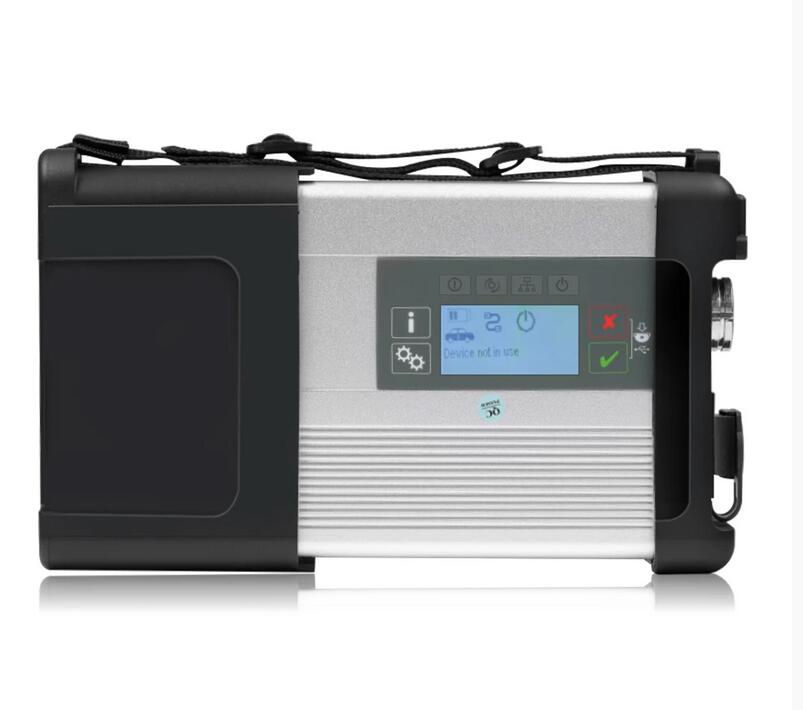
Star Diagnosis DOIP MB Star C5 is the update version of SD Connect C4. Mercedes star diagnostic system sd connect c5 supprot DOIP protocol work for new cars.Bellow is the detail guide about how to update DOIP MB Star C5 Softwar To V2021.06.
How-to-update-Xentry-Connect-C5-software-1

Tools required:

Xentry_Kit_09_2017.iso(copy to the folder: iodd 2541 _ISO)

U disk with a Windows machine (recommend Bigbaicai WinCE)

IODD 2541 External Encrypted Hard Drive or similar

How-to-update-Xentry-Connect-C5-software-2

Panasonic power adapter

How-to-update-Xentry-Connect-C5-software-3

MB Star C5

How-to-update-Xentry-Connect-C5-software-4

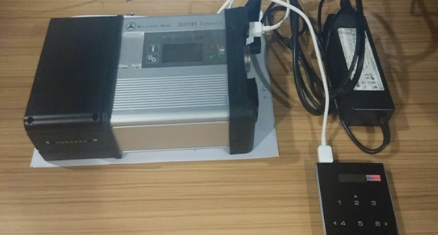
C5 mux in standby mode

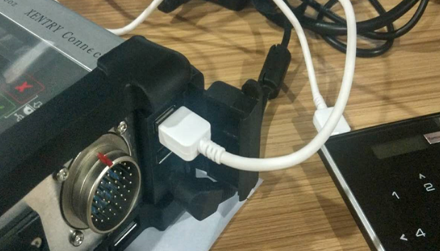
connect the Panasonic power adapter to C5

insert IODD 2541 into the USB port on C5

How-to-update-Xentry-Connect-C5-software-5
How-to-update-Xentry-Connect-C5-software-6

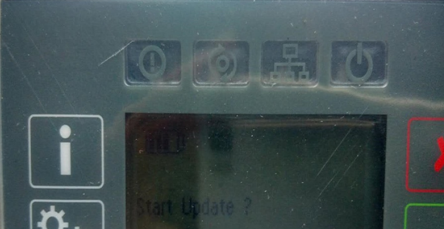
in a standby mode, press “X” and “√” at the same time, then it will pop up “Start Update?”

(if not, it will pop up “Start XENTRY Connect?”. then, when the prompt disappears, it will display “Start Update?”)

How-to-update-Xentry-Connect-C5-software-7

When you see “Start Update?”, press “√” and Connect C5 will go into the update mode and IODD 2541 will light up

How-to-update-Xentry-Connect-C5-software-8

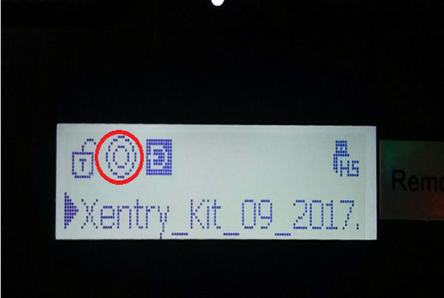
Press button “5” on IODD 2541 as soon as possible. then, the cross “X” will turn a circle “O”

How-to-update-Xentry-Connect-C5-software-9

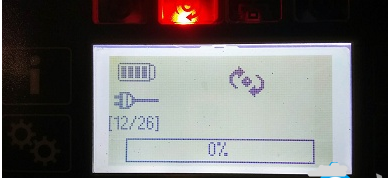
what’s displayed on C5:

How-to-update-Xentry-Connect-C5-software-10
How-to-update-Xentry-Connect-C5-software-11
How-to-update-Xentry-Connect-C5-software-12

It will take 50-55 minutes to finish the upgrade

The system restarts after installation completes

How-to-update-Xentry-Connect-C5-software-13

If your system fail to start, turn off Mercedes Star Diagnostic C5 mux and restart again

When C5 starts, take out the hard disk on C5 and install it into the laptop (here: Dell 55220)

Before it, pls install the Windows machine on the U disk

How-to-update-Xentry-Connect-C5-software-14

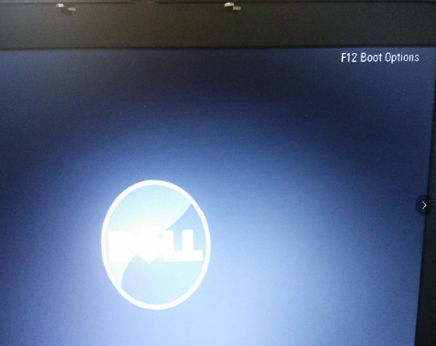
Press F12 when you see the pop-up “F12 Boot Options”

How-to-update-Xentry-Connect-C5-software-15

Select USB Storage Device and press “Enter”

How-to-update-Xentry-Connect-C5-software-16

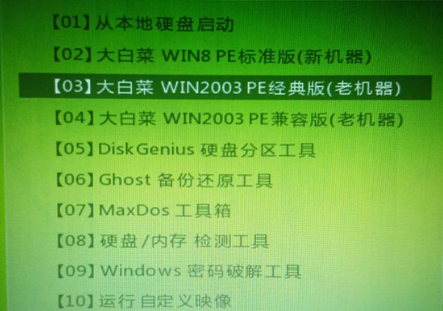
Pop up the interface, and select [03] WIN2003 PE Classical

How-to-update-Xentry-Connect-C5-software-17

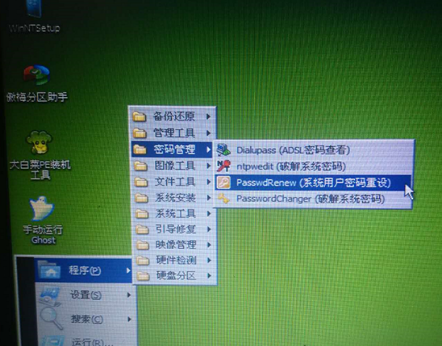
Go to the PE system and create an user account

How-to-update-Xentry-Connect-C5-software-18


Tuesday, July 27, 2021

SD Connect C5 DOIP MB Star Diagnosis Support DOIP for Mercedes Benz Cars and Trucks


MB-Star-C5-DOIP

Top Reasons to Get MB SD Connect C5 DOIP:
1. The new SDconnect C5 is able to work for DoIP. It’s the only C5 that supports ethernet communication (DoIP).
Have tested no issues on new mercedes with doip.
2. No need worry about firmware damage in the update process.
3. The wireless connection is stable. C5 is connected automatically to WLAN for diagnostic tests.
Also, remote help is available.
4. The MB Star diagnostic tool C5 machine has good quality. It’s waterproof, shockproof and tamper proof.
5. Work on both cars and trucks.
6. Support both 12V Cars and 24V Trucks.
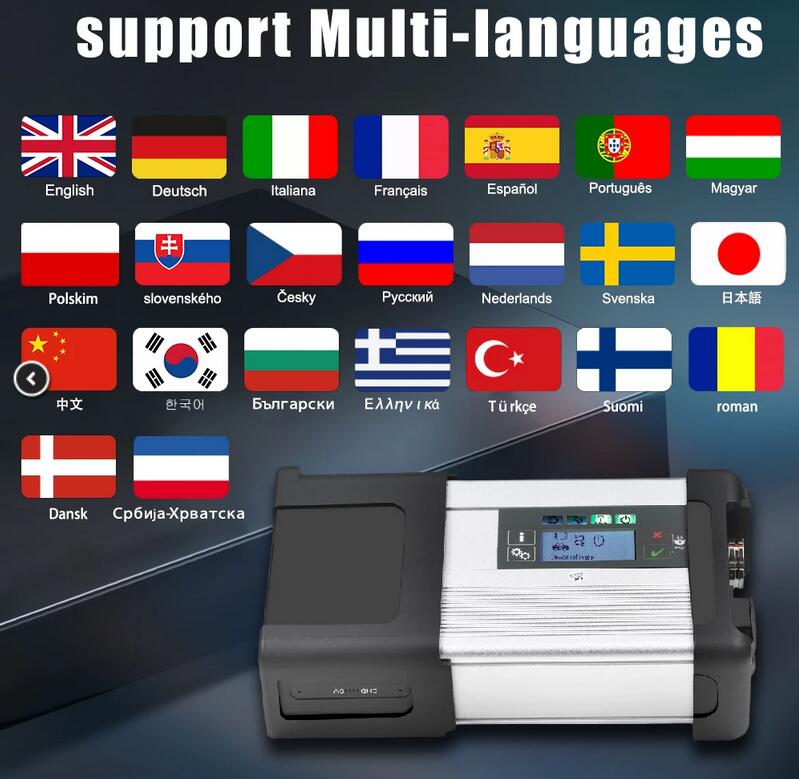
7. Supported Multi-Languages: English, Croatian, Czech, Danish, Dutch, Finish, French, German, Greek, Hungarian, Italian, Japanese, Korean, Polish, Portuguese, Romanian, Russian; Spanish, Swedish, Turkish, Chinese.

MB-Star-C5-DOIP-language

Notice: You don’t have to install batteries for firmware update. No need worry about firmware damage in the update process.
New MB Compact features:
1. New MB SD Connect C5 Star Diagnosis support wireless diagnose;
2. New MB SD Connect C5 Star Diagnosis not only support K line diagnose and CAN BUS, but also UDS diagnose protocol.
3. Connector adopt Military quick swap technology, it can support 10,000 times pull plug, more stable;
4. All core accosseries adopt original new packing chip, and 24hours test, guarantee the quality of the products.

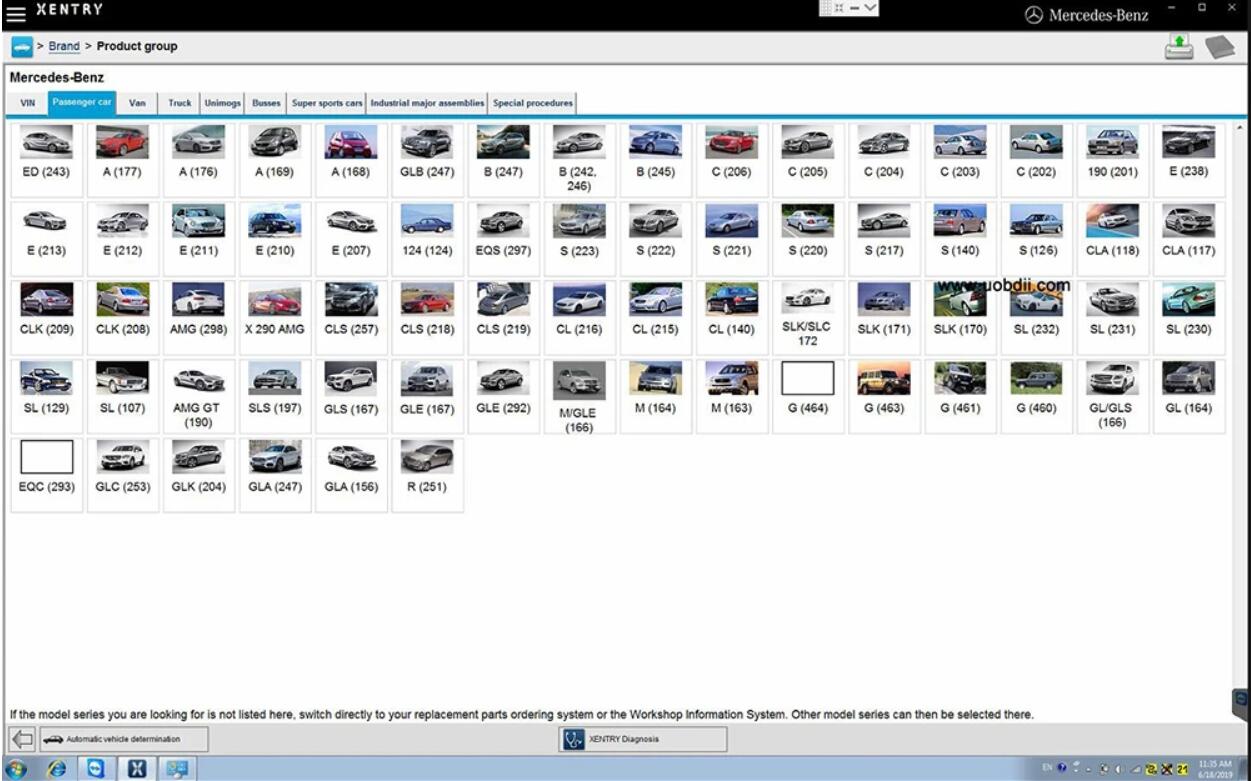
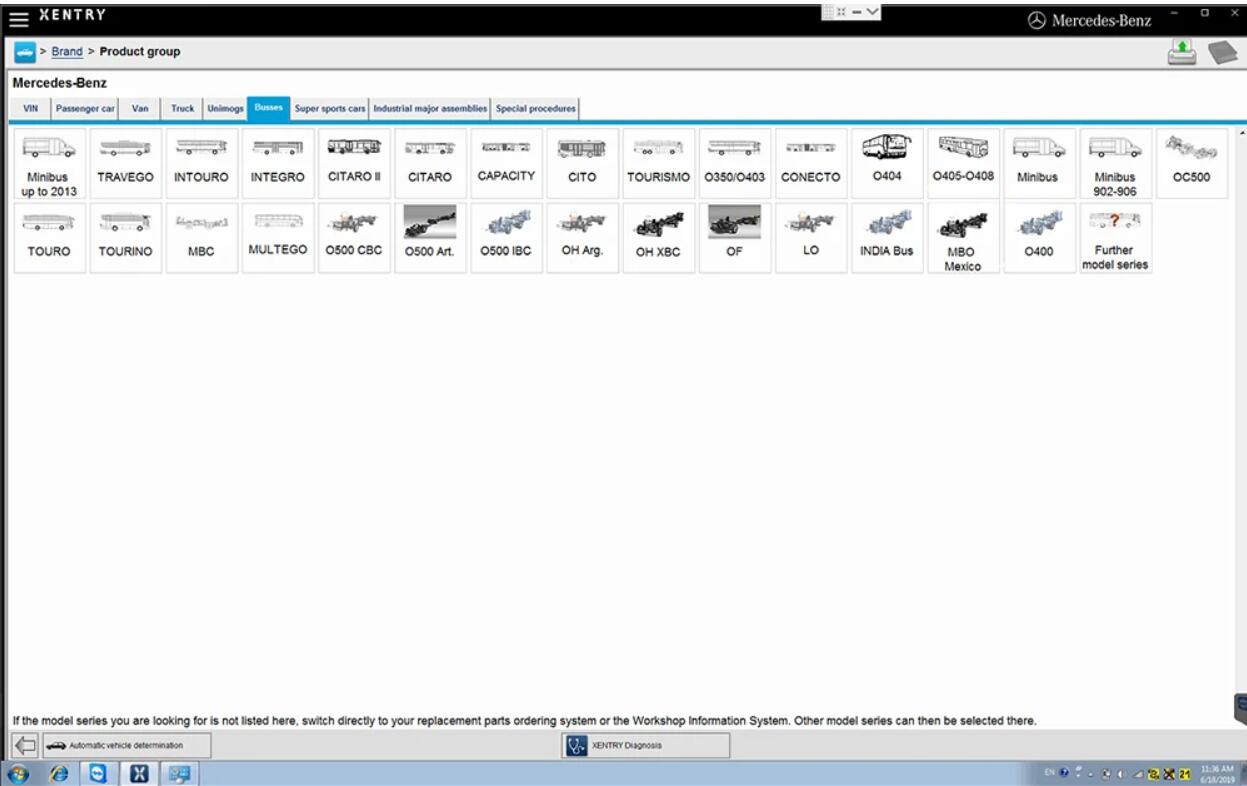
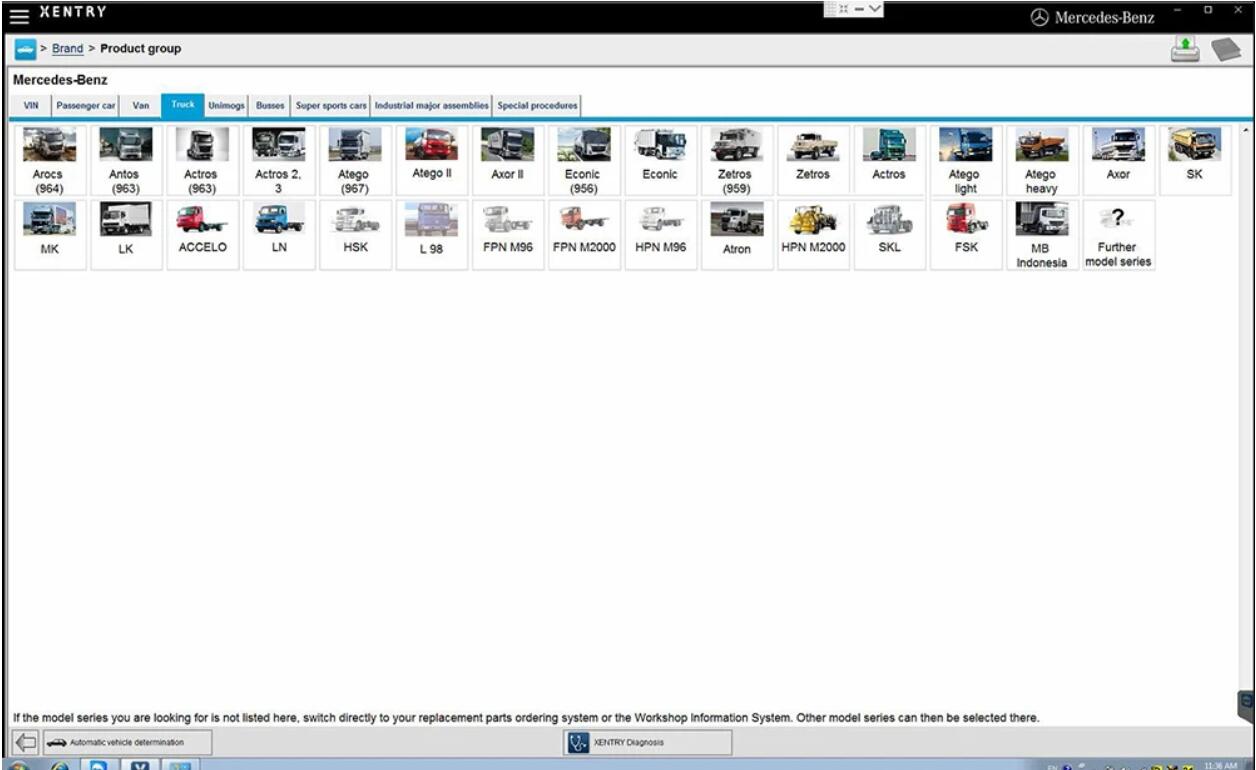
MB Star C5 DOIP Xentry Software Display:
MB-Star-C5-DOIP-Xentry-Software-Display-1

MB-Star-C5-DOIP-Xentry-Software-Display-2

MB-Star-C5-DOIP-Xentry-Software-Display-1

Package List:

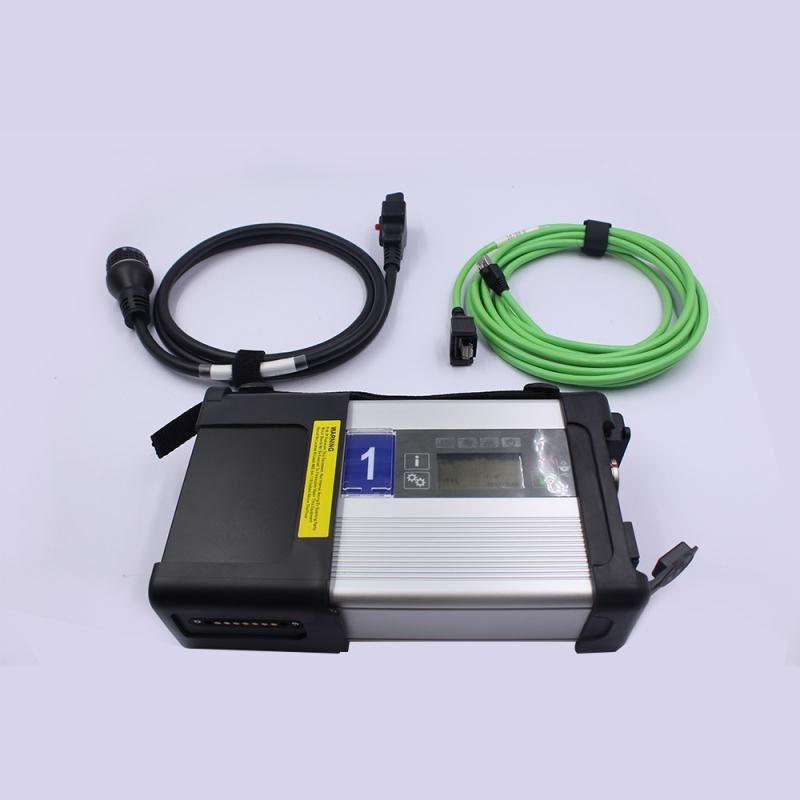
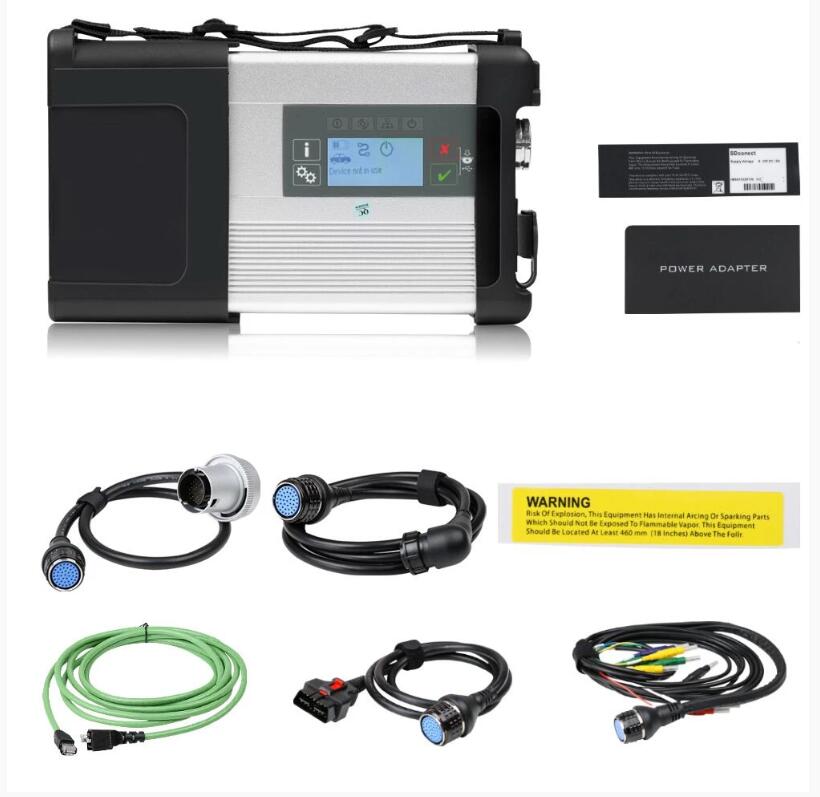
1pc x SD C5 DOIP Multiplexer
1pc x OBDII 16PIN Cable
1pc x 38PIN Cable
1pc x 14PIN Cable
1pc x 8PIN Cable
1pc x Lan Cable

MB-Star-C5-DOIP-package

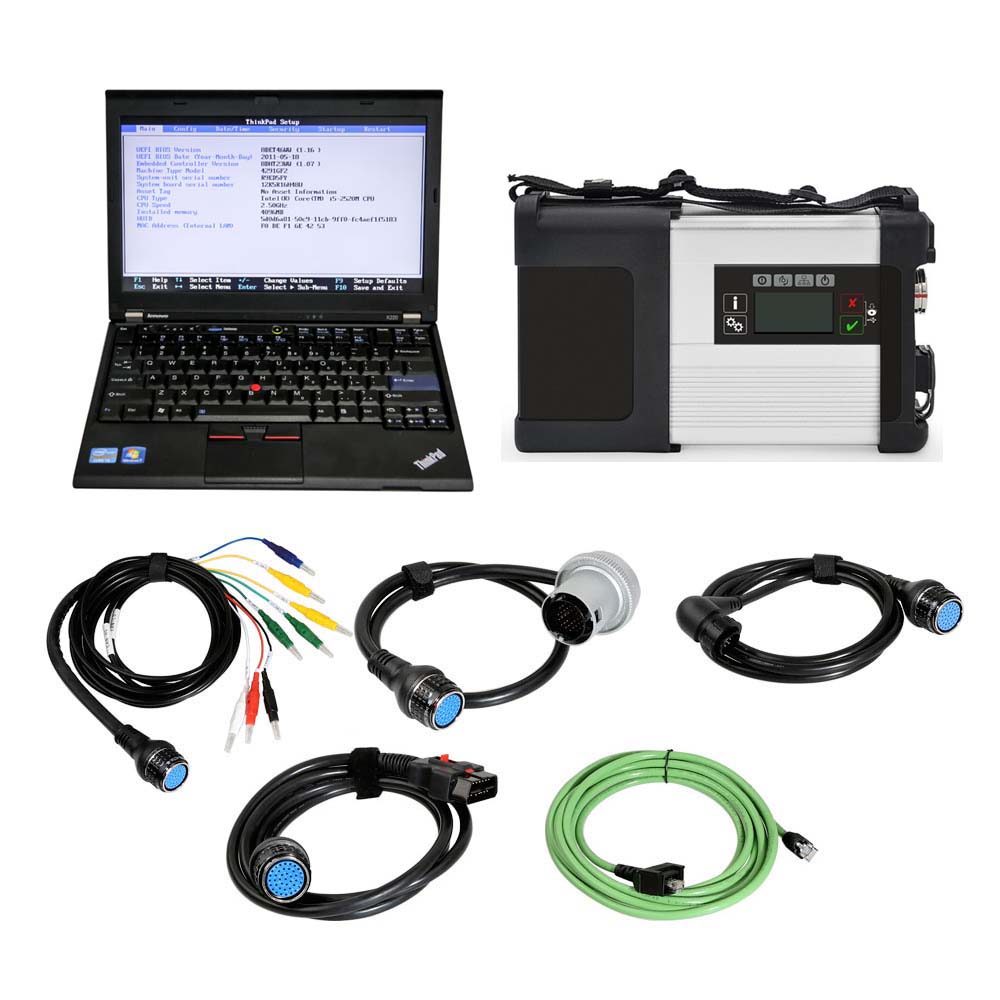
MB SD Connect C5 PLUS Star Diagnosis Support DOIP Plus Lenovo X220 Laptop With Engineering Software
MB-Star-C5-DOIP-plus-loptop


Monday, July 19, 2021

WLAN Settings Tutorial for C4 / C5 Doip Plus & SD C4 / C5

This article explains in detail how to set up a Wlan connection for both DOIP SD C4 / C5 Doip Plus and SD C4 / C5, which provides great help for many users who use the tools for the first time. Generally speaking, the Wlan connection setting method of C4 / C5 Doip Plus is much simpler than that of SD C4 / C5.
Part 1. How to set up Wlan connection for Mercedes Star MB SD C4 / C5 Doip Plus?

Part 2. How to set up Wlan connection for old SD C4/C5?

Part 1. How to set up Wlan connection for MB SD C4 / C5 Doip Plus?

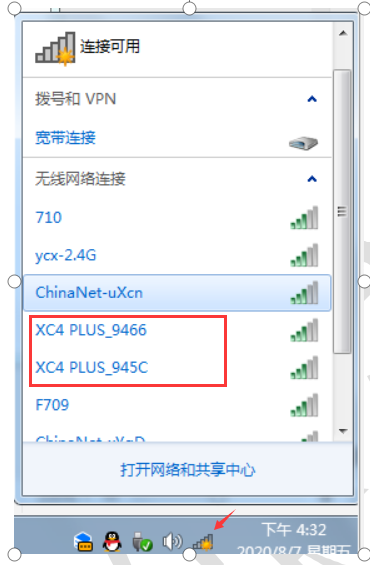
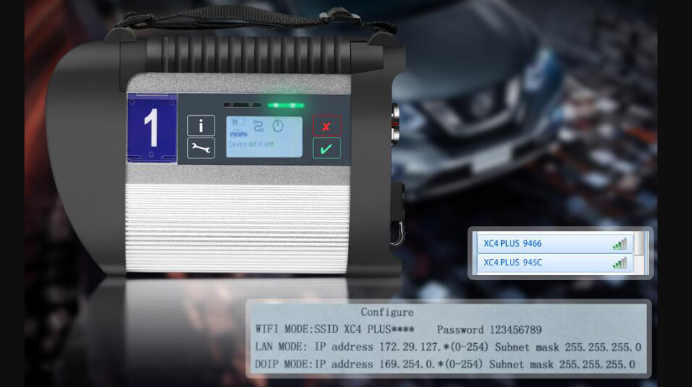
Firstly, to do IP Setting for LAN, then open Local Area Connection on task bar to find the available WIFI name of C4 or C5 Doip.

How-to-set-up-Wlan-connection-for-MB-SD-C4-C5-Doip-Plus-1

Select the correct one to connect, enter wifi password “123456789“, please set auto obtain IP.

How-to-set-up-Wlan-connection-for-MB-SD-C4-C5-Doip-Plus-2

SD C4/C5 DoIP Plus wireless setting is done.

Part 2. How to set up Wlan connection for old SD C4/C5?

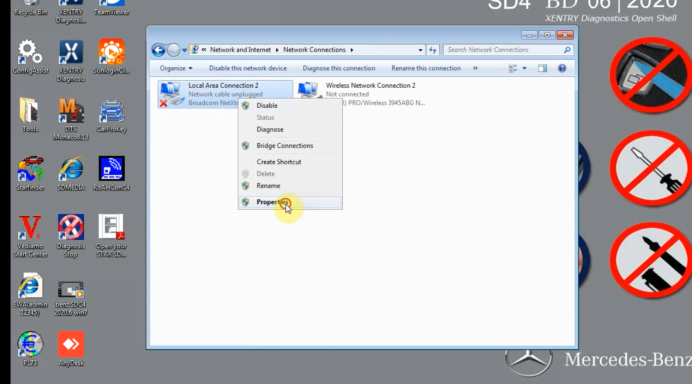
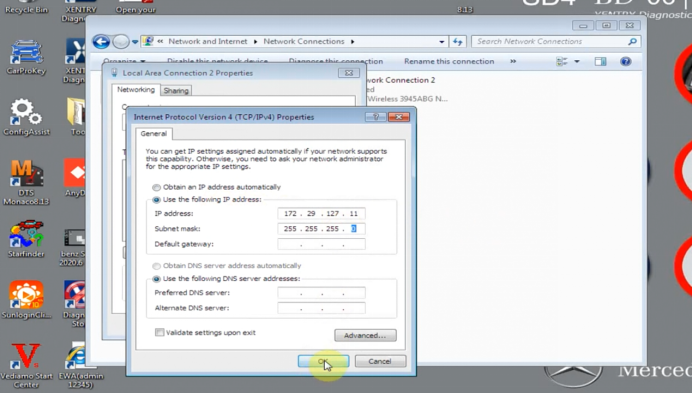
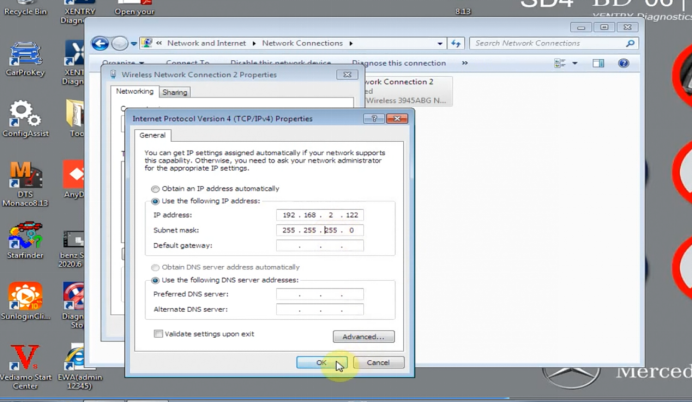
Step 1. Set IP for LAN, local Area Connection

How-to-set-up-Wlan-connection-for-old-SD-C4-C5-1
How-to-set-up-Wlan-connection-for-old-SD-C4-C5-2

Step 2. Set wireless IP

How-to-set-up-Wlan-connection-for-old-SD-C4-C5-3
How-to-set-up-Wlan-connection-for-old-SD-C4-C5-4

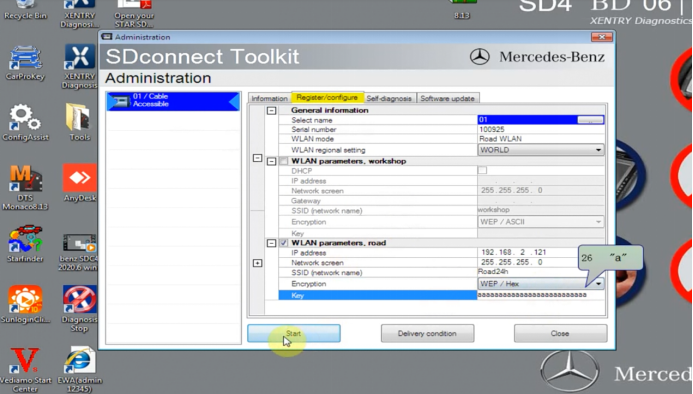
Step 3. Connect MB SD C4/C5 device to PC, open the “Administrator” of C4/C5, to set as required by following below information.

How-to-set-up-Wlan-connection-for-old-SD-C4-C5-5

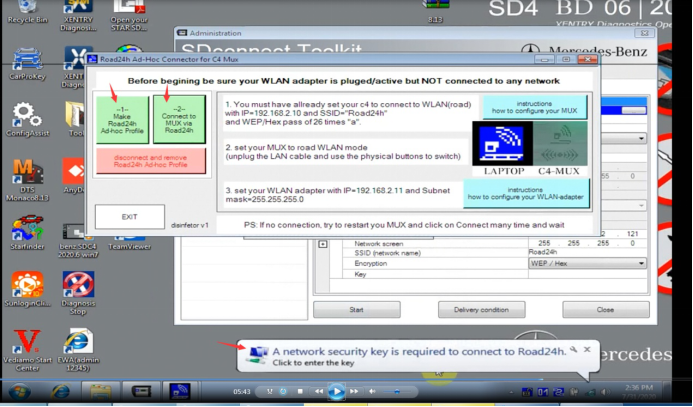
Step 4.Open Road24h Ad-Hoc Connector for C4 Mux

How-to-set-up-Wlan-connection-for-old-SD-C4-C5-6

Click –1– Make Road24h Ad-hoc Profile and –2– Connect to MUX via Road24h step by step.
How-to-set-up-Wlan-connection-for-old-SD-C4-C5-7

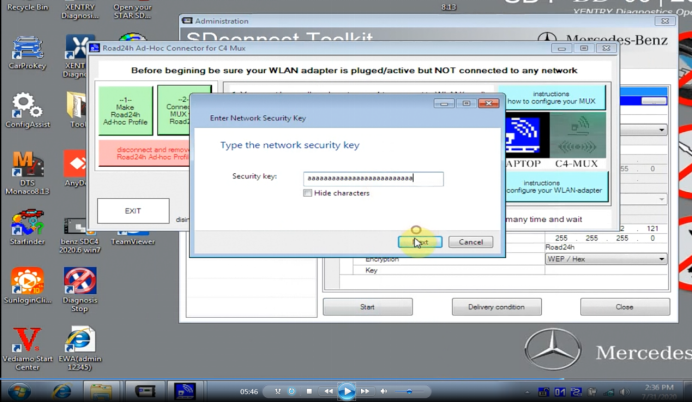
Step 5.Enter security key

Step 6. Disconnect the sd c4/c5 device, but don’t turn off the power.

Step 7. Select “Selection” option on task bar.
How-to-set-up-Wlan-connection-for-old-SD-C4-C5-8
How-to-set-up-Wlan-connection-for-old-SD-C4-C5-9

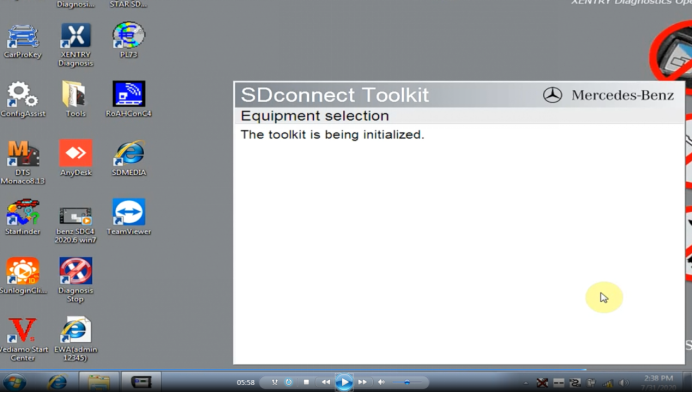
Step 8. Select the SD connect after opening the administrator.

WLAN setting is done!
How-to-set-up-Wlan-connection-for-old-SD-C4-C5-10