Showing posts with label stardiagnos. Show all posts

Monday, February 14, 2022

Mercedes-Benz Rearview Mirror Light Coding via Xentry and Vediamo


This article is about to bring you how to activate welcoming light on the rearview mirror (code ZGW module) on Mercedes-Benz via Xentry and Vediamo.

First, we need to adjust some settings in Mercedes-Benz:

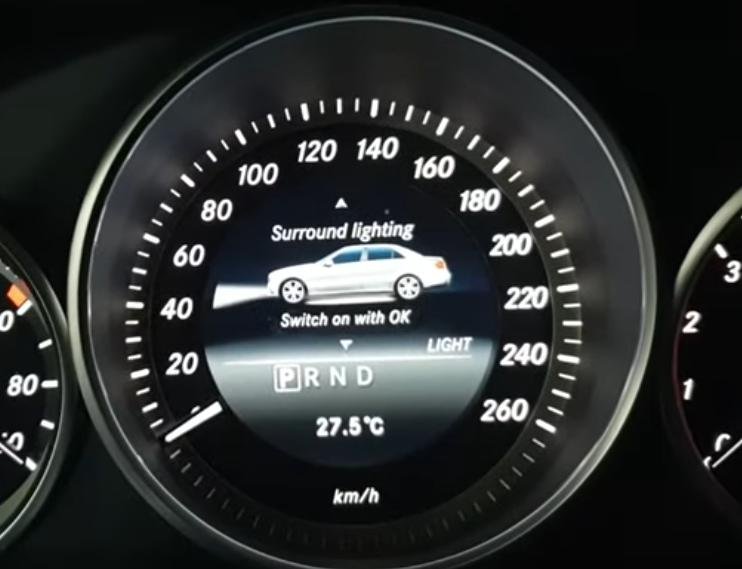
Turn on Surround lighting on menu.

Mercedes-Benz-Rearview-Mirror-Light-Coding-via-Xentry-and-Vediamo-1

Now, the turn signal light turns on but the welcoming light does not when we unlock the doors.
So, what we gonna do is code on PC so that they both would light as we unlock it.

The device that connects Mercedes-Benz to PC could be VXDIAG VCX SE, MB SD C4 Plus, Super MB Pro M6…Different coverage, you can choose by your needs.
Note: Only Vediamo can code the module called ZGW, Xentry and DAS don’t support.

The first thing is that we need to figure out a CBF file for the ZGW unit.
So, how to find the CBF file we need for ZGW module?
Here we’ll show you through Xentry Diagnosis.
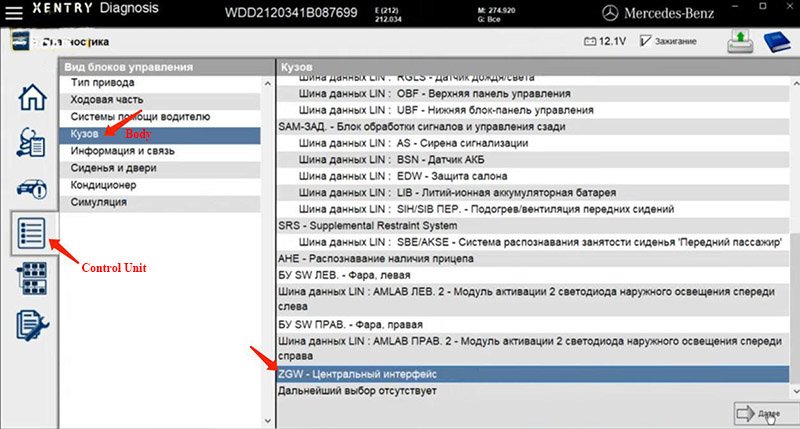
Select our model – E(212)>>Control Unit>>Body>>ZGW

Mercedes-Benz-Rearview-Mirror-Light-Coding-via-Xentry-and-Vediamo-2
Mercedes-Benz-Rearview-Mirror-Light-Coding-via-Xentry-and-Vediamo-3

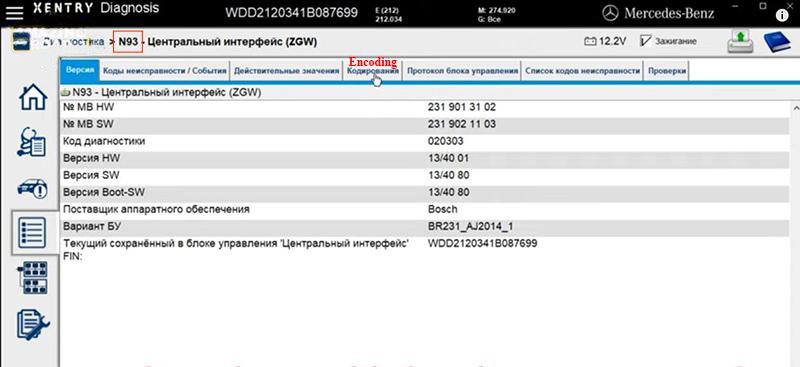
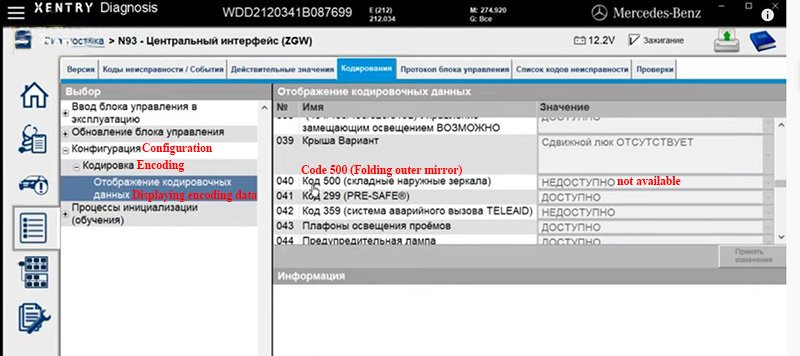
Encoding>>Configuration>>Encoding>>Displaying encoding data
Here “Code 500 (Folding outer mirror) – not available”

Mercedes-Benz-Rearview-Mirror-Light-Coding-via-Xentry-and-Vediamo-4

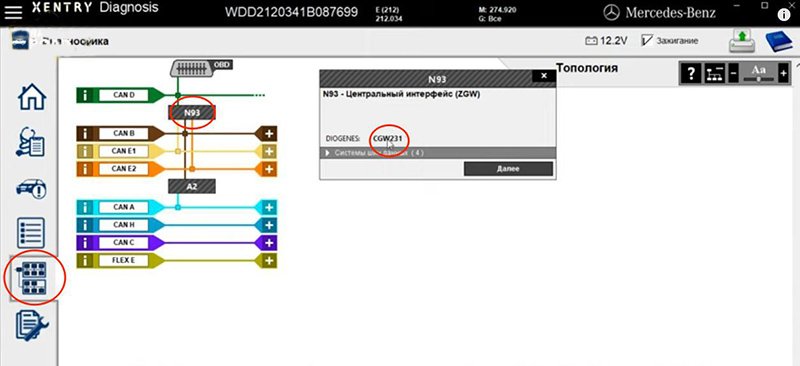
Go to Topology, select ZGW’s code – N93.
Here we know we need the CBF file (CGW231) for ZGW.

Mercedes-Benz-Rearview-Mirror-Light-Coding-via-Xentry-and-Vediamo-5
Now we need to encode it through Vediamo.
Open up Vediamo Start Center.
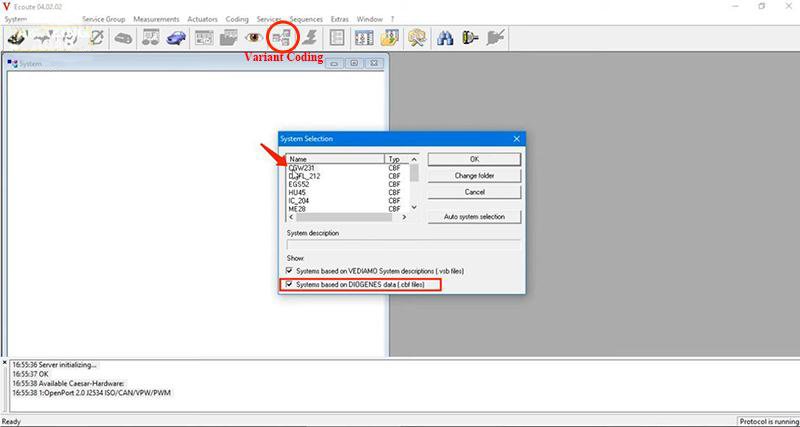
Go to “Ecoute”.
On “System Selection”,
Check “Systems based on DIOGENES data (.cbf files)” and select “CGW231” CBF file.

Mercedes-Benz-Rearview-Mirror-Light-Coding-via-Xentry-and-Vediamo-6

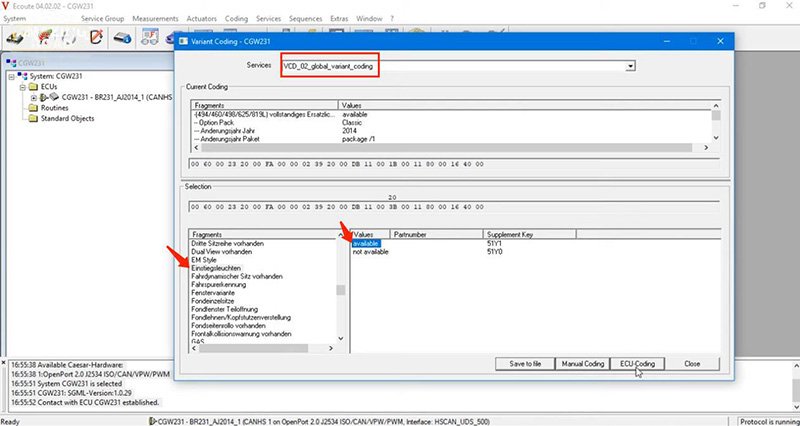
Go to “Variant Coding”, select
VCD_02_global_variant_coding>>Einstiegsleuchten>>available>>ЕCU-Coding

Mercedes-Benz-Rearview-Mirror-Light-Coding-via-Xentry-and-Vediamo-7

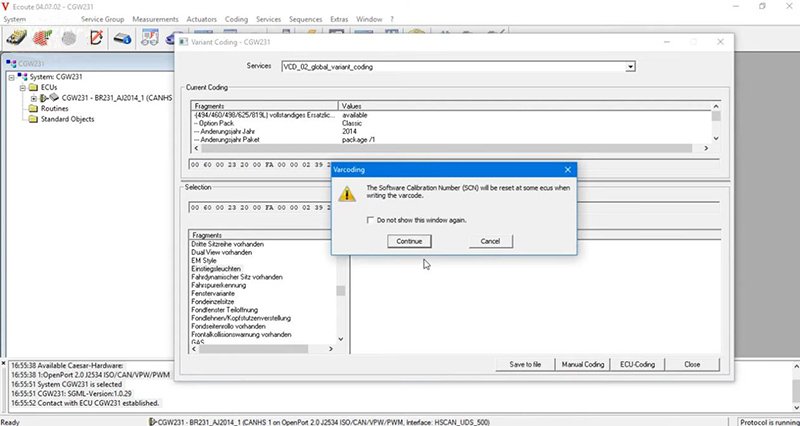
Select “Continue” and “Close”.

Mercedes-Benz-Rearview-Mirror-Light-Coding-via-Xentry-and-Vediamo-8

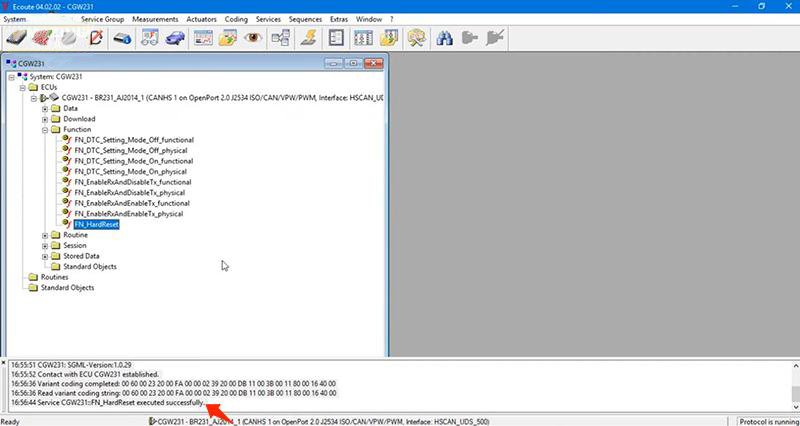
Unfold “CGW231” and “Function”.
Click on “FN_HardReset”.

Finally, disconnect ECU CGW231 and exit.

Test: when we unlock the car, the turn signal light flashes and the welcoming light on the bottom is on. So cool.

Mercedes-Benz-Rearview-Mirror-Light-Coding-via-Xentry-and-Vediamo-9

Alright, you can also add lights to your Mercedes.
Hope this could help!

Saturday, October 2, 2021

2010 Mercedes W212 E350 722.9 Transmission P0748 code (Solved)

Symptoms:

Went through the flush and cleaning of the solenoids, found some dark matter, used a magnet. Put it all back and bam limp mode and the P0748 code is persistent. Took it apart, tested the solenoids for clicking at 12v just the blue click the black make a different noise more like a buzzing.
Resistance is 5.6 plus or minus 0.2 so good.

Mercedes W212 diagnostic tool to use:

Usually the issue with the conductor plate is the speed sensors… if you have access to Star (Xentry), then pull codes with it and clear them. Some generic scanners cannot clear TCM codes. I’d do that first… before going down the rabbit hole. Also with Xentry, you’ll have options to run guided tests, along with diag info.

Outfits that fix your original conductor plate won’t require coding or adaptation.

If you get a new one from dealer or outfit selling virginized (used), then you’ll need someone with Xentry online to unlock and code the plate. Then with Xentry offline you perform adaptations.

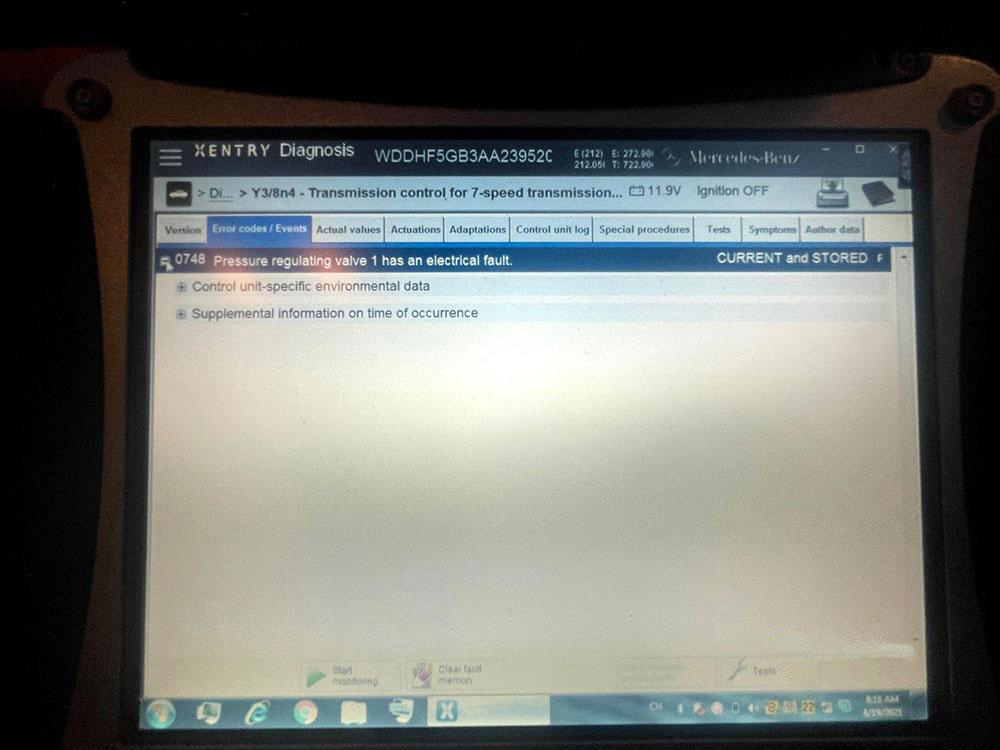
Look at the following images showing I do have access to the laptop star(xentry) deal:

2010-Mercedes-W212-E350-722.9-Transmission-P0748-code-(Solved)-1
2010-Mercedes-W212-E350-722.9-Transmission-P0748-code-(Solved)-2

Assuming you’ve tried clearing and it comes right back.

Click Tests, under the first picture, after you click the fault within the module. Obviously the solenoid can be bad, there’s a chance the conductor plate is/was bad or damaged in some way. I’d probably throw a solenoid at it before replacing the conductor plate… especially since it not a common fault, nor are there multiple faults present either.

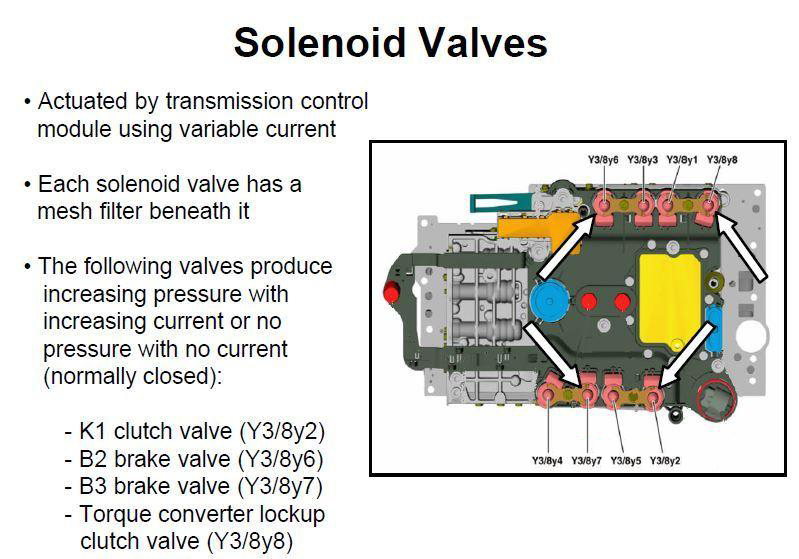
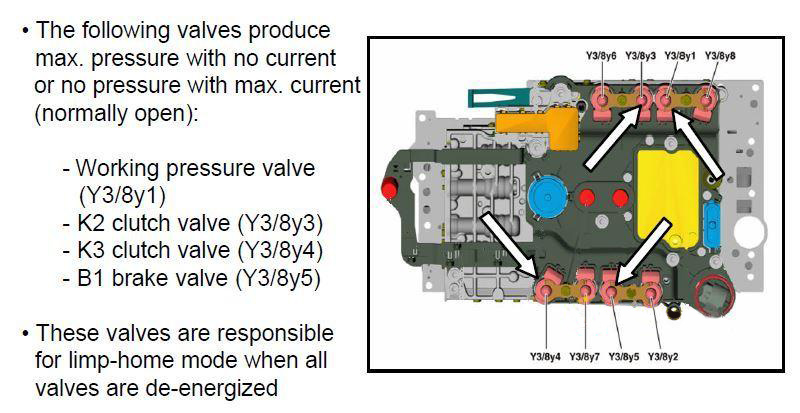
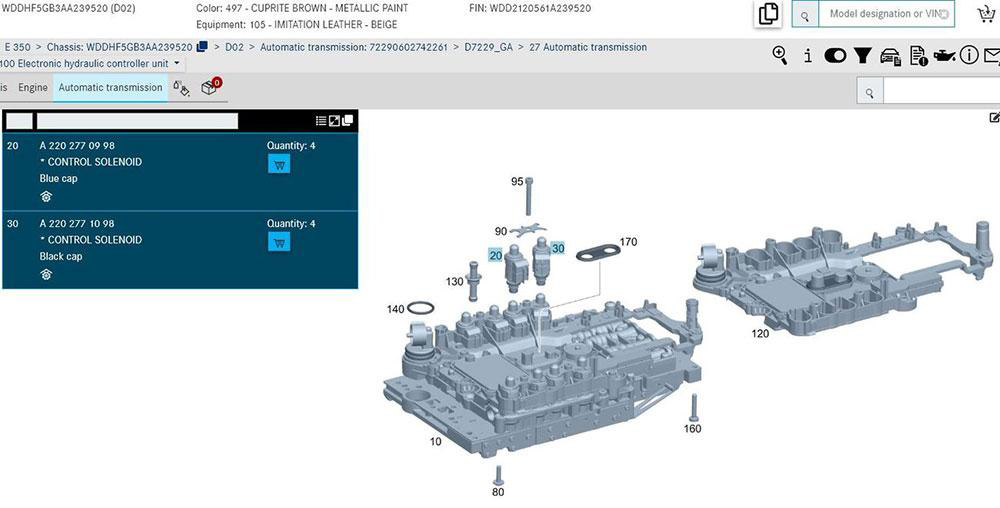
I suspect the solenoid in question is: Y3/8y1 Working pressure control solenoid valve.

Since you aren’t getting codes for the other solenoids… you could temporarily swap the “bad” one with a “like” colored solenoid (blue vs. black) and rescan for codes. If the code doesn’t change.. then is likely the conductor plate. If a new code pops up, then is likely the solenoid. Don’t forget to put the solenoids back to original location.

The 722.9 doesn’t suffer from the same connector leaking issue as the 722.6. The .9 variant integrated the TCM into the conductor plate and the connector is molded-in… so there’s nothing to leak into the vehicle harness or connector. Totally different design. The only leak would be past the o-rings on the molded connector and transmission body, which would just be a leak… no affect on electrical connection.

0748 The internal electrical check of component Y3/8y2 (K1 clutch control solenoid valve (VGS)) has failed. Solenoid filter(s) may need cleaning, or replacement.

2010-Mercedes-W212-E350-722.9-Transmission-P0748-code-(Solved)-3
2010-Mercedes-W212-E350-722.9-Transmission-P0748-code-(Solved)-4
2010-Mercedes-W212-E350-722.9-Transmission-P0748-code-(Solved)-5

Does the car have ECO start/stop… if not the only transmission pump is mechanical, e.g. engine needs to be running for it to be operational. Now if it does have ECO, then there’s a electrical pump that runs. That, I’m not sure of, whether it’ll run with the engine off vs. ECO off. I suspect, it would only work during an ECO stop.

Yes, the conductor plate usually suffers from a certain fault. However, electrical connections exist between the TCM>conductor plate>solenoid… so there’s a possibility the conductor plate could be bad. I think the likelihood is the solenoid itself is bad or dirty. I’d be inclined to swap test and/or replace the solenoid first, before throwing other parts at it.

Finally Update:

Finally, I highly recommend a brand new one……. But you will not be able to purchase this part. Only shops with licensing through NASTF can purchase this part from dealer, here in the US. And even if you were able to purchase, then you would need access to the online system for programming and SCN coding. Is possible to do offline with Vediamo and DTS Monaco (Runing for sdconnect c4 plus DOIP), also. You just need to find the correct CBF and Coding.

Abrites can virginize and change the VIN, but comes at a high price. I highly doubt the Chinese will be able to log in to the online system with your set up. Mercedes is blocking unauthorized laptops/PC’s. Pretty much whether you are installing a new or virginized one, the steps are the same. Valve body flow data needs to be read and transferred. After, you need to perform programming, SCN coding, personalization, activation and range sensor calibration.

Friday, September 10, 2021

Xentry Error Supplied StartKey is Invalid Solution


One consumer wrote that Xentry Does not accept the key.(Startkey is invaild)

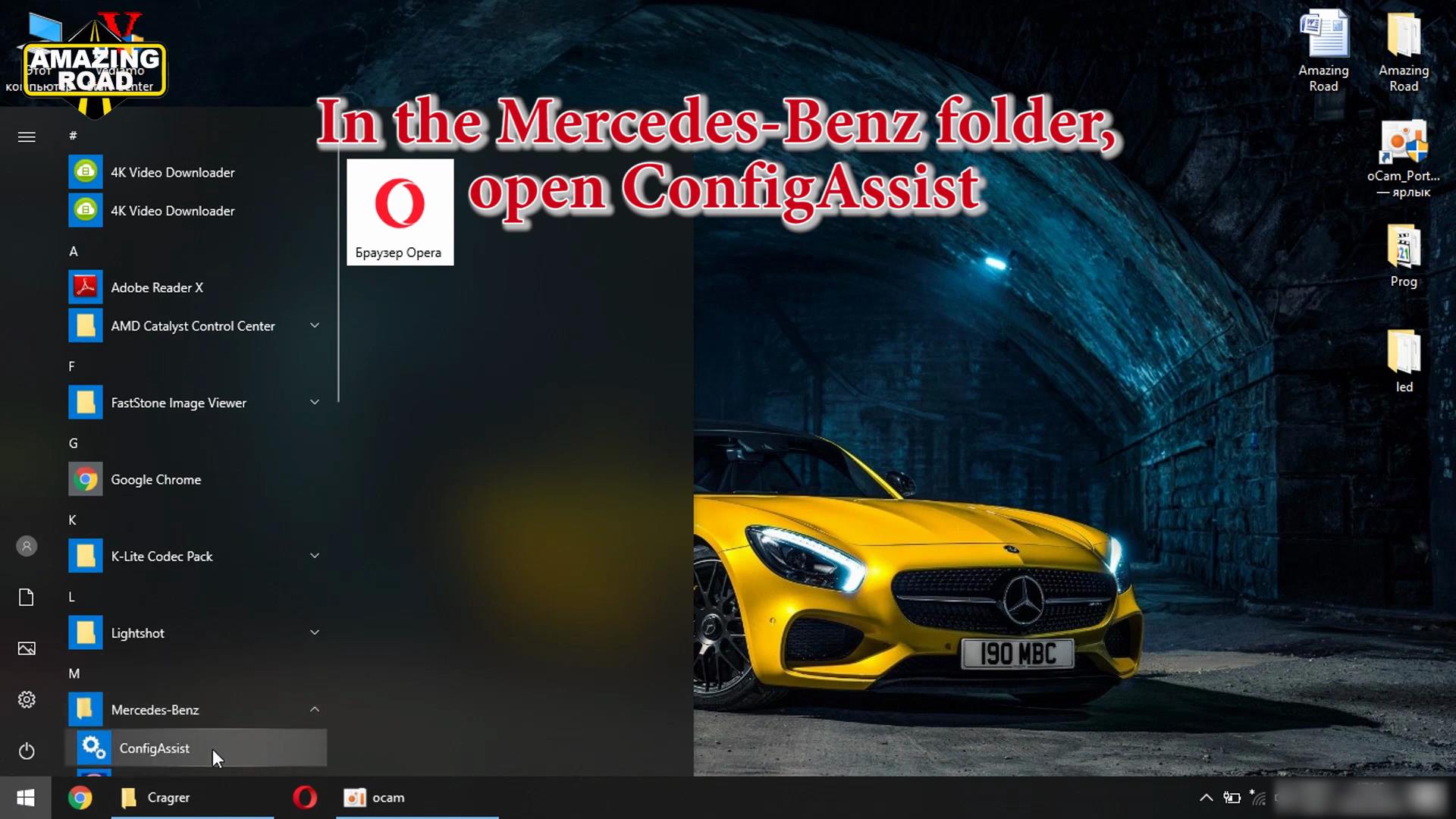
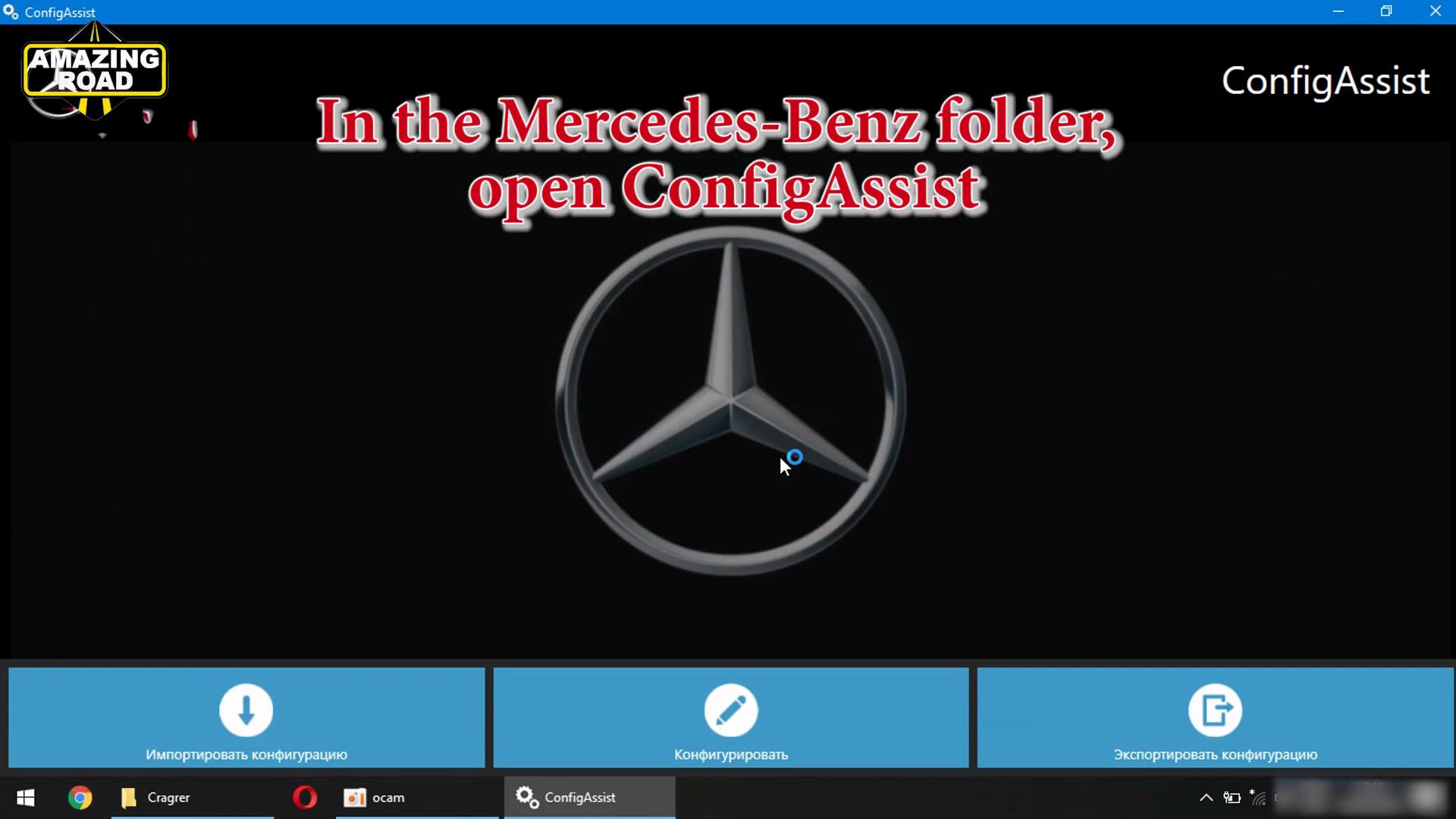
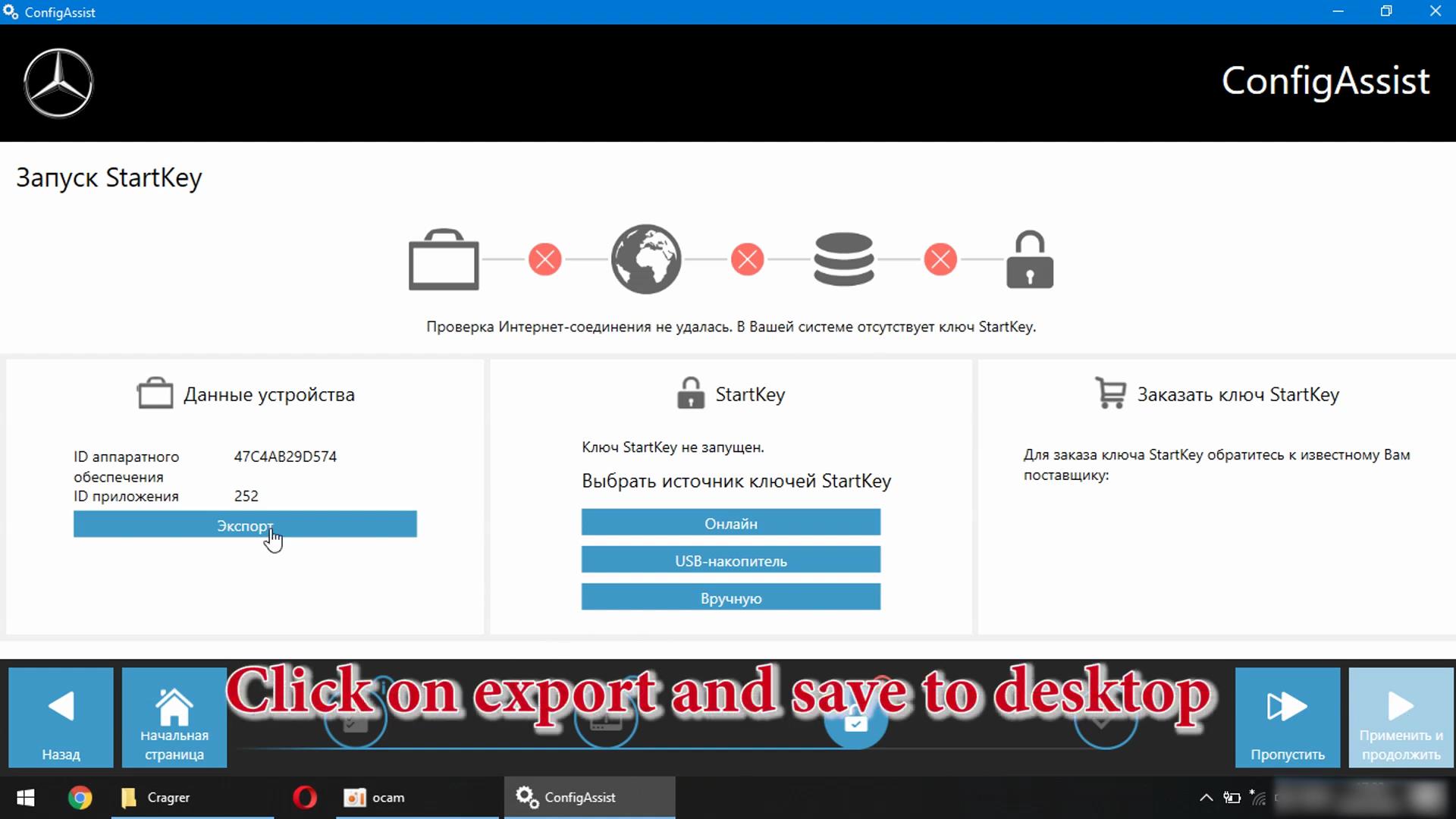
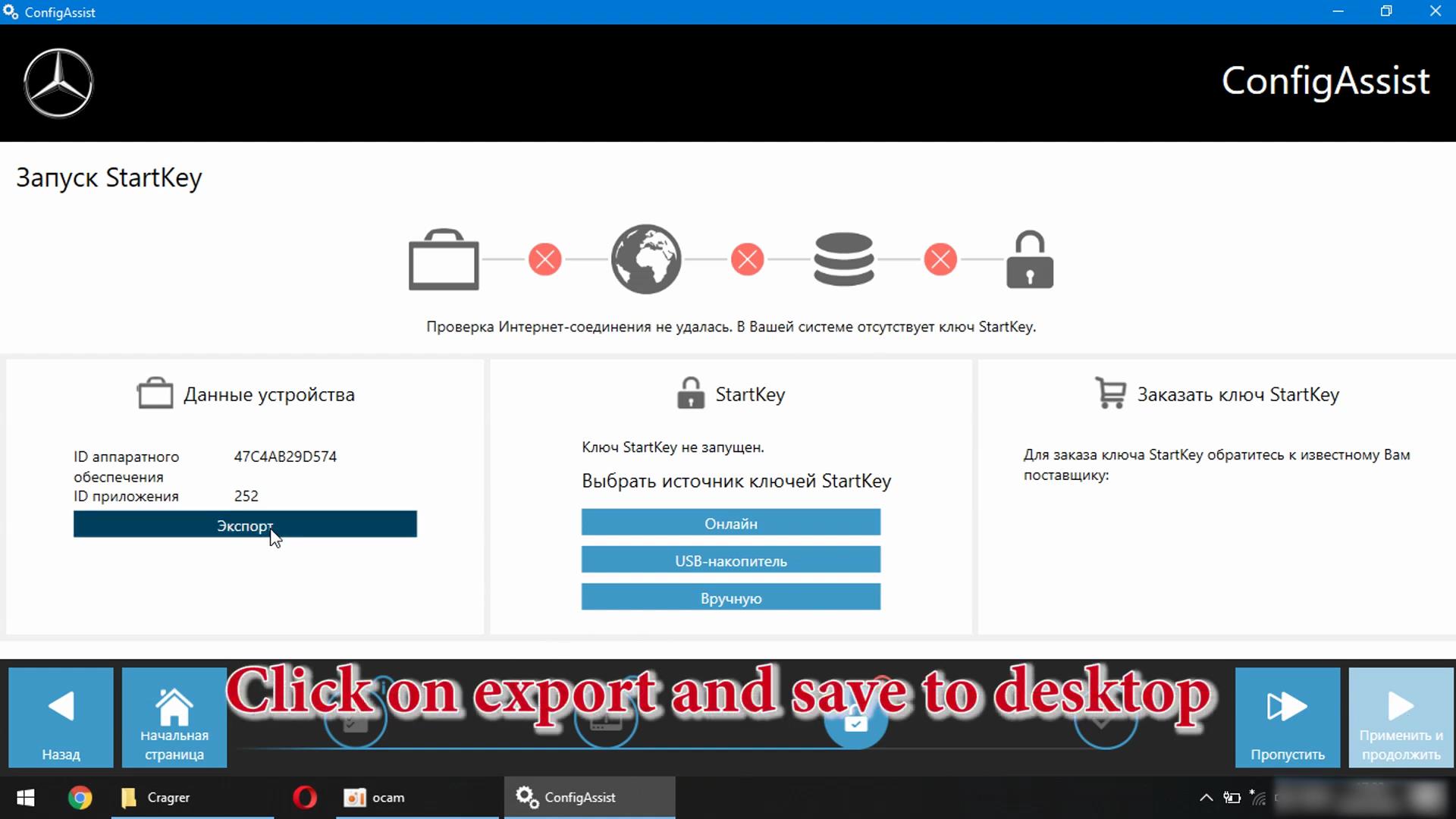
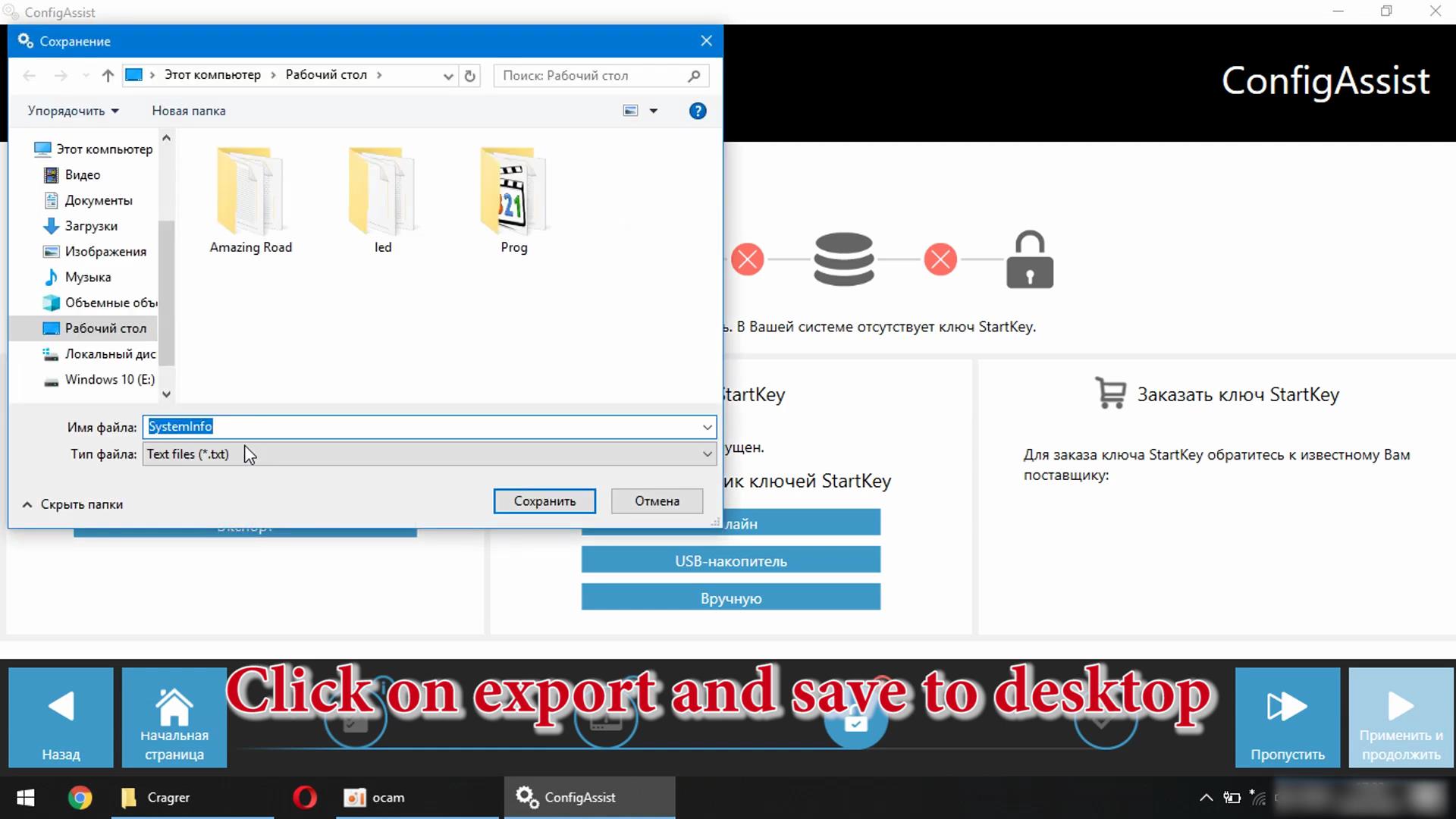
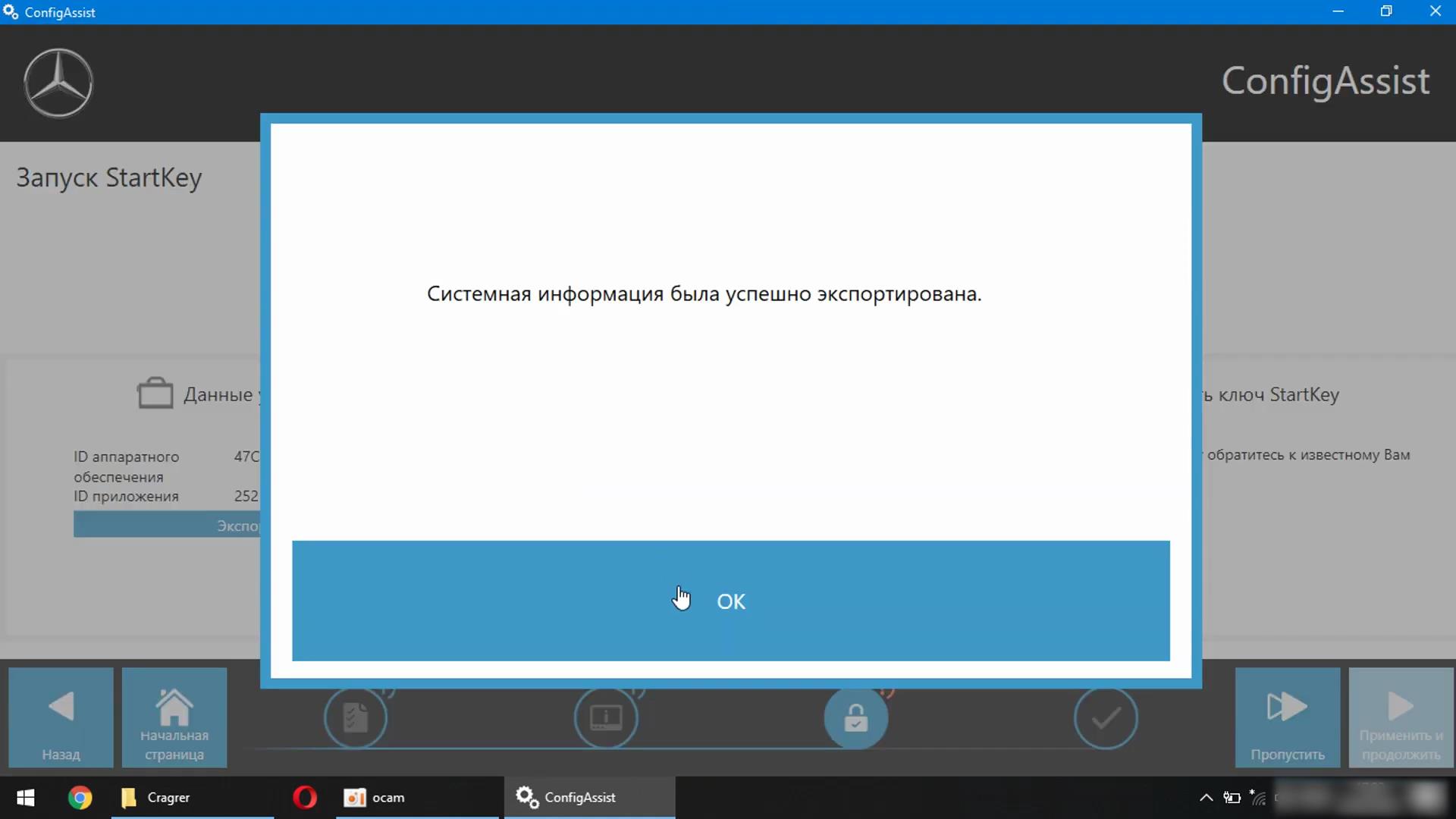
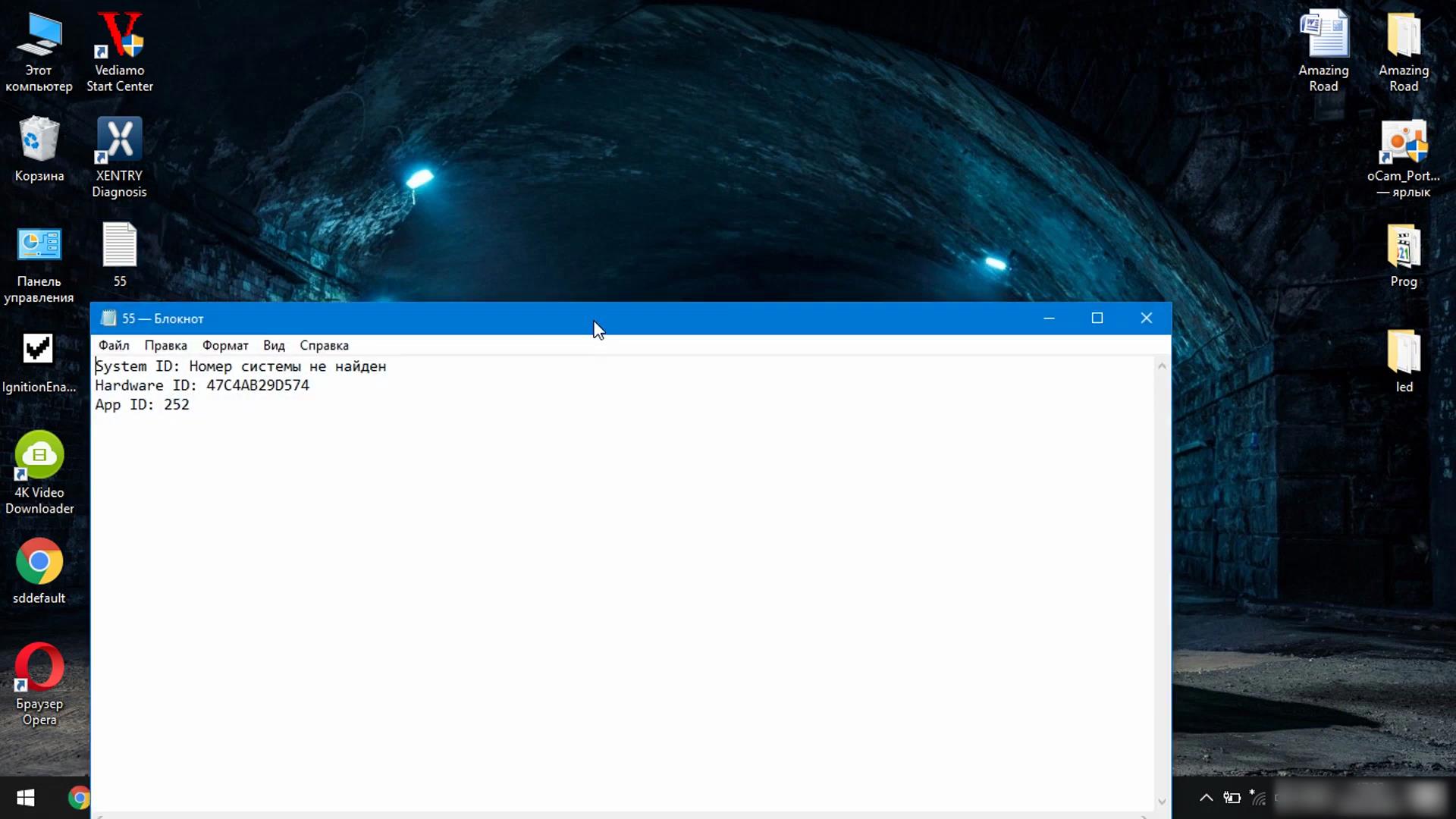
In the Mercedes-Benz folder, open ConfigAssist

Xentry-Error-Supplied-StartKey-is-Invalid-Solution-1
Xentry-Error-Supplied-StartKey-is-Invalid-Solution-2

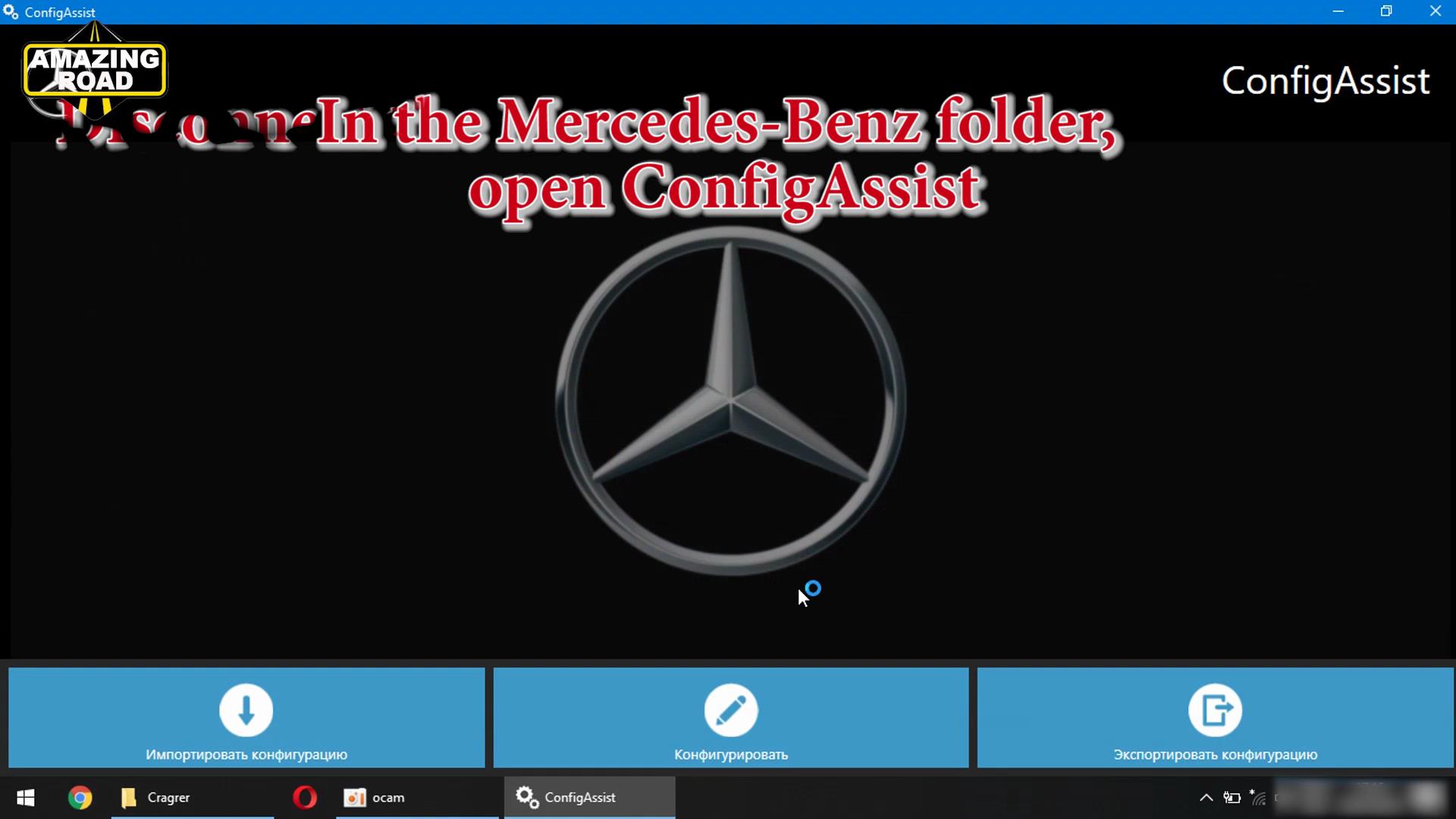
Disconnect the internect and press configuration

Xentry-Error-Supplied-StartKey-is-Invalid-Solution-3

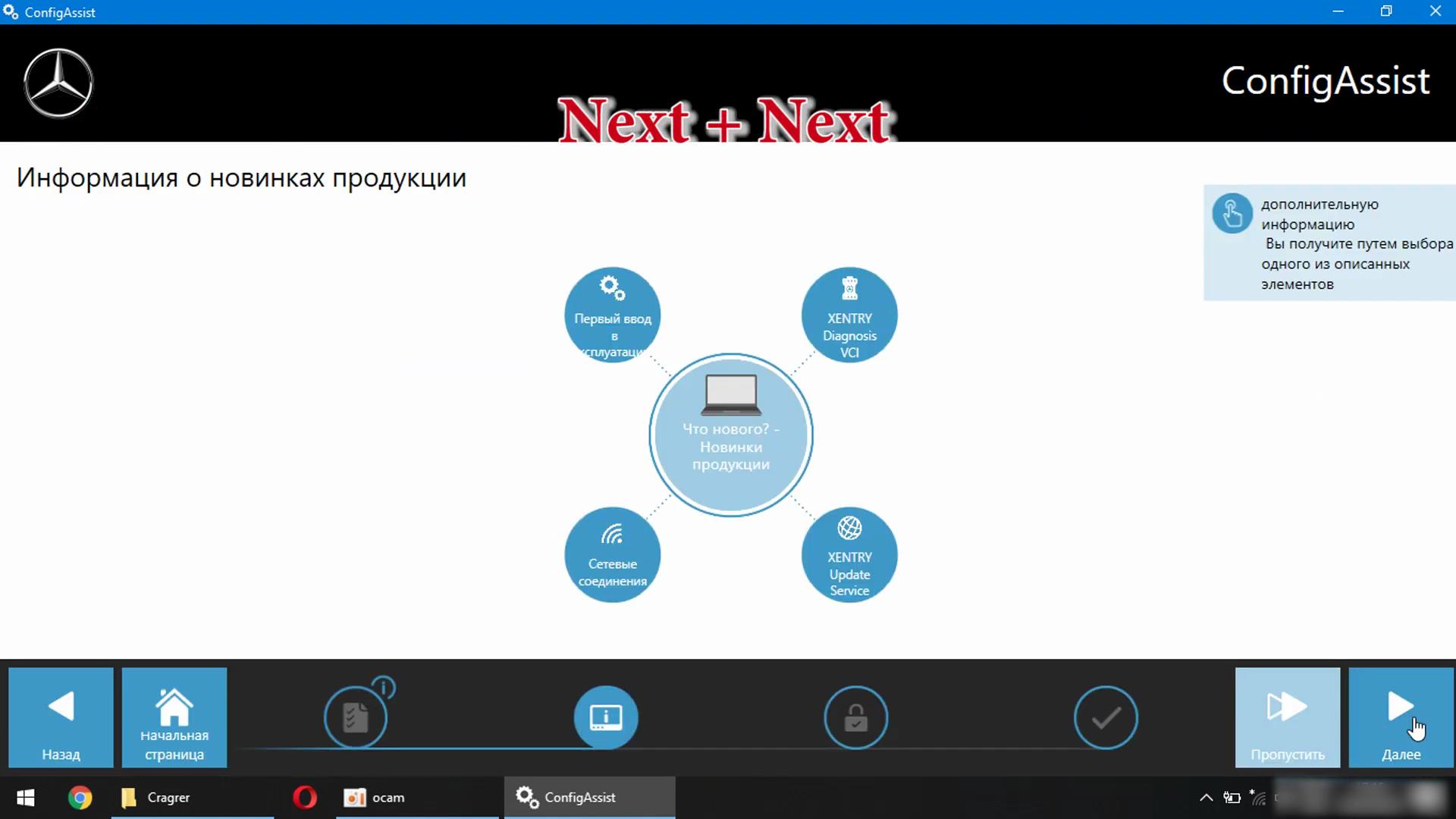
Next+Next

Xentry-Error-Supplied-StartKey-is-Invalid-Solution-4

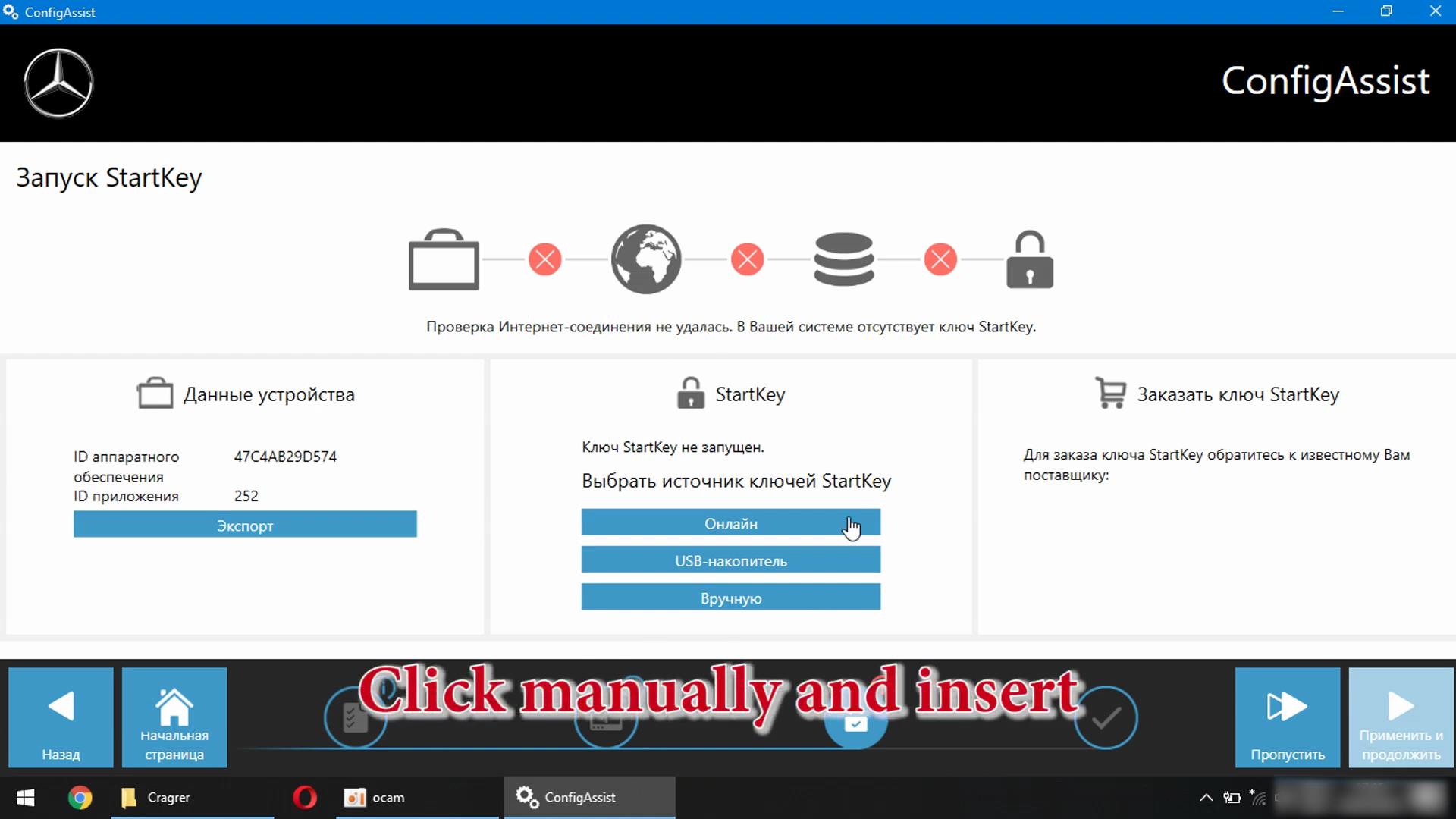
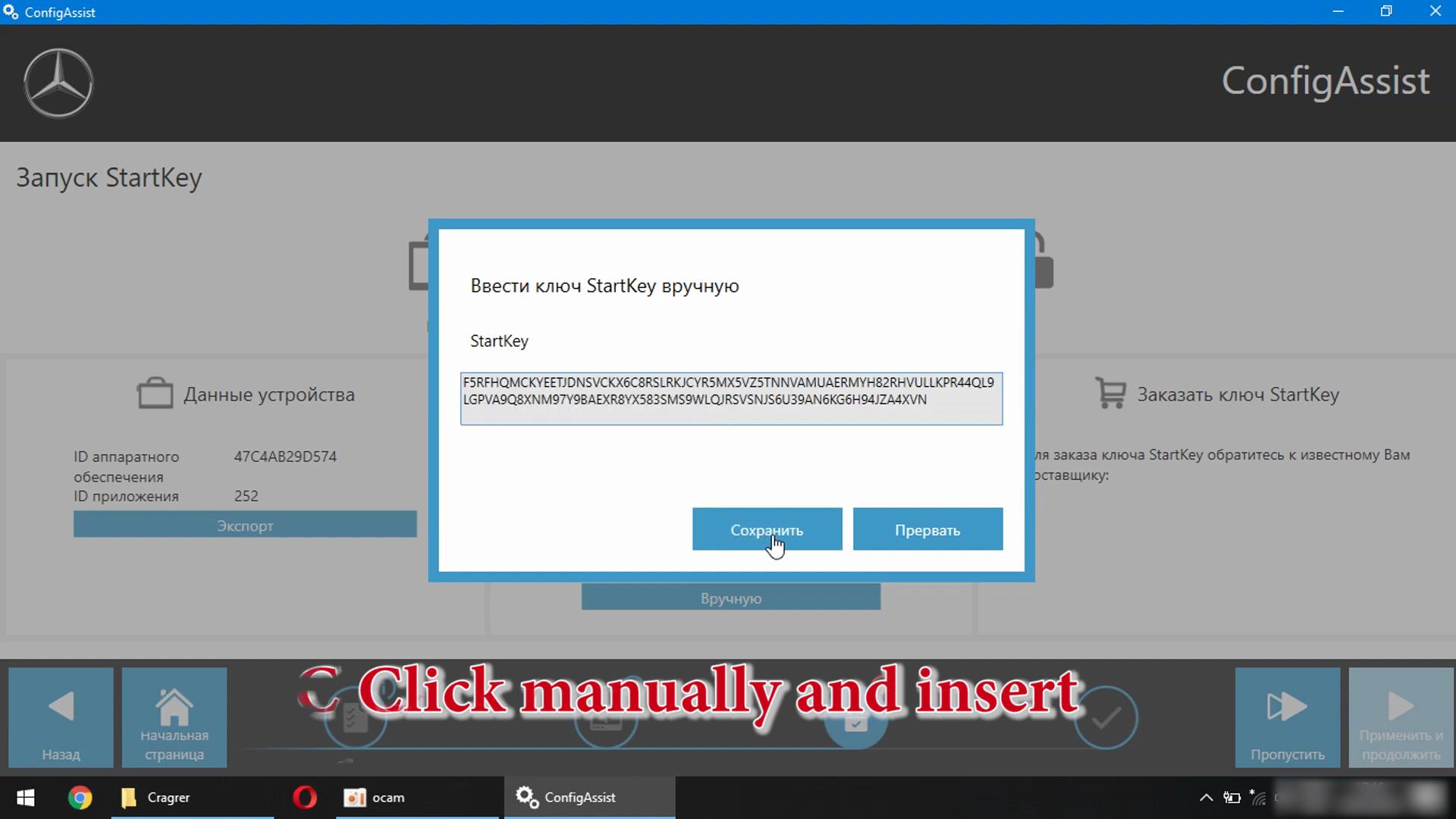
Click Mannually and insert

Xentry-Error-Supplied-StartKey-is-Invalid-Solution-5
Xentry-Error-Supplied-StartKey-is-Invalid-Solution-6

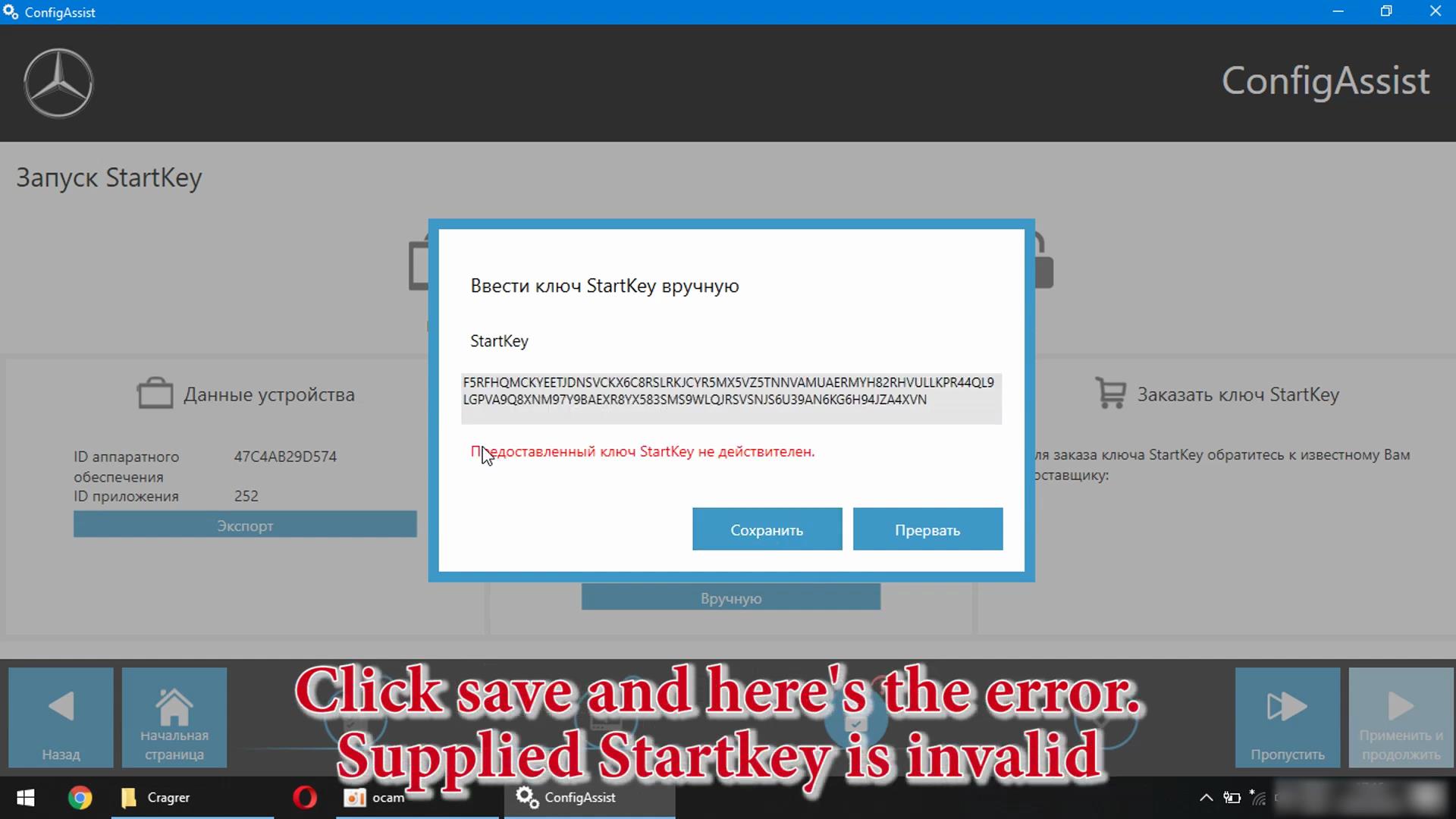
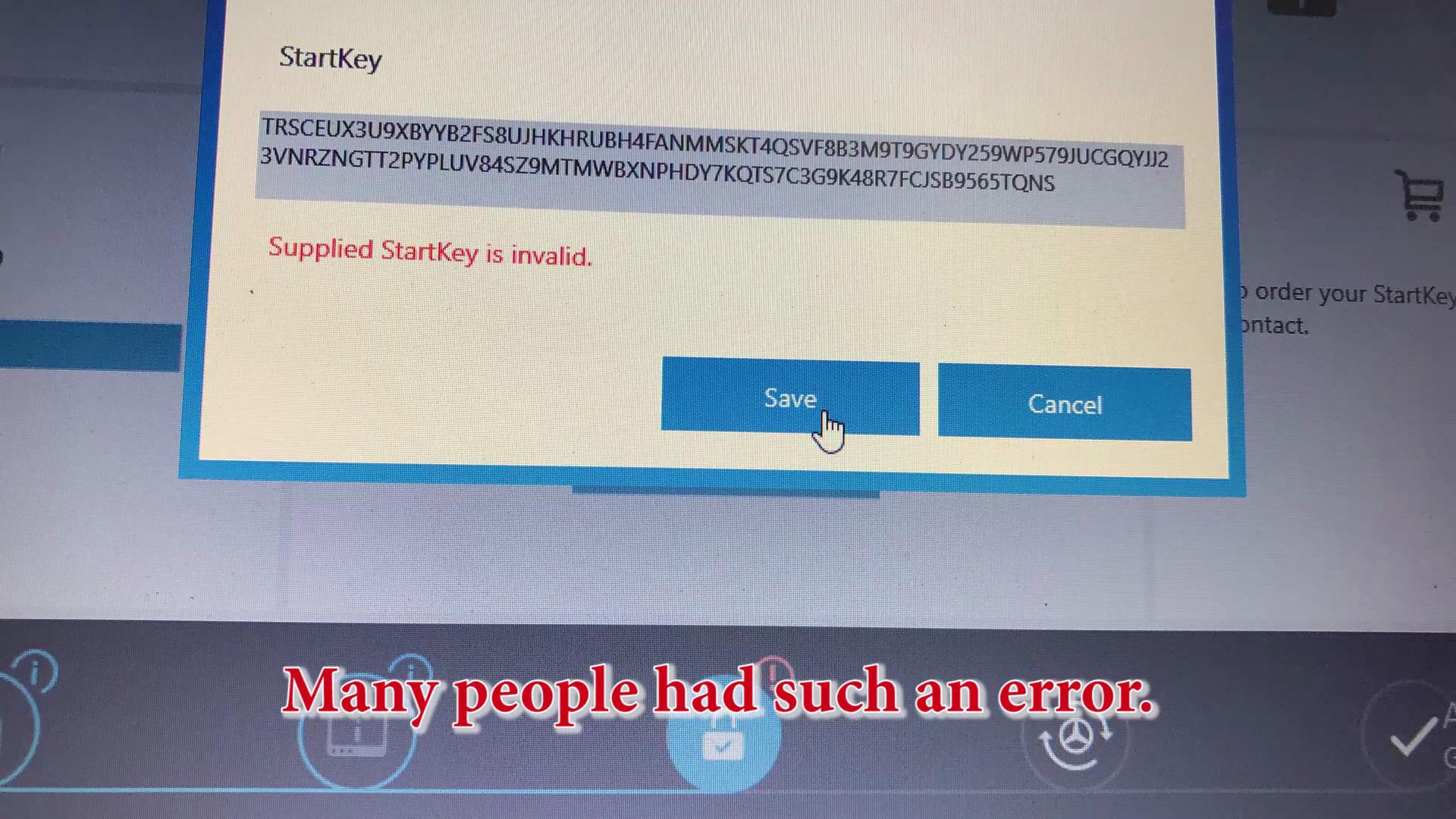
Click Save and here’s the error, Supplied Startkey is invalid

Xentry-Error-Supplied-StartKey-is-Invalid-Solution-7

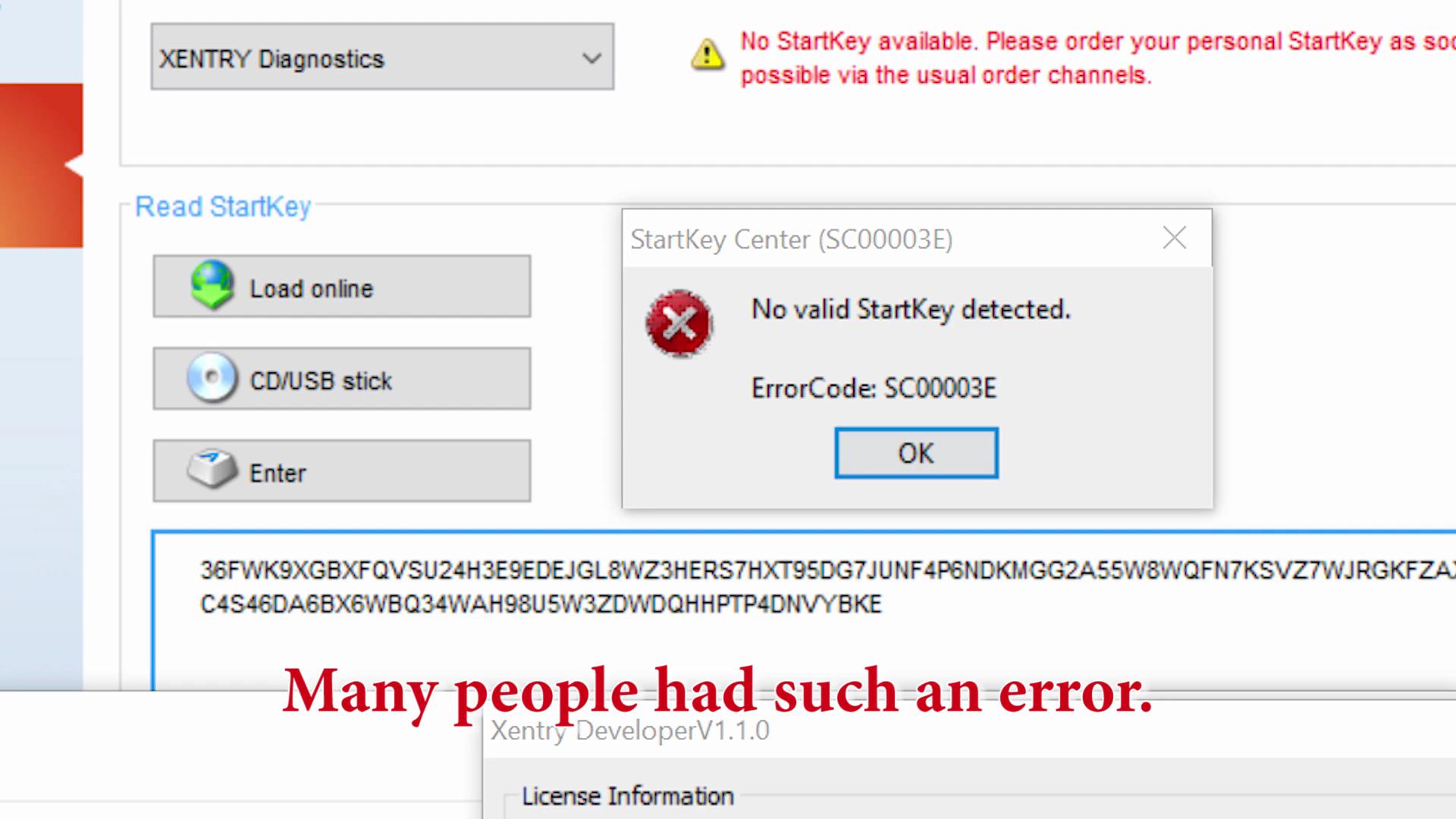
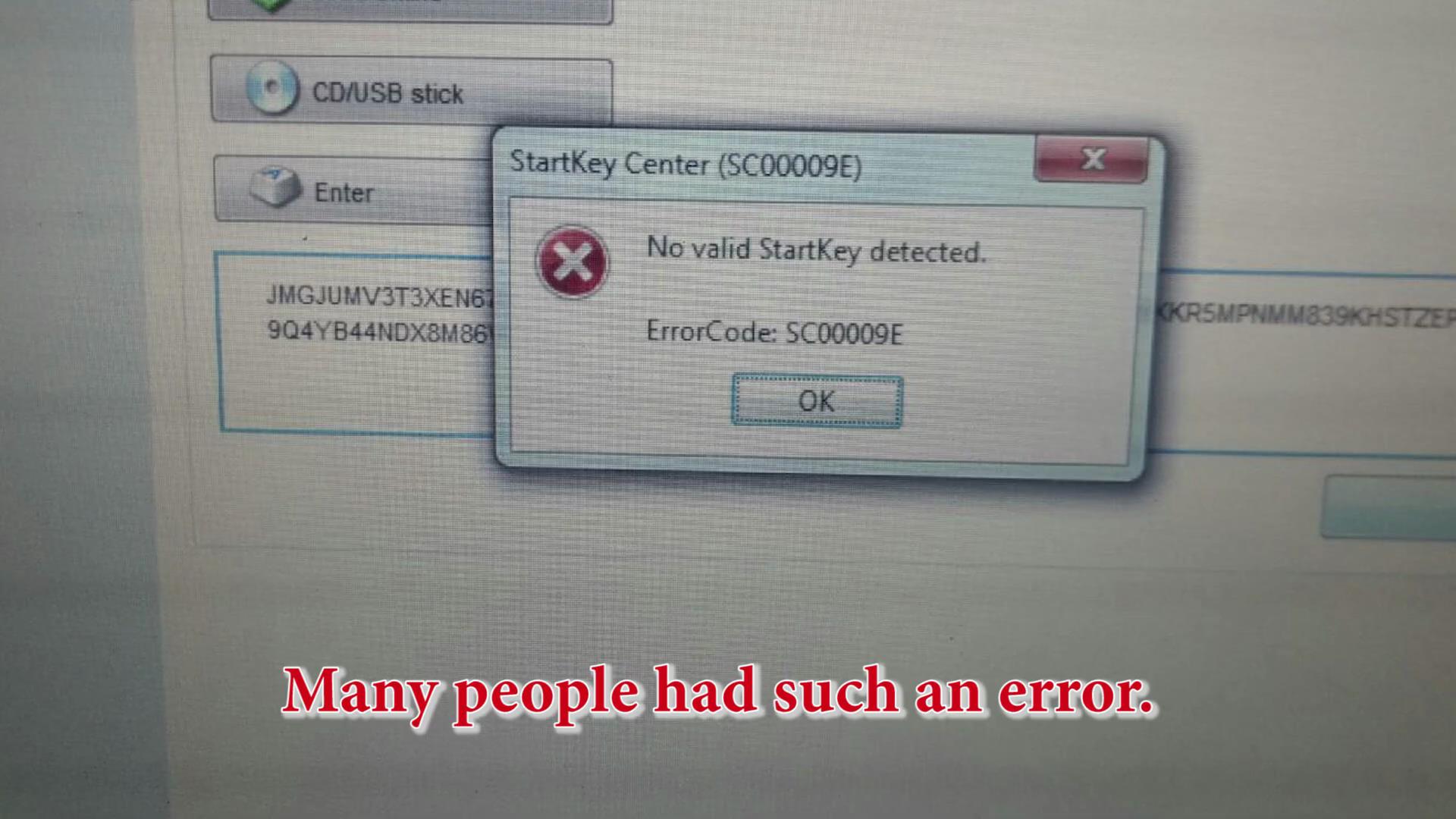
Many People had such an error

Xentry-Error-Supplied-StartKey-is-Invalid-Solution-8
Xentry-Error-Supplied-StartKey-is-Invalid-Solution-9
Xentry-Error-Supplied-StartKey-is-Invalid-Solution-10

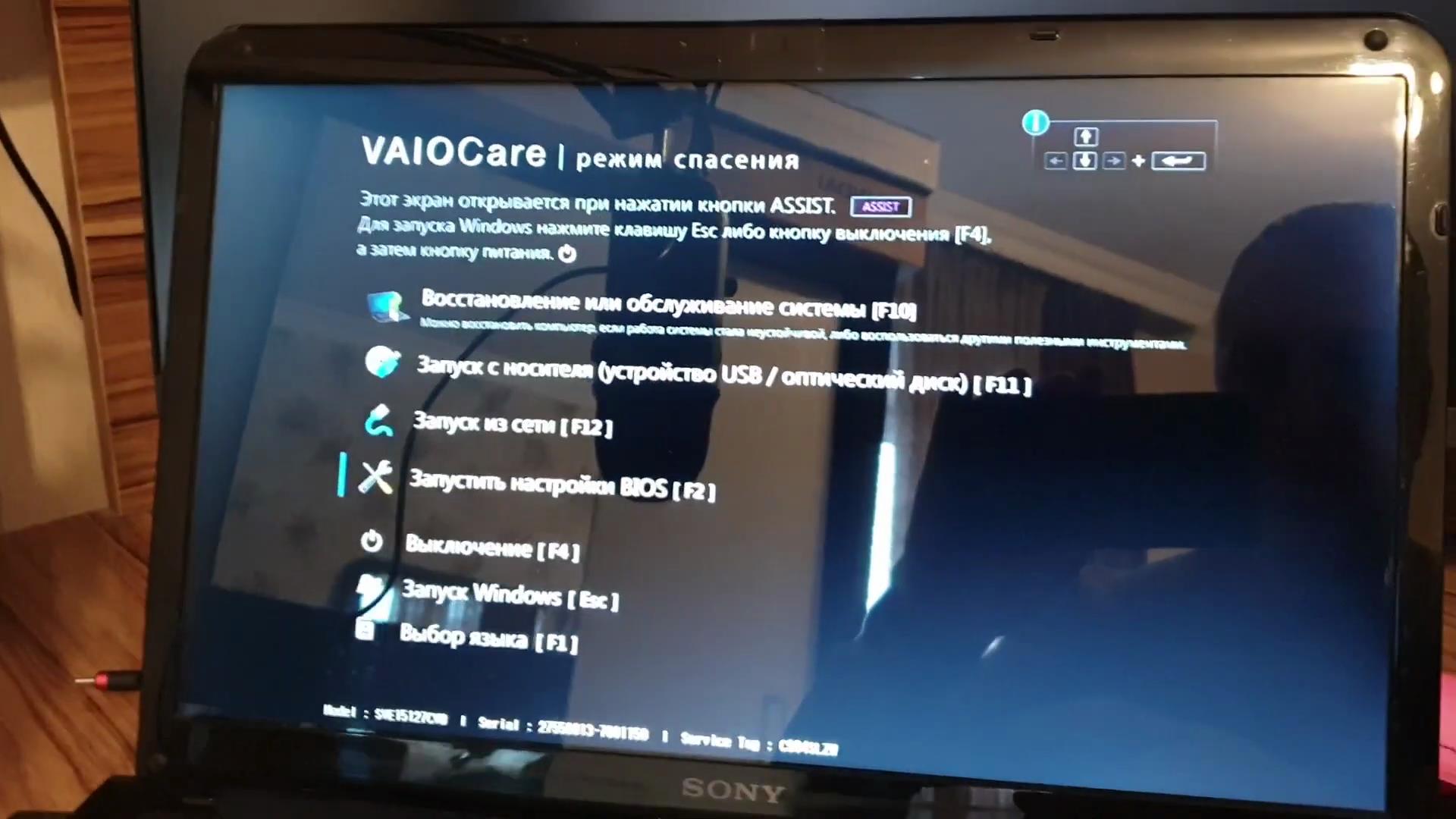
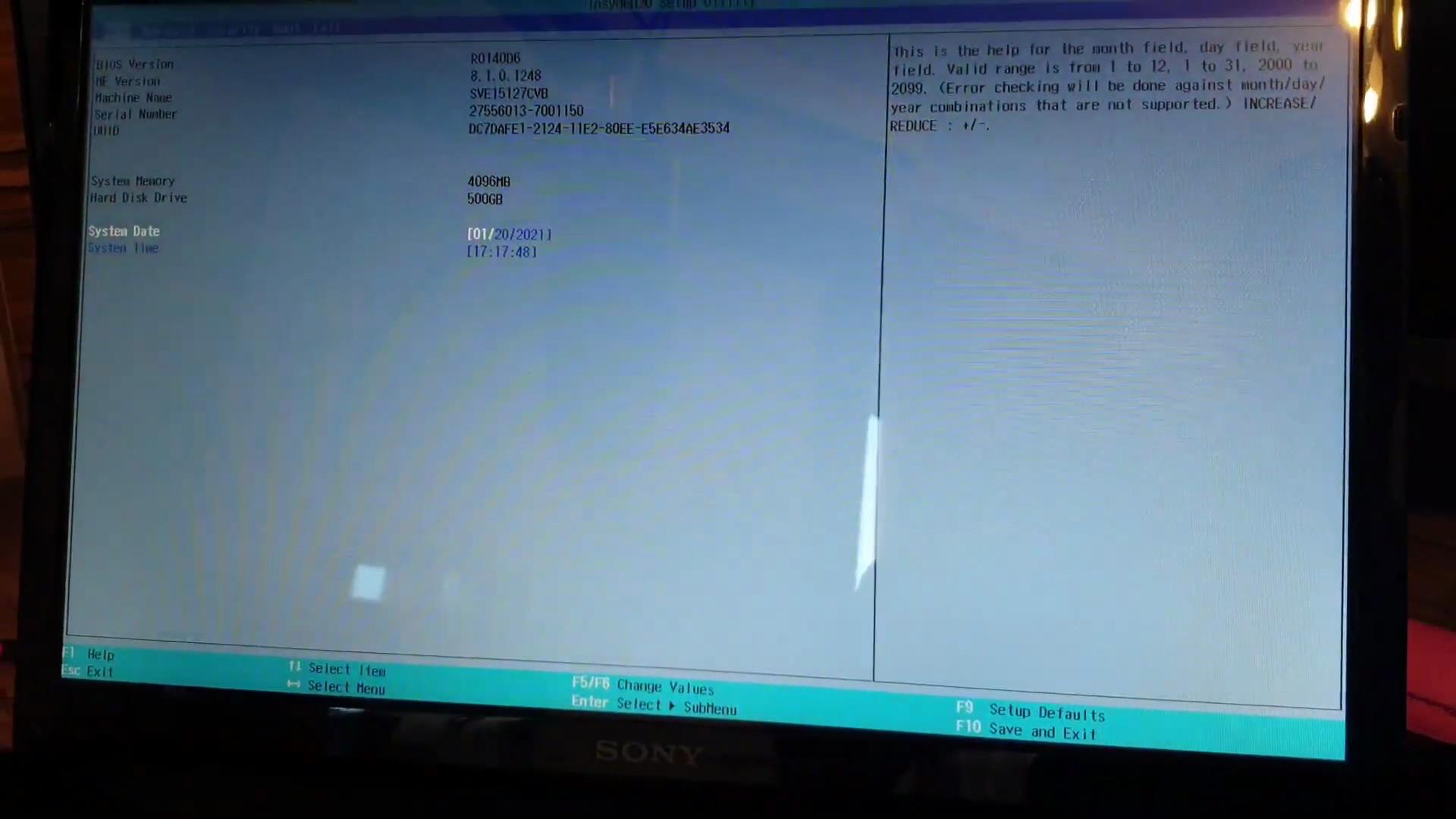
We reboot the computer and enter the BIOS. Either the F2 button or Delete

Xentry-Error-Supplied-StartKey-is-Invalid-Solution-11
Xentry-Error-Supplied-StartKey-is-Invalid-Solution-12

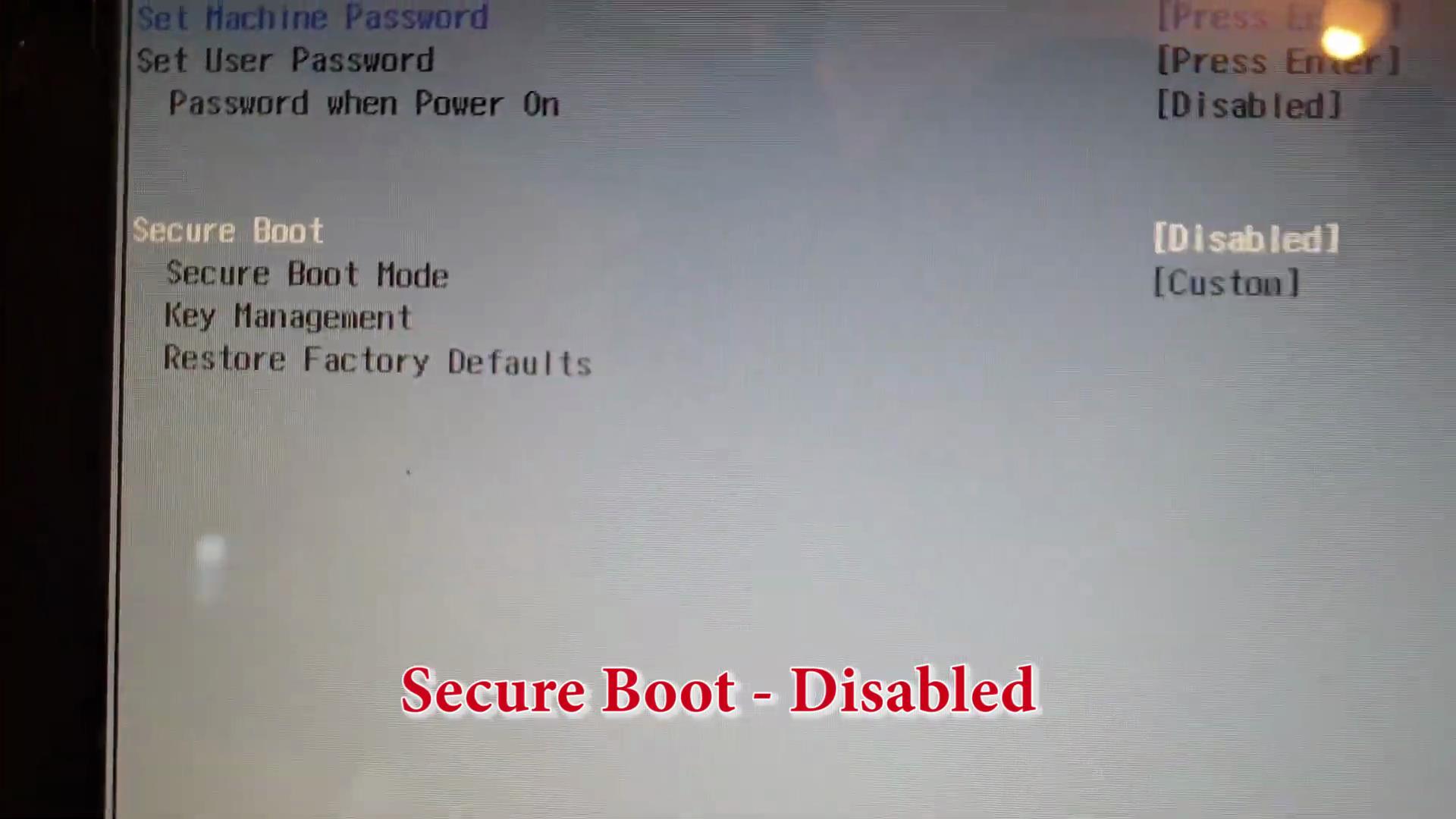
Secure Boot – Disabled

Xentry-Error-Supplied-StartKey-is-Invalid-Solution-13

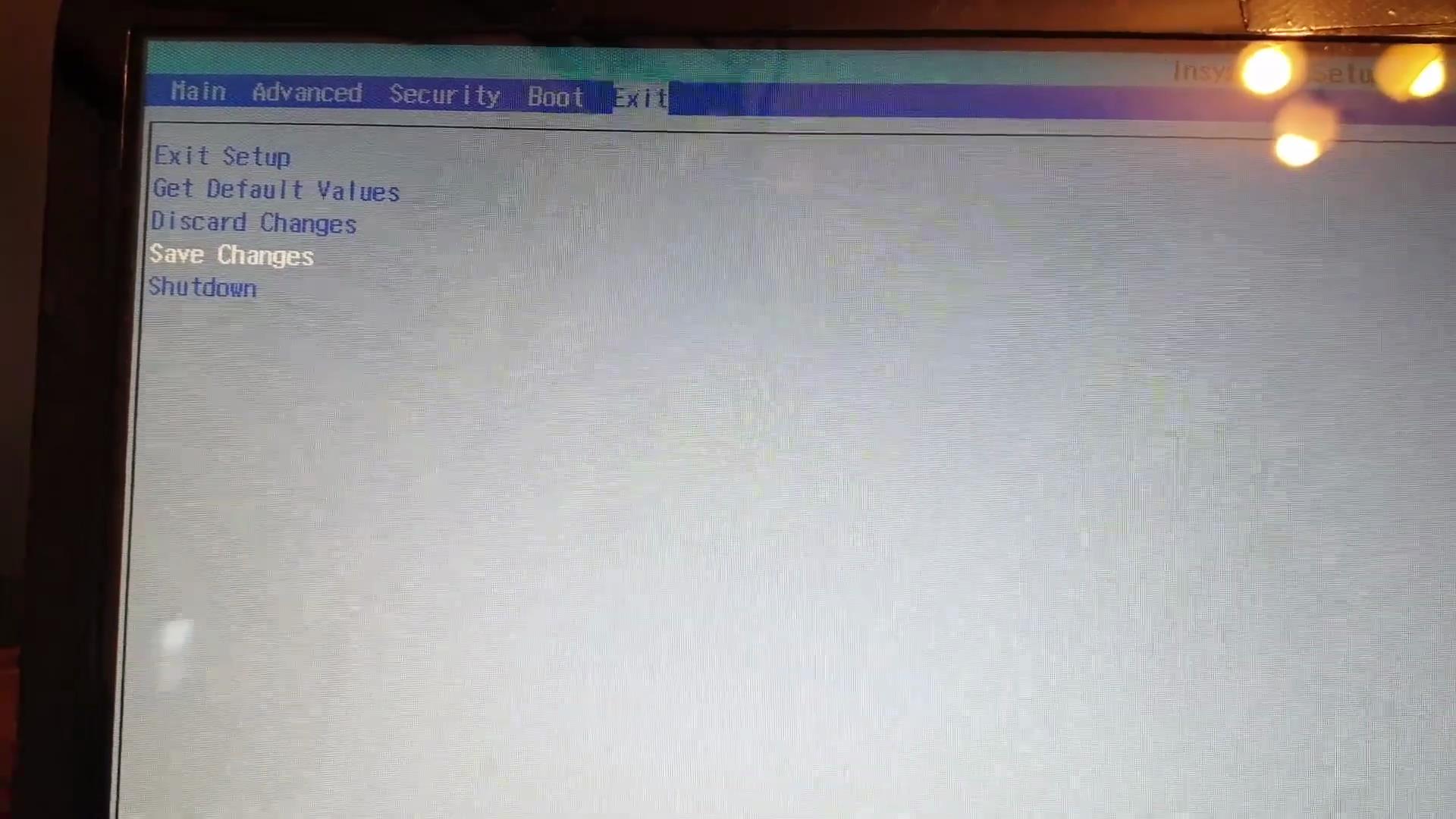
Save Changes

Xentry-Error-Supplied-StartKey-is-Invalid-Solution-14

Xentry-Error-Supplied-StartKey-is-Invalid-Solution-15


Xentry-Error-Supplied-StartKey-is-Invalid-Solution-16
Xentry-Error-Supplied-StartKey-is-Invalid-Solution-17
Xentry-Error-Supplied-StartKey-is-Invalid-Solution-18
Xentry-Error-Supplied-StartKey-is-Invalid-Solution-19

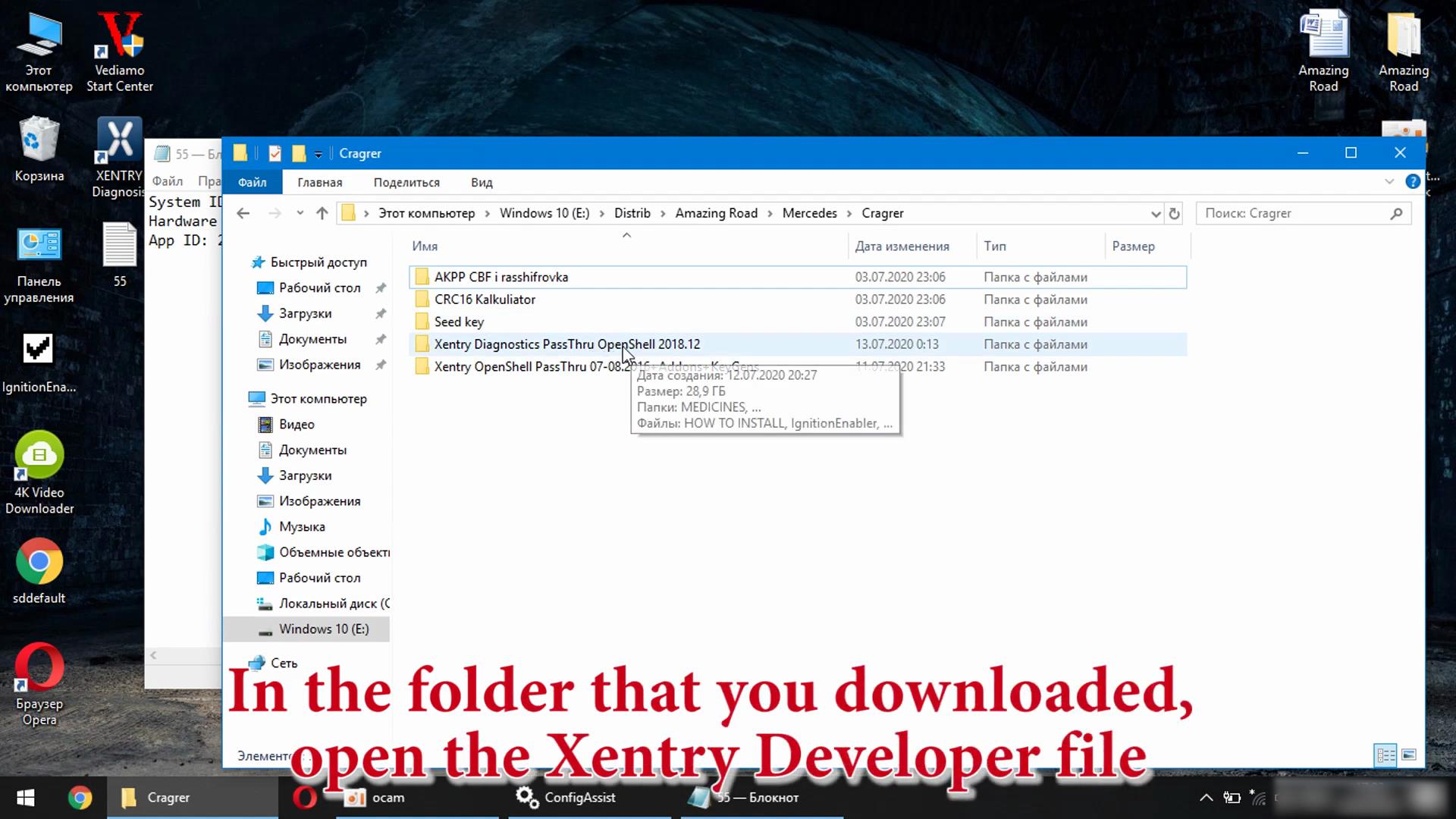
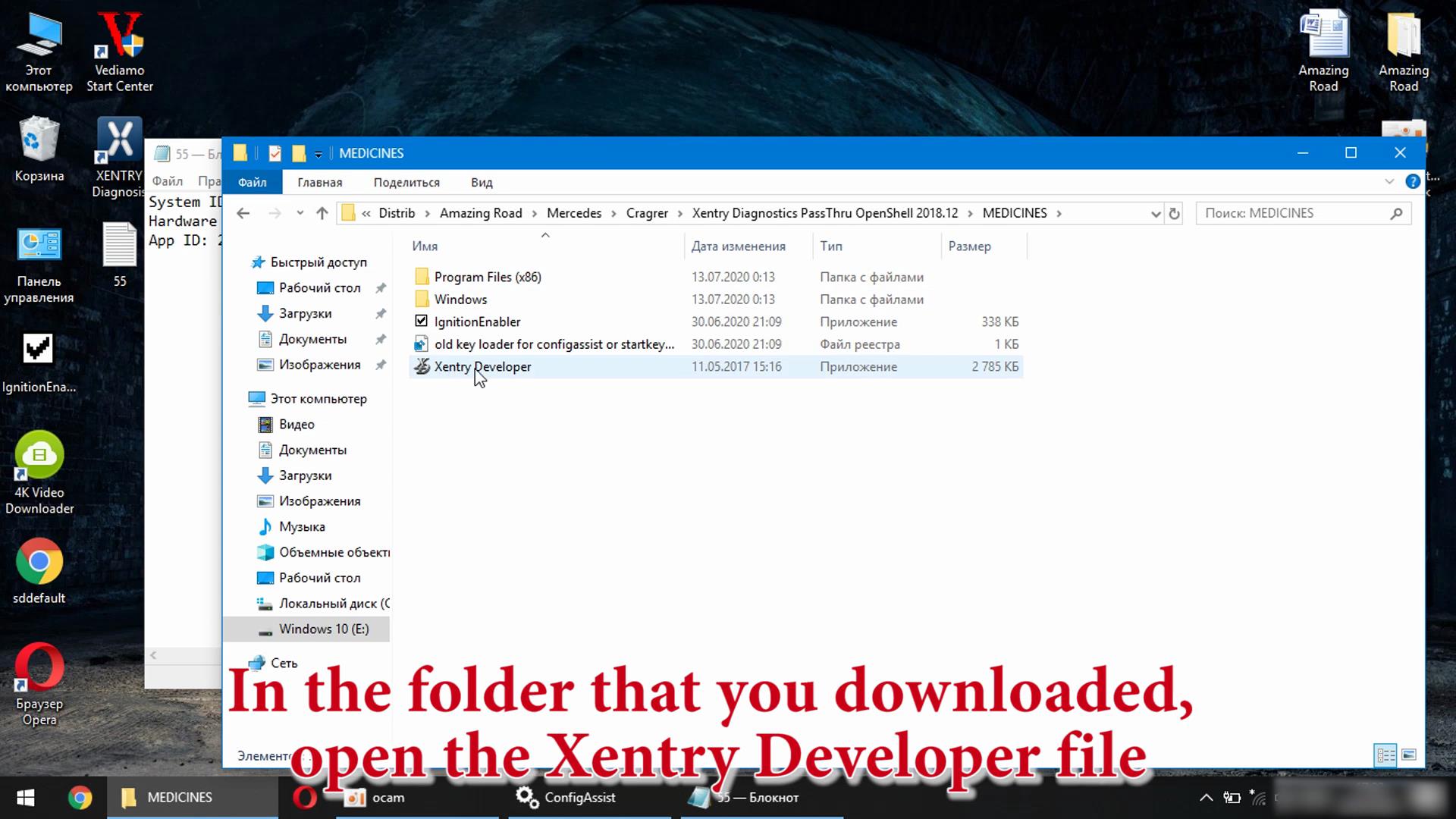
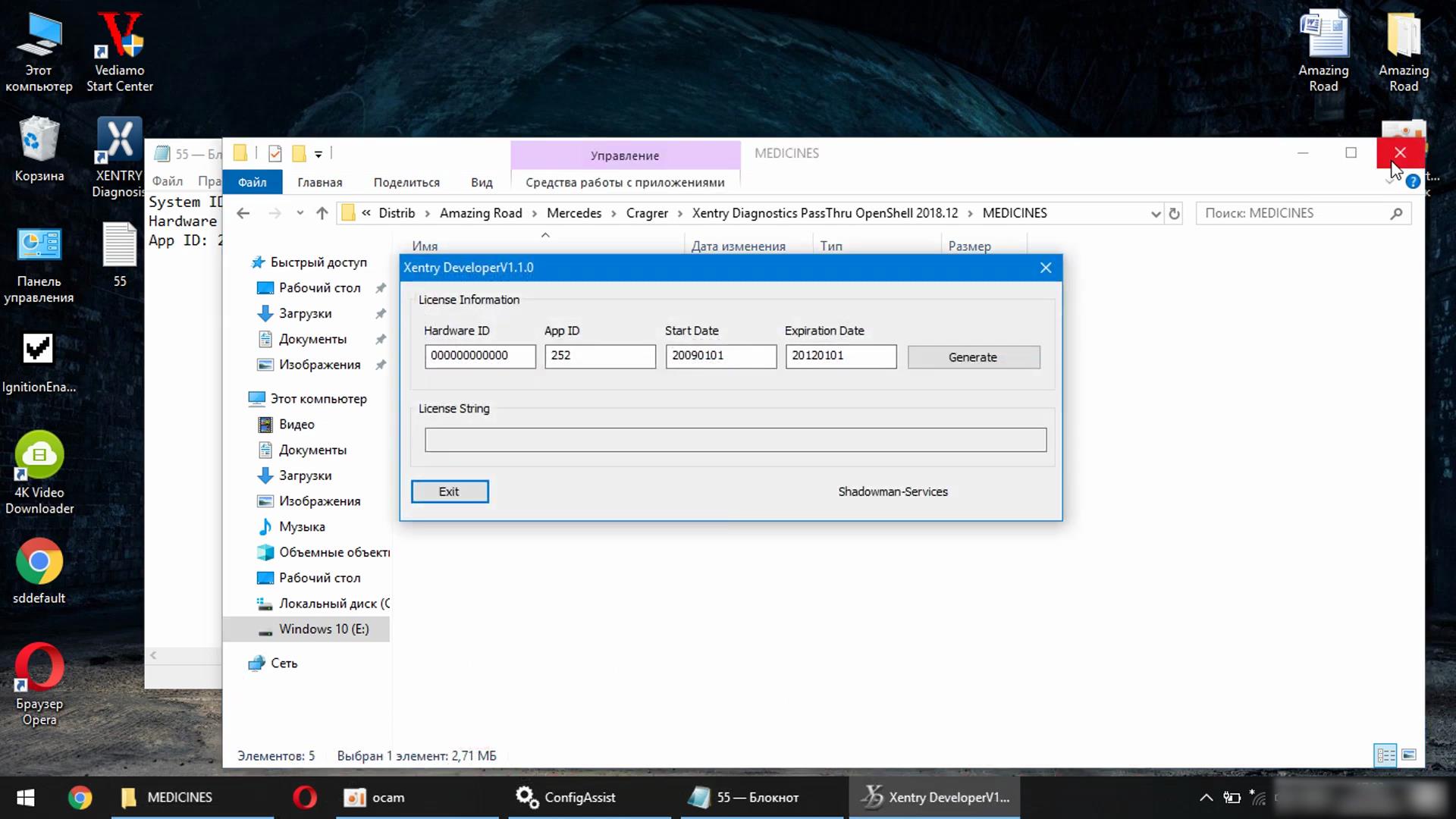
In the folder that you downloaded, open the Xentry Developer file

Xentry-Error-Supplied-StartKey-is-Invalid-Solution-20
Xentry-Error-Supplied-StartKey-is-Invalid-Solution-21
Xentry-Error-Supplied-StartKey-is-Invalid-Solution-22

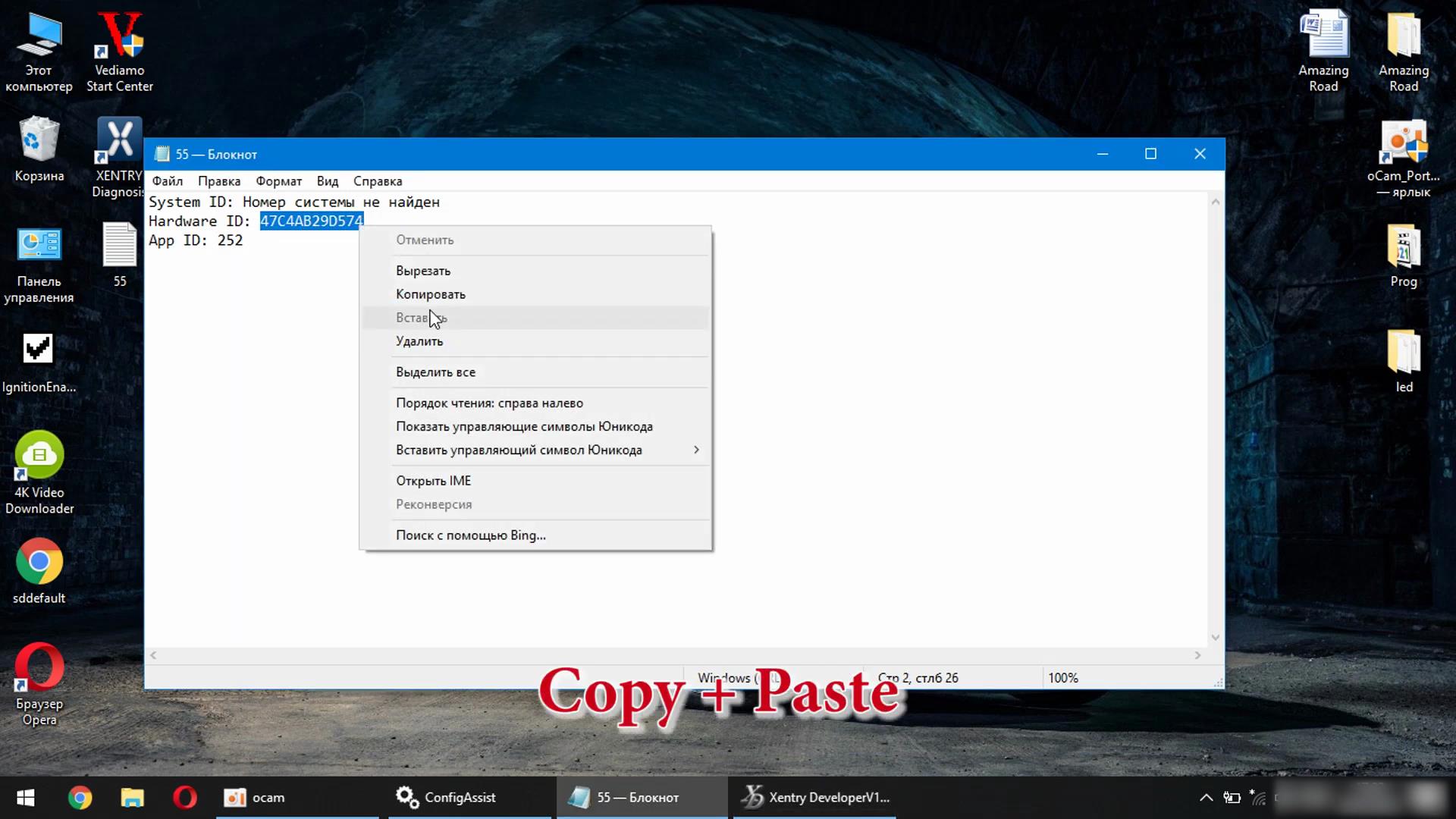
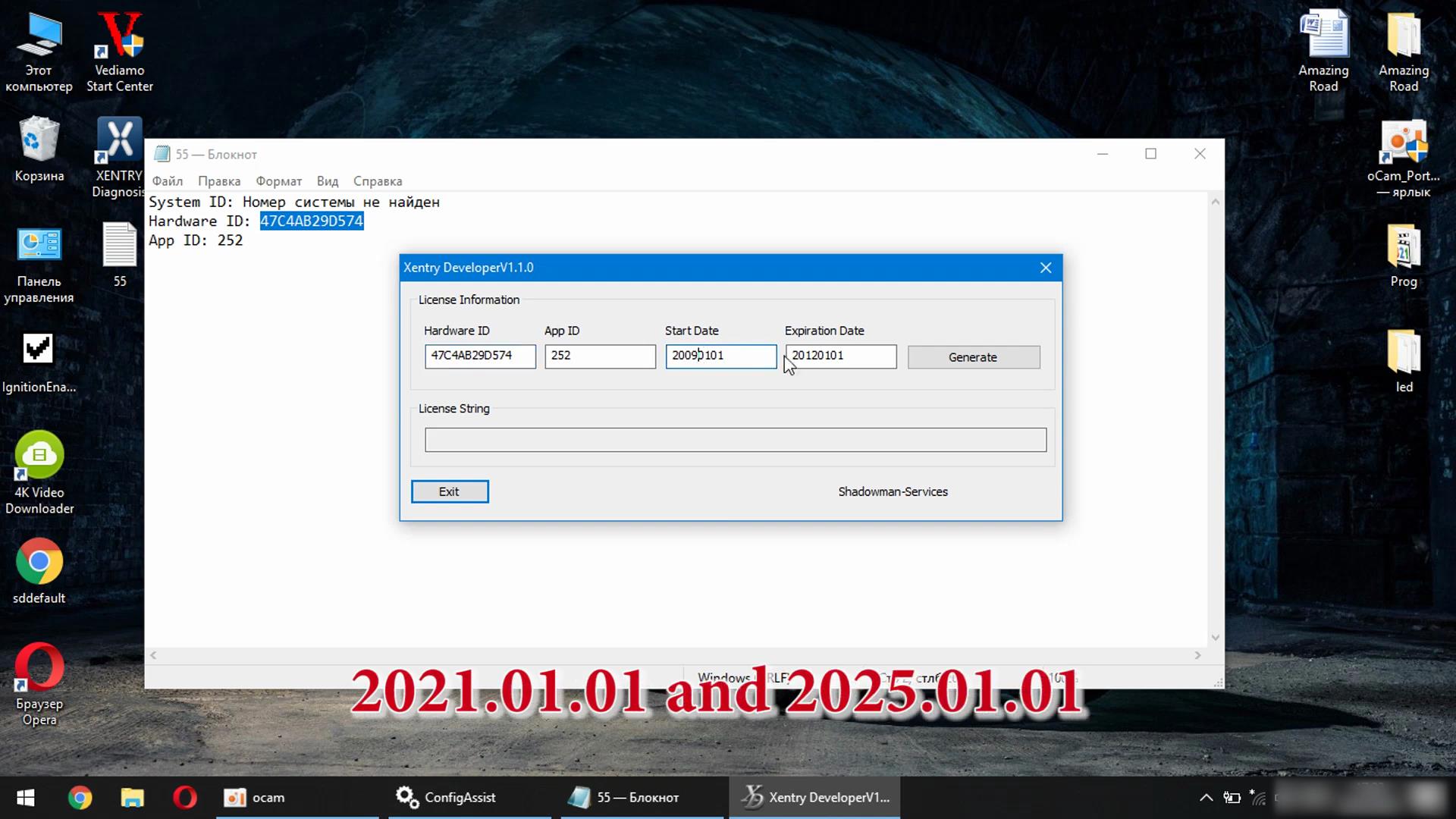
Copy + Paste

Xentry-Error-Supplied-StartKey-is-Invalid-Solution-23

2021.01.01 and 2025.01.01

Xentry-Error-Supplied-StartKey-is-Invalid-Solution-24

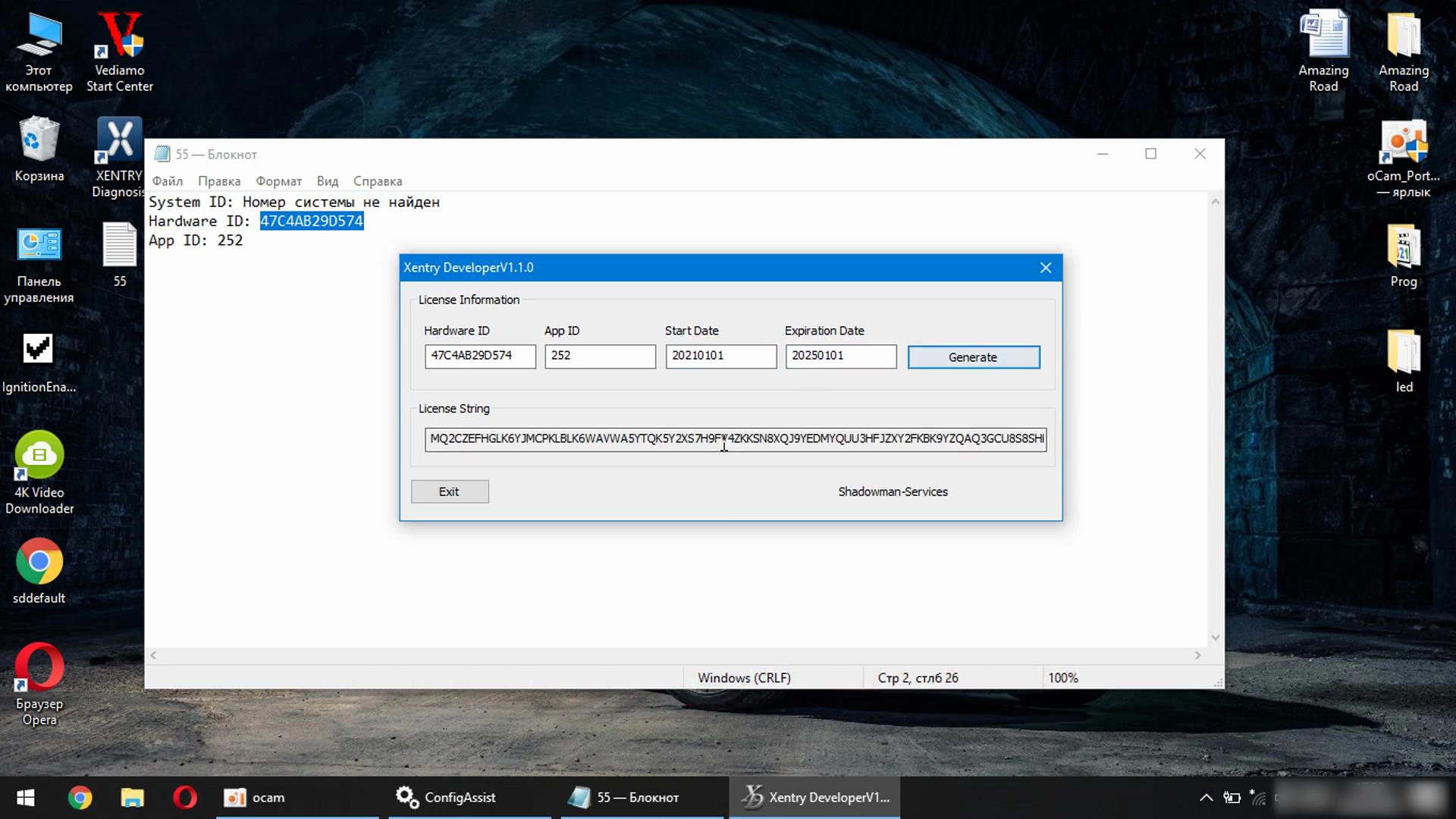
Click Generate

Xentry-Error-Supplied-StartKey-is-Invalid-Solution-25 Xentry-Error-Supplied-StartKey-is-Invalid-Solution-26

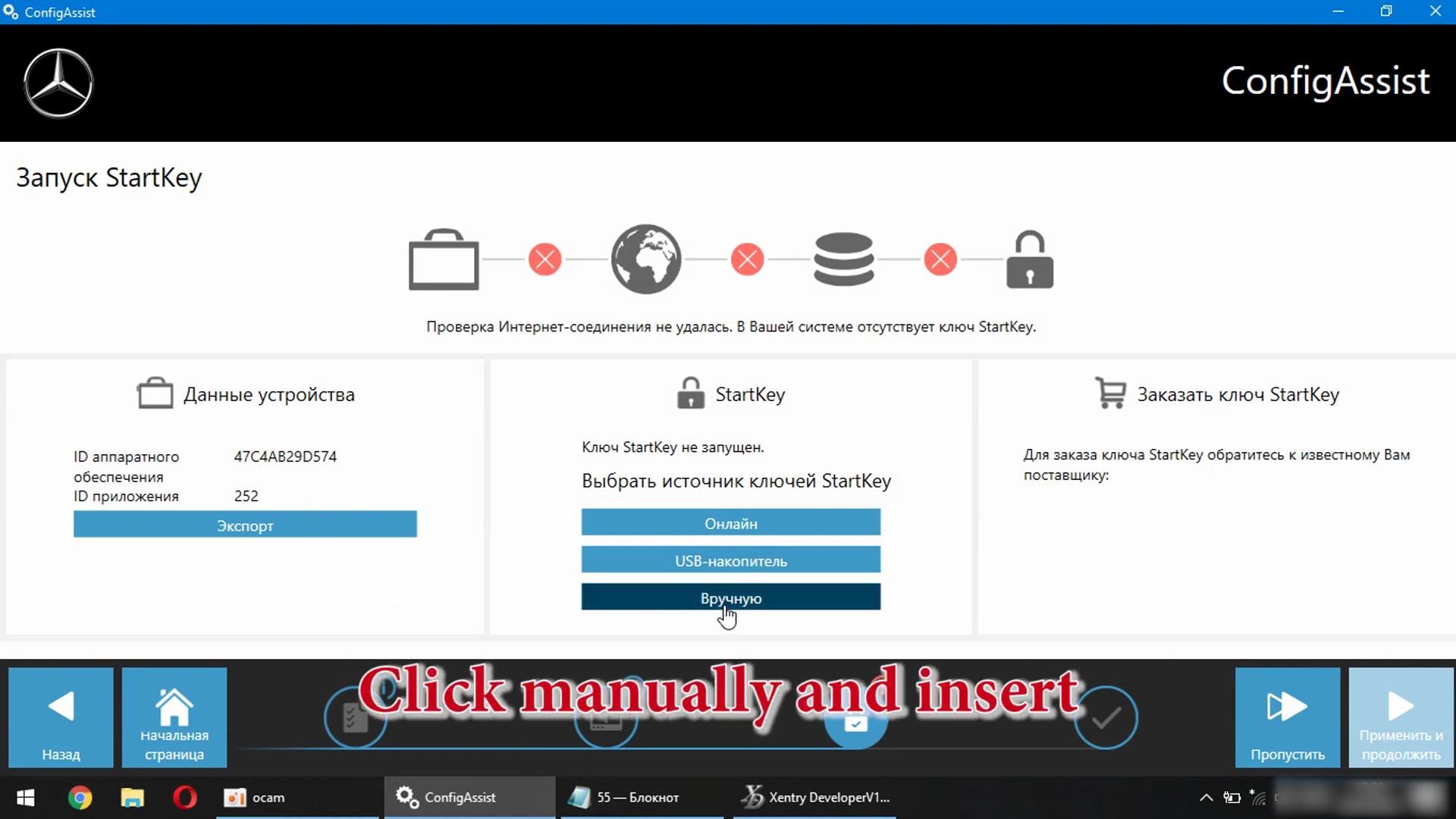
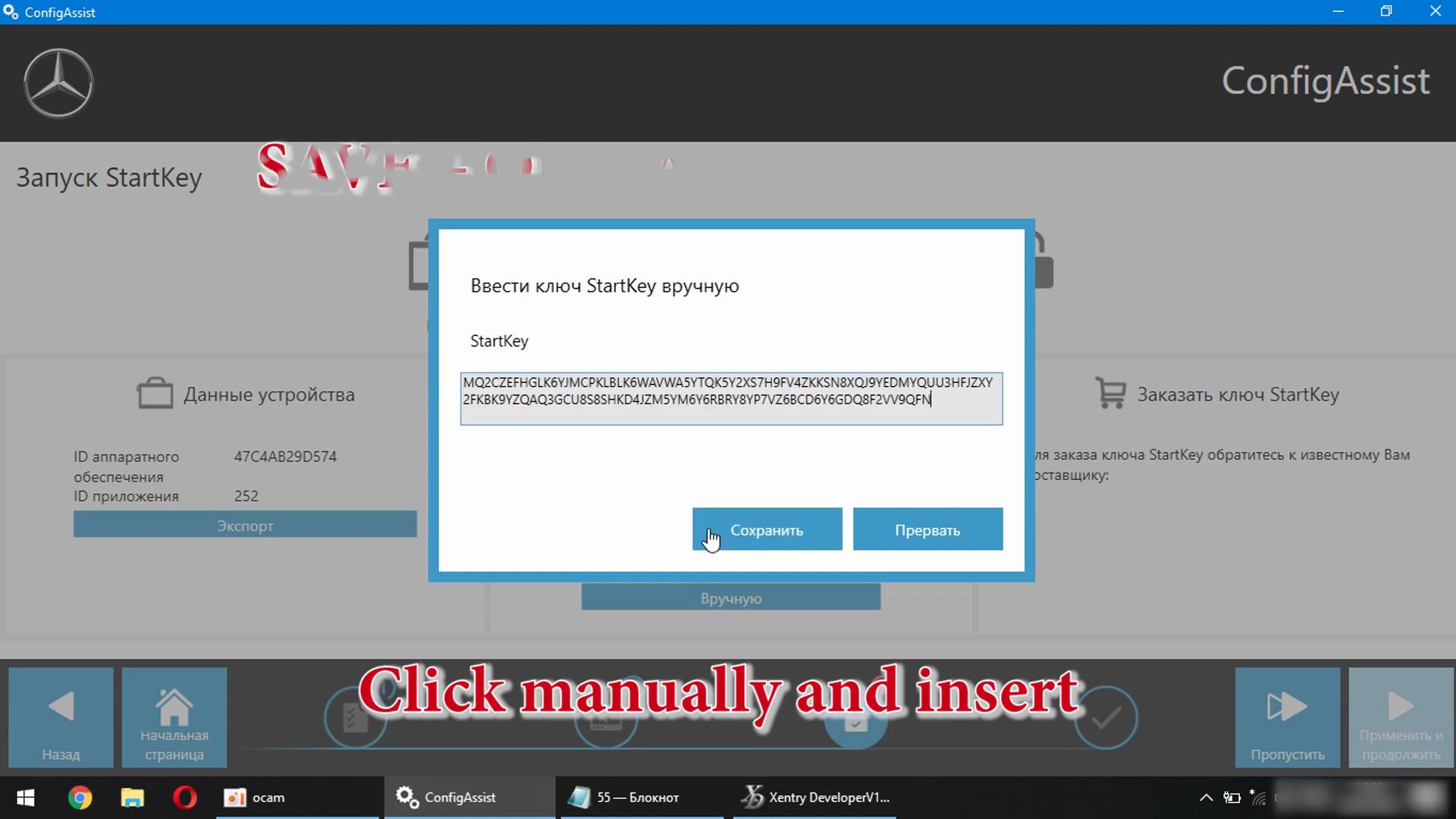
Click Mannually and insert

Xentry-Error-Supplied-StartKey-is-Invalid-Solution-27
Xentry-Error-Supplied-StartKey-is-Invalid-Solution-28

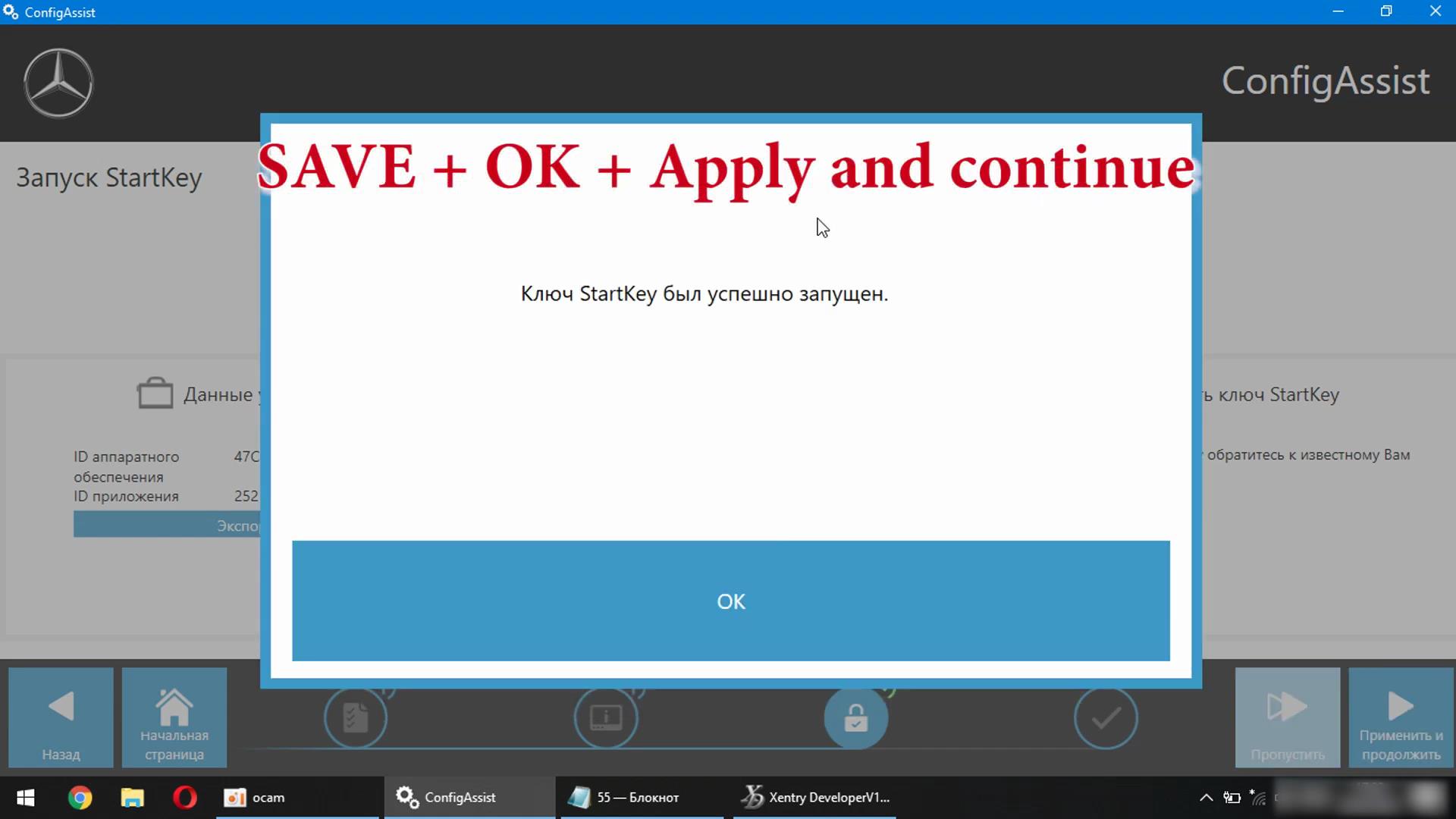
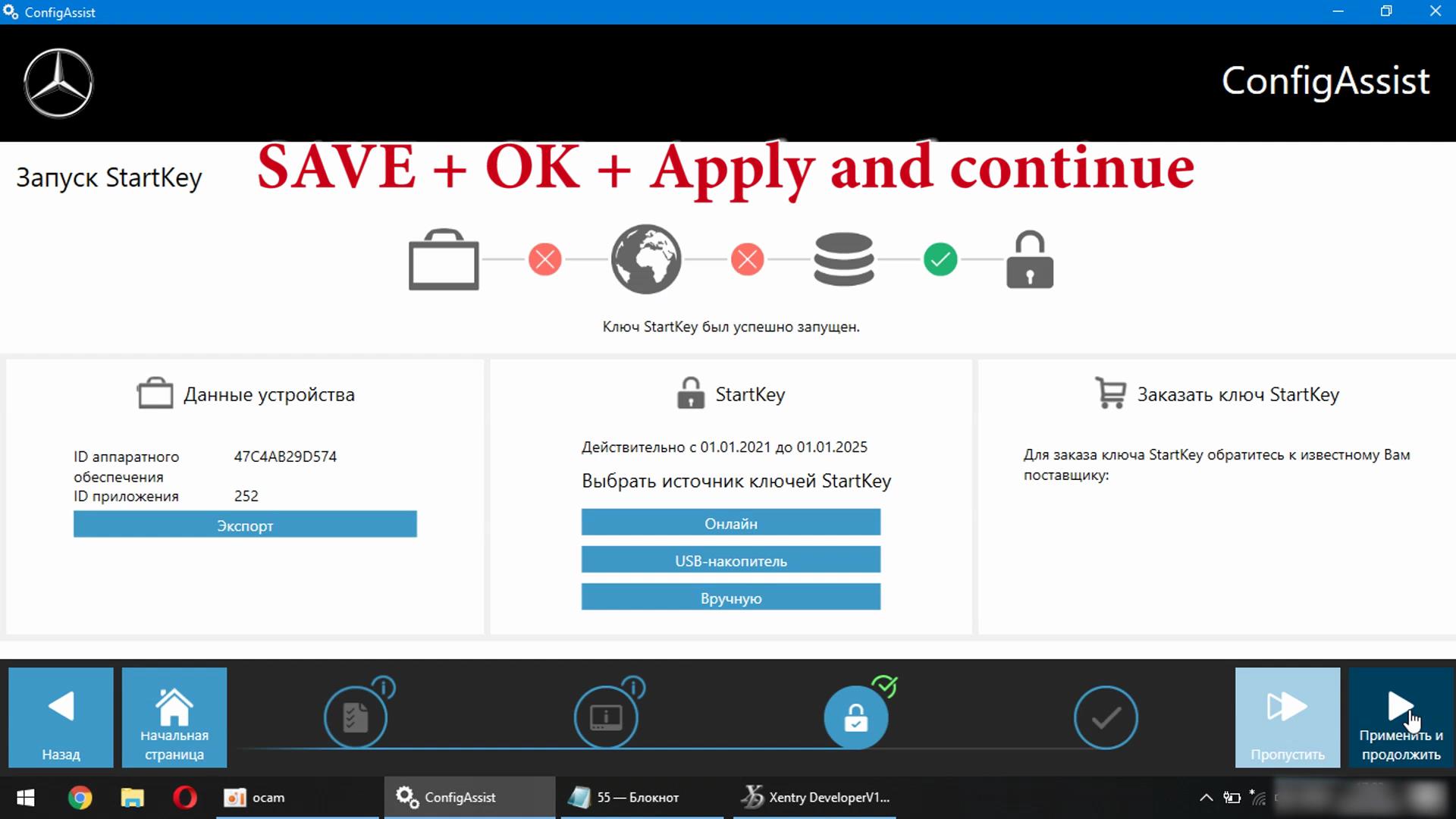
Save + OK + Apply and continue

Xentry-Error-Supplied-StartKey-is-Invalid-Solution-29
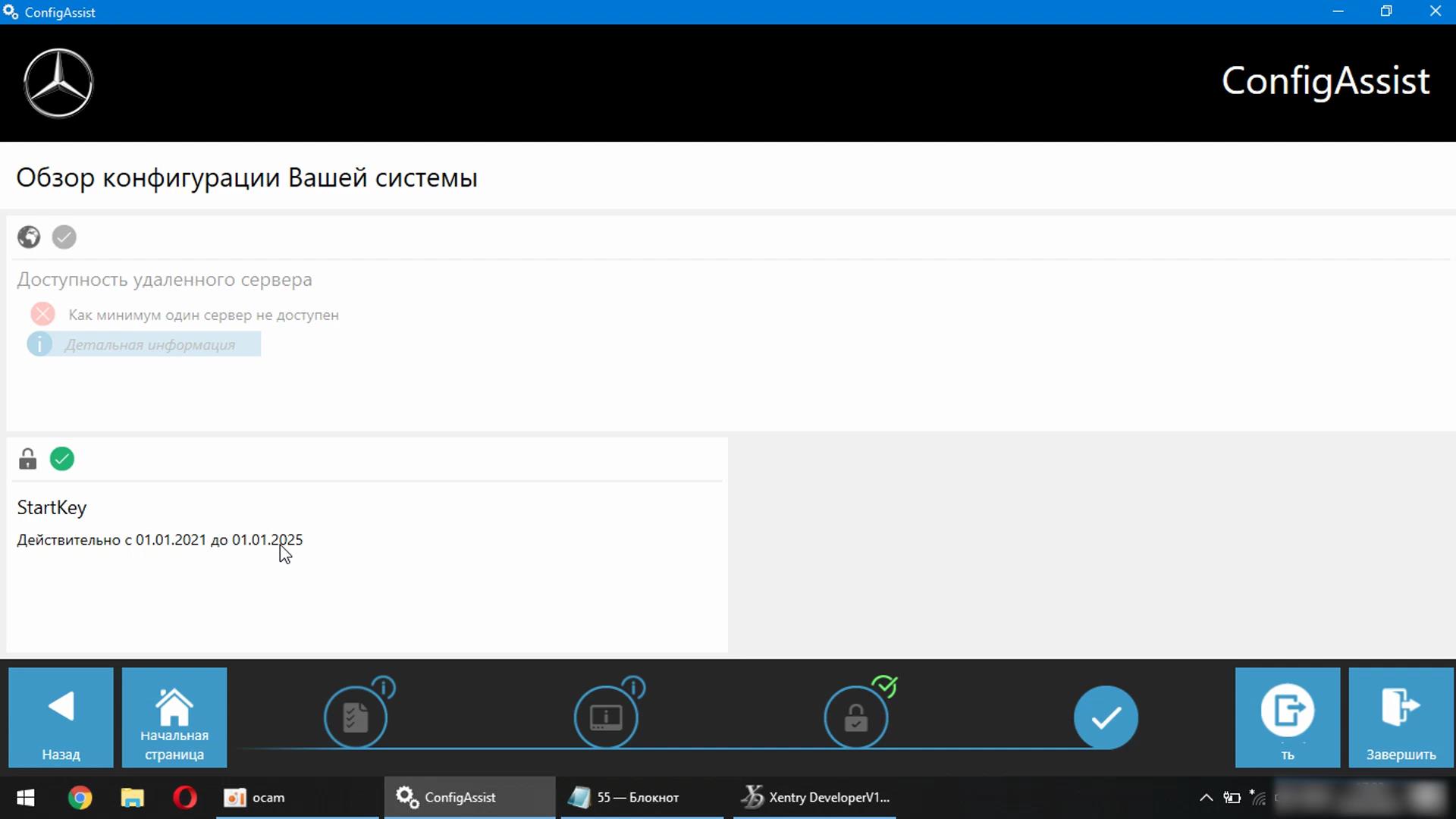
Xentry-Error-Supplied-StartKey-is-Invalid-Solution-30

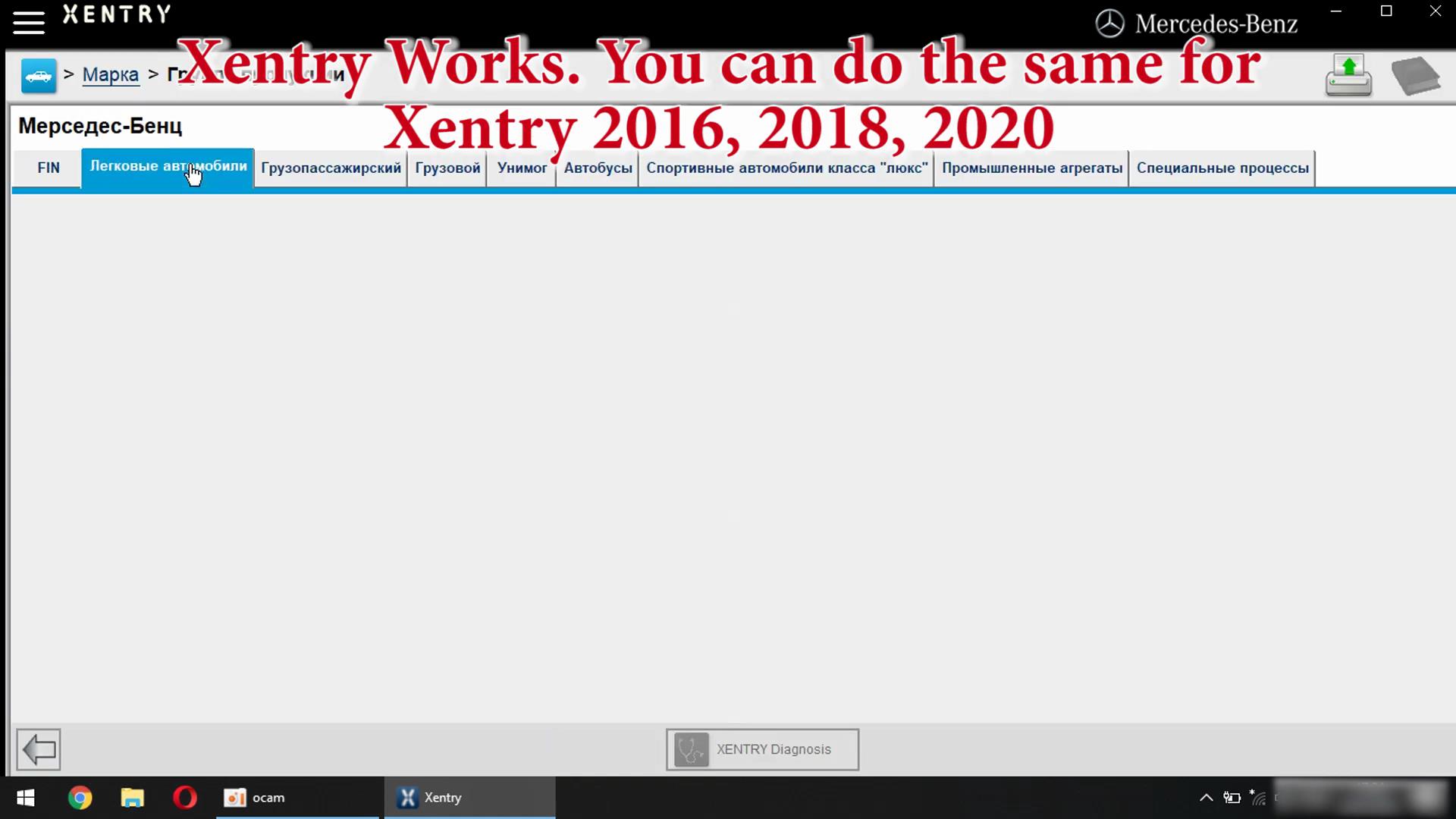
Xentry Works. You can do the same for Xentry 2016,2018,2020,2021

Xentry-Error-Supplied-StartKey-is-Invalid-Solution-31


Friday, July 30, 2021

V2021.6 Xentry DAS win10 X64 version Download, Setup and Activation

What’s new of V2021.6 Xentry DAS Mercedes-Benz diagnostic software win10 X64 version:

V2021.6-Xentry-DAS-win10-X64-version-Download-Setup-and-Activation-1

V2021.6 Xentry DAS, long registration code, can diagnose buses and trucks, supports the login-free diagnosis of new models such as 213 and 257, and supports the diagnosis of the HHT software of the old models of 140 and other models.

Maintenance Information WIS 2020.10

Accessory query EPC 11.2018: open the data card, you can query the price of accessories in USD and EUR

StarFinder 2016 and 2020
PL72 Accessories Price Inquiry 01.2018
SDmedia offline 01. 2014
Engineer version Vediamo 5.01.01
DisassembyAssistant disassembly assistant software
Selit Service Literature 1.4

V2021.6-Xentry-DAS-win10-X64-version-Download-Setup-and-Activation-2
V2021.6-Xentry-DAS-win10-X64-version-Download-Setup-and-Activation-3

Increase the engineer version DTS 8.16.15, the latest 2019 data:
1.  Fix the bug that Mercedes-Benz DAS cannot directly call WIS
2.  Add the DAS car smart offline programming
3.  Add the DAS stand-alone version of W204 , which can perform variant coding (German), and has better functions than Vediamo
4.  Add DAS special function to enter PKW and SMART without password
5.  Repair SMART 450, 451, 452, 454 no longer need TAN Calculator, all are done offline
6.  Add offline EOL and VMAX all LKW, modify the maximum speed limit of trucks
7.  Lift the NOx TORGUE restrictionfor truck withoutFDOK XT calculation code, directly lifts the legal speed limit, and can be modified without special functions
8.  Clear the SCR/ADBLUE fault code (MR)for truckwithout FDOK XN calculation code,
9.  Addthe prototyp mode of DAS 212, 207

Reliable source of V2021.6 Xentry DAS Win10 version:

– V2021.6 Xentry HDD 500GB Win10
– V2021.6 Xentry SSD 512GB Win10 (SSD is much more stable)

Compatible with:
MB SDCONNECT C4
sdconnect c4 plus
Mercedes Benz C6
MB SD Connect Compact 5

Installation & Activation Mercedes-Benz Xentry DAS V2021.6:

https://www.youtube.com/watch?v=AeqlJl_Y-ig

Sunday, July 25, 2021

MB Star Diagnostic Xentry software common error and solution


MB Star Diagnostic Xentry software works fine with MB SD C4 (Plus) and MB SD C5. It supports Mercedes-Benz car & truck diagnostic till 2020.

The newest Xentry software has been updated to V06.2020. Here share some common errors which the customers gave feedback and offer the corresponding solutions by cardiagtool.co.uk engineer.

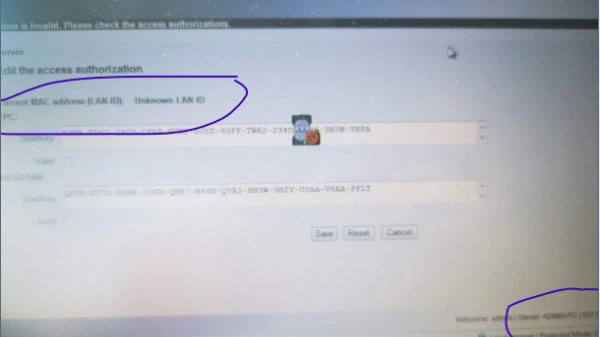
Error 1: Current MAC address (LAN ID): Unknown LAN ID

Error 2: Wi-Fi connection error

Error 3: Register/Configure (2138). The key is not divisible by 2 and therefore not hexadecimal

Error 4: Unable to access service

Error 5: The data are faulty

Error 6: It may not have been possible to find the file

Error 7: Initialization of diagnosis multiplexer failed

In detail…

Error 1: Current MAC address (LAN ID): Unknown LAN ID

When you run V2020.03 Xentry software, sometimes it will appear “Current MAC address (LAN ID): Unknown LAN ID” in ewa-net activation operation

MB-Star-Diagnostic-Xentry-software-common-error-and-solution-1

The solution:

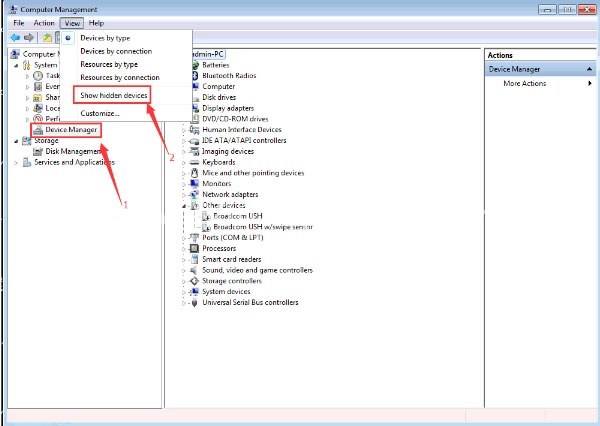
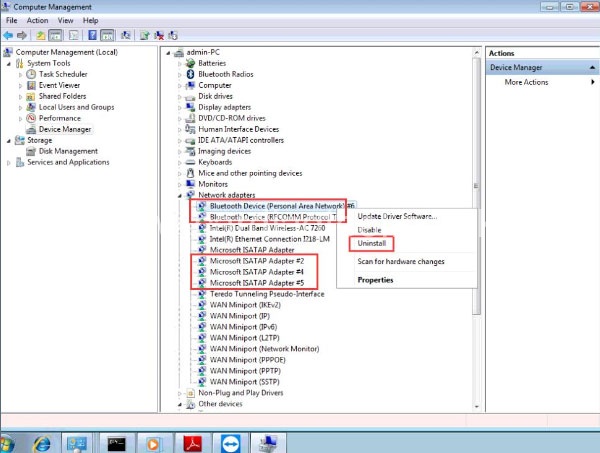
1.Open “Computer Management”
2.Right click “Device Manager” to select “Show hidden devices”

3.Uninstall all virtual network card drivers with # in the “Network adapters” option

4.Restart ewa-net

MB-Star-Diagnostic-Xentry-software-common-error-and-solution-2
MB-Star-Diagnostic-Xentry-software-common-error-and-solution-3

Error 2: Wi-Fi connection error

Sometimes, there is something wrong with Wifi connection when using MB SD C4 Plus DOIP as below.

MB-Star-Diagnostic-Xentry-software-common-error-and-solution-4

The solution:

There are two connection methods for MB SD C4 PLUS: by Wifi or network cable.

If it failed to connect by WIFI, please use a network cable instead of it.

If the WLAN is ok, don’t modify the IP setting.

Wifi setting video:

https://www.youtube.com/watch?v=z2WCr8fuXhU

Error 3: Register/Configure (2138). The key is not divisible by 2 and therefore not hexadecimal

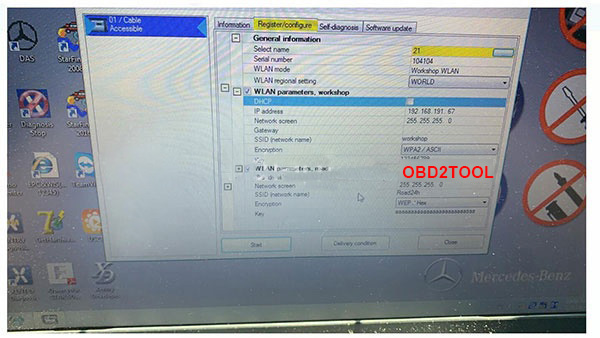
When set IP for MB SD C4 Xentry software, an error message pops up “Register/Configure (2138) The key is not divisible by 2 and therefore not hexadecimal”.

MB-Star-Diagnostic-Xentry-software-common-error-and-solution-5

The solution:

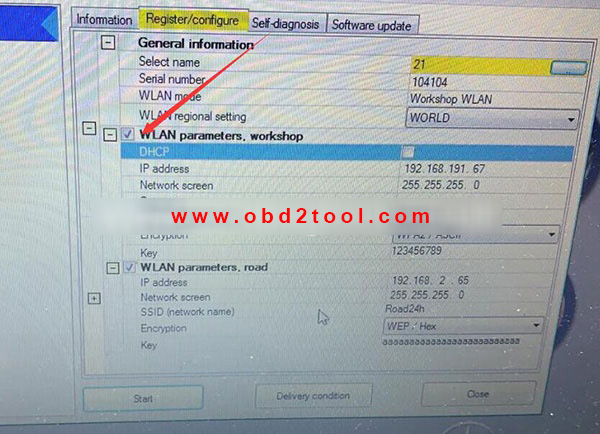
1.Please remove the tick of WLAN parameters, workshop
2.Change the key number to 26 lowercase letters: a

MB-Star-Diagnostic-Xentry-software-common-error-and-solution-6
MB-Star-Diagnostic-Xentry-software-common-error-and-solution-7

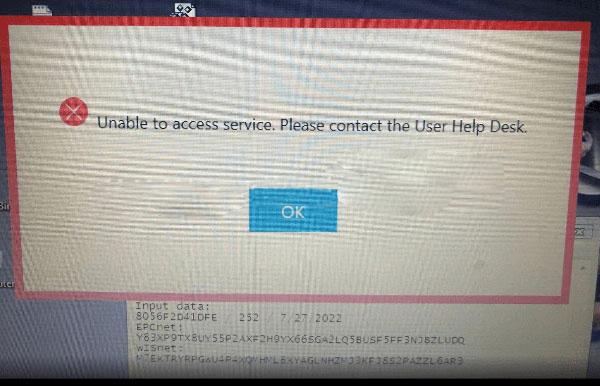
Error 4: Unable to access service

MB-Star-Diagnostic-Xentry-software-common-error-and-solution-8

The solution:

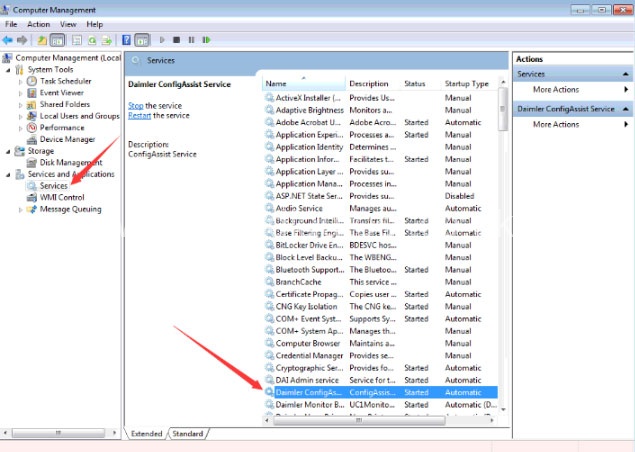
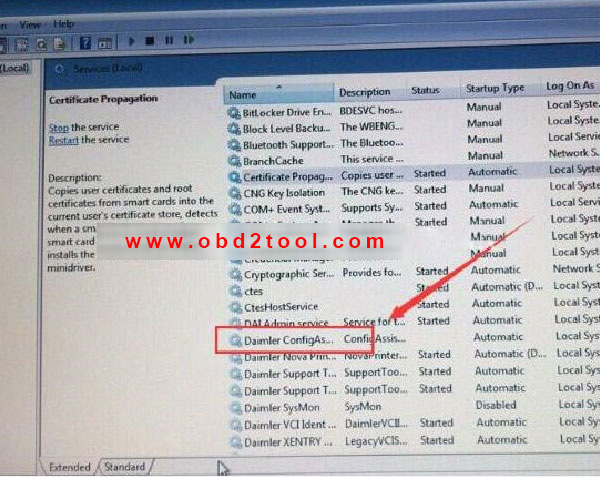
Go to [Computer Management]-> [Service and Applications]-> [Services]
Find [Daimler ConfigAssist Service] and start it.

MB-Star-Diagnostic-Xentry-software-common-error-and-solution-9

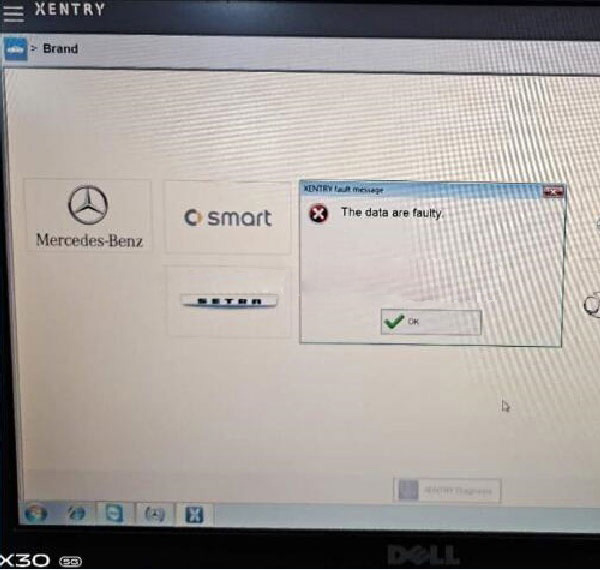
Error 5: The data are faulty

When you run 2020.03 Xentry software with MB SD C4, it maybe appear “the data are faulty” and cannot do any function.

MB-Star-Diagnostic-Xentry-software-common-error-and-solution-10

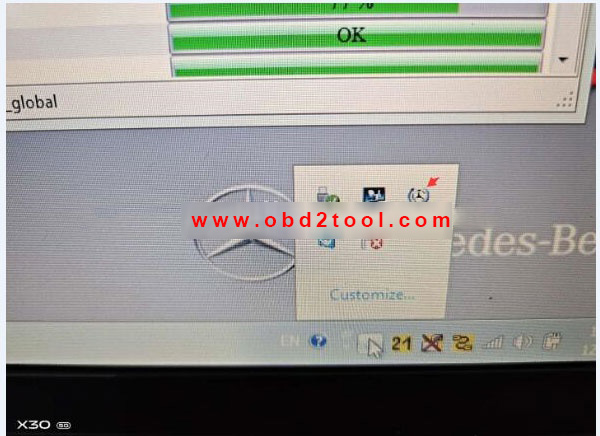
The possible reason is that you click the upgrade icon.

MB-Star-Diagnostic-Xentry-software-common-error-and-solution-11

The solution:

1.Please don’t click the upgrade icon, otherwise it will update.
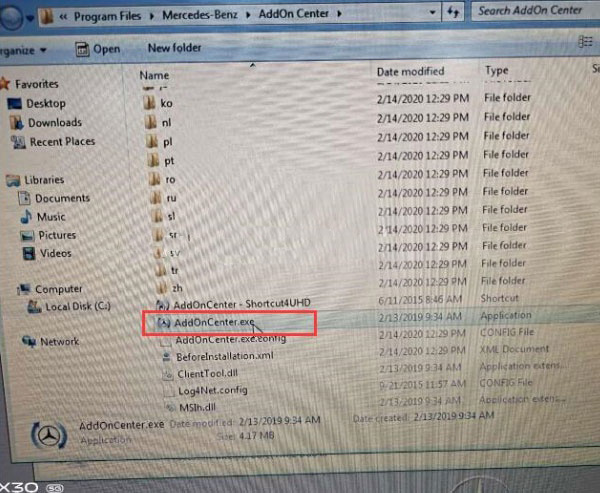
2.Change the file name “AddOnCenter.exe” to “AddOnCenter.ex_”, then it will not update automatically. After modifying, restart the computer.

MB-Star-Diagnostic-Xentry-software-common-error-and-solution-12

3.Free download the following link to fix.
Xentrypatch: https://share.weiyun.com/5uIxwgI
Password: eswr9a
Size: 2GB
Security: No risk!

4.After installing the Xentry patch to fix the error, please restart the computer and run Xentry Software again.

MB SD C4 Xentry patch installation video:
https://www.youtube.com/watch?v=wlUxFEMry7E

Note: The solution above is suitable for Xentry software “The data are faulty” error as well. But the Xentry patch download link is different.

Xentrypatch: https://share.weiyun.com/5dLTPWG
Password: mlpnqm
Size: 2.02 GB
Security: No risk!

Error 6: It may not have been possible to find the file

When running the file “C:\Program Files\Mercedes-Benz\Xentry\bin\XDConfig\set_SDconnect.bat”, the error message prompts “it may not have been possible to find the file”.

MB-Star-Diagnostic-Xentry-software-common-error-and-solution-13

The solution:

1.Press “WIN+R” keyboard shortcuts to open the run window
2. Enter “Services.msc” in the textfield to start the Configassist service

MB-Star-Diagnostic-Xentry-software-common-error-and-solution-14

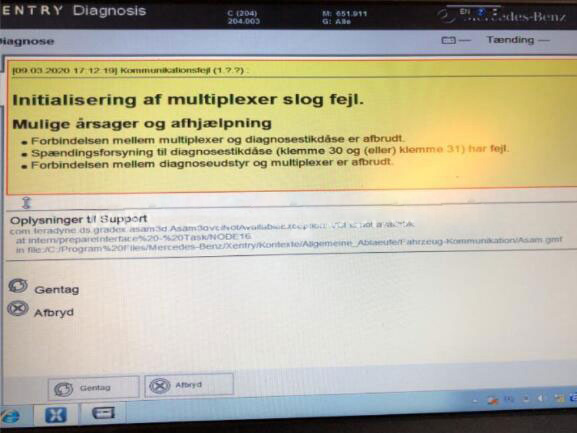
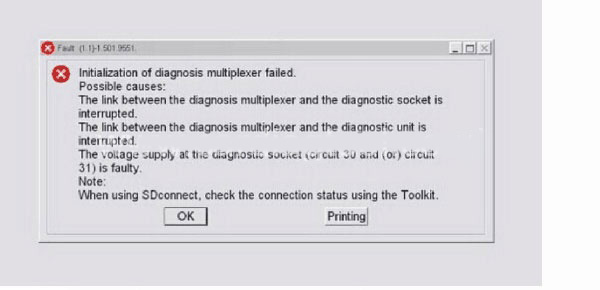
Error 7: Initialization of diagnosis multiplexer failed

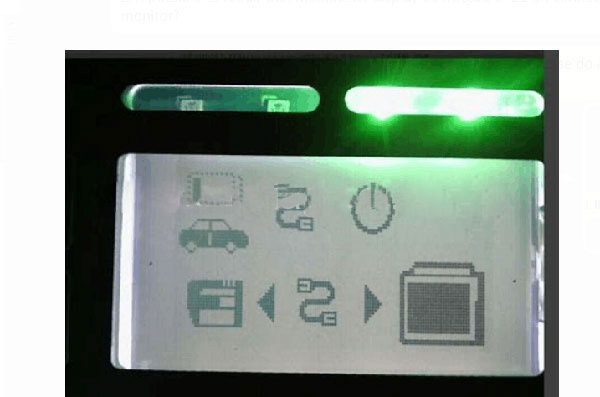
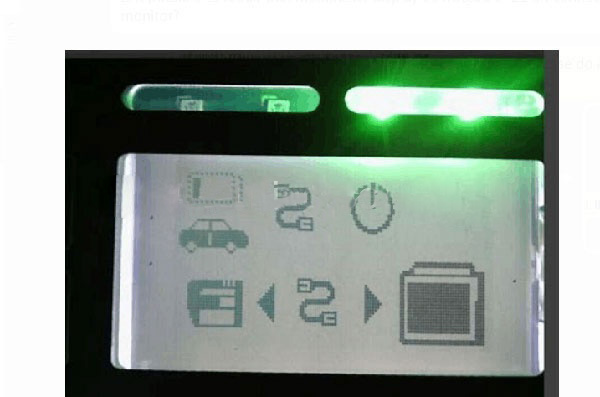
If you connect SD Connect C4 with your computer, and it shows white 00 connection status at the bottom right corner and prompts “Initialization of diagnosis multiplexer failed”. Please solve it depends on the following solution.

MB-Star-Diagnostic-Xentry-software-common-error-and-solution-15
MB-Star-Diagnostic-Xentry-software-common-error-and-solution-16

The solution:

The prompt indicates that you need to update MB SD C4 firmware, not initialization.

Here is the firmware update guide:

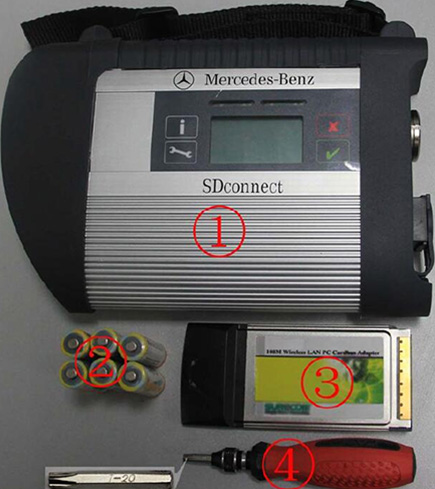
Step 1: Please prepare all the tools below:

Note: If your tool is MB SD C4 PLUS, you don’t need to install battery again, because the batteries have been installed in the device before delivery.

1). SDconnect C4 multiplexer which need to input the batteries

2). 6 units Ni-MH rechargeable batteries (size: AA, Voltage: 1.2 V, Capacity: 1700mA above)

3).1 unit 108M WIFI card

4).Plum screwdriver, specification: T-20

MB-Star-Diagnostic-Xentry-software-common-error-and-solution-17

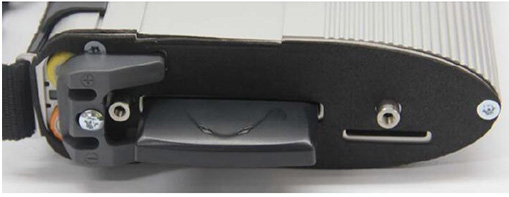
Step 2: Take out the rubber

1).Use the T20 Plum screwdriver to take out the screws as below.

2).Take out the rubber as below

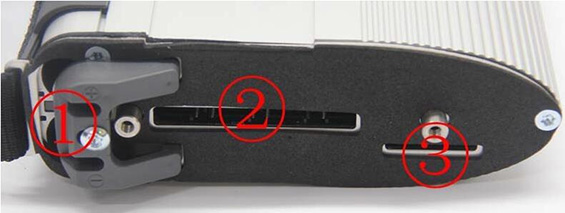
Note: No.1 is Batteries space, No.2 is WIFI card space, No.3 is SD card space

MB-Star-Diagnostic-Xentry-software-common-error-and-solution-18

Step 3: Insert the rechargeable batteries

1).Use the T20 plum screwdriver to take out the screws of batteries space fixation as below

2).Take out the fixation of batteries space. Pay attention to the battery polarity marked in the batteries space

3).Insert the batteries (Note the battery polarity)

4).Button on the Fixation of batteries space after inputting the rechargeable batteries

5).Use the T20 plum screwdriver to fix the screws of batteries space fixation

Inserting the batteries is finished!

Step 4: Install WIFI card

Note: If the MB SD C4 device you received has installed the Wifi card, please ignore this step.

1).Insert the WIFI Card into the WIFI Card Space

Please make the correct direction

2).Push it to make it totally connected

3).Cover the rubber and fix the screws to finish all the work

MB-Star-Diagnostic-Xentry-software-common-error-and-solution-19

Step 5: Connect SD C4 Diagnostic tool to your computer via green Lan cable, and then connect SD C4 to your vehicle via OBD cable

Note: if OBD cable cannot connect, you can use OBD 12V power supply to instead of it.

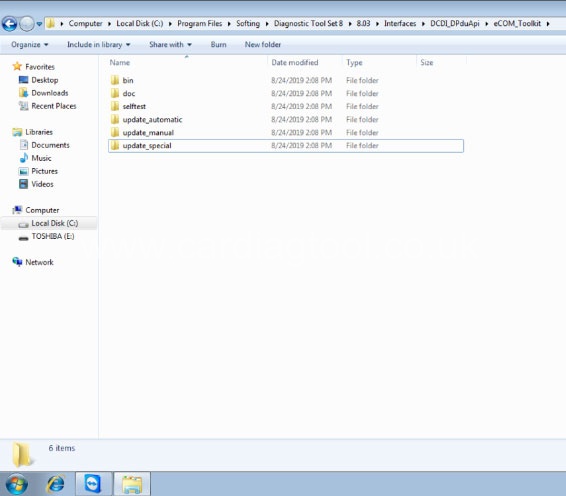
Step 6: Open DAS software, go to C:\programm files\SDconnect Toolkit folder to check if there are three files incl. Update_ automatic, Update_ manual and Update_ Special.

Note: If the file name is Update_ automaticx, Update_ manualx and Update_ Specialx, please change them to correct one.

MB-Star-Diagnostic-Xentry-software-common-error-and-solution-20

Step 7: Restart your computer

Step 8: Start to update firmware

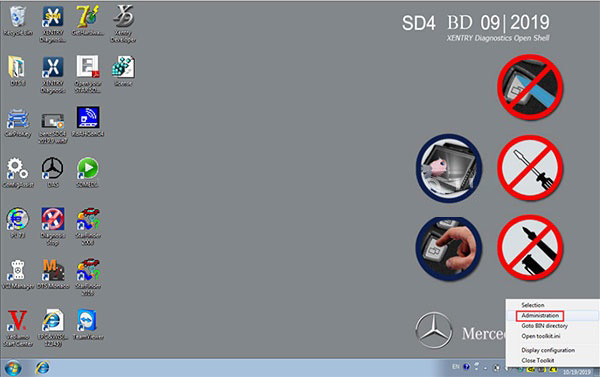
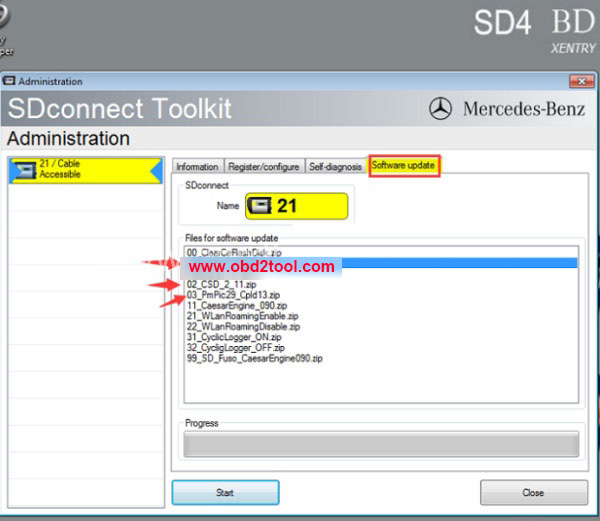
1).Right-click on the lower right corner of the computer, select administration, and then select Software update

2).Mainly upgrade three files, as shown below, upgrade order 02 -CSD-2-11.zip-> 01 -> 03

MB-Star-Diagnostic-Xentry-software-common-error-and-solution-21
MB-Star-Diagnostic-Xentry-software-common-error-and-solution-22

Then it can work again