Thursday, April 7, 2022

Mercedes Benz VCI C6 Explorer software
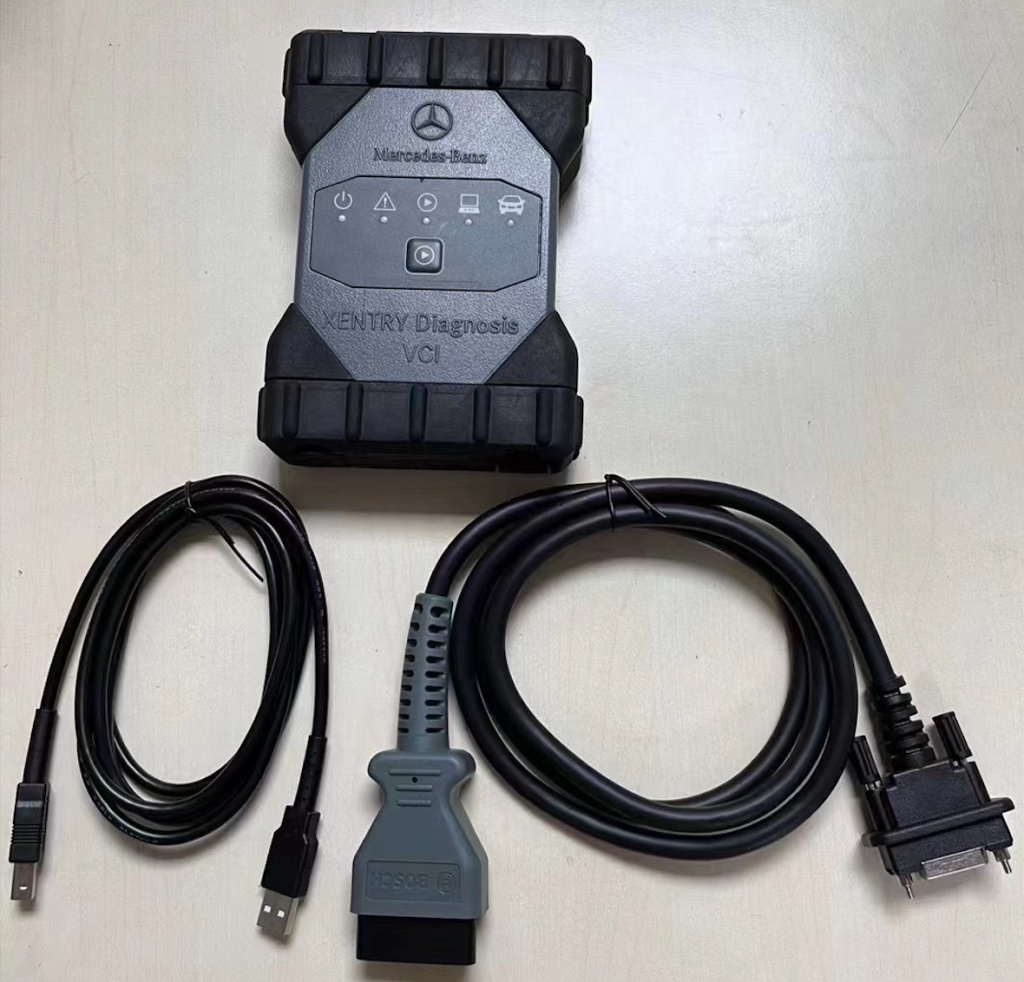
Mercedes Benz VCI C6 Explorer software


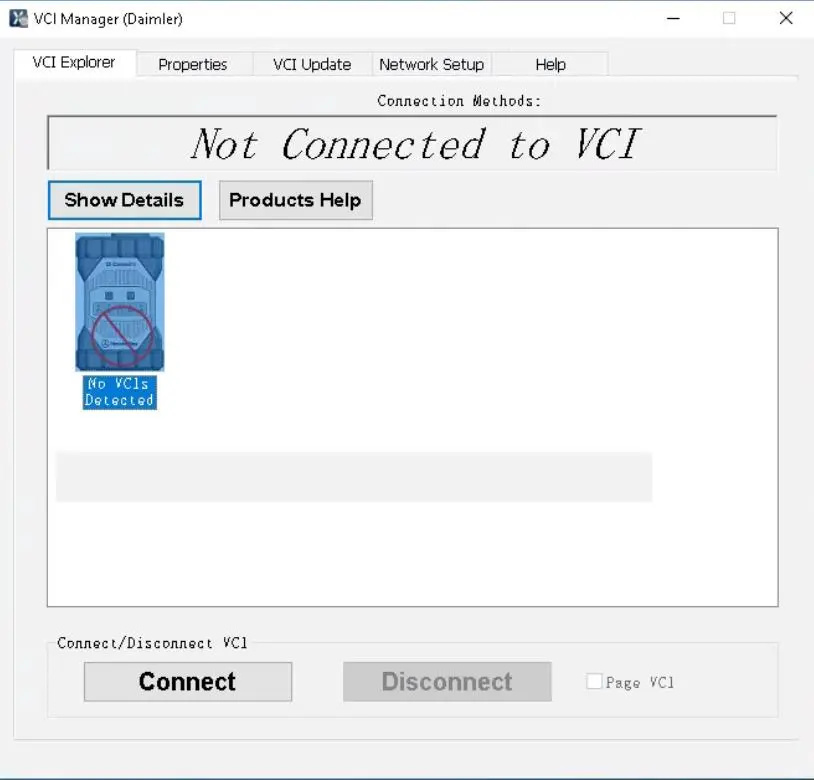
VCI Explorer

The Explorer window presents a graphical overview of the all the testers connected to your local network. It displays all detected testers as icons, with their corresponding serial numbers below the icon. The serial number of each tester appears on the label on the back of the tester, beneath the barcode.

The Explorer window also shows the states of each tester, for example, whether its internal software needs to be updated.

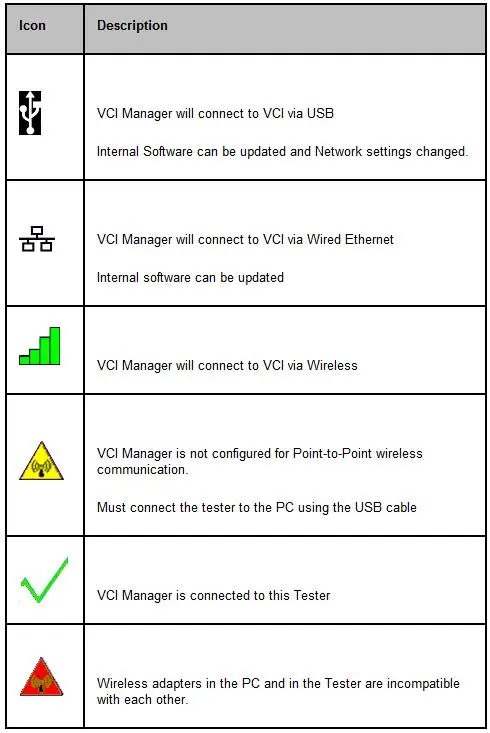
The VCI Manager has a priority for connection methods to your tester. A connection method icon will be displayed over your tester icon to show which connection method will be used by your VCI Manager. The priority for connection is as follows:

* USB connection / Ethernet connection (Must be activated using USB)
* Wireless connection (Must be activated using USB)

The initial connection to an VCI must be made using USB. Make sure your tester is properly connected to one of the PC’s USB ports, using the provided USB cable.

* Highlight the icon for the tester you want to use. The VCI Manager icon displayed on the tester will indicate the communication method to be used if the <Connect> button is selected.
* The VCI Manager may automatically change the label on the <Connect> button for the tester that is connected to the PCs USB port. If the internal software needs to be updated the <Connect> button will change to <Update VCI>. If the tester is in recovery mode, the <Connect> button will change to <Recover>.
* Pressing the <Connect> button will connect to the device, or allow you to update or recover your tester.

Once a tester is connected, the <Connect> button becomes inactive and the <Disconnect> button becomes active. A check mark also appears over the tester to indicate that it is now connected. To disconnect from a connected tester, simply click its icon and then click the <Disconnect> button.

The PC LED on the tester will flash indicating a connection to the host is established.

Do not disconnect the tester or remove power from the tester during an update or recovery.
Software

In order for the VCI Manager software to work with your tester, their software versions must match. If your tester software version and PC software version do not match, the Explorer window will automatically detect this. The conditions that can occur when an update is detected:
Tester Internal Software – Update Available

* A newer version of the VCI Manager software is installed on your computer, and the internal software on the tester is now older than the VCI Manager. When this happens, the Explorer window in the VCI Manager software will alert you to the mismatch, and you will be instructed to update the tester’s software.

VCI Manager Software Requires an Update

* The tester’s internal software can be newer than the VCI Manager software. This type of mismatch generally happens if you have updated both the VCI Manager and tester’s software on one computer, then attached the tester to another computer on which the VCI Manager software has not yet been updated. In this case, you will see a message telling you to update the PC (VCI Manager) software. For this condition you may choose to update the software on the computer, or enable “Recovery” mode on the tester.

Paging the Tester

You may occasionally want to audibly identify the tester you are currently connected to. This may be useful in an environment where there are several testers in the same area, and you wish to locate the tester you have selected.

To do this, check (by clicking) the Page VCI box at the bottom right of the window. The selected tester will begin to beep and will continue beeping until you un-check the Page VCI box.

Note: The tester must be powered up to be shown in the Explorer.
Control Buttons

The buttons on the Explorer Screen work as follows:
Show Details

Click the Show Details button to view a screen displaying a variety of details about the highlighted tester. This screen displays the tester’s serial number, its current status (e.g., Ready, Update Software) and a large window on the right, containing a variety of additional useful information.
Product Help

Click this button to display the help file for the VCI Manager.

Connect/Update VCI/Recover

This button has different states, depending upon which actions can be performed, or are detected by the VCI Manager.

* Connect: The tester software is up to date with the VCI Manager software. You can set up or change the configuration of your tester. Once the connection has been made, the button becomes inactive (grayed) and it cannot be used.
* Update VCI: The tester requires a software update by the VCI Manager. Only a software update for the tester is possible.
* Recover: The tester is detected to be in recovery mode by the VCI Manager. If selected, the tester software will be updated to match the same software version as the VCI Manager on the PC you are connected to.

Disconnect

The Disconnect button is initially inactive (grayed) and cannot be used. However, once you have connected to the selected tester, this button becomes active. When the Disconnect button is active (text is black), you can disconnect from the selected tester by clicking this button.

Wednesday, April 6, 2022

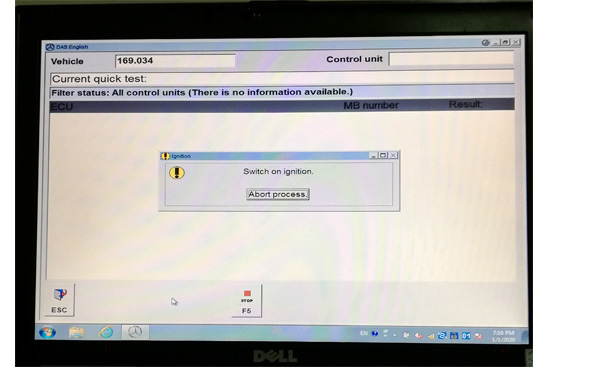
C4 Prompt appears "Switch on ignition" Solution

Problem
My Mercedes star diagnostic C4 Prompt appears "Switch on ignition" when diagnosing my car. What is the problem ?

Solution:
This is probably due to a bug in the program that requires upgrading from C4 and updating the program again. If you don't know how to update the program, you can contact us and our technicians can teach you for free.

Wednesday, March 30, 2022

SUPER MB PRO M6 vs C4 C5


SUPER MB PRO M6 vs C4 C5

1. Super MB Pro M6 uses the advantages of wireless testing and strong penetration of wifi signals to reduce the dependence on the communication transmission line during the test and breaks the limitation of the distance of the test. The factory tester C4 is durable and easy to carry.

2. M6 appearance adopts ABS + PVT plastic structure, which is anti-drop and easy to carry, reduces the loss of the product shell to the wireless shielding, and greatly improves the wireless distance and stability.

3. SUPER MB PRO M6 adopts the dual cooling mode of heat sink and fan. When the internal temperature of the diagnostic tester reaches 35 degrees or more, the product fan intelligently automatically turns on the strong cooling mode. This greatly improves the stability and safety of product programming.

4. The network cable interface of M6 adopts a built-in structure, which will not loosen and damage the network port due to falling and collision.

5. This M6 is fully compatible with the original software, and the firmware is updated independently by the manufacturer. No additional driver installation is required

6. SUPER MB PRO M6 supports all the functions of the manufacturer, the latest DOIP protocol, K-line, multi-channel CAN line, LIN line, RS485, etc., can test the latest new cars and very old models.

7. The M6 supports various Mercedes-Benz models such as 12v small cars, 24v diesel trucks, buses, and utility vehicles.

8. The firmware update does not need to install a battery, directly connect to the car power supply through OBD, there is no need to worry about firmware damage during the upgrade process.

Friday, March 25, 2022

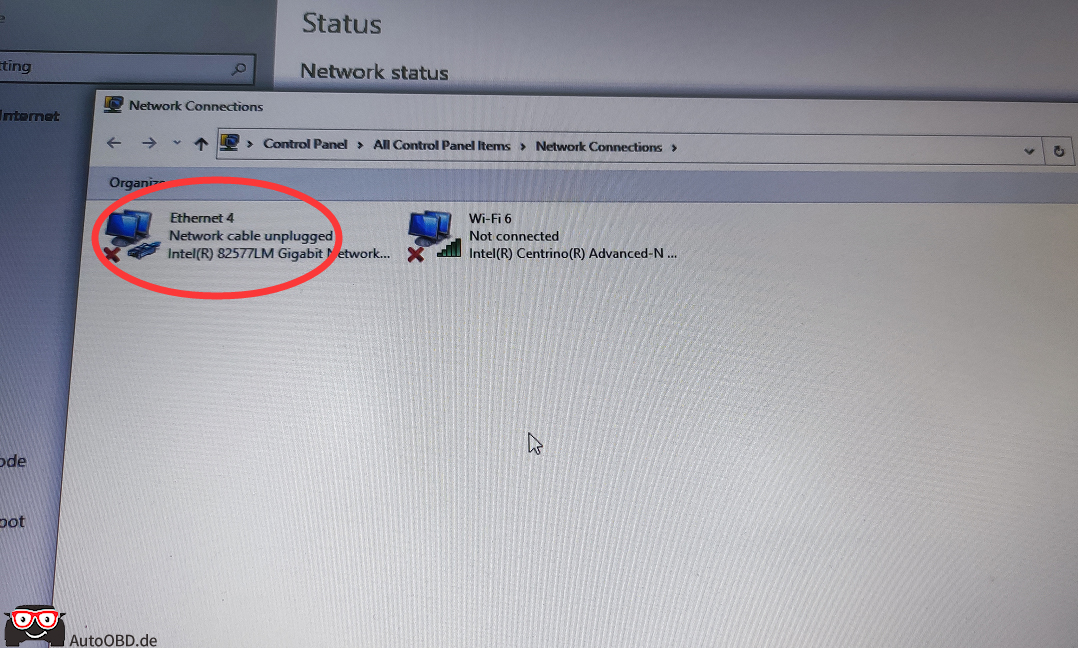
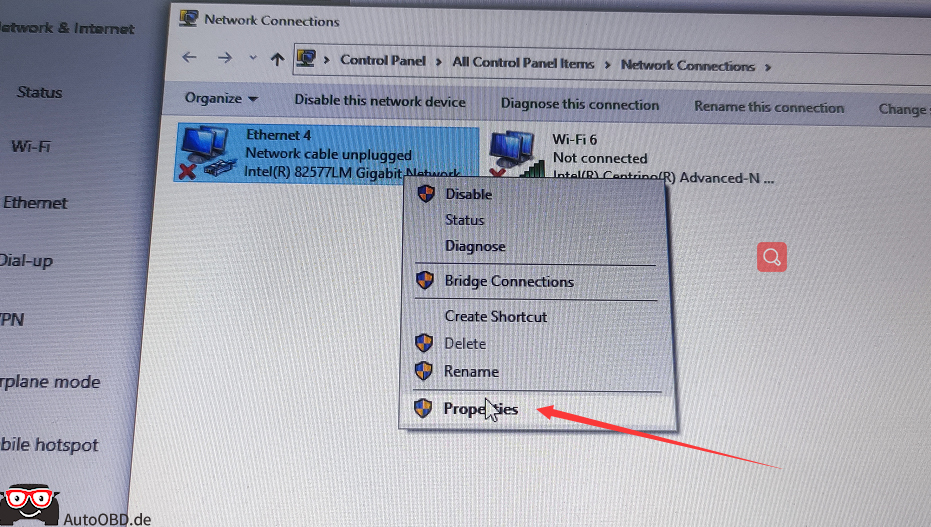
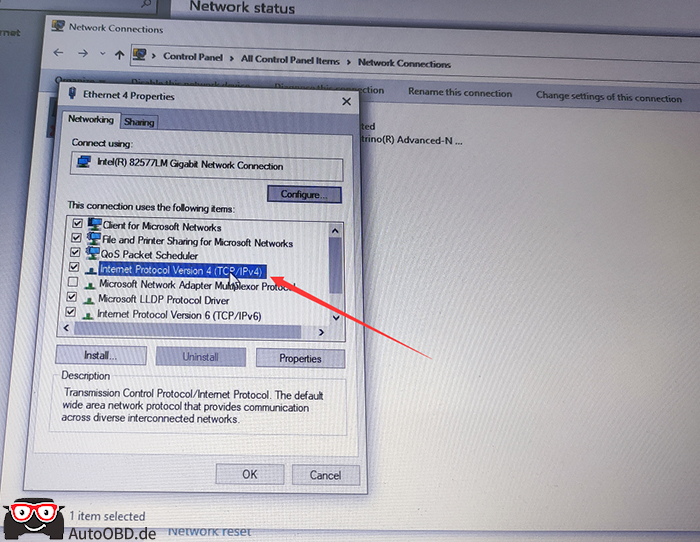
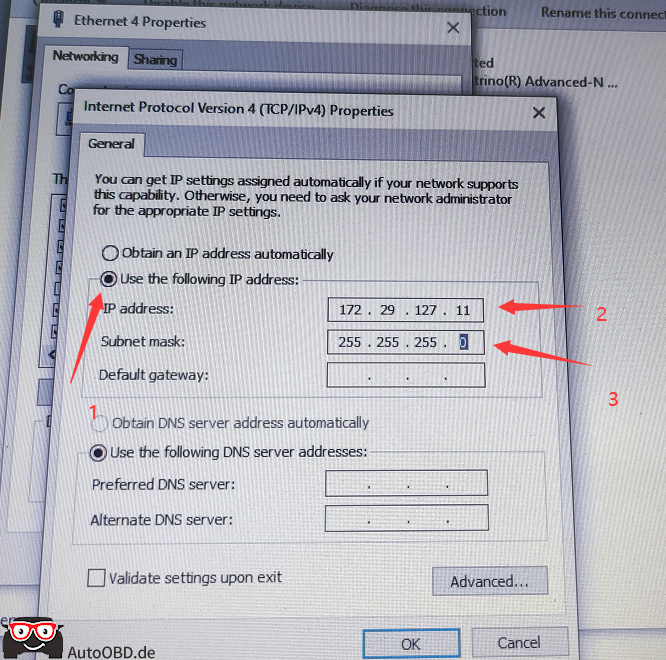
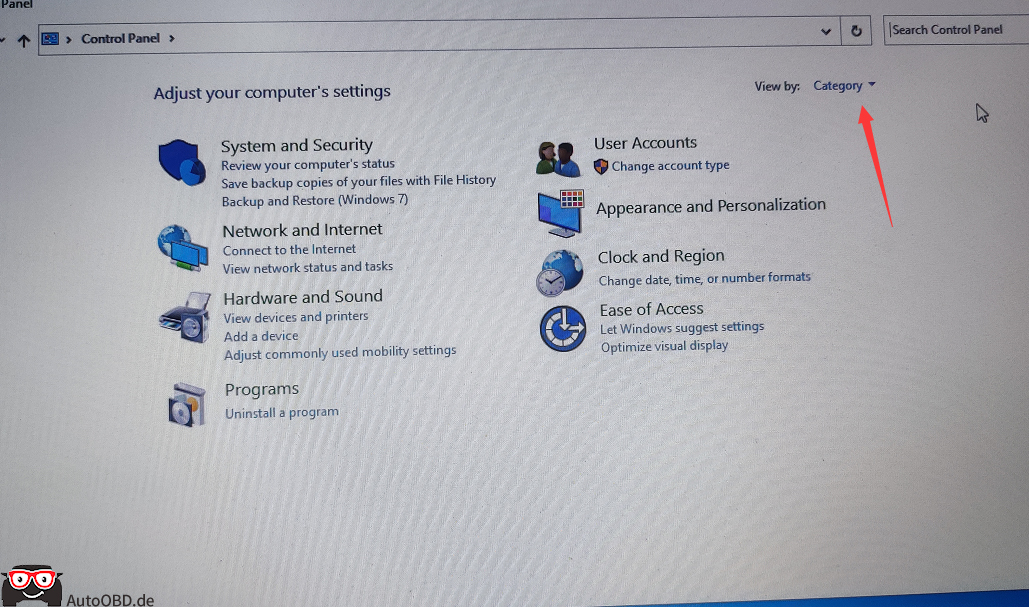
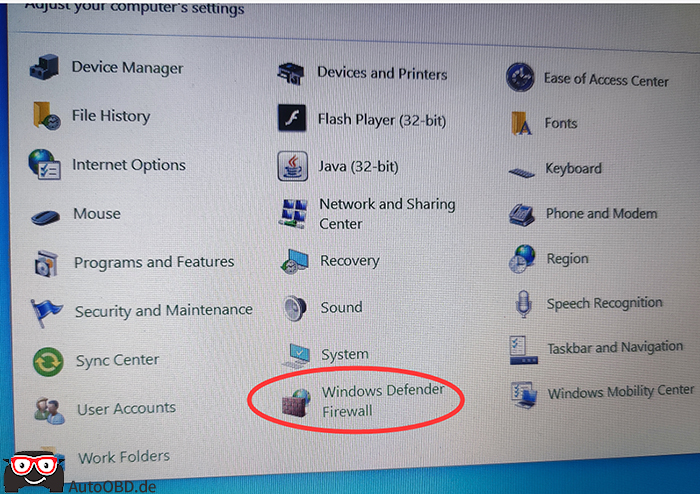
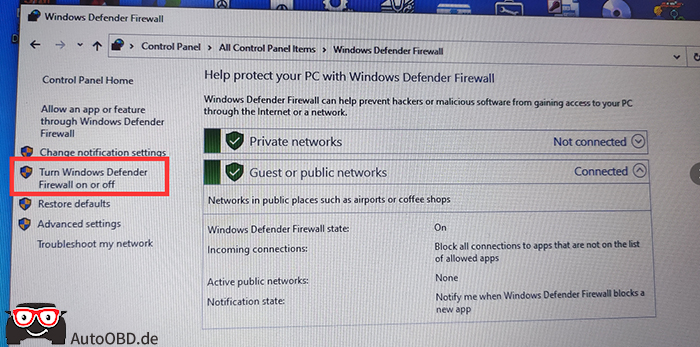
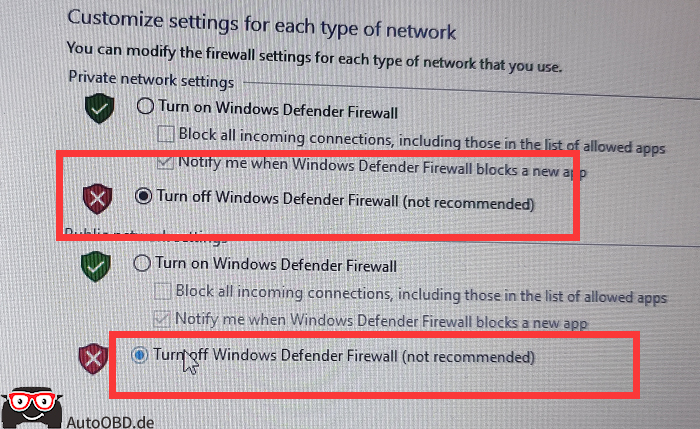
How to Set IP Address and Close Firewall for SD C4 C5 Software?


How to Set IP Address and Close Firewall for SD C4 C5 Software?

Ethernet IP V4:

172.29.127.11

Subnet Mask:
255.255.255.0

How-to-Set-IP-Address-and-Close-Firewall-for-SD-C4-C5-Software-1
How-to-Set-IP-Address-and-Close-Firewall-for-SD-C4-C5-Software-2
How-to-Set-IP-Address-and-Close-Firewall-for-SD-C4-C5-Software-3
How-to-Set-IP-Address-and-Close-Firewall-for-SD-C4-C5-Software-4

Then check if the firwall is closed.

How-to-Set-IP-Address-and-Close-Firewall-for-SD-C4-C5-Software-5
How-to-Set-IP-Address-and-Close-Firewall-for-SD-C4-C5-Software-6
How-to-Set-IP-Address-and-Close-Firewall-for-SD-C4-C5-Software-7
How-to-Set-IP-Address-and-Close-Firewall-for-SD-C4-C5-Software-8


Wednesday, March 23, 2022

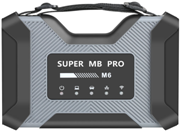
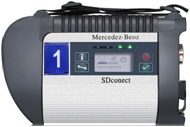
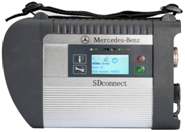
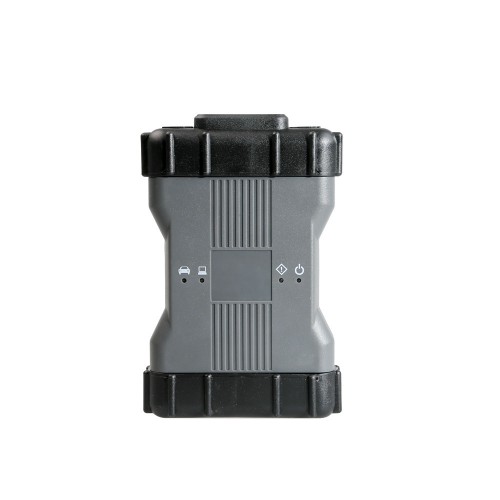
Super MB Pro M6 vs. MB SD C4 vs. SD C4 DoIP vs. OEM MB C6

SUPER MB PRO M6 (SD C4/C5) compatible with Original Benz Dealer Diagnostic Software, can work on Both Cars and Trucks, Mercedes-Benz models covering 12v car, 24v diesel truck & bus, MPV etc, supports firmware update without installing the battery.

Comparison table: Super MB Pro M6 vs. MB SD C4 vs. SD C4 DoIP vs. OEM MB C6


Super MB Pro M6 MB SDConnect C4 Plus DoIP MB SD Connect C4
OEM MB Star C6
Image


Super-MB-Pro-M6-vs-MB-SD-C4-vs-SD-C4-DoIP-vs-OEM-MB-C6-1 Super-MB-Pro-M6-vs-MB-SD-C4-vs-SD-C4-DoIP-vs-OEM-MB-C6-2 Super-MB-Pro-M6-vs-MB-SD-C4-vs-SD-C4-DoIP-vs-OEM-MB-C6-3 Super-MB-Pro-M6-vs-MB-SD-C4-vs-SD-C4-DoIP-vs-OEM-MB-C6-4
Full-system diagnosis Yes Yes Yes Yes
Online Programming Yes Yes Yes Yes
Offline Programming Yes Yes Yes NO
Activate some hidden functions Yes Yes Yes Yes
Service reset Yes Yes Yes Yes
Xentry Yes Yes Yes Yes
DAS Yes Yes Yes Yes
HHTWIN Yes Yes Yes Yes
EPC Yes Yes Yes Yes
WIS Yes Yes Yes Yes
Vediamo Yes Yes Yes NO
DTS Monaco YES YES YES YES
Star Finder YES YES YES YES
PL73 YES YES YES YES
SDmedia YES YES YES YES
Doip YES YES NO YES
Truck/BUS YES YES YES Partial
Firmware Update YES YES YES (Need to install batteries) YES
Wire Direct connection Direct connection Point to point Direct connection
wireless LAN LAN LAN LAN/usb Cable
Software Version 2021.06 2021.06 2021.06 2021.06
Hardware Version OS:2.3, CSD:2.11 OS:2.3, CSD:2.11 OS:2.3, CSD:2.11 1.84
Heat dissipation Heat sink + fan Heat sink NO NO
Software Language

(Can switch

directly)

English, Bulgarian, Danish, Greek, Spanish, French, Italian, Korean, Polish, Romanuan, Serbo-Croatian, Turkish, Czech, German, Finish, Hyngarian, Japanese, Dutch, Portuguese, Russian, Swedish, Chinese

Monday, March 7, 2022

Tactrix Openport 2.0 with Xentry Passthru pros and cons

Tactrix OpenPort 2.0 has been confirmed to work with the xentrypassthru version. What are the possibilities and restrictions when running Xentry on the Openport 2.0 interface?

Obd2tool.com will discuss this topic.

Pros:
*   This combination is useful for ECUs with CAN capability.  This item intends to simply give you a working system.
*   It’s a good reasonably priced option if you don’t need to do any module updates.
*   Openport 2.0 is not limited on Can- Cars from 2006 and above!
*   The OpenPort 2.0 interface will allow Xentry to communicate with your Mercedes using the J2534 standard.  This will generally communicate with vehicles 2003 and newer that use OBD2 for diagnosis.
*   I have a Tactrix and it works great for most things however for flashing certain modules it doesn’t work as good as a more expensive J2534 device (Snap-on Pass Thru Pro II, CarDAQ Plus, J-Box) device or a C4/C5 etc, multiplexer.
*   I used it to run all of the A/C diagnostics on my car, recalibrate the vent control thumbwheels, test a few actuators, run the intercooler pump, and check the weight sensing system (which needs to be recalibrated), The only thing I can’t do right now is SCN coding and programming, which requires an active M-B account. For normal troubleshooting and diagnosis, though, it rocks.

Tactrix-Openport-2.0-with-Xentry-Passthru-pros-and-cons-1
Tactrix-Openport-2.0-with-Xentry-Passthru-pros-and-cons-2
Tactrix-Openport-2.0-with-Xentry-Passthru-pros-and-cons-3
Tactrix-Openport-2.0-with-Xentry-Passthru-pros-and-cons-4
Tactrix-Openport-2.0-with-Xentry-Passthru-pros-and-cons-5
Tactrix-Openport-2.0-with-Xentry-Passthru-pros-and-cons-6

Cons:
*   The Openport is missing some protocols so it doesn’t get to a point where it could brick a module.. It has no K-Line support and no CAN-L, so no ISO 14230 for SIM4 LE ECUs (M111Evo). Any vehicle using a 38-pin connector or HHTWIN for diagnosis will not work. You ideally use Xentry Pass-thru with these devices, and a subscription is available from Daimler, however it is limited to programming and reading faults from the engine ECU and transmission TCU up to 2017. 2018 and newer vehicles are given full diagnostic capabilities.
*   You are able to communicate with modules you need to but sometimes you will get error codes or the vehicle/computer doesn’t recognize the interface but after another attempt or 2 it will work.
*   Some of them have a OBD power supply bug. If you plug them into the OBD port without USB cable and no LED flash you got it, that means all power has to come from the USB cable which is not 100% reliable. (You have to choose the right Openport without power supply issue)
*   Openport 2.0 works with Passthru version only. does not work with MB SD C4/C5 standard OpenShell version.
*   Tactrix is missing some protocols so it doesn’t get to a point where it could brick a module. It’s a good reasonably priced option if you don’t need to do any module updates.
*   If you want to work with vediamo you can’t use vediamo 5 (4 can’t use smrd files) because vediamo 5 doesn’t support Passthru so your “stuck” with DTS Monaco

VXDIAG C6 also has some problems with the old K-line Mercedes. Stick with the C4 or if you want to spend a little more and do DOIP (command radio programming models 2016 and up ), the MB SD C4 DoIP. Clone will work fine along with Xentry Openshell. Passthru software only works with J2534 devices.

If you want to know more about Mercedes Diagnostic Tool, please visit our website: https://www.obd2tool.com

Thursday, March 3, 2022

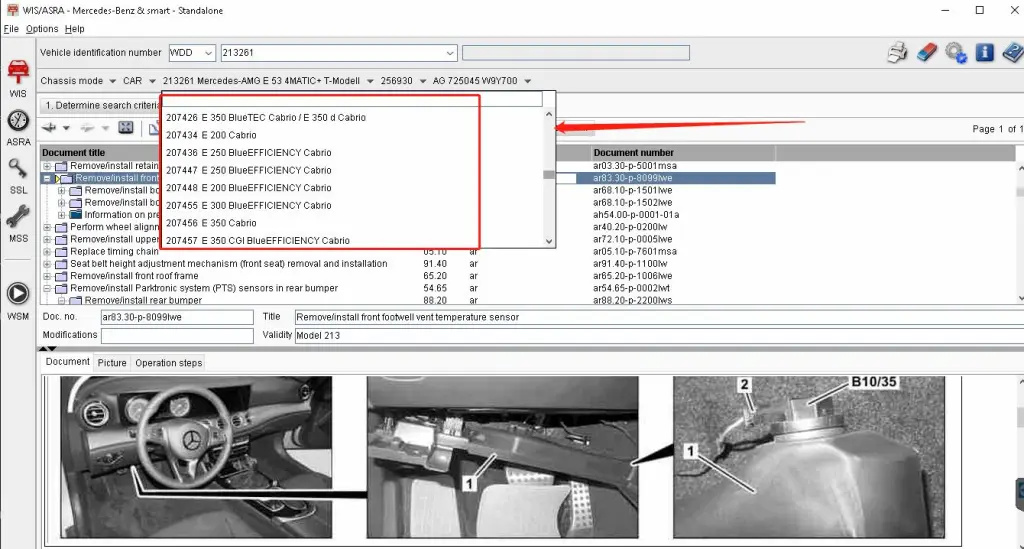
How to Activate Mercedes WIS for W223 W206 W213FL

How to Activate Mercedes WIS for W223 W206 W213FL W167 remotely?

WIS Workshop Information System
Update: 07.2021
Region: All regions
Type: Mercedes-Benz Repair Manual, Maintenance, Wiring diagrams (Cars, Buses, Trucks )
Language: English, Chinese, French, Italian, German, Japanese, Polish, Portuguese, Russian, Spanish, Turkish
SO: Windows

Mercedes WIS 223 206 213We have three options to support the activation of Mercedes WIS
* Mercedes WIS windows 10 standalone installation
* Mercedes Xentry Diagnosis Mercedes WIS installation
* Mercedes WIS keygen unlimited installation (locked to 1 system)

Mercedes WIS free download link will be automatically sent after the order payment is confirmed by our system.

Why is the Mercedes WIS is easy and MUST have the program?
* As we all know Daimler blocked all Xentry diagnosis and SCN online coding and Mercedes WIS for new models like W223 W206 W167 etc. for non-authorized Mercedes workshops since the end of 2021. We have few options to log in or download the WIS/ASRA to your local computer, the program is already downloaded and installed on our local desktop or laptop.
* The Mercedes WIS system installation time is quick like 20mins with our team’s remote support. For a standalone installation, you do not need a large amount of free space like 20Gb is enough on your computer for this WIS/ASRA Mercedes on your personal computer.
* Mercedes remotely support is available and you do not need to understand the nuances of the installation (Installing and configuring software always requires a certain amount of time and effort, software for car repair shops, garages, dealers is no exception)
* you have access from anywhere and even your smartphone is enough to work online WIS/ASRA by TeamViewer easily.

If you need mb star diagnostic tool, please contact us sales@obd2tool.com.