MB Xentry VCI, How to update firmware for Mercedes Benz VCI C6?
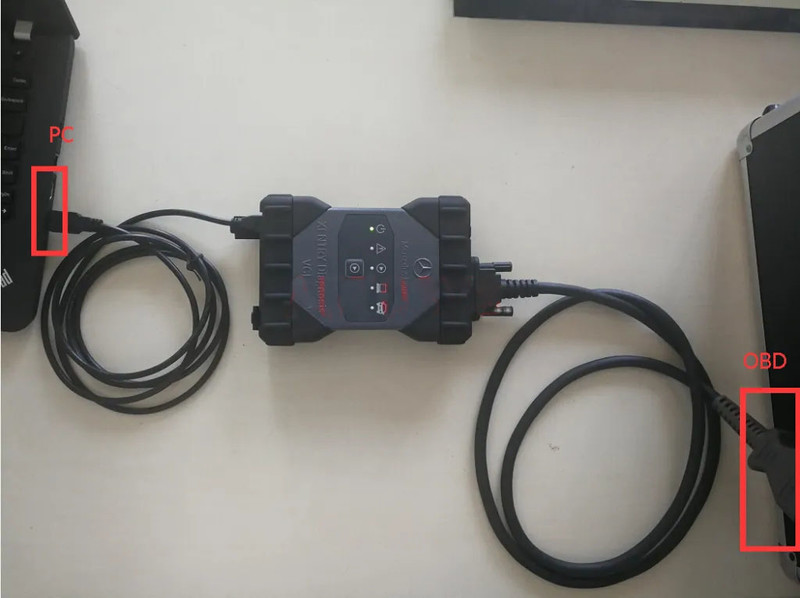
1.Connect MB Xentry VCI/C6;
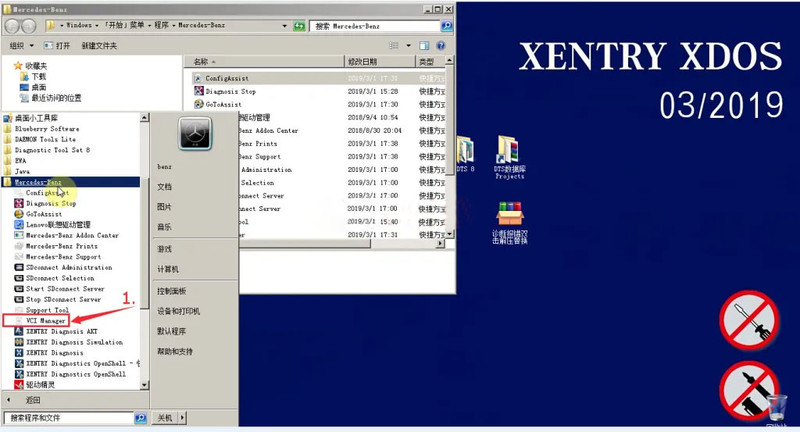
2.VCI Manager;
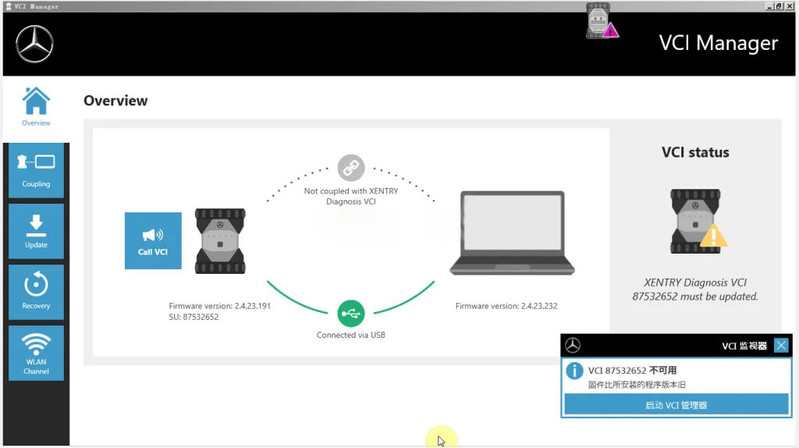
3.Overview;
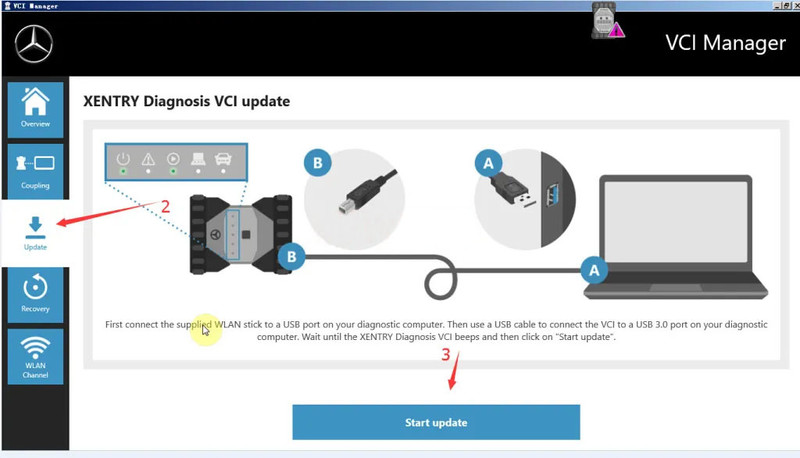
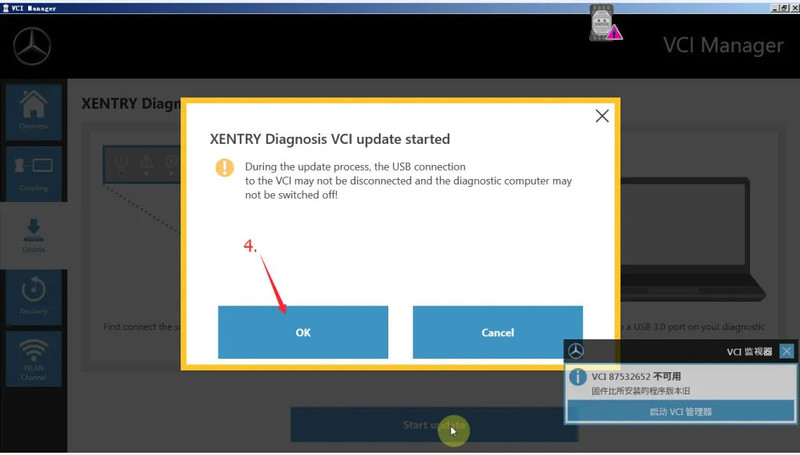
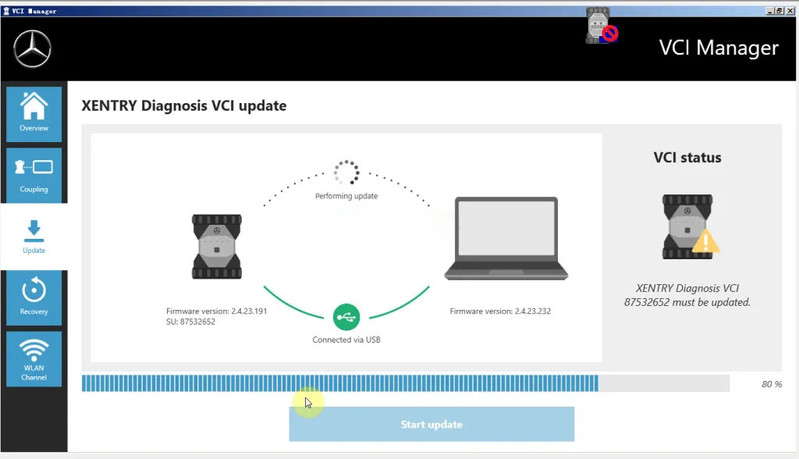
4. Update-Start update;
5. OK
6.Update complete;
MB Xentry VCI, How to update firmware for Mercedes Benz VCI C6?
1.Connect MB Xentry VCI/C6;
2.VCI Manager;
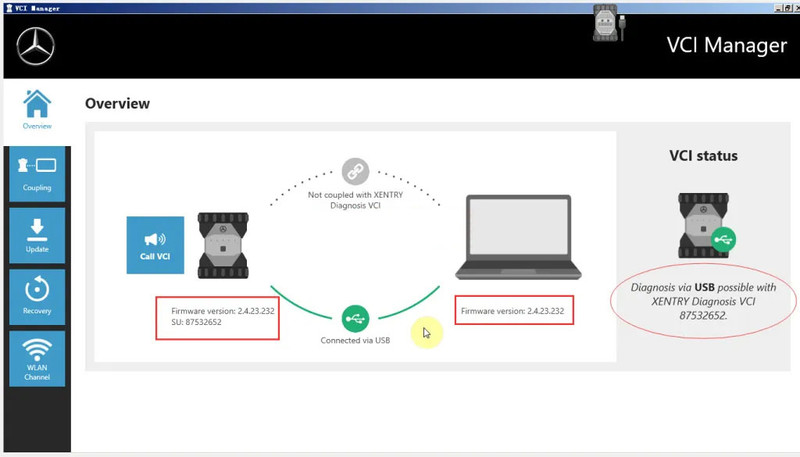
3.Overview;
4. Update-Start update;
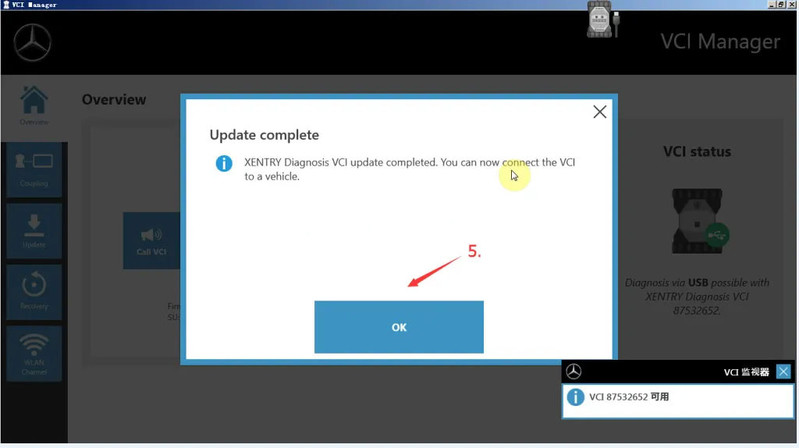
5. OK
6.Update complete;
This article is about to bring you how to activate welcoming light on the rearview mirror (code ZGW module) on Mercedes-Benz via Xentry and Vediamo.
First, we need to adjust some settings in Mercedes-Benz:
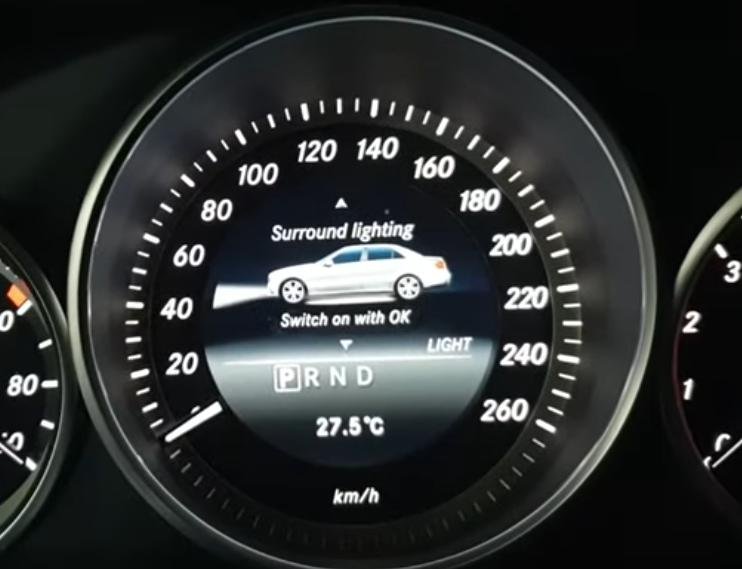
Turn on Surround lighting on menu.
Now, the turn signal light turns on but the welcoming light does not when we unlock the doors.
So, what we gonna do is code on PC so that they both would light as we unlock it.
The device that connects Mercedes-Benz to PC could be VXDIAG VCX SE, MB SD C4 Plus, Super MB Pro M6…Different coverage, you can choose by your needs.
Note: Only Vediamo can code the module called ZGW, Xentry and DAS don’t support.
The first thing is that we need to figure out a CBF file for the ZGW unit.
So, how to find the CBF file we need for ZGW module?
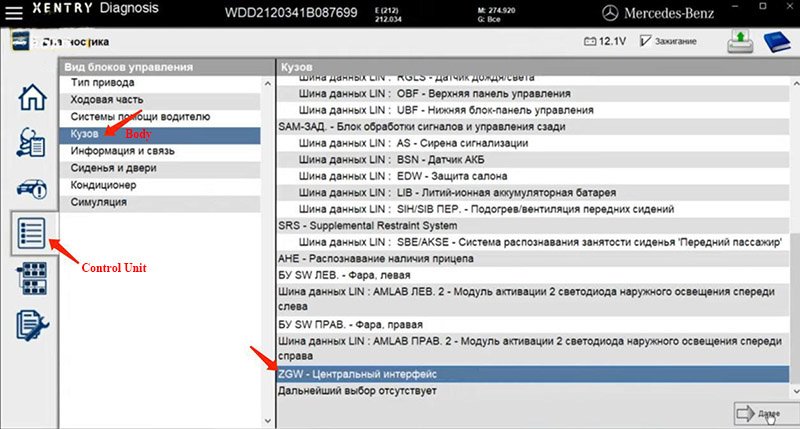
Here we’ll show you through Xentry Diagnosis.
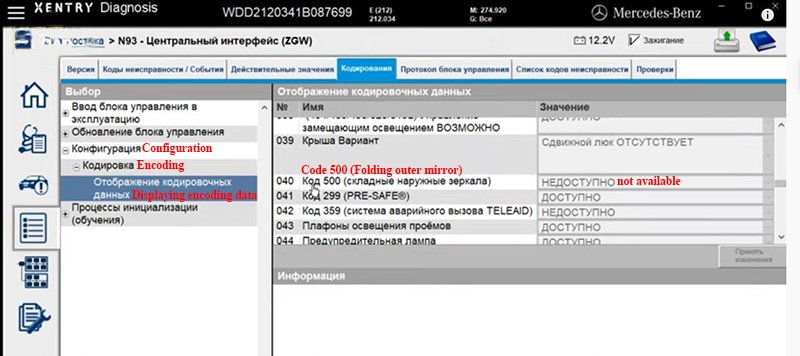
Select our model – E(212)>>Control Unit>>Body>>ZGW
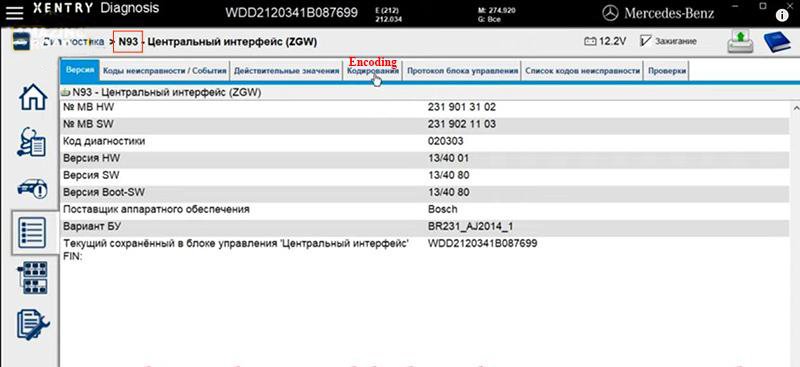
Encoding>>Configuration>>Encoding>>Displaying encoding data
Here “Code 500 (Folding outer mirror) – not available”
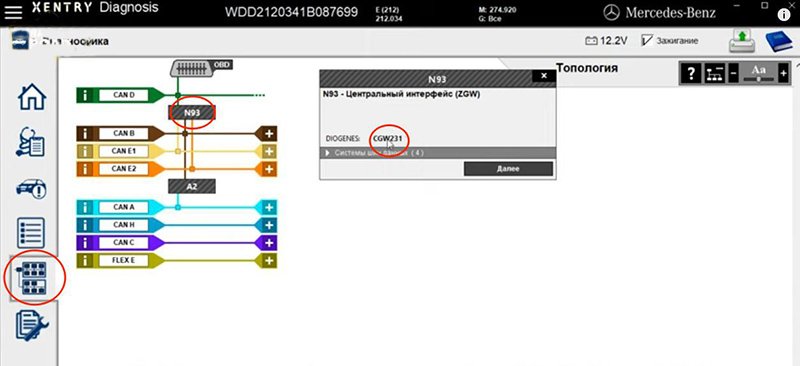
Go to Topology, select ZGW’s code – N93.
Here we know we need the CBF file (CGW231) for ZGW.
Now we need to encode it through Vediamo.
Open up Vediamo Start Center.
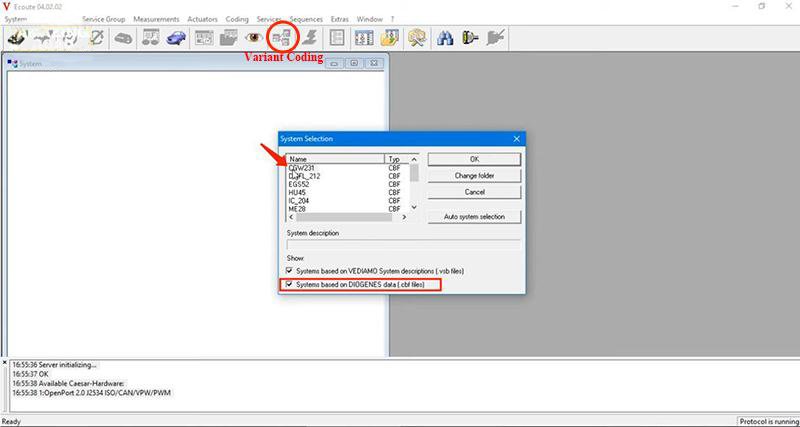
Go to “Ecoute”.
On “System Selection”,
Check “Systems based on DIOGENES data (.cbf files)” and select “CGW231” CBF file.
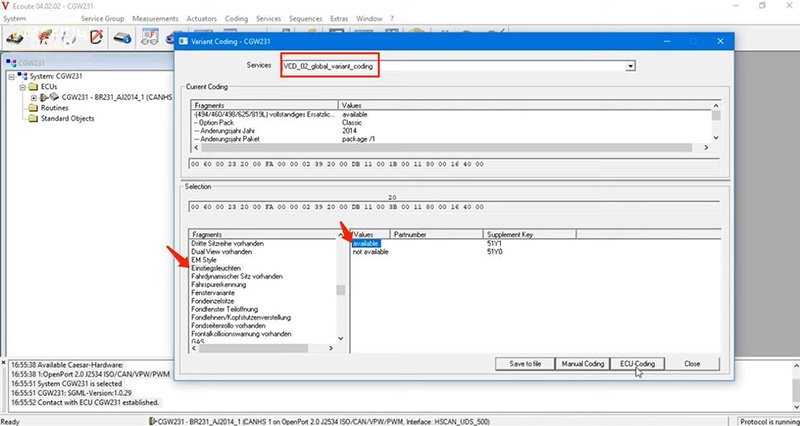
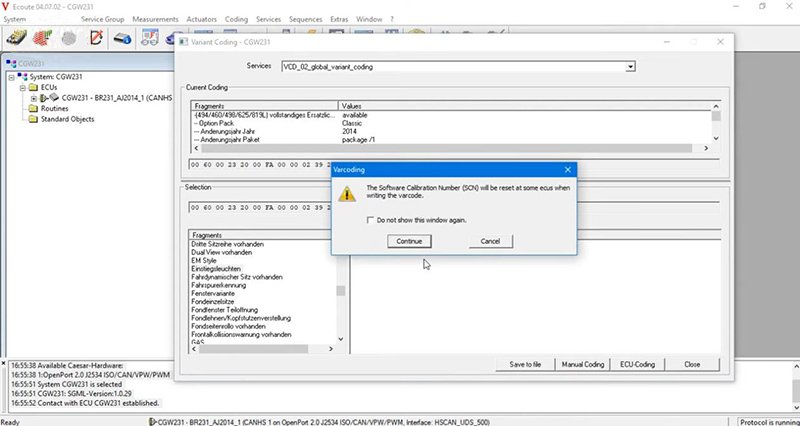
Go to “Variant Coding”, select
VCD_02_global_variant_coding>>Einstiegsleuchten>>available>>ЕCU-Coding
Select “Continue” and “Close”.
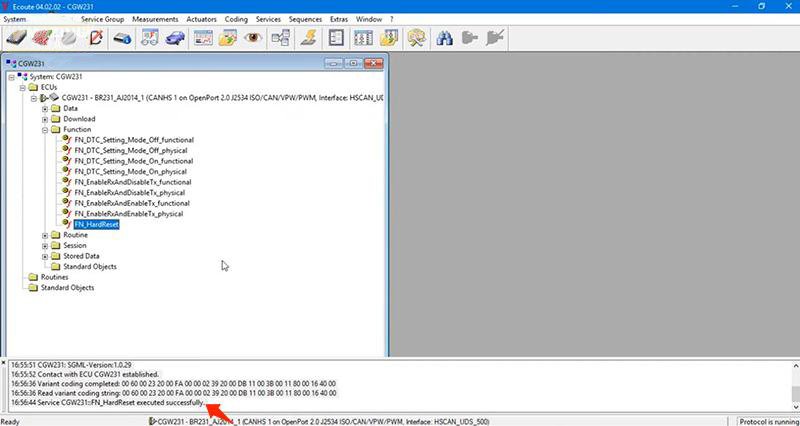
Unfold “CGW231” and “Function”.
Click on “FN_HardReset”.
Finally, disconnect ECU CGW231 and exit.
Test: when we unlock the car, the turn signal light flashes and the welcoming light on the bottom is on. So cool.
Alright, you can also add lights to your Mercedes.
Hope this could help!
This article is about to show you how to activate the hidden function on Mercedes-Benz by Vediamo – remaining fuel per liter in the tank displayed on the cluster.
Better use diagnostic tools that support DOIP to connect your car to PC. (VXDIAG VCX SE, SD C4 Plus, MB Pro M6…)
Launch “Vediamo Start Center” and enter “V Ecoute”.
Open up “System Selection”, check “DIOGENES” and cancel “VEDIAMO System description”.
Click on “Change folder”, select “Vediamo” folder and select “IC 204” CBF file.
How to select CBF file on Mercedes-Benz models?
CBF IC204 – Mercedes W212 (E), W204 (C), X204 (GLK), W197 (SLS), W218 (CLS)
CBF IC213 – Mercedes W205 (C) facelift, W217 (CL) facelift, W222 (S)
facelift, W213 (E), W238 (CLS), X253 (GLC) facelift, W257 (E Cabrio),
W463 (G)
CBF IC177 – Mercedes W177 (A), W118 (CLA), W167 (GLE), W213 (E) facelift
CBF IC222 – Mercedes W205 (C) preface, W217 (S Cabrio) preface, W253 (GLC) preface,
V222 (Maybach), C190 (AMG GT), W447 (V)
CBF IC172 – Mercedes W463 (G), W166 (GLS/ML), W292 (ML), W176 (A), W246 (B),
W156 (GLA), W117 (CLA), R231 (SL), R172 (SLK), X204 (GLK)
Init ECU contact.
Click on “ECU” and “Manual Command Input…”.
Send request message “22 01 08” and wait for response.
Here if we have 20, 30, 40 and the likes, it means this function is disabled/hidden.
To activate the function, we need to modify the response code “62 01 08 30 00”.
Change “62” into “2E” and add 2 to “30” (to get “32”).
Then send request message “2E 01 08 32 00” and close.
Under this case, we don’t have to reset.
Exit ECU contact and close Vediamo.
Turn on the car and we can see remaining fuel/L in the tank.
Done! Nice and simple!
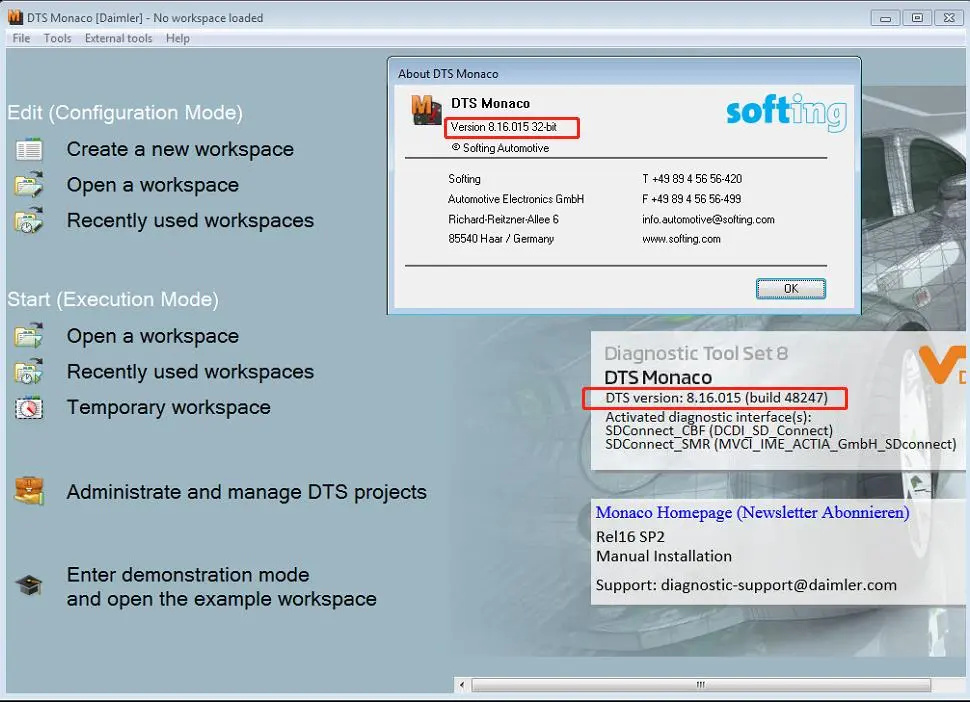
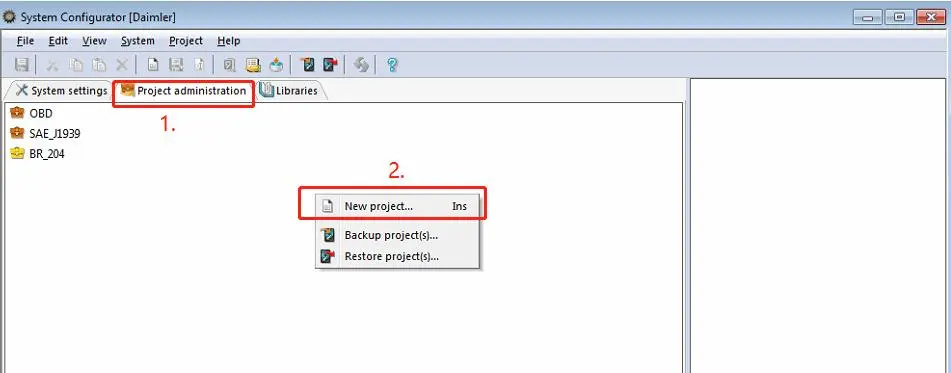
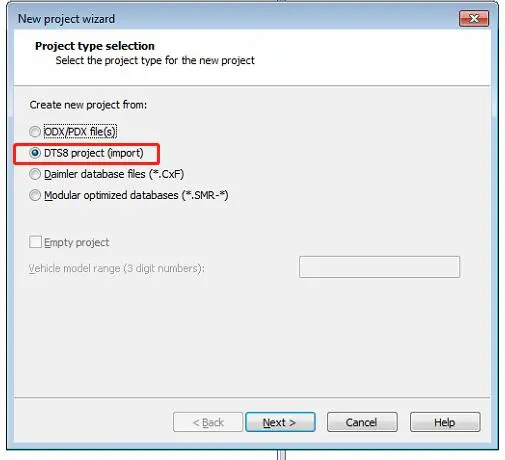
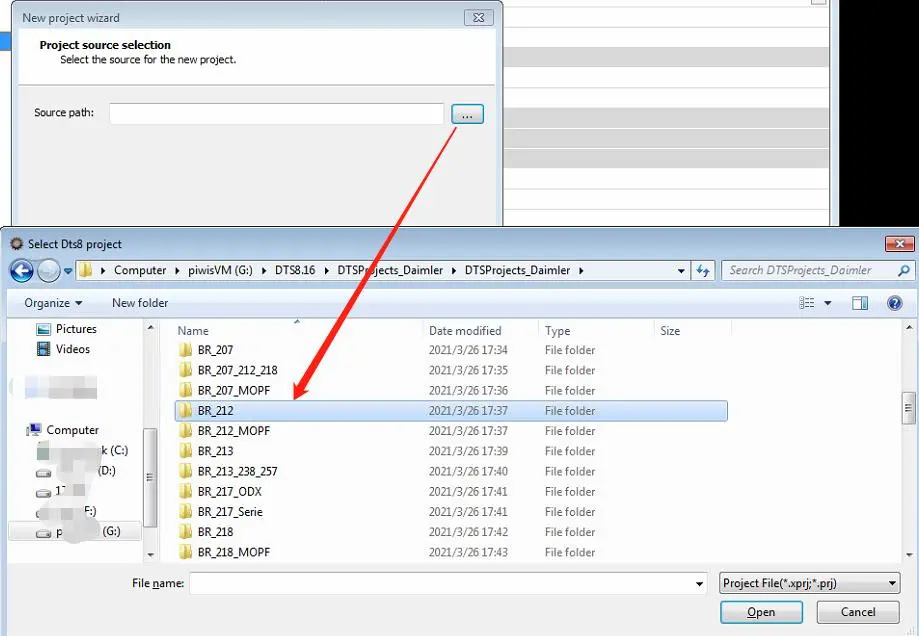
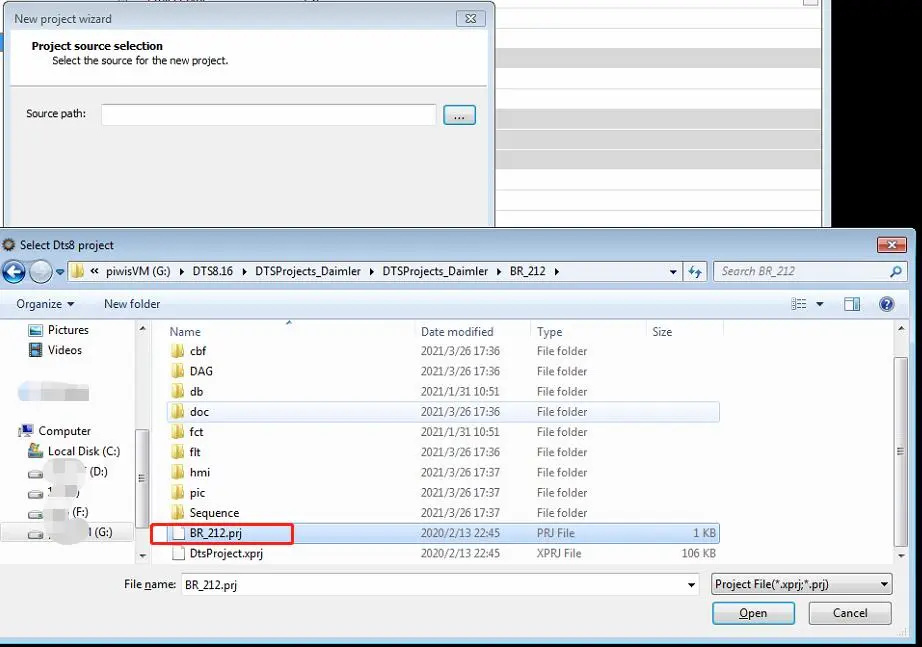
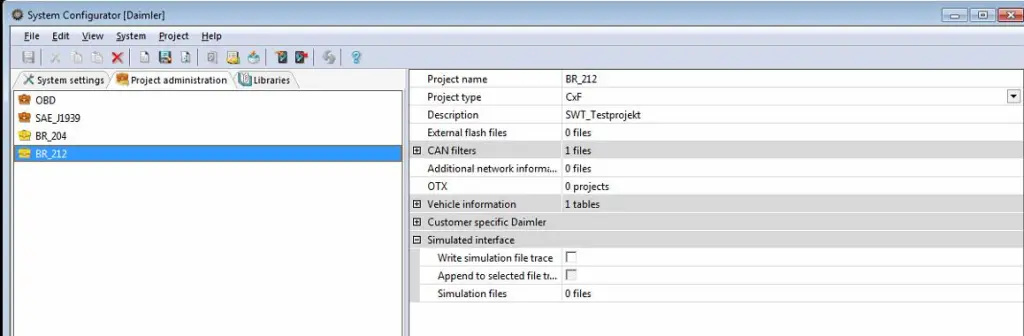
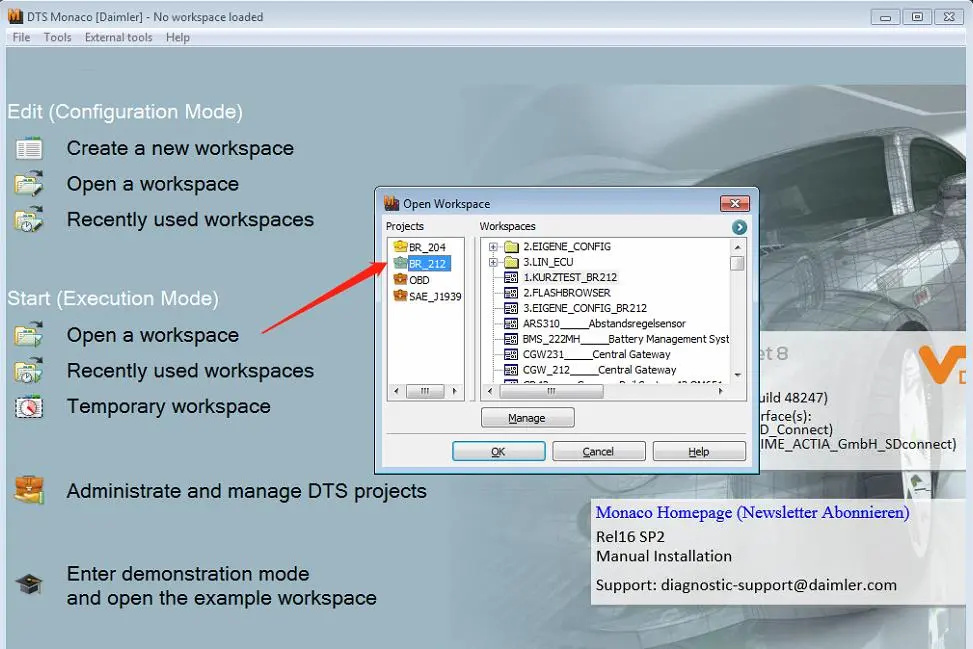
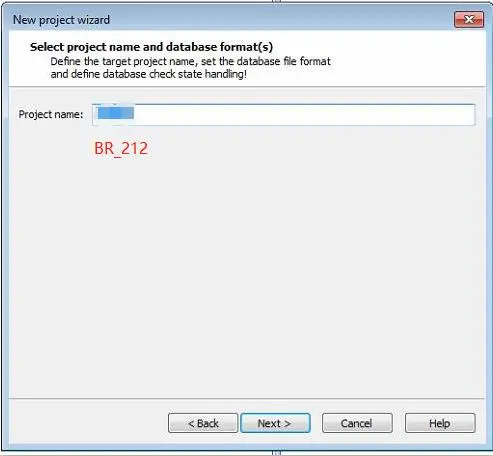
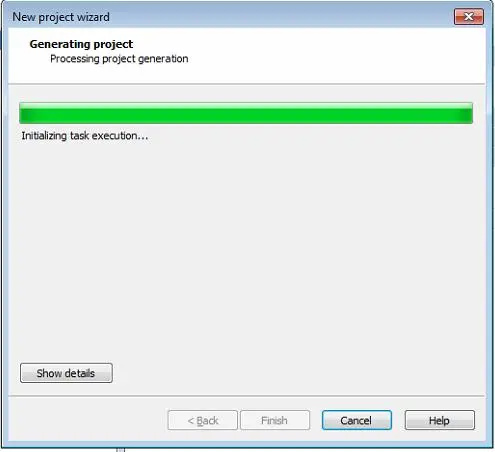
How to add vehicle project database in DTS Monaco 8.16
use C4 or Xentry VCI/C6 connect
DTS Monaco 8.16
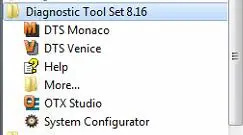
Diagnostic Tool Set 8.16-System Configurator
DTS Monaco
Sometimes,you only drive a short distance with low speed,then you don’t need to fasten your seat belt.So here is a guide on how to use DTS Monaco to disable seat belt warning for Mercedes Benz W213,W205,W222,W217,W253,W257 etc.
Procedures:
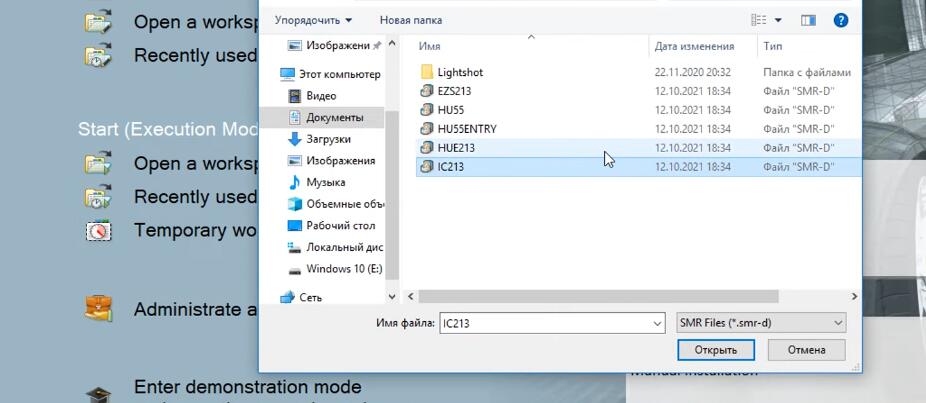
Run DTS Monaco software on your PC,then click “Temporary workspace”
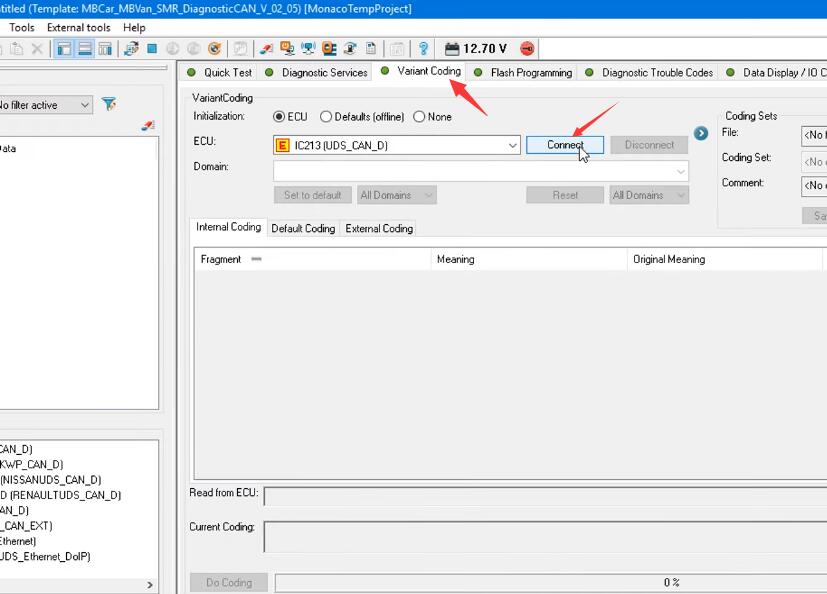
And select “IC213” (IC213 for W213,W205,W217,W222,W238,W257,W463…)
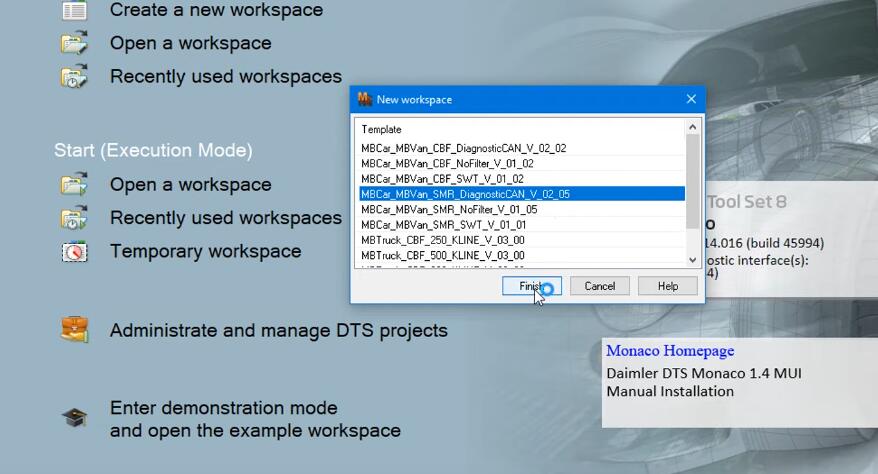
Select “MBCar_MBVan_SMR_DiagnosticCAN_V_02_05”,then click “Finish”
Select “Variant Coding”,then click “Connect”
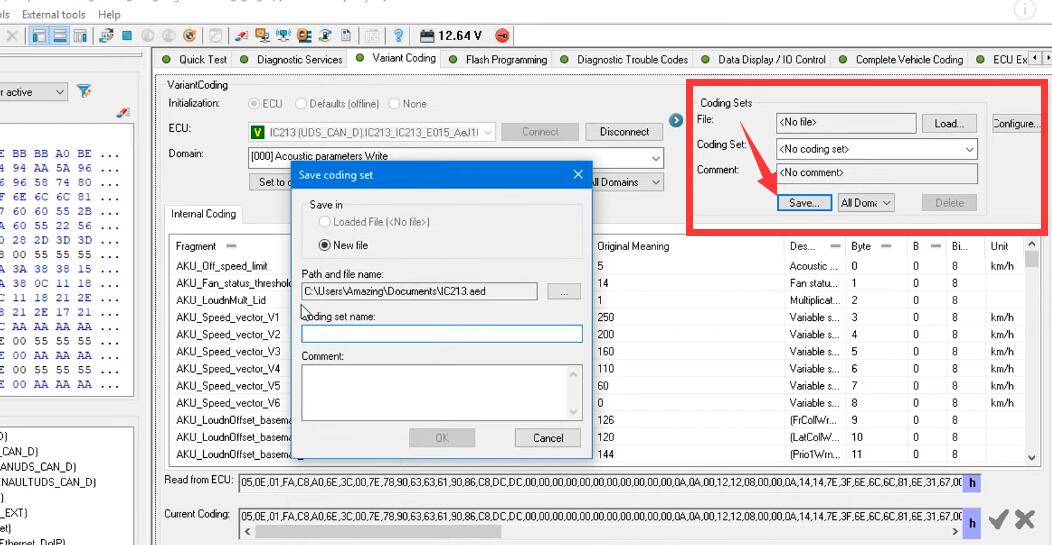
Before you starting coding,recommend you make a backup for original file
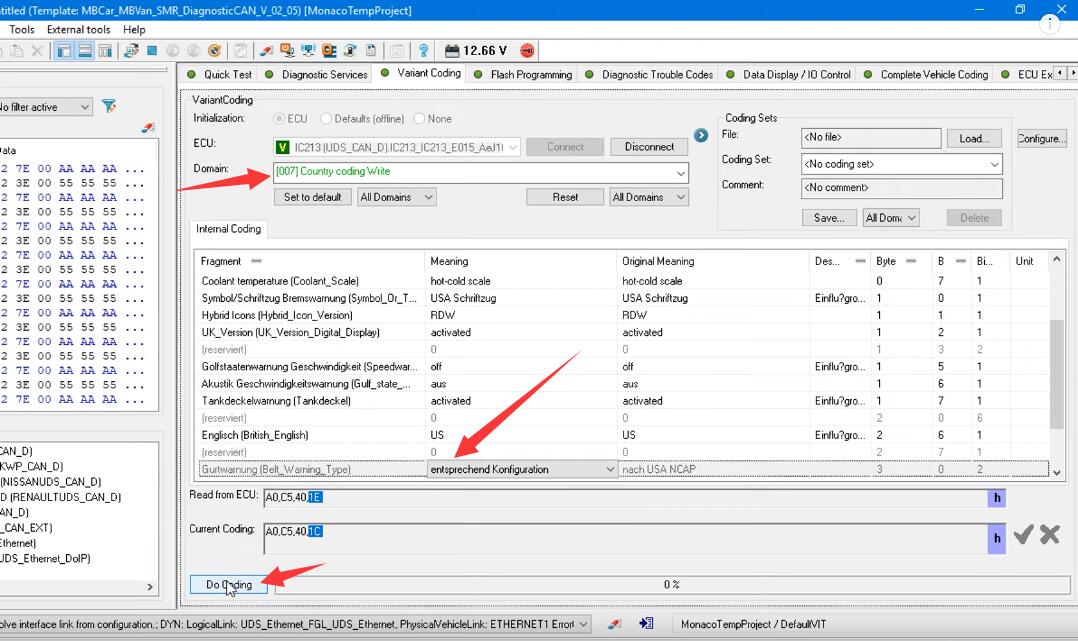
Select “007 Country coding Write”
Change “Belt_Warning_Type” value to “entsprechend Konfiguration”
Click “Do Coding”
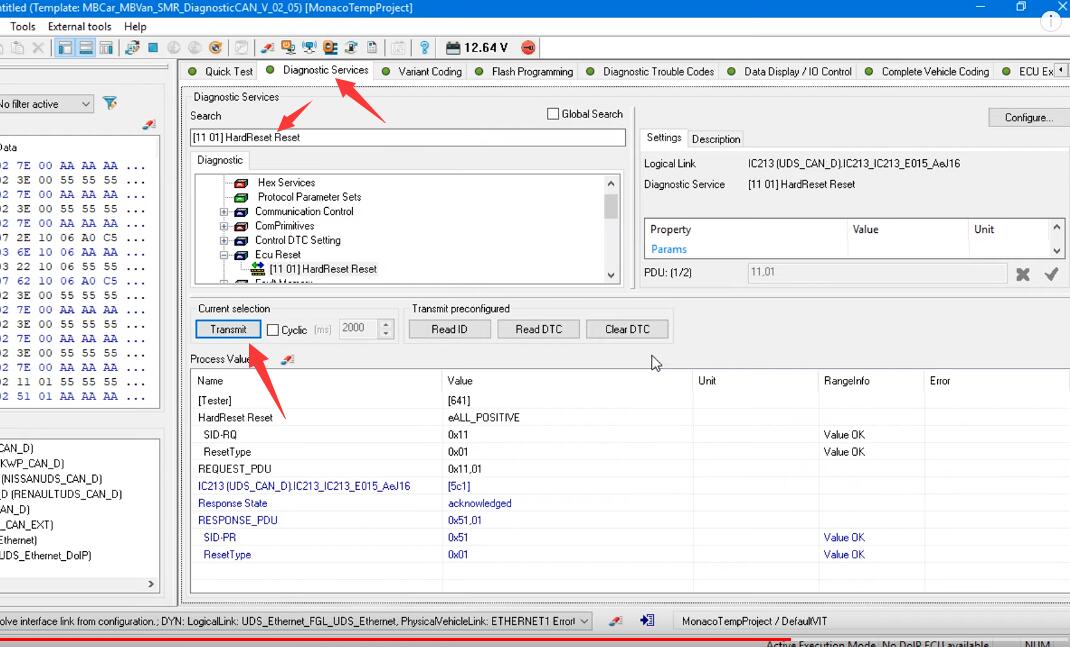
Click “Diagnostic Services”,select “[11 01] HardReset Reset”
And then click “Transmit”
Now all things done for seat belt warning disabled.
More repair case for Benz,please refer to:Mercedes Benz Trouble Repair.
Mercedes Xentry VCI C6, How to Set Up and Match Wireless Diagnostics?
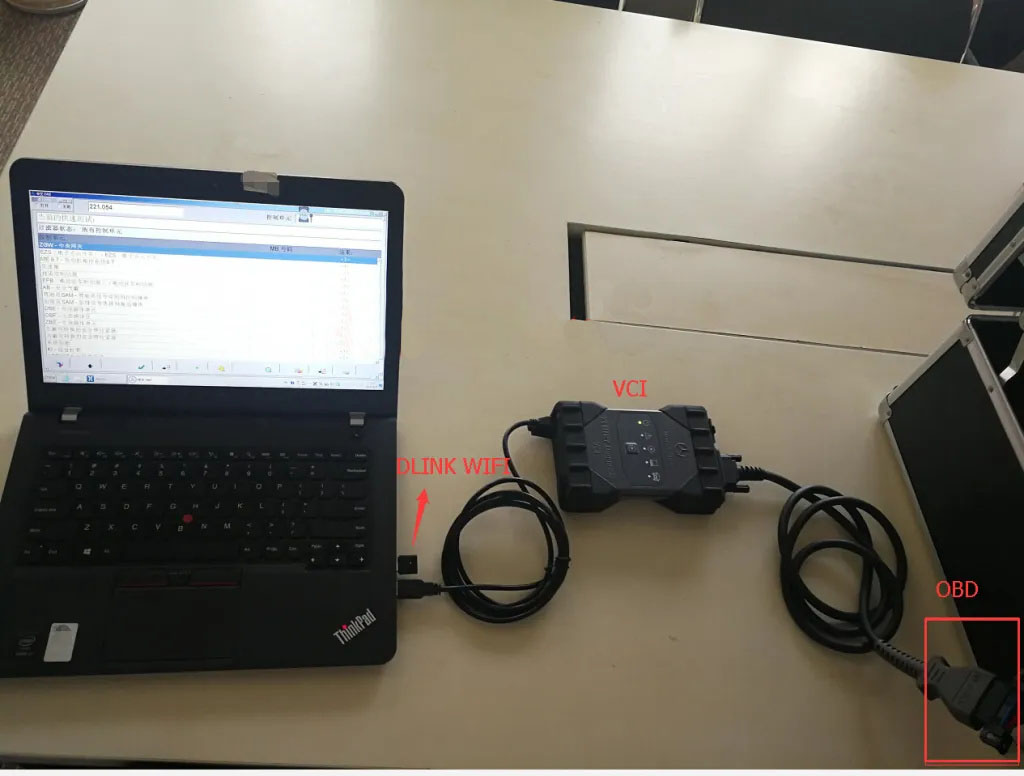
1. Connect Mercedes Benz car OBD interface(You also need a DLINK wireless adapter for Mercedes-Benz VCI)
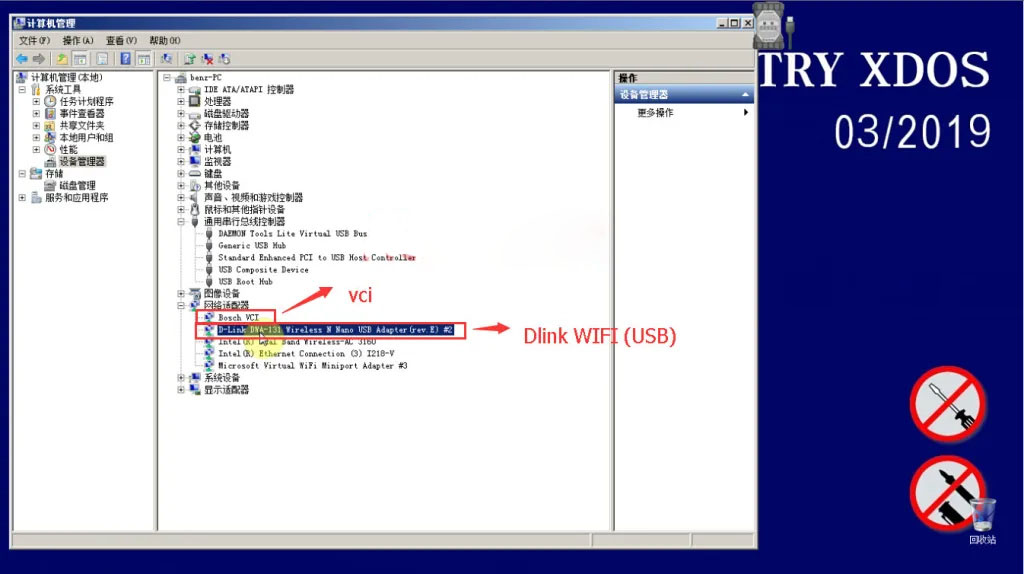
D-Link DWA-131 and VCI driver is working fine;
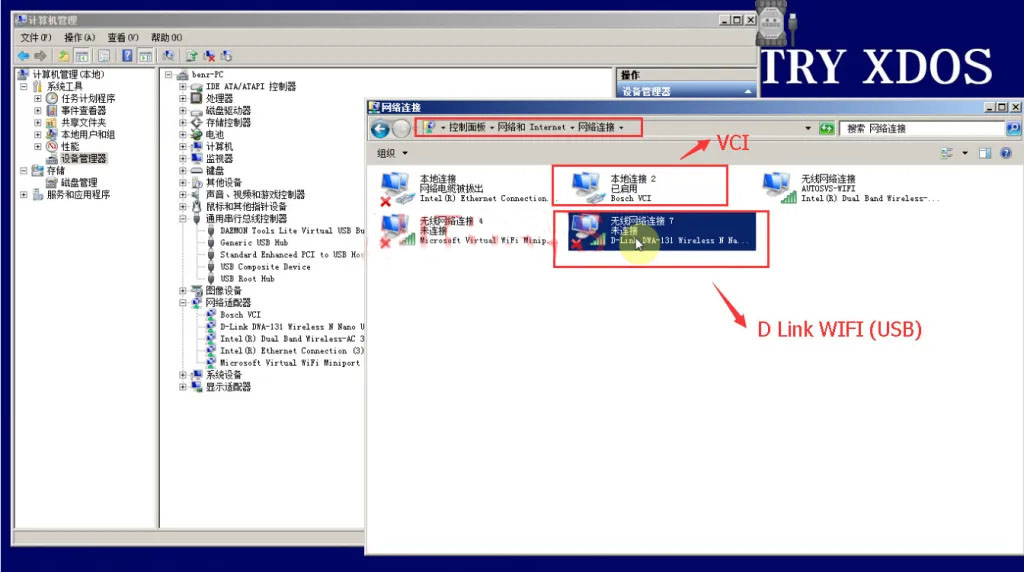
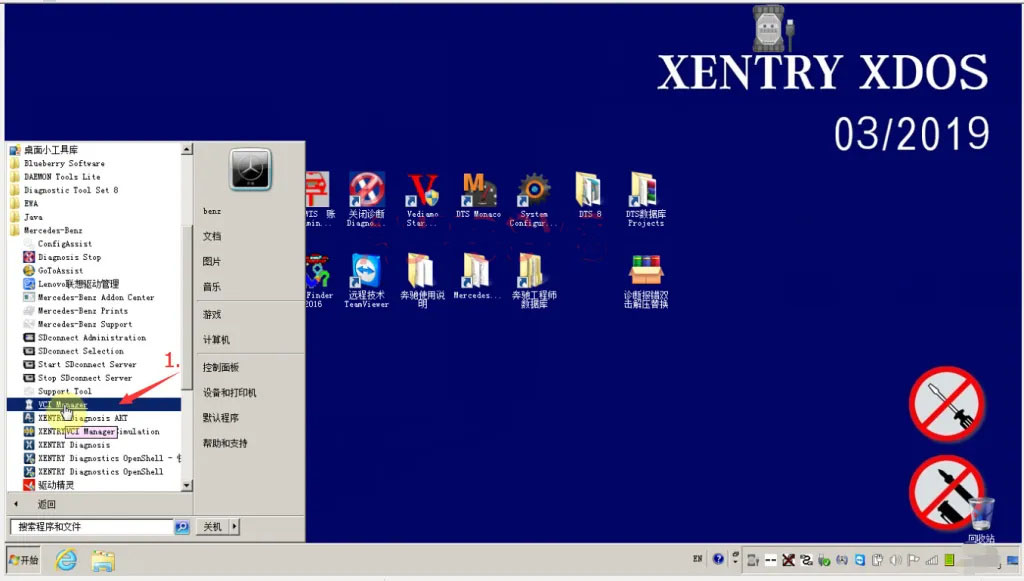
2. Open VCI Manager;
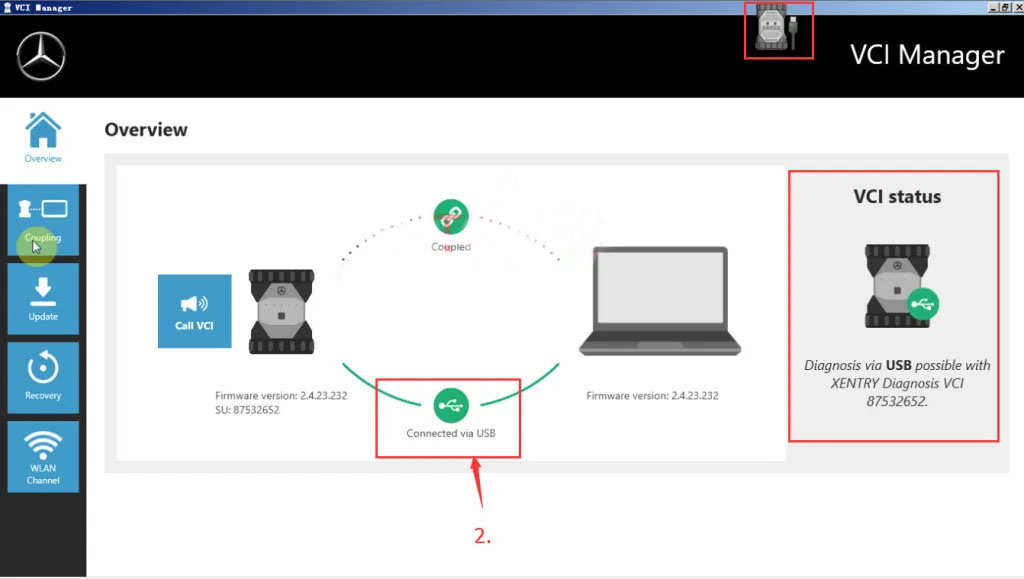
3. Overview,check connect;
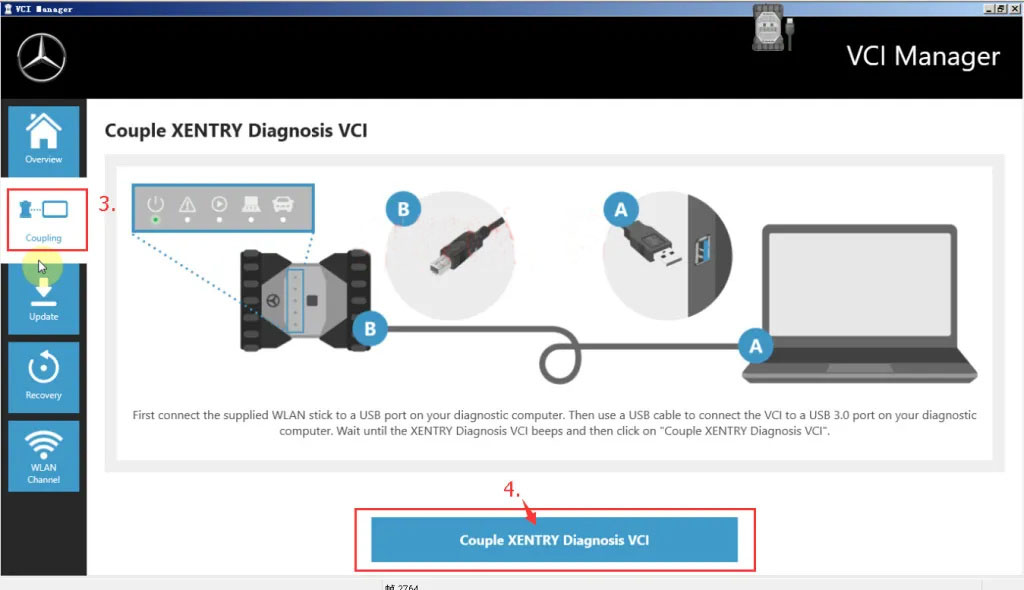
4.Coupling-Couple Xetry Diagnosis VCI;
5.OK;
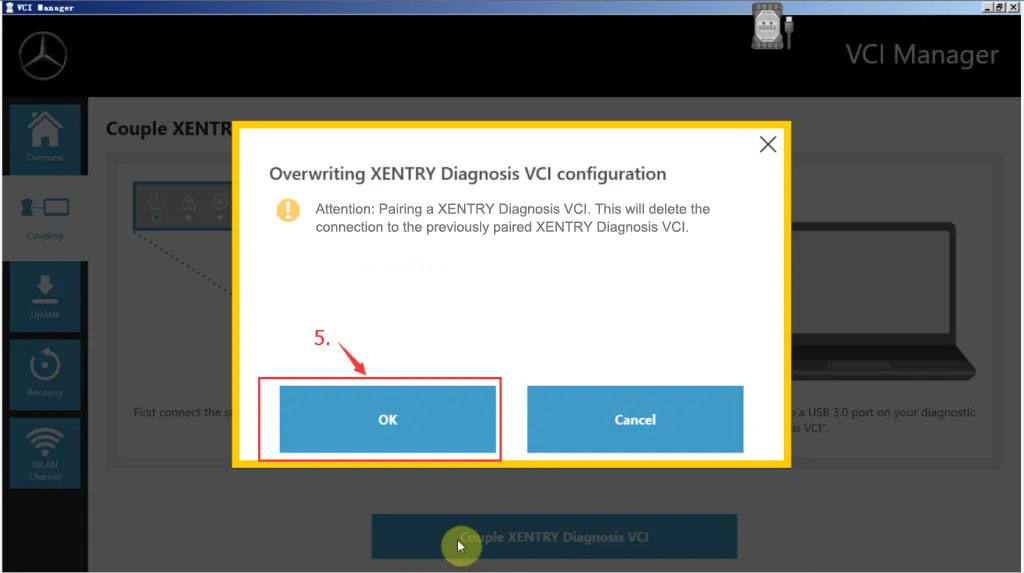
6.OK,
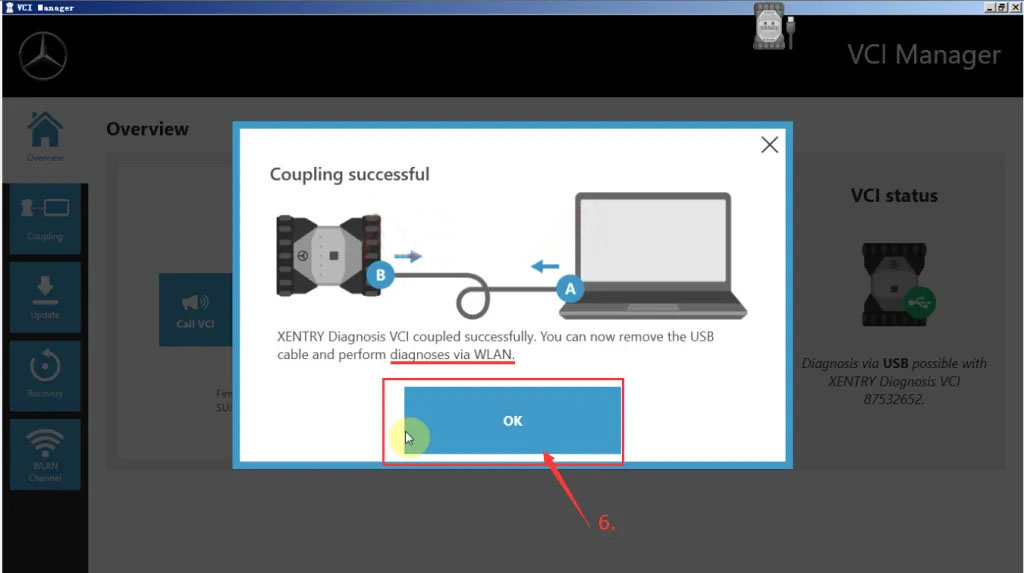
7.After completing the setup, the VCI USB is disconnected and only the DLINK WIFI is connected;
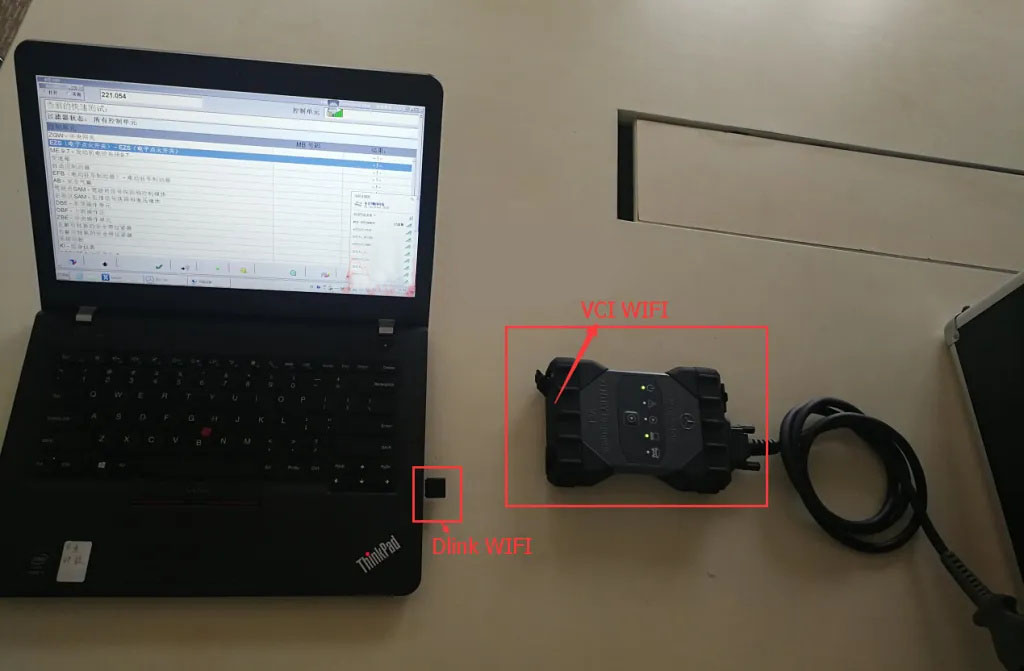
8. Dlink WIFI auto-connect to VCI;
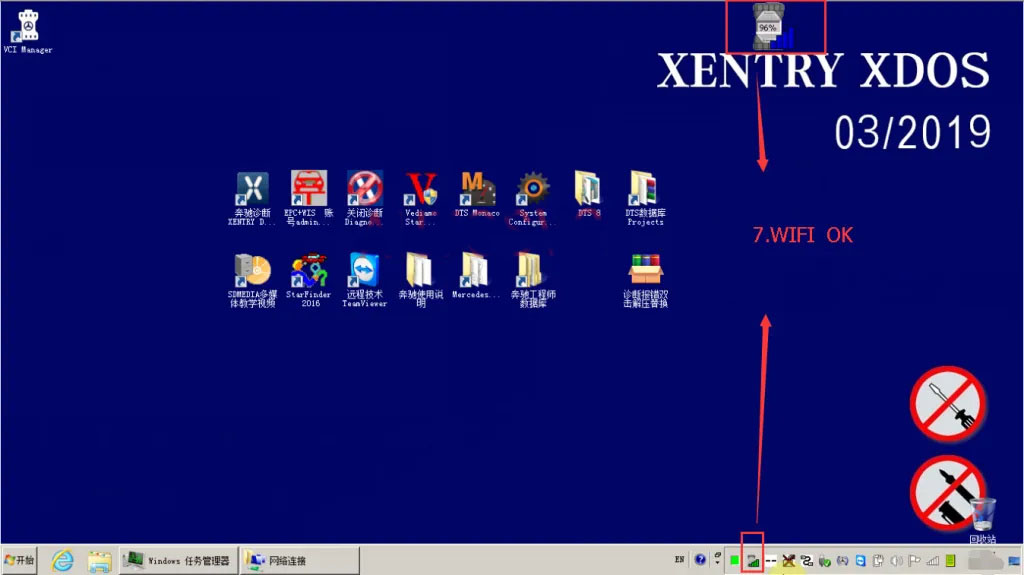
9. Now the Mercedes Benz Xetry Diagnosis VCI can diagnose the car wirelessly and read the ECU.Good luck.