Monday, February 7, 2022

How to Setup Mercedes Xentry VCI C6 Wireless Diagnosis


Mercedes Xentry VCI C6, How to Set Up and Match Wireless Diagnostics?

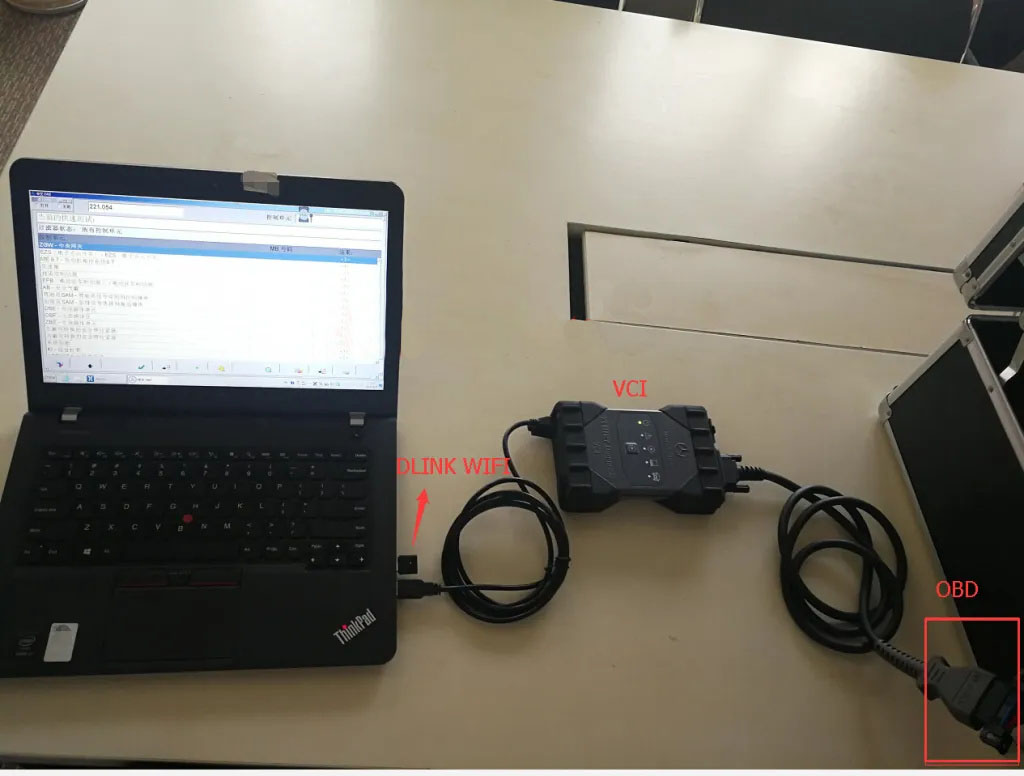
1. Connect Mercedes Benz car OBD interface(You also need a DLINK wireless adapter for Mercedes-Benz VCI)

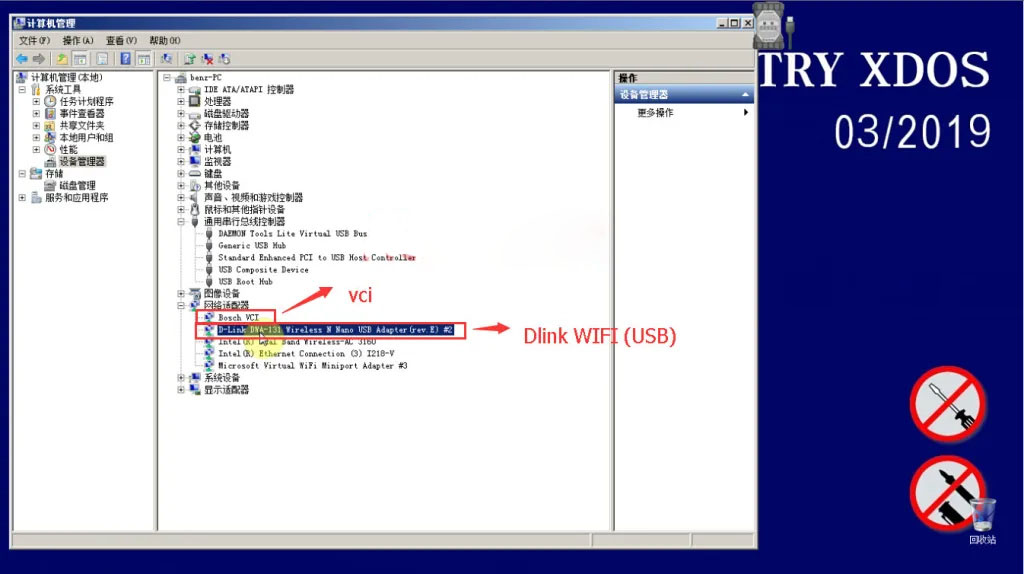
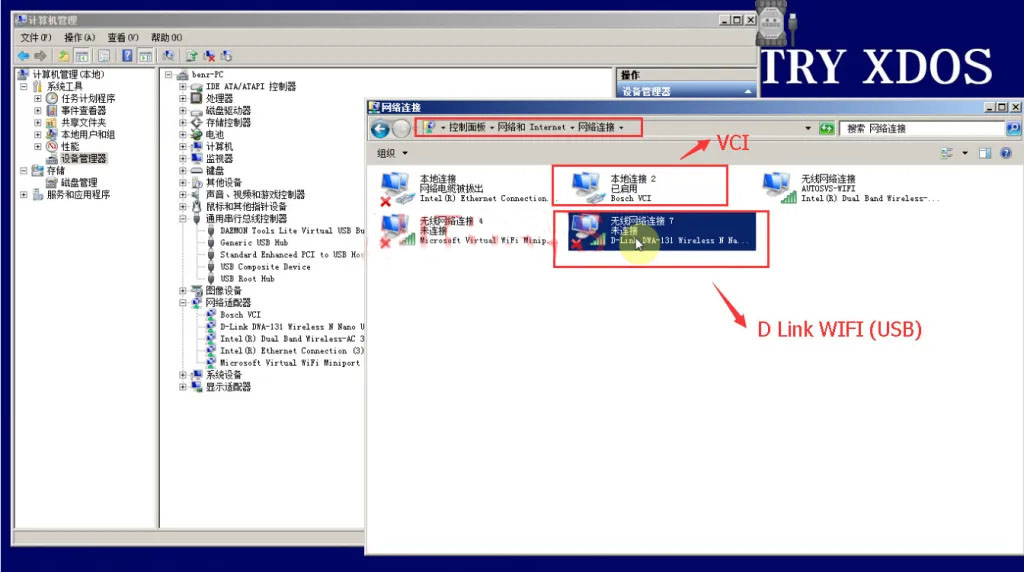
D-Link DWA-131 and VCI driver is working fine;


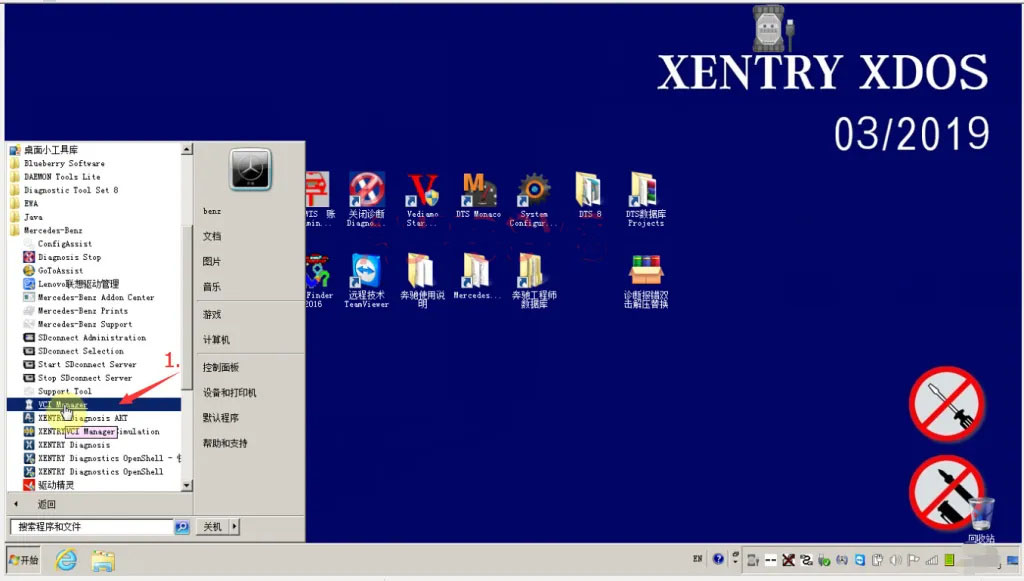
2. Open VCI Manager;

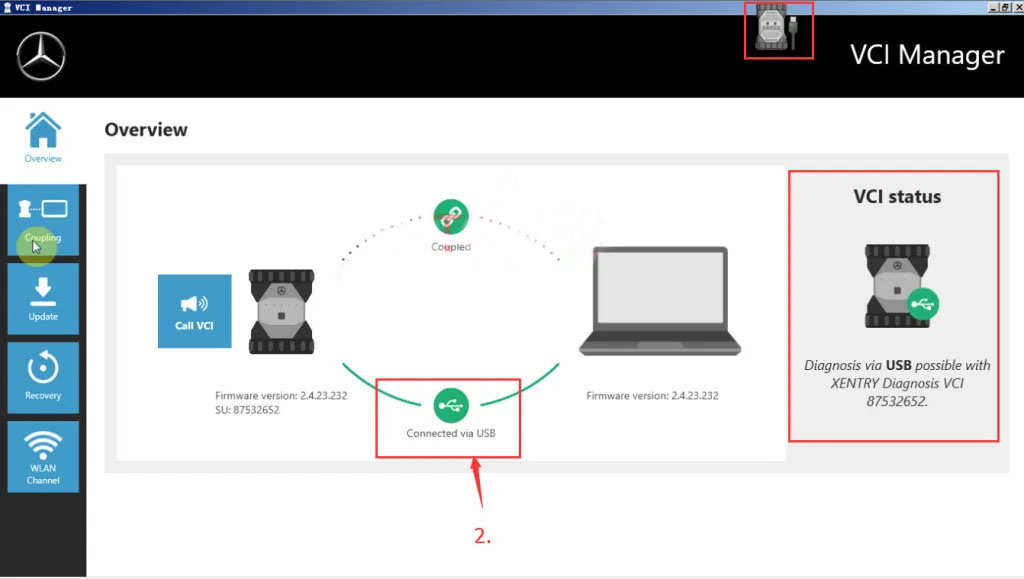
3. Overview,check connect;

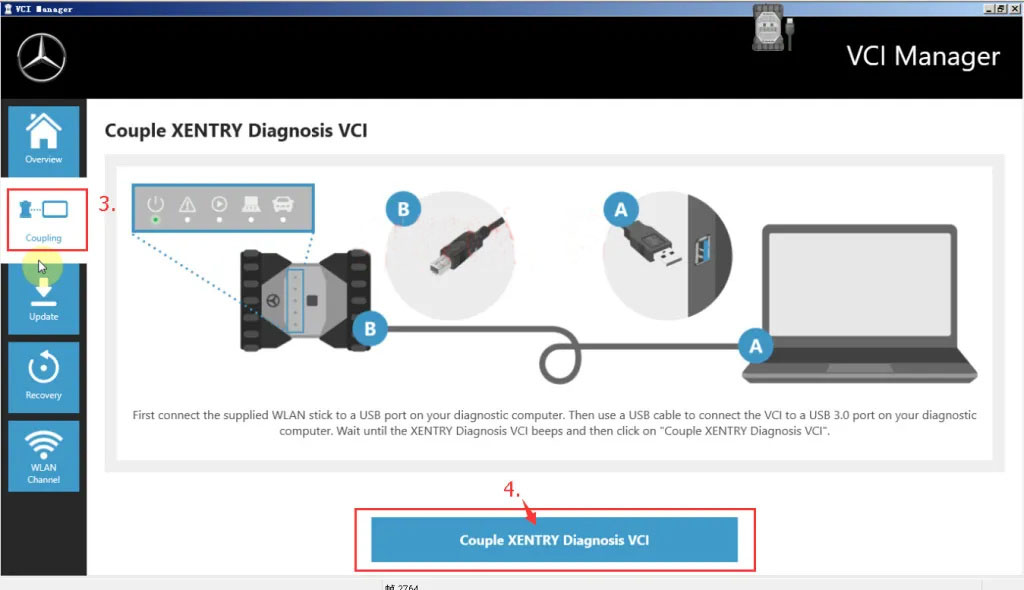
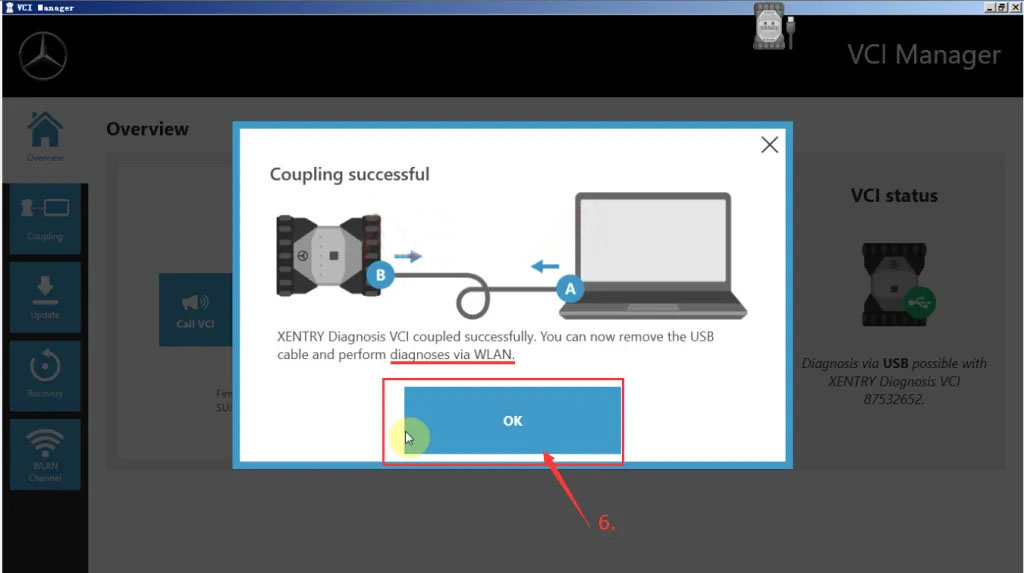
4.Coupling-Couple Xetry Diagnosis VCI;

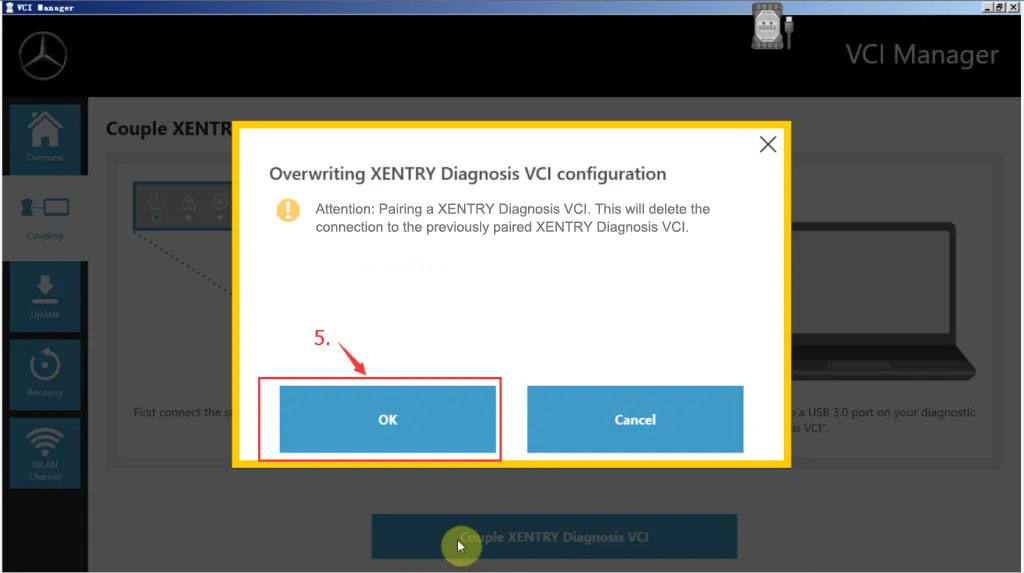
5.OK;

6.OK,

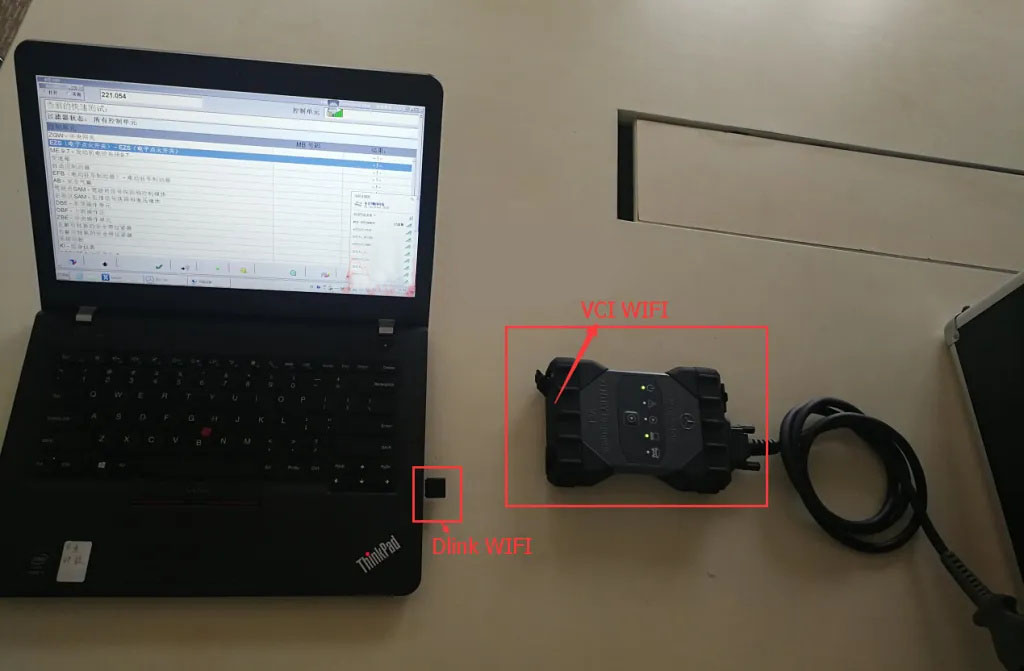
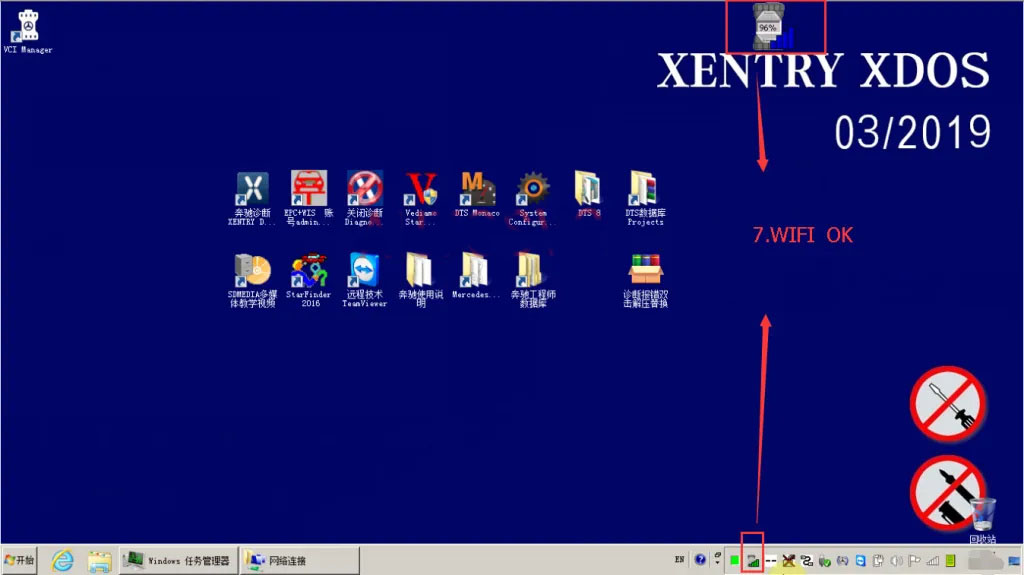
7.After completing the setup, the VCI USB is disconnected and only the DLINK WIFI is connected;

8. Dlink WIFI auto-connect to VCI;

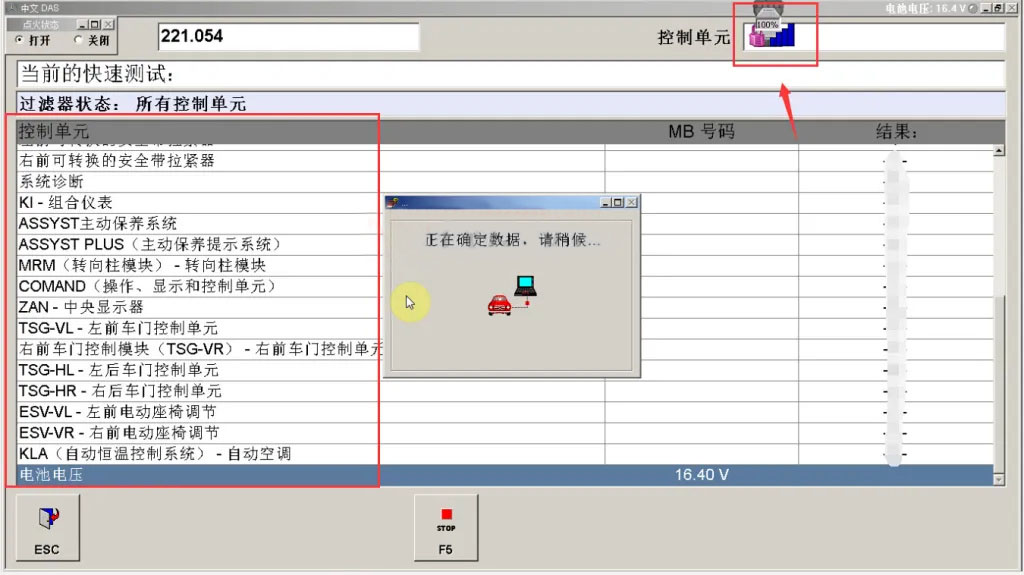
9. Now the Mercedes Benz Xetry Diagnosis VCI can diagnose the car wirelessly and read the ECU.Good luck.

Sunday, February 6, 2022

Benz DTS Monaco Software Free Download


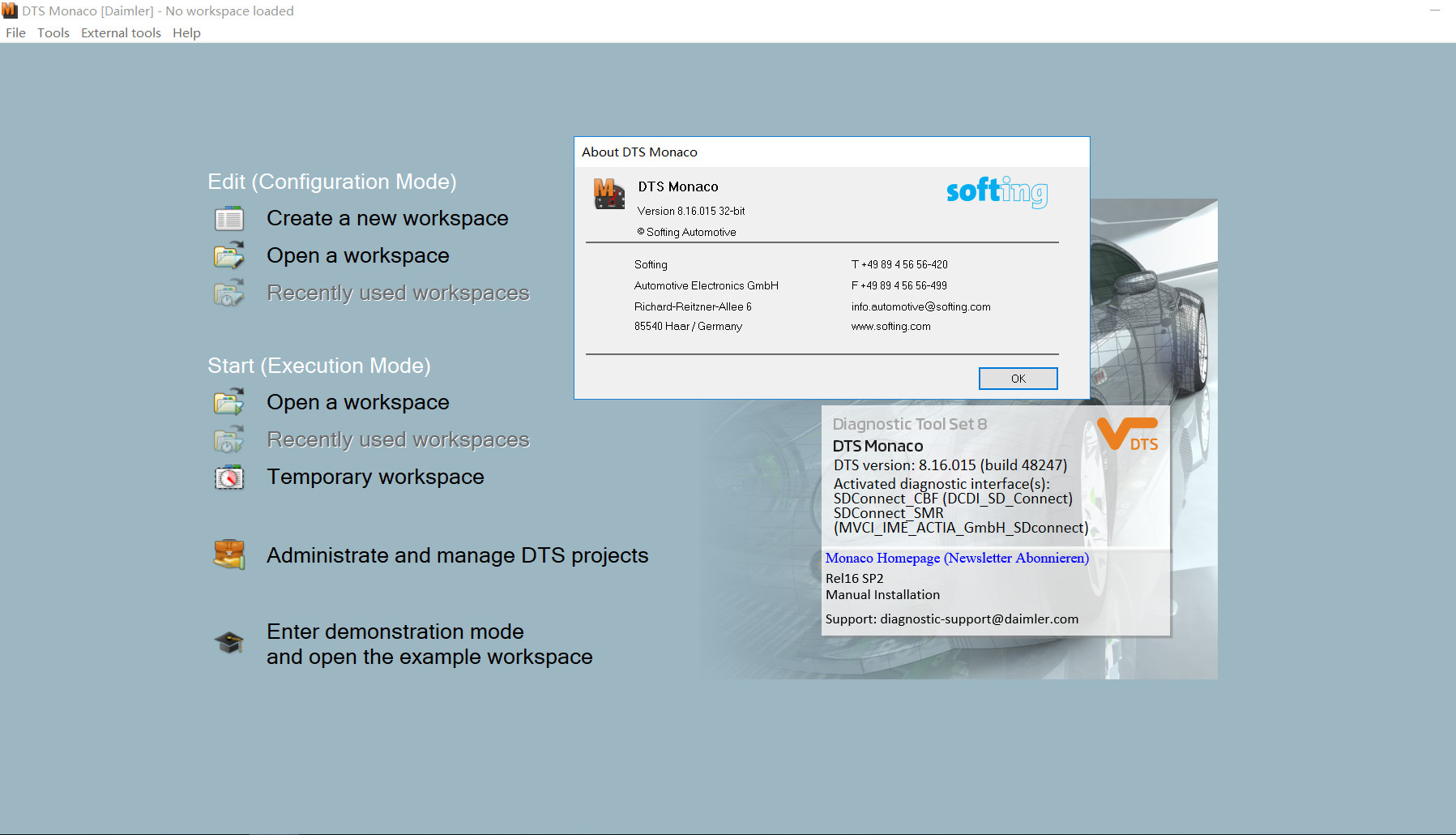
What is DTS Monaco?

DTS Monaco software is the official software used by Daimler-Benz development engineers.It is universal engineering test terminal for the diagnosis and control function of the vehicle controller, The name Monaco is derived from the modular analyzer used in vehicle traffic.DTS Monaco covers all the tasks in the field of engineering, testing and production test preparation.

DTS Monaco enables the comprehensive testing of diagnostic communication, diagnostic data and diagnostic sequences in the areas of engineering, testing and preparation of manufacturing tests. It can be adapted flexibly both for a whole range of different test tasks and for different user groups.

Benz-DTS-Monaco-Software-Free-Download-1

DTS Monaco Functions List:
Testing communication
Analyzing data on the bus
Testing ODX data against ECU
Reading/clearing error memory
Identifying variants
Programming flash memory
Displaying measurement values
Testing actuators
Parameterizing ECUs
Variant coding
Running ECU routines
Testing OBD functions
Creating/executing test sequences
Identifying built-in ECUs

Flexibly Adaptable
DTS Monaco is part of the Diagnostic Tool Set product family and stands for Modular Analyzer for Vehicle Communication. A clearly laid out start page enables simple and fast access to the functions required most frequently. The actual workspace is divided into two: one area with a fixed layout and one with layouts that you can toggle between. A status display below shows communication server messages. The various functions are realized using special, configurable interface elements. These “HMI Controls” can be arranged freely in the layouts in configuration mode and comprehensively configured.

Fast Results
For typical use scenarios predefined tem-plates including an universal database for the OBD selfdiagnosis as well as various protocol templates (WWH-OBD, J1939-73 among others) are supplied. In Demonstration mode, all functions can be tested, even without an interface and a license, using a detailed example including simulation. Furthermore, the tool has a completely integrated OTX runtime for running complex test sequences in accordance with ISO 13209. An authoring tool for creating such OTX sequences can be started directly from DTS Monaco.

Benefits
Reduced costs and familiarization time as DTS Monaco covers the functionality of several tools, previously separate: OBD scan tool, data and bus monitor etc.
Fast results thanks to preconfigured templates
Top quality thanks to early detection and remedy of communication problems and function errors
Highly effective thanks to flexible adaptability to various tasks
Communication data and test results can be fully documented

Early Detection of Problems
In execution mode, a configured workspace can be “started”. In doing so individual functions can be started automatically and communication can be established in advance if so required. Selfgenerated test sequences enable both simple and very complex function tests. This makes it possible to detect, and remedy, communication problems and function errors at an early stage. Communication data and test results can be documented in entirety in the process.

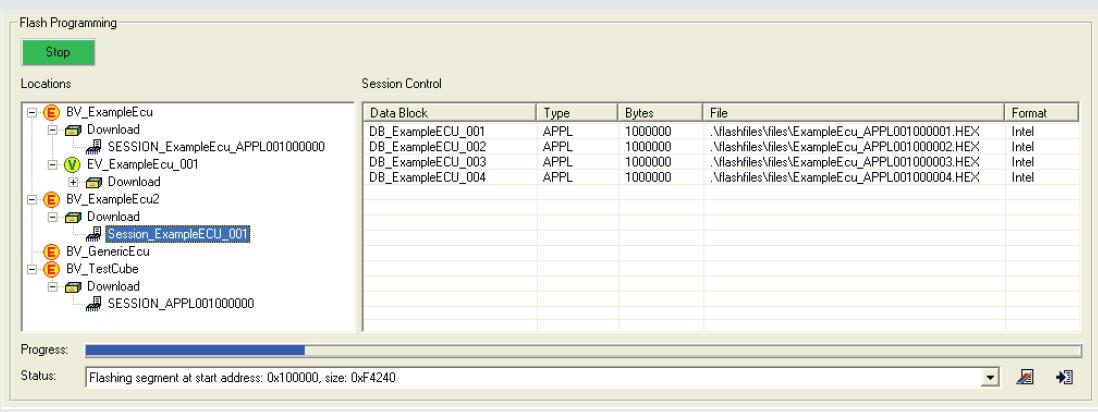
DTS FLASH
DTS Flash is an easy-to-use tool based on the ODX standard for flash programming of ECUs. It is possible to program one or more flash sessions of an ECU. As a prerequisite you need ODX data: ODX-D incl. an OEM specific flash job and ODX-F, which contains either the flash programming data or a reference (possibly late-bound) to it. You can reference the data formats HEX, MOT, BIN, S3 and S19.

Benz-DTS-Monaco-Software-Free-Download-2

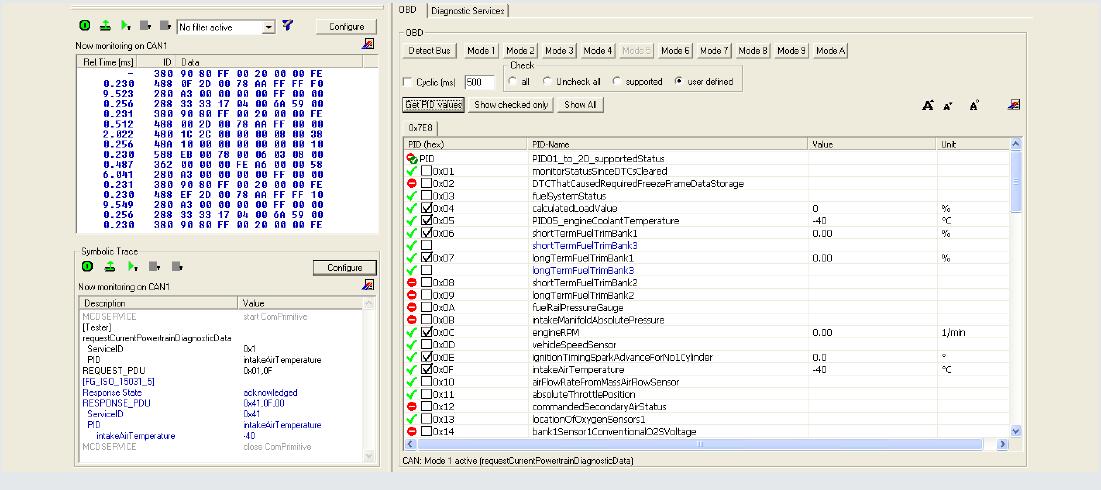
DTS OBD
DTS OBD is a PC-based tool for validating and releasing the self-diagnosis of individual ECUs or an entire vehicle in vehicle engineering. It covers the entire scope of onboard diagnostics and combines the functionalities of an OBD scan tool with those of a data and bus monitor in a single tool. You can detect the type of the connected bus either automatically or select it manually. For the current available OBD modes there are various analysis functions. Measured values are updated either manually or cyclically and can be logged for the purposes of documentation or external analysis (e.g. Excel spreadsheets). Parameters can be modified via symbolic names and sent to the relevant ECU for response analysis. All communication can be analyzed down to the very last detail and if necessary be recorded both at bus level (hexadecimal raw data) and at the application layer (in symbolic representation). When used on a notebook during a test drive, the font can be enlarged in several stages on the screen.

Benz-DTS-Monaco-Software-Free-Download-3

DTS Monaco Free Download:

DTS_V8_03_012_Daimler

https://mega.nz/#!p9ZDGKwS!VTn9fB80Z9-YKpV8aj9PkRXR3KinAT6RFiW13GGdOHI

DTS 8.08.021 Download:

https://mega.nz/#!RZ1AyYZS!Y_f4IPAzuYjZ7oK0vcqguO_ooo5apJ6KONCXunyXI10

DTS8.08path.txt

https://mega.nz/#!wVEhiQZQ!hK_klz4cYmnJoUuVGj8io2L9_PEbXu1l8rBGV02rTtw

Benz DTS 8.16 100% work version here:
https://www.obd2tool.com/goods-2890-MB-SD-Compact-4-Update-to-Latest-version.html
Friday, February 4, 2022

How to Install Mercedes Benz DTS Monaco 8.16 Software

This instruction show you the guide on how to install Mercedes Benz DTS Monaco Software.

Preparations:

Benz DTS Monaco Software Free Download
V2021.12 MB SD Connect C4/C5 Super Engineering Software with DTSmonaco V8.16.015 And Vediamo V5.01.01
https://www.obd2tool.com/goods-2890-MB-SD-Compact-4-Update-to-Latest-version.html
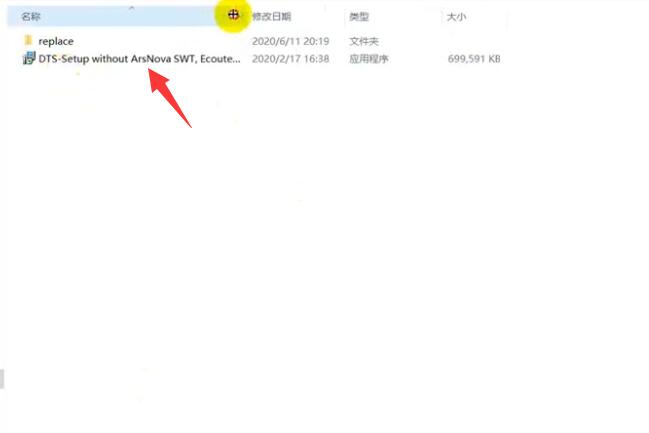
After finish downloading and extract you will get below files
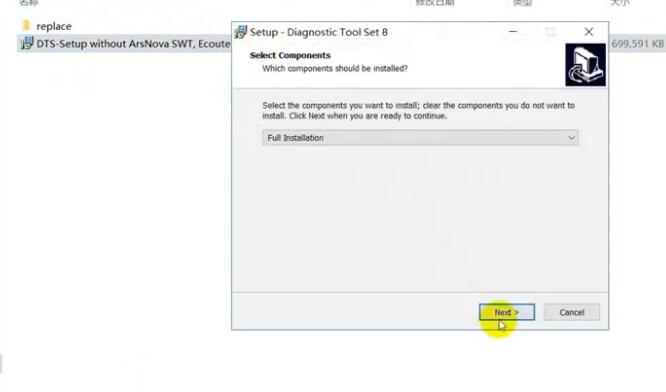
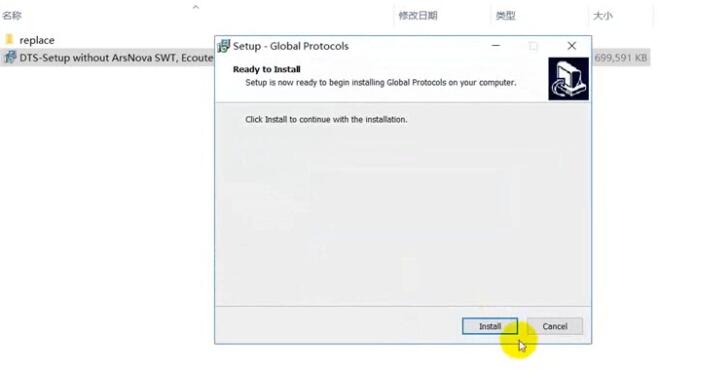
Double click DTS-Setup to start installation

How-to-Install-Mercedes-Benz-DTS-Monaco-Software-1

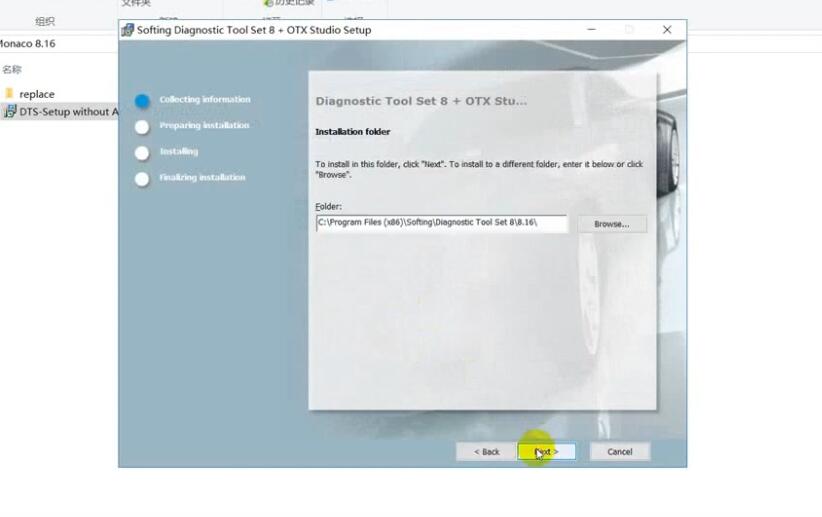
Then just click default option to continue

How-to-Install-Mercedes-Benz-DTS-Monaco-Software-2
How-to-Install-Mercedes-Benz-DTS-Monaco-Software-3

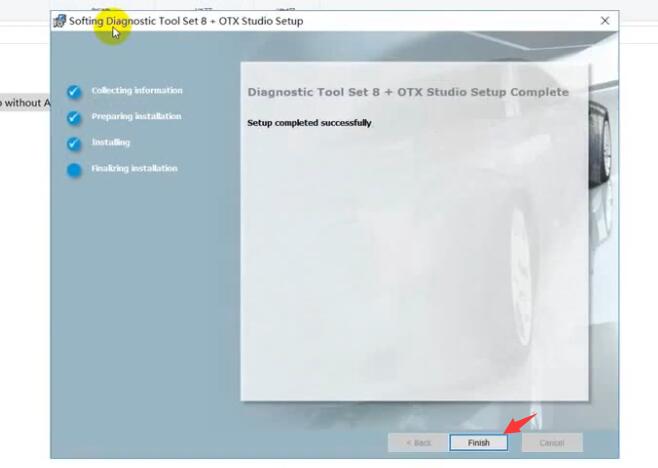
Click Finish

How-to-Install-Mercedes-Benz-DTS-Monaco-Software-4
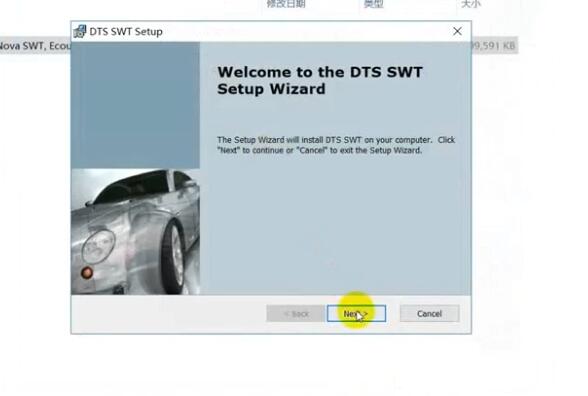
How-to-Install-Mercedes-Benz-DTS-Monaco-Software-5
How-to-Install-Mercedes-Benz-DTS-Monaco-Software-6

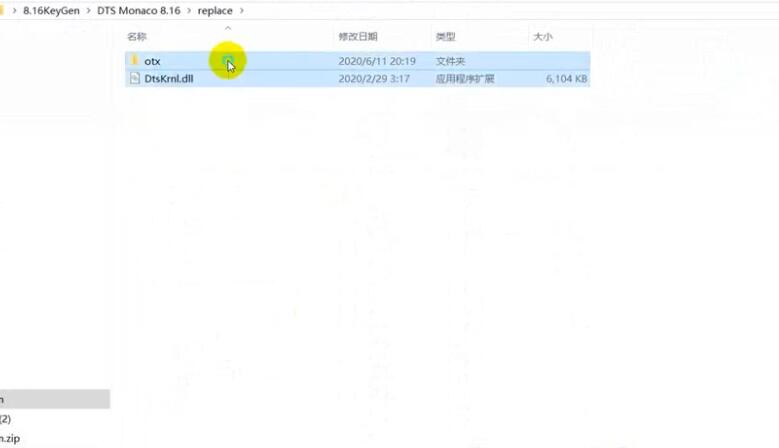
Copy files in the repalce folder to DTS Monaco installation folder replace
C:\Program Files(x86)\Softing\Diagnostic Tool Set 8\8.16\bin

How-to-Install-Mercedes-Benz-DTS-Monaco-Software-7

Then run “DTS Monaco” icon on desktop,it will show you the HWID and ask you to activate
Please sent me your HWID to me(carautorepair01@gmail.com),we will sent you a activate file and license file
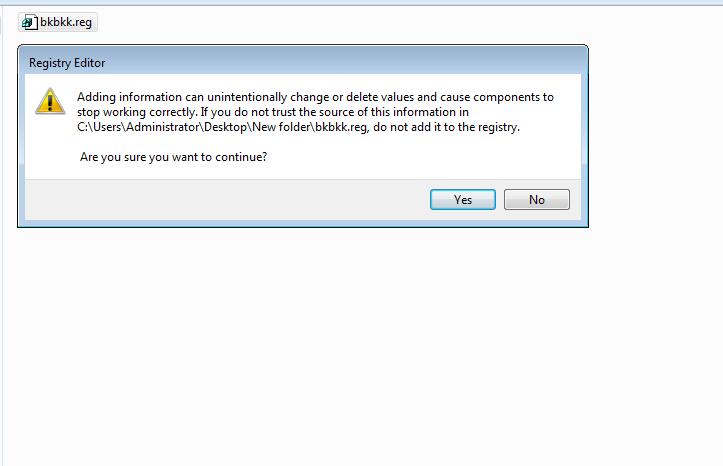
When you get the xxx.reg file,double click it to register it to your pc,click yes to add it the registry

How-to-Install-Mercedes-Benz-DTS-Monaco-Software-8

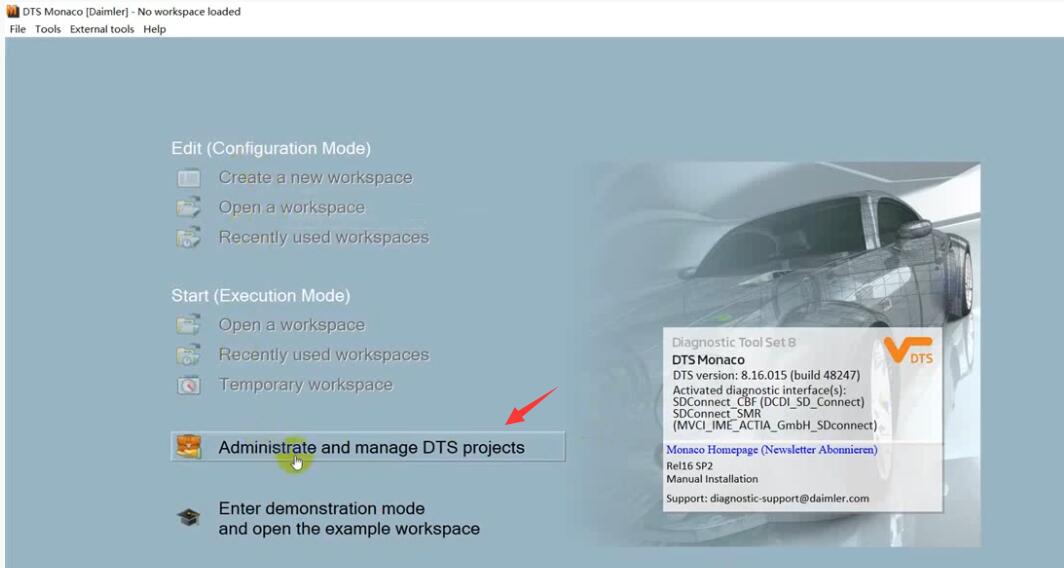
Run DTS Monaco and select “Administrate and manage DTS projects’

How-to-Install-Mercedes-Benz-DTS-Monaco-Software-9

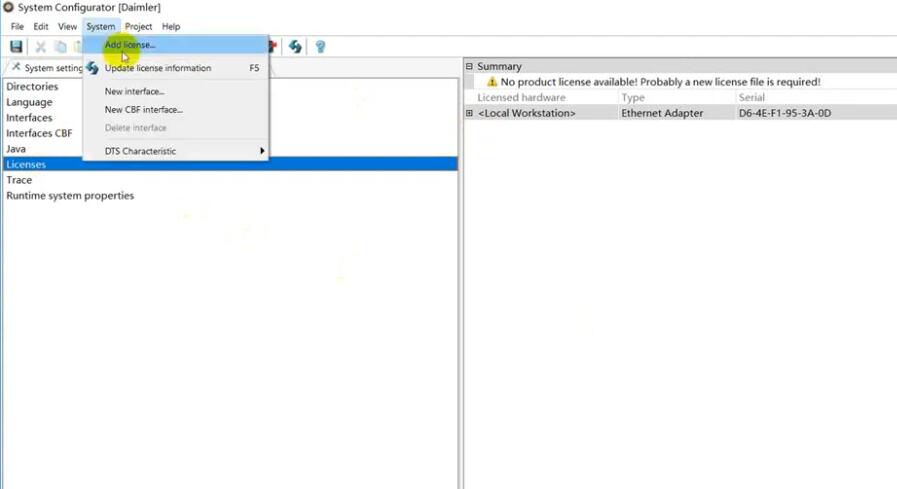
Select “System”–>”Add license”

How-to-Install-Mercedes-Benz-DTS-Monaco-Software-10

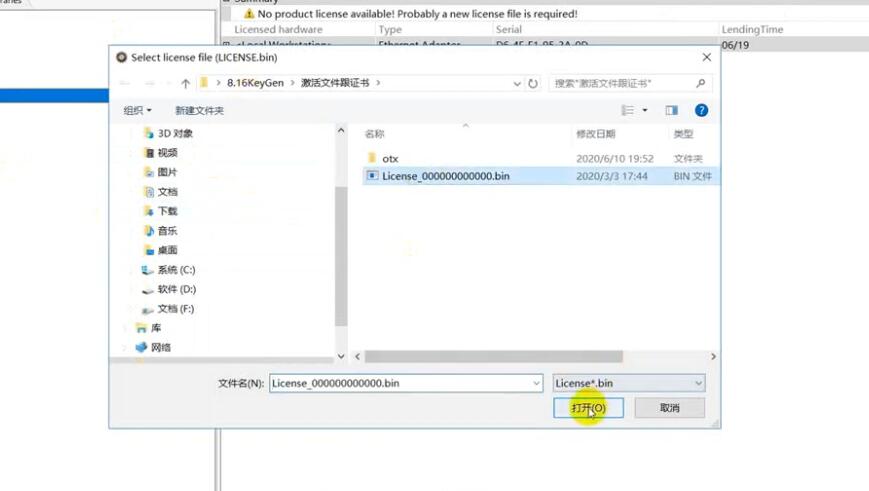
Load the License_0000000000000.bin file i sent you before

How-to-Install-Mercedes-Benz-DTS-Monaco-Software-11

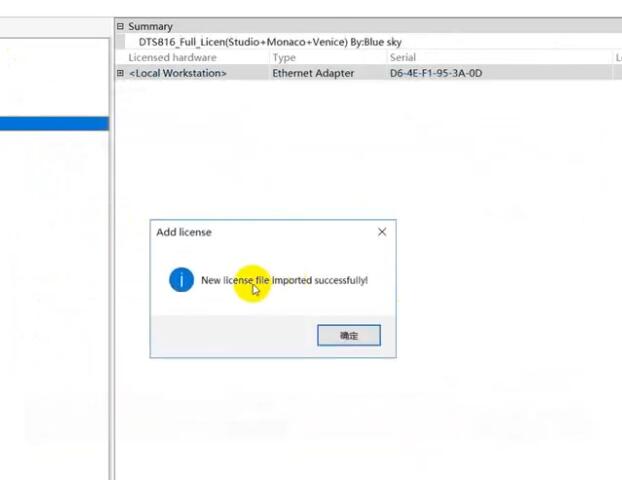
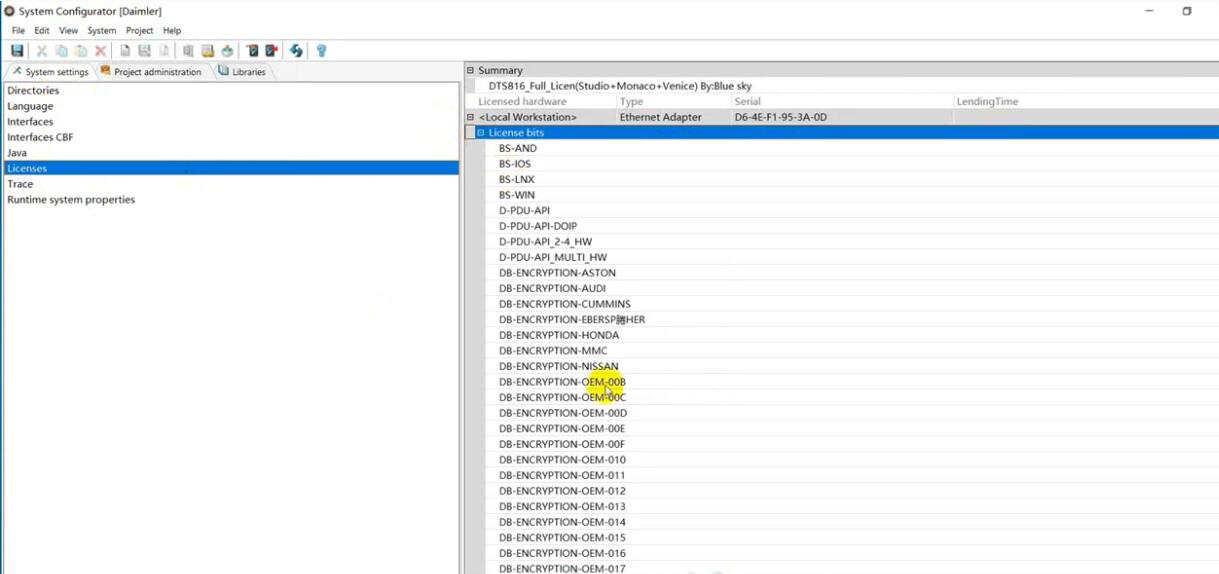
Now your DTS Monaco have activated successfully!

How-to-Install-Mercedes-Benz-DTS-Monaco-Software-12
How-to-Install-Mercedes-Benz-DTS-Monaco-Software-13

DTS Monaco 8.03.12 Software Install on Win 7:
When installing DTS Monaco to communicates and works with SDconnect4 all user installed SD Connect C4 Toolkit version 2.1.3. And no one tried to force the work SDconnect Toolkit version 2.1.4.2, which is installed together with the installation of Setup_Addon_DAG. And I did it.
Checked only on the system without DAS/Xentry.
DTS Monaco 8.03.12.
Windows 7 x64.
Follow the next steps:
1. Install Monaco
2. Install Setup_Addon_DAG
3. Go to ะก:\ProgramData\I+ME ACTIA\Toolkit\
4. Open and edit ini
Code:
ShowInTray=2
NetworkIcon=2
DeviceIcon=1
ConnectionState=1
1. Save file and reboot Windows
2. Connect SDconnect MUXvia cable
3. Start System Configurator
4. Go to Licensesand you will see your MUX as DCDIPartW with your serial number. After editing in Interfaces 5. type of MUX will change to MVCI_IME_ACTIA_GmbH_SDconnect
6. Go to Interfaces
Code:
eCOM_SMR
Interface name – > SDconnect_SMR
Bus system interface – > D-PDU API
D-PDU API version – > I+ME ACTIA GmbHXS_D_PDU_API_FOR_DTS_8_03_12
Module type – > MVCI_IME_ACTIA_GmbH_SDconnect
Cable – > CABLE_OBDII_SDCONNECT
Physical links: CAN1, CAN4, CAN8
1. Click Saveand close System Configurator
2. Now you can connect to the car or single ECU
I successfully connected to ZGW221 w/o car
DTS Monaco always sends a notification that it is impossible to contact the EIS221 to read the mileage, voltage, etc. (because w/o car)

DTS Monaco 8.14 Installation:
1.Copy bin folder to C: \ Program Files (x86) \ Softing \ Diagnostic Tool Set 8 \ 8.14 \ and replace the original file.
2.Run Monaco.exe a dialog box appears, press Ctrl + V to copy hardware ID to me.

Wednesday, February 2, 2022

Benz 722.9 7G gearbox SCN coding SD connect C4 done

This is an instruction for educational purpose for those not acquainted with SCN coding a second hand virginized TCM. If you do not know the EHS number, it is impossible to make the correct software update and SCN coding.

It’s your own risk.

Here, it can be done with

an original Star diagnosis diagnostic system

or

China clone SD Connect C4 multiplexer

Both will do online and offline programming well.

But specific DAS version is required.

MB 722.9 7g gearbox coding in the process:

Step 1: Change EHS number

Step 2: Update software offline

Step 3: Online SCN Coding

in detail…

Step 1: Change EHS number

After well setup SD Connect C4 software on Dell laptop, go to Electronic transmission control (722.9 7G-Tronic) program
Select “Control unit version”
Benz-722.9-7G-gearbox-coding-1

Locate EHS part number.

This is the software stored in the virginized unit which software should be changed so that the 722.9 TCM should work in this chassis and SCN coding be performed. This should be done after the EHS number is changed.
Benz-722.9-7G-gearbox-coding-2
Back to 722.9 7G-Tronic program, select “Development data”
Benz-722.9-7G-gearbox-coding-3
Select “Control unit adaptations”
Select “Control unit adaptations (Download)”
Benz-722.9-7G-gearbox-coding-4
Select “ZBEHS (DL-ID-ZBEHS)” option
Benz-722.9-7G-gearbox-coding-5
Enter the EHS number here
Benz-722.9-7G-gearbox-coding-6
If the system display Result “1” means that the EHS number is correct and programmed
Back to 722.9 module program and check if the EHS number is changed in “Control unit version”

Benz-722.9-7G-gearbox-coding-7
Step 2: Update software offline

Select “Control unit adaptations”
Benz-722.9-7G-gearbox-coding-8
Select “Control module programming”
Benz-722.9-7G-gearbox-coding-9
Come to next step: How to change the software offline
Select Offline programming. This procedure should be done offline.
Benz-722.9-7G-gearbox-coding-10
The next program will prompt you what should you do next.  Follow the instructions strictly.
Benz-722.9-7G-gearbox-coding-11
Enter the reason for control unit programming, here we enter “1”
Benz-722.9-7G-gearbox-coding-12
Offline coding is progress. The actual programming takes 5.00 minutes
Benz-722.9-7G-gearbox-coding-13
Back to Control unit version program
Now you see that the software is changed properly and corresponding to the chassis. Once you have done all the step-by-step procedure you can continue with the SCN coding.
Benz-722.9-7G-gearbox-coding-14

Step 3: Online SCN Coding

Go back to 722.9 7G-Tronic program
Again select Control unit adaptations
Select SCN coding
Benz-722.9-7G-gearbox-coding-15
Select Online programming.

The last step online SCN Coding should be completed online.

Then follow system prompt until it is completely done.
Benz-722.9-7G-gearbox-coding-16


Monday, January 31, 2022

How to Code Benz TRONIC CONTROL Module Using MB SD C4 SCN Software

MB SD C4 Compact is a popular Mercedes Benz diagnostic tool that is widely used in workshops and dealerships. The machine can not only diagnose DTCs, but also code vehicle modules. Here obd2eshop technicians have a step by step guide on how to code Mercedes Benz 722.9 7G Transmission TRONIC CONTROL MODULE / 722.9 Transmission Control Module using MB SD C4 Diagnostic System, MB STAR C4 Expert Software and SCN Coding Software created.

*DISCLAIMER – This modification, if carried out is of responsibility of those carrying it out.

*Things you will need – MB STAR Compact C4 Diagnostic Tool

MB SD C4 Software Platinum Edition for Online/ Offline Programming

A Computer to run MB STAR C4 software

*Tips – Please get the  EHS number for SCN coding before you start.

How to:

Step 1: Change EHS number

Install and run MB SD Connect C4 diagnosis software on the computer, select car model and year and then go to Electronic transmission control (722.9 7G-Tronic) program

Select “Control unit version”

Locate EHS part number. This is the software stored in the virginized unit which software should be changed so that the 722.9 TCM should work in this chassis and SCN coding be performed. This should be done after the EHS number is changed.
Benz-722.9-7G-gearbox-coding-1
Back to 722.9 7G-Tronic program, select “Development data”
Benz-722.9-7G-gearbox-coding-2
Select “Control unit adaptations”
Select “Control unit adaptations (Download)”
Select “ZBEHS (DL-ID-ZBEHS)” option
Benz-722.9-7G-gearbox-coding-3
Enter the EHS number here
Benz-722.9-7G-gearbox-coding-4
If the system display Result “1” means that the EHS number is correct and programmed
Back to 722.9 module program and check if the EHS number is changed in “Control unit version”
Benz-722.9-7G-gearbox-coding-5
Step 2: Update software offline

Select “Control unit adaptations”
Benz-722.9-7G-gearbox-coding-6
Select “Control module programming”
Benz-722.9-7G-gearbox-coding-7

Come to next step: How to change the software offline
Select Offline programming. This procedure should be done offline.
Benz-722.9-7G-gearbox-coding-8
The next program will prompt you what should you do next.  Follow the instructions strictly.
Benz-722.9-7G-gearbox-coding-9
Enter the reason for control unit programming, here we enter “1”
Benz-722.9-7G-gearbox-coding-10
Offline coding is progress. The actual programming takes 5.00 minutes
Benz-722.9-7G-gearbox-coding-11
Go back to Control unit version program

Benz-722.9-7G-gearbox-coding-12
As you can find the MB STAR software is changed properly and corresponding to the chassis. Once you have done all the step-by-step procedure you can continue with the SCN coding.

Benz-722.9-7G-gearbox-coding-13
Benz-722.9-7G-gearbox-coding-14
Step 3: Online SCN Coding

Go back to 722.9 7G-Tronic program
Again select Control unit adaptations
Select SCN coding
Benz-722.9-7G-gearbox-coding-15
Select Online programming. The step online SCN Coding should be carried out with network connection.
Benz-722.9-7G-gearbox-coding-16

Close the software and the comupter when finished.