Friday, September 10, 2021

Xentry Error Supplied StartKey is Invalid Solution


One consumer wrote that Xentry Does not accept the key.(Startkey is invaild)

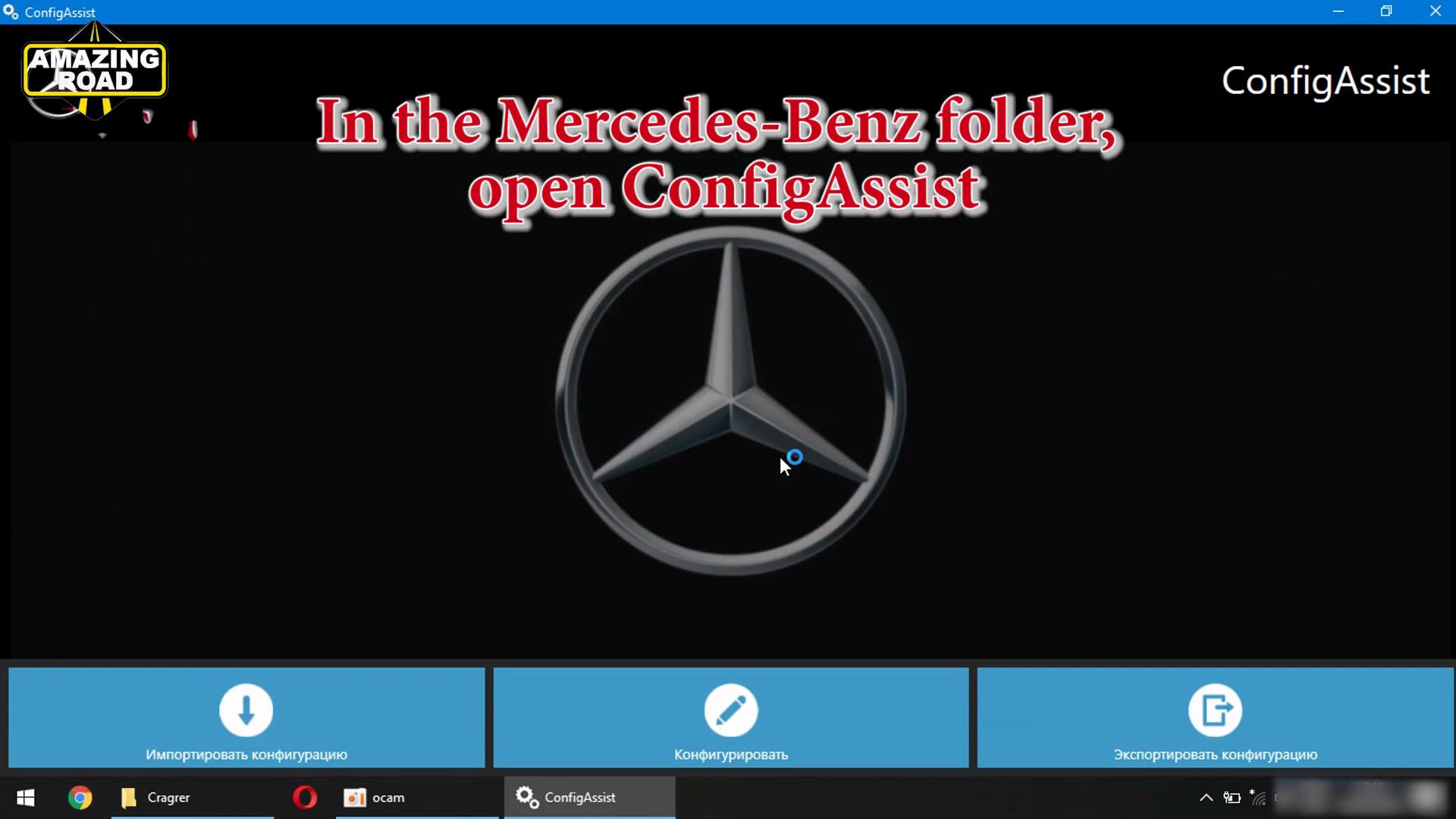
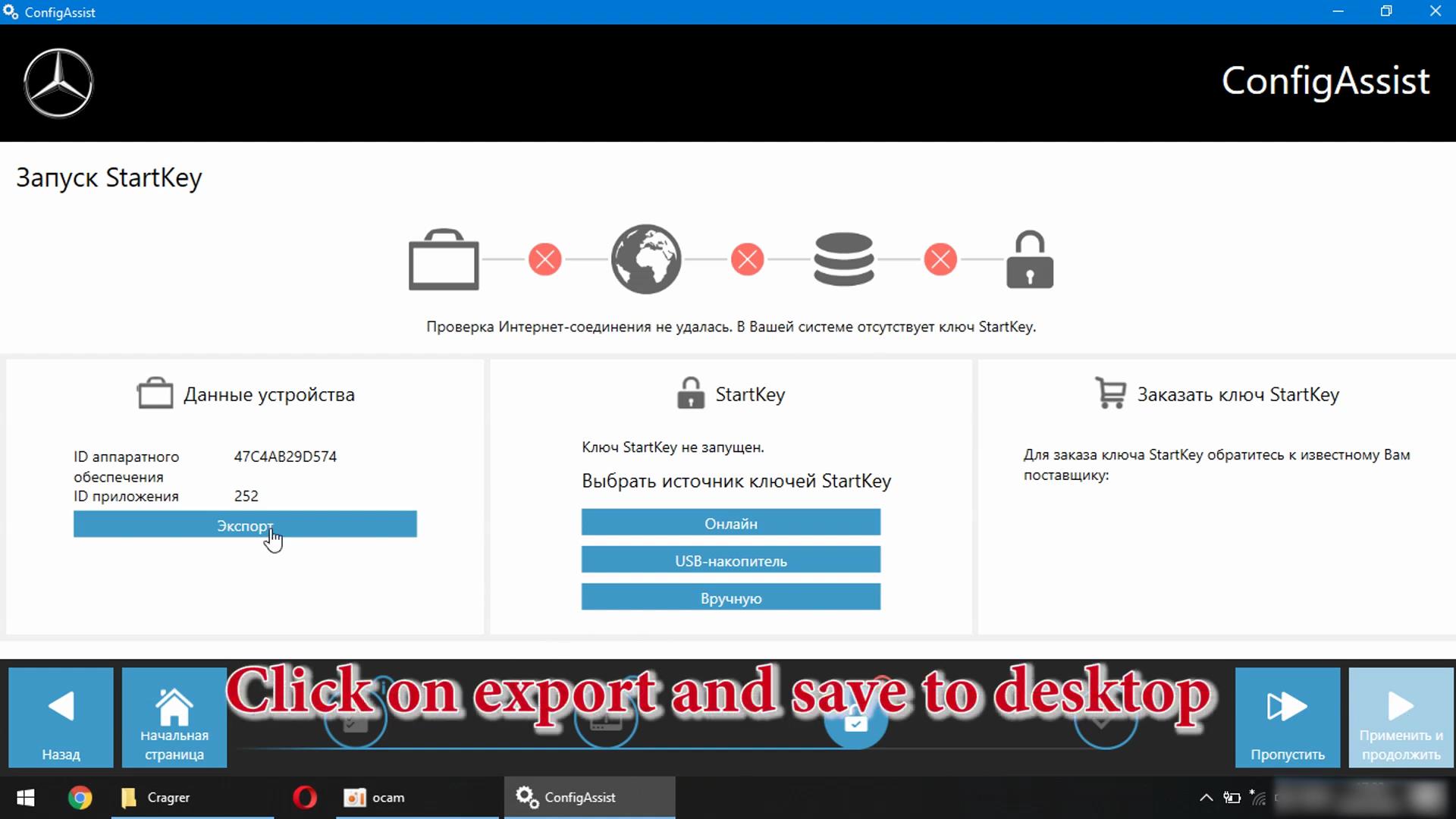
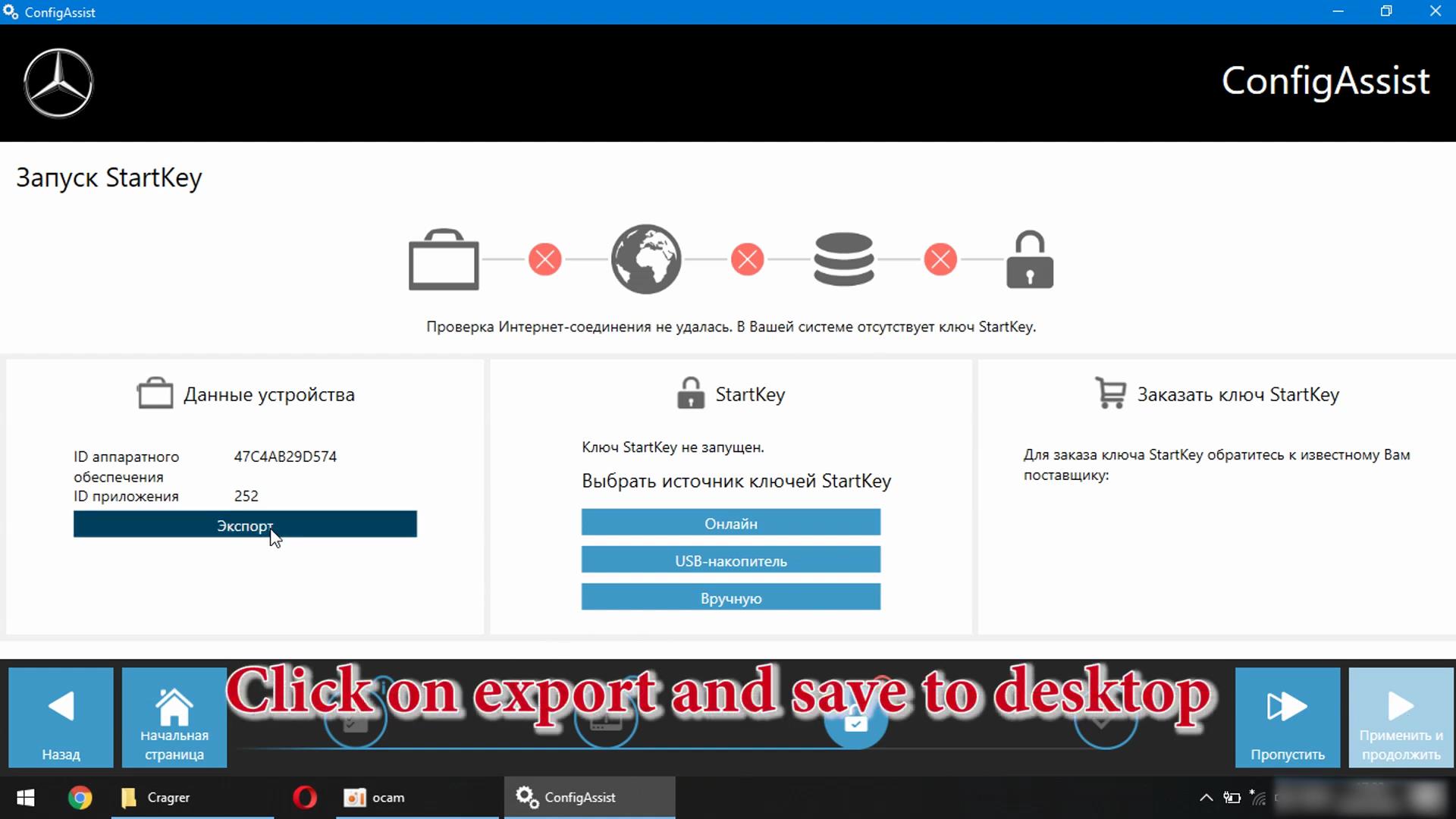
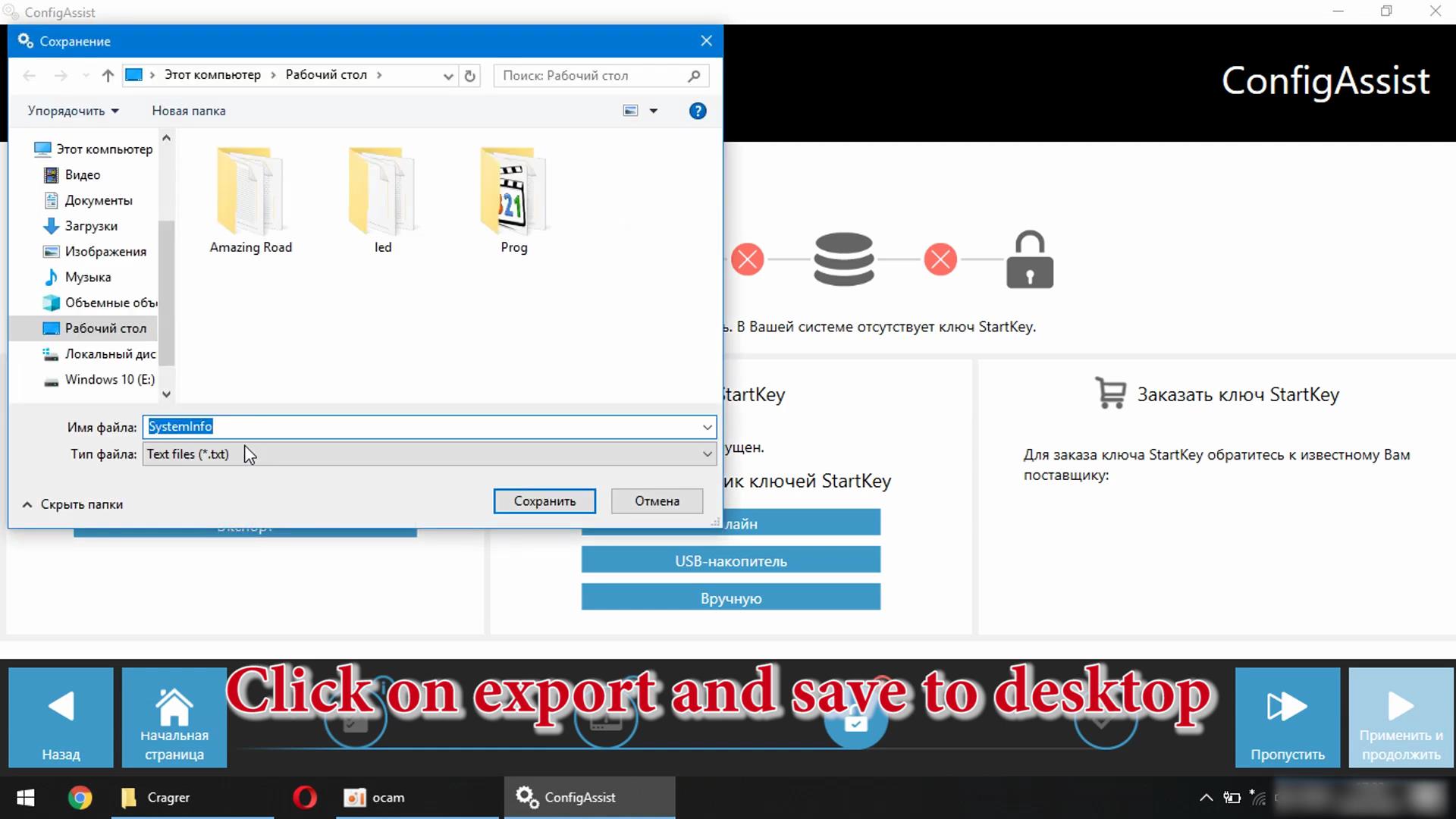
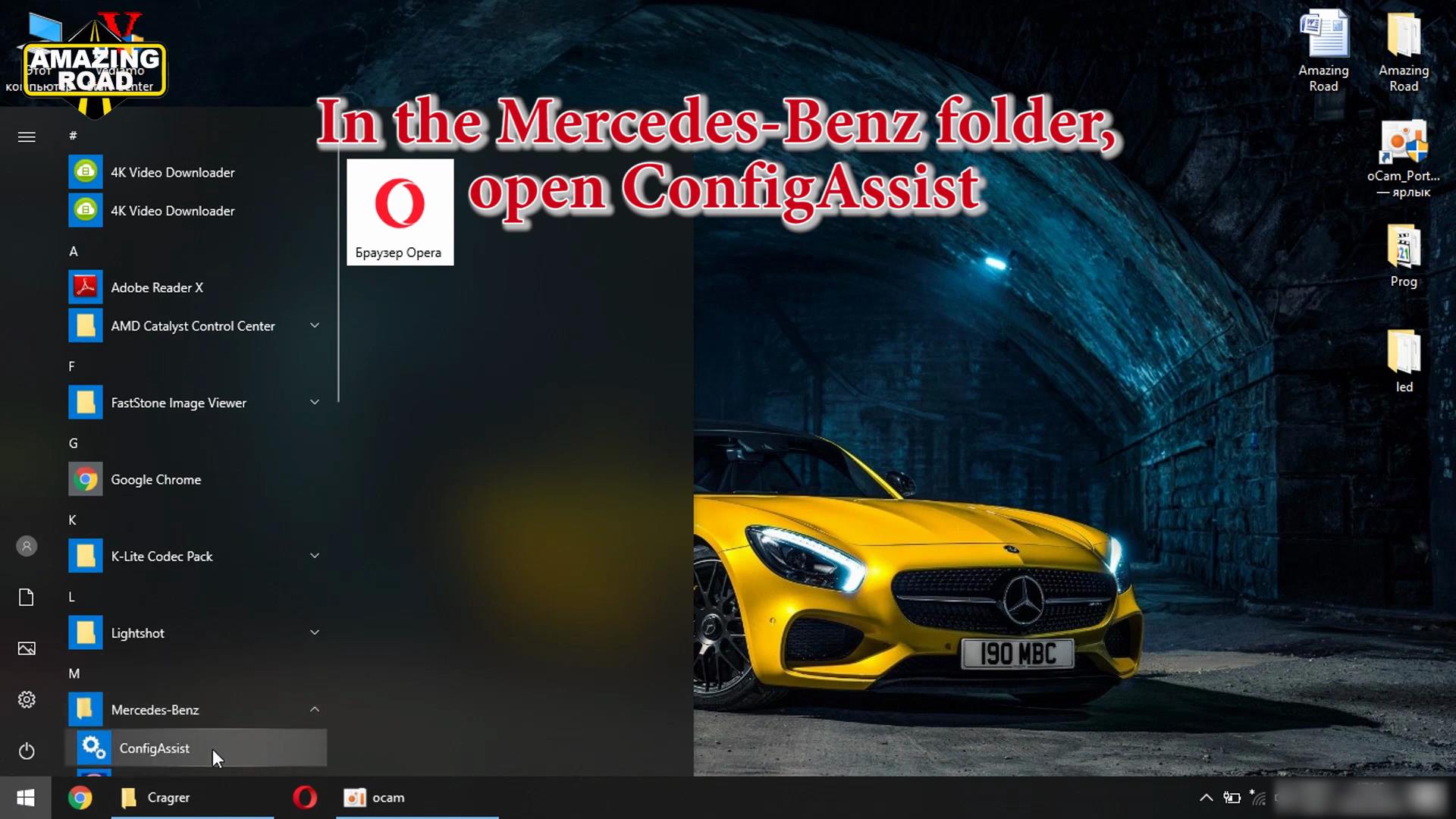
In the Mercedes-Benz folder, open ConfigAssist

Xentry-Error-Supplied-StartKey-is-Invalid-Solution-1
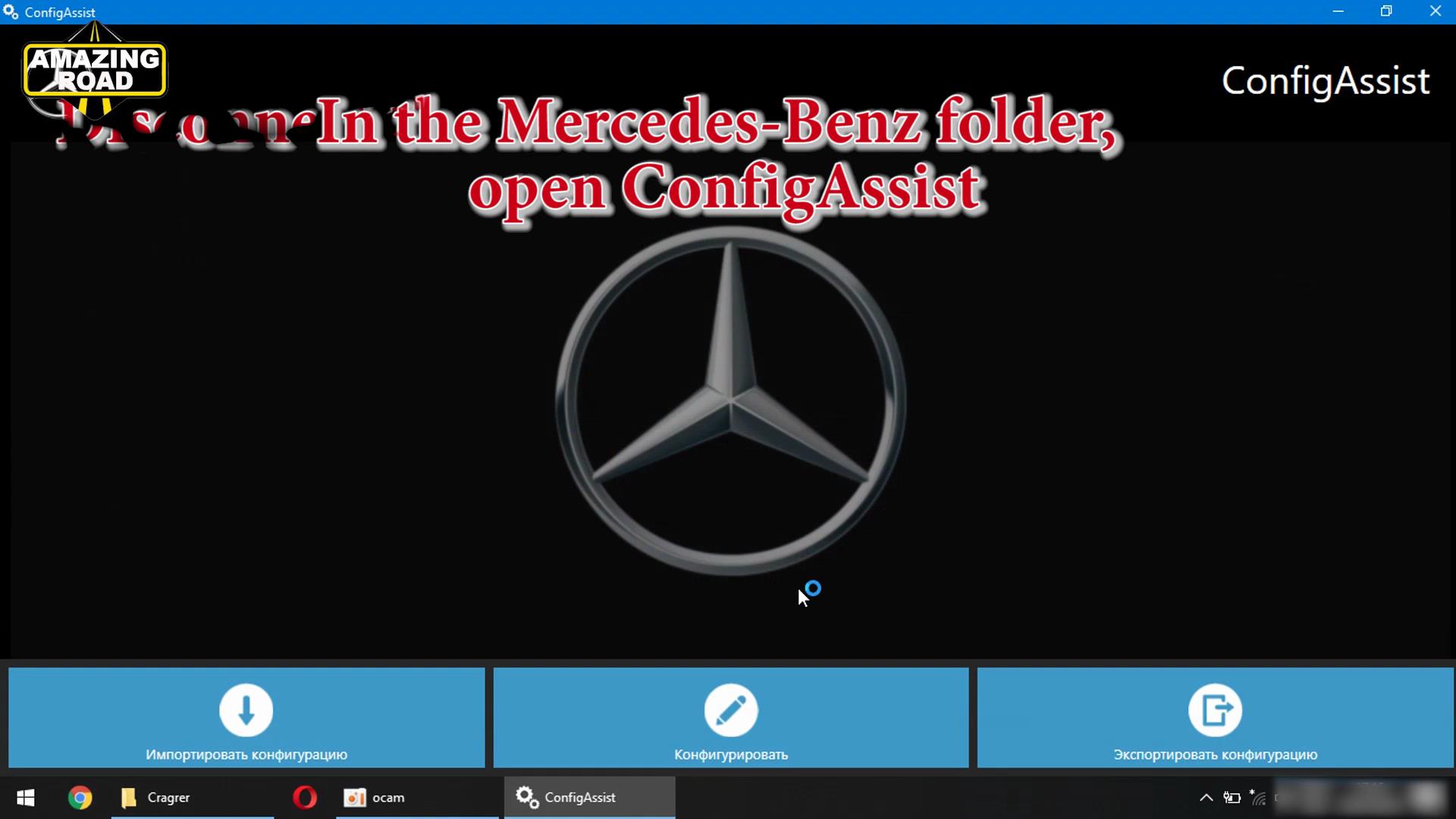
Xentry-Error-Supplied-StartKey-is-Invalid-Solution-2

Disconnect the internect and press configuration

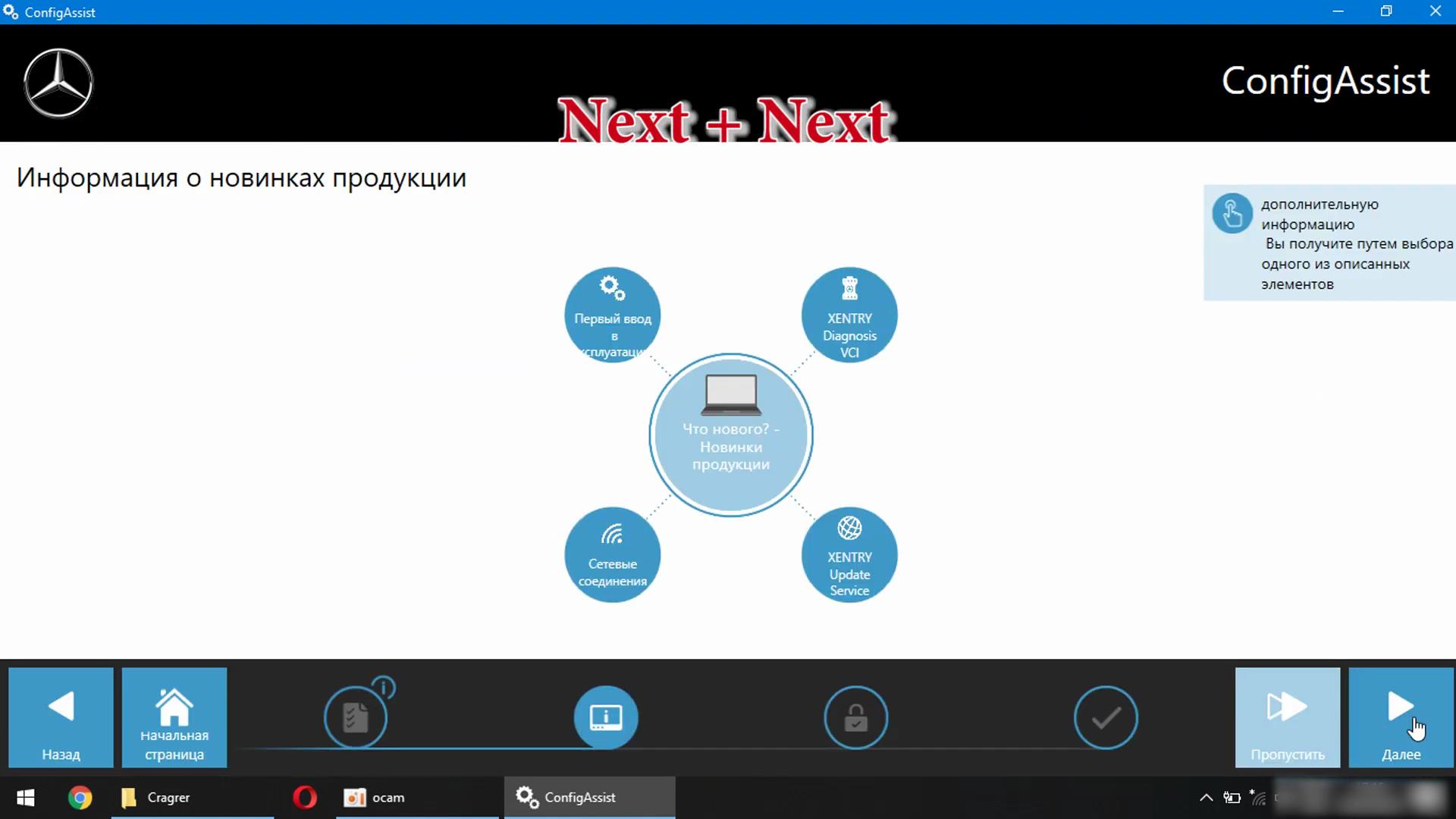
Xentry-Error-Supplied-StartKey-is-Invalid-Solution-3

Next+Next

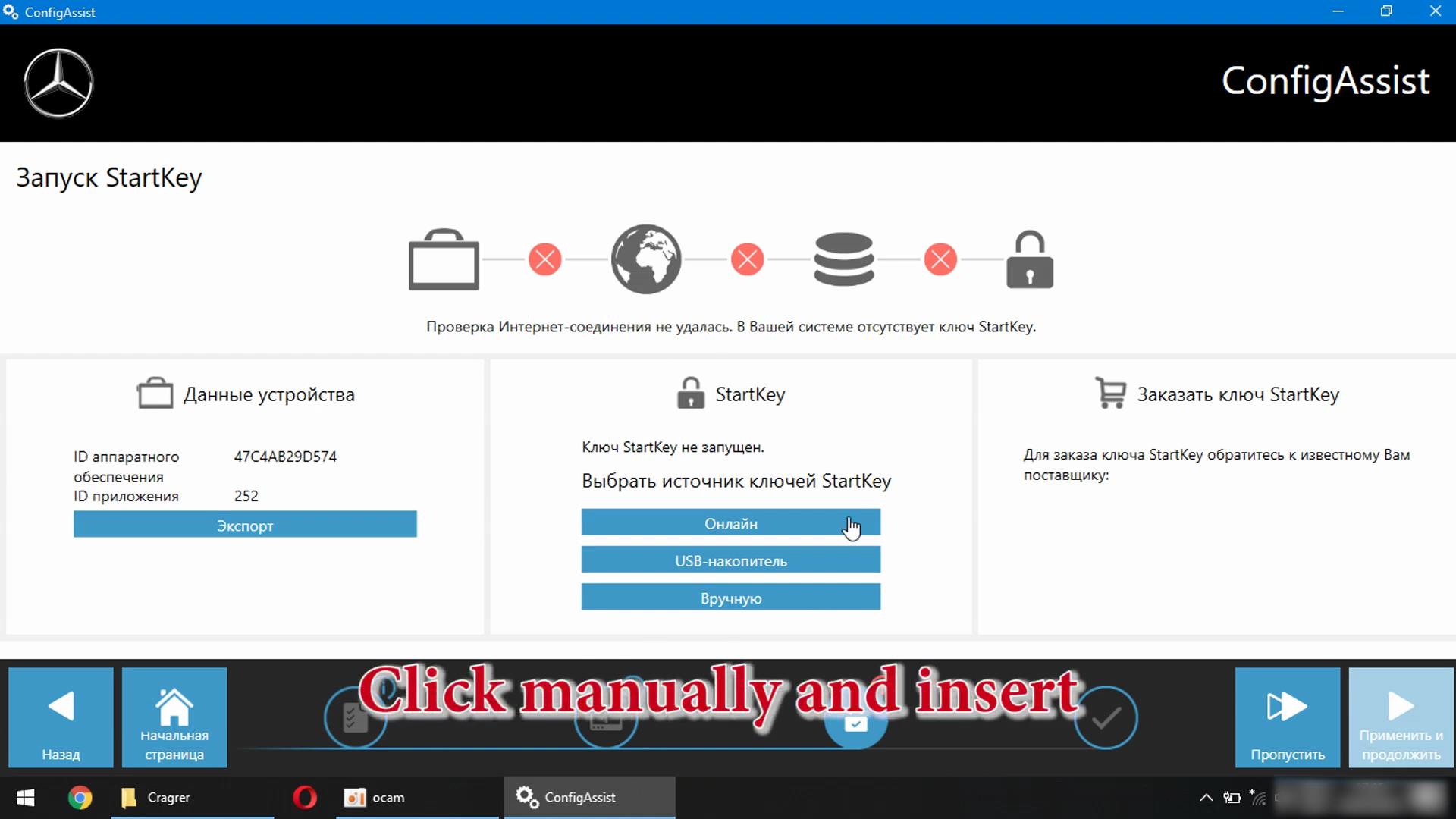
Xentry-Error-Supplied-StartKey-is-Invalid-Solution-4

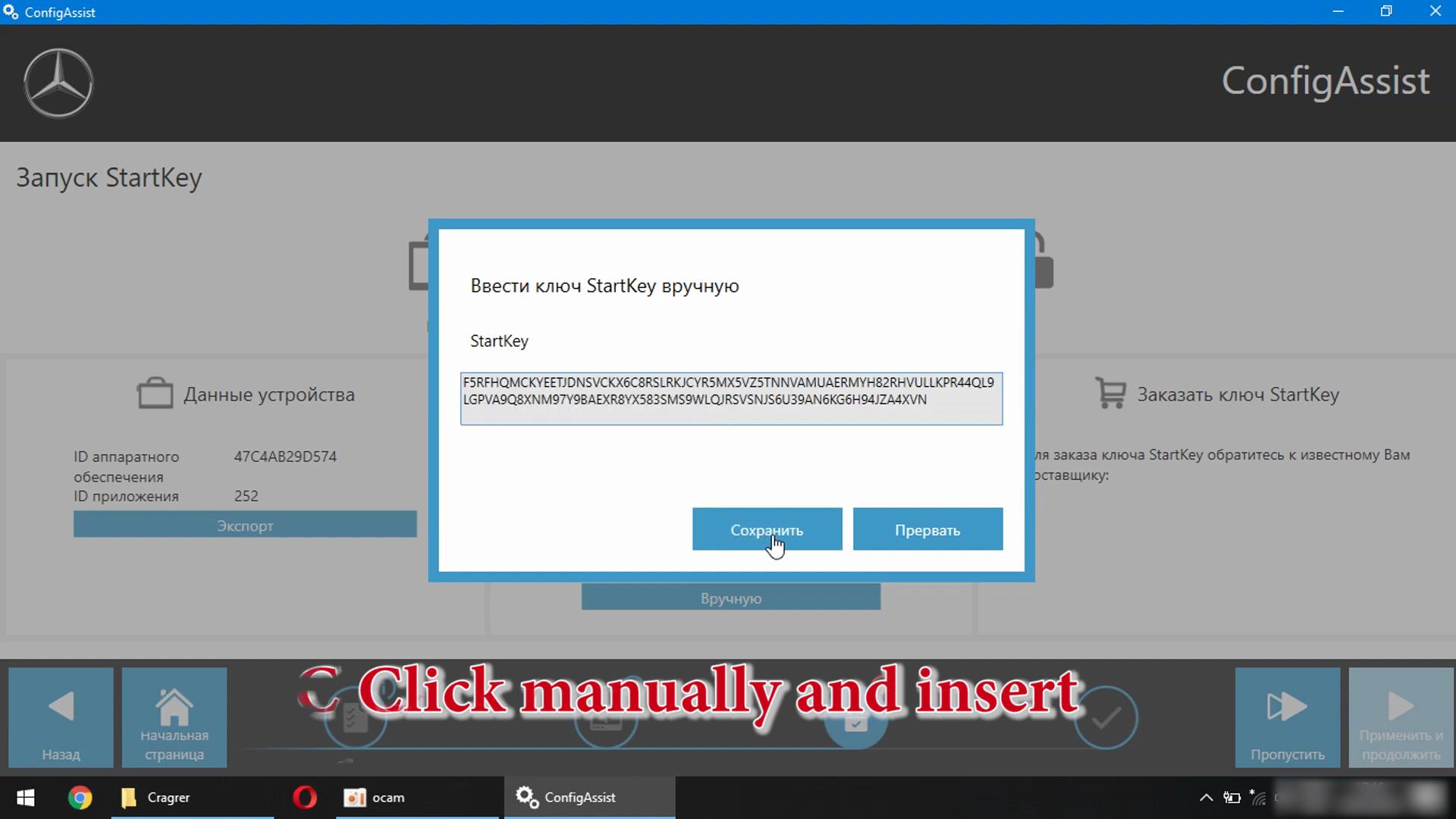
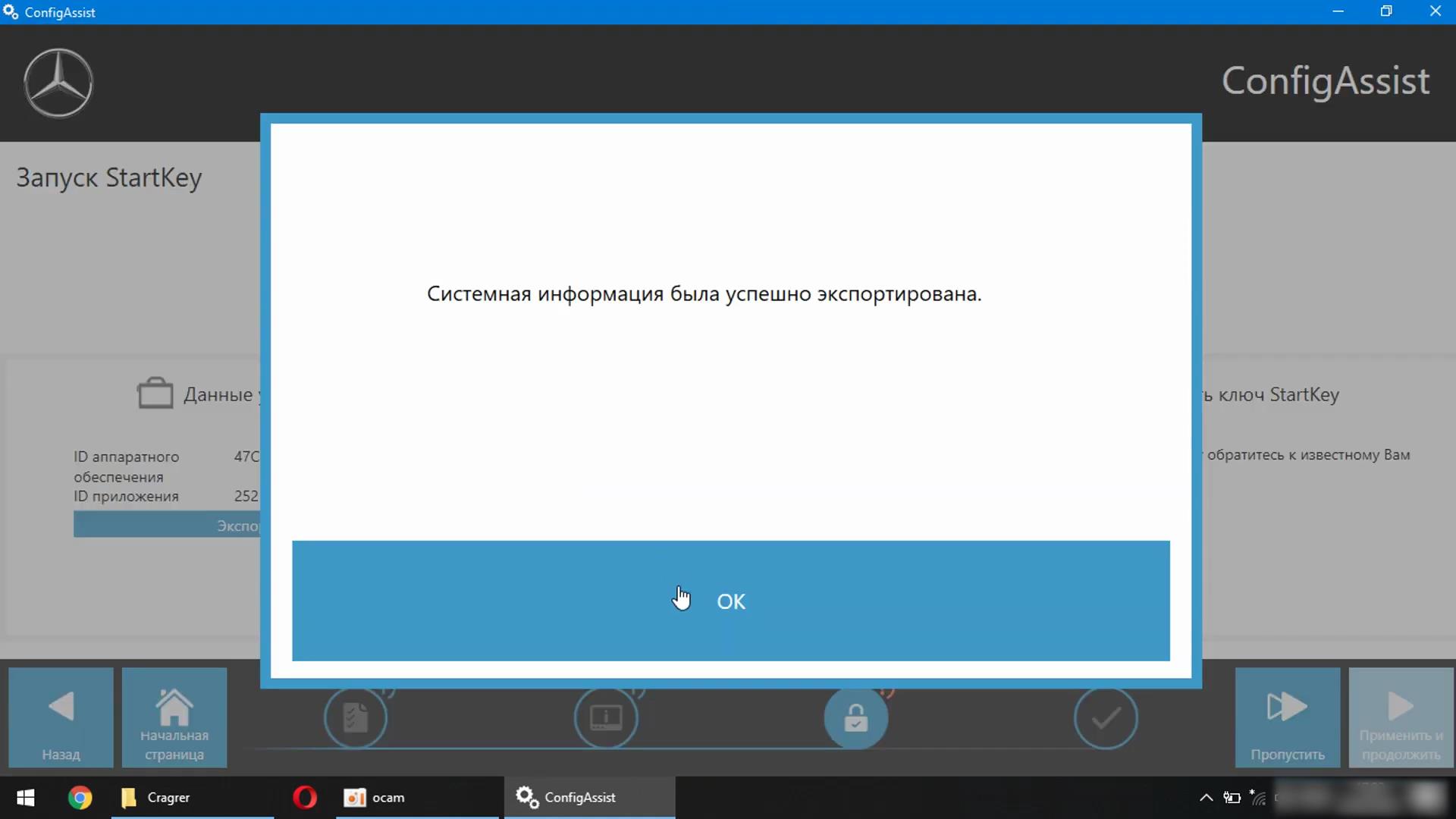
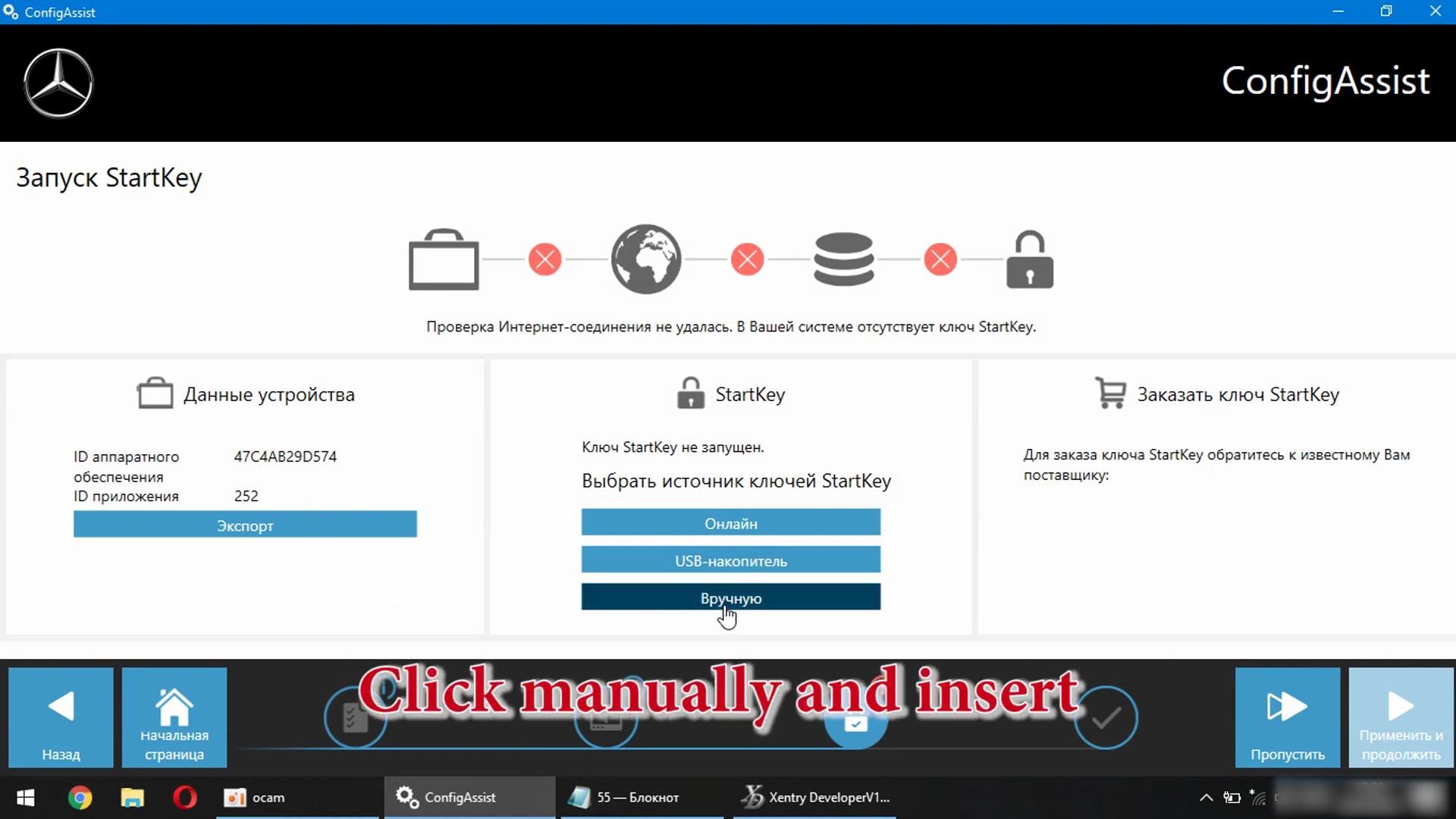
Click Mannually and insert

Xentry-Error-Supplied-StartKey-is-Invalid-Solution-5
Xentry-Error-Supplied-StartKey-is-Invalid-Solution-6

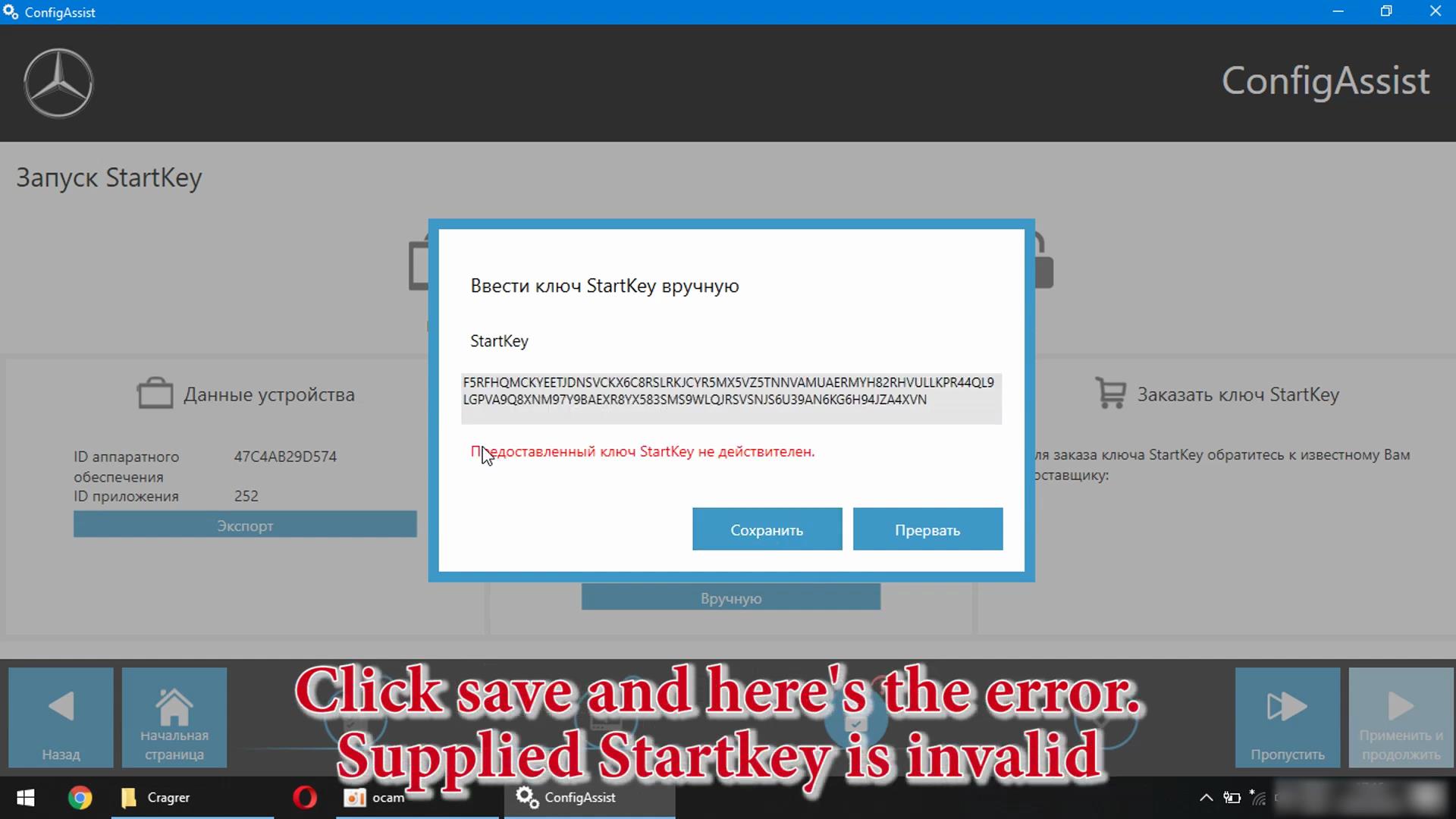
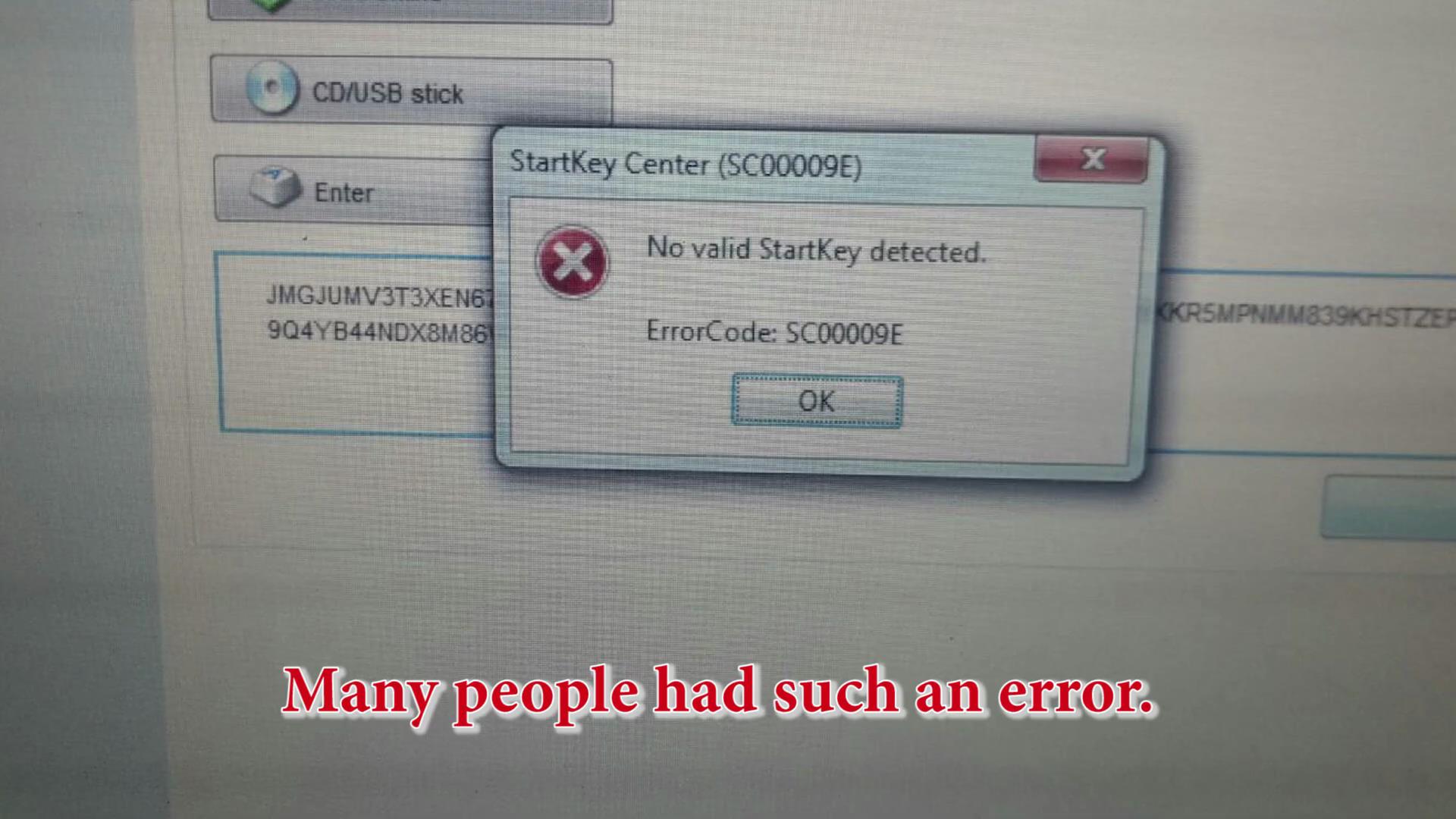
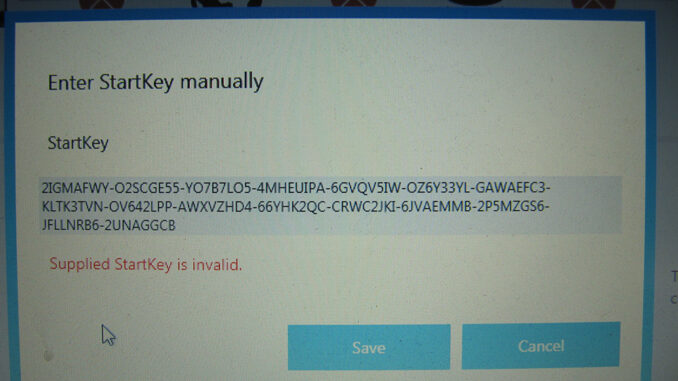
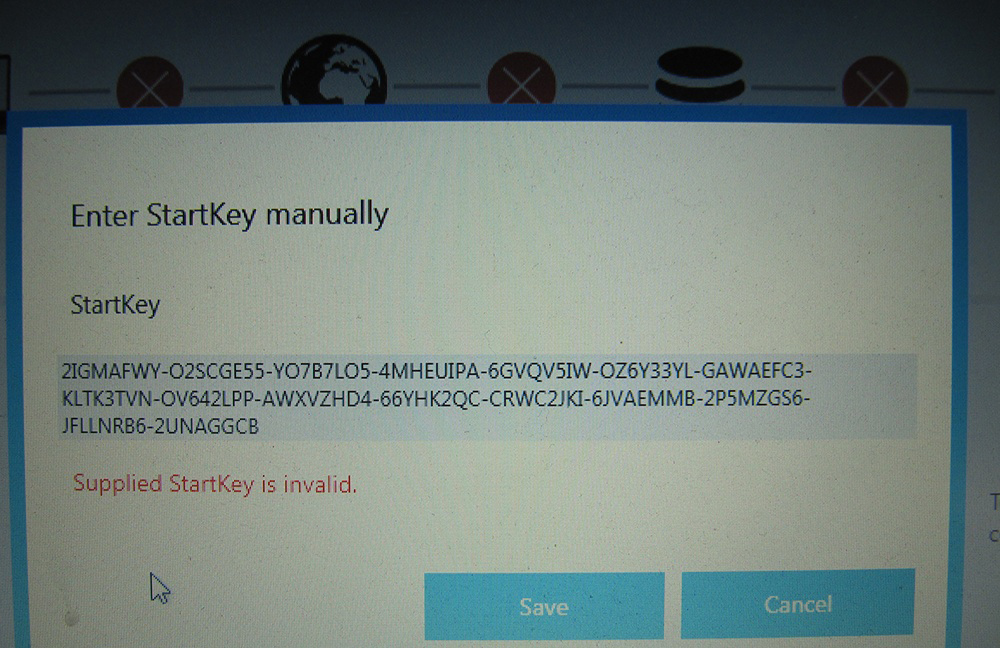
Click Save and here’s the error, Supplied Startkey is invalid

Xentry-Error-Supplied-StartKey-is-Invalid-Solution-7

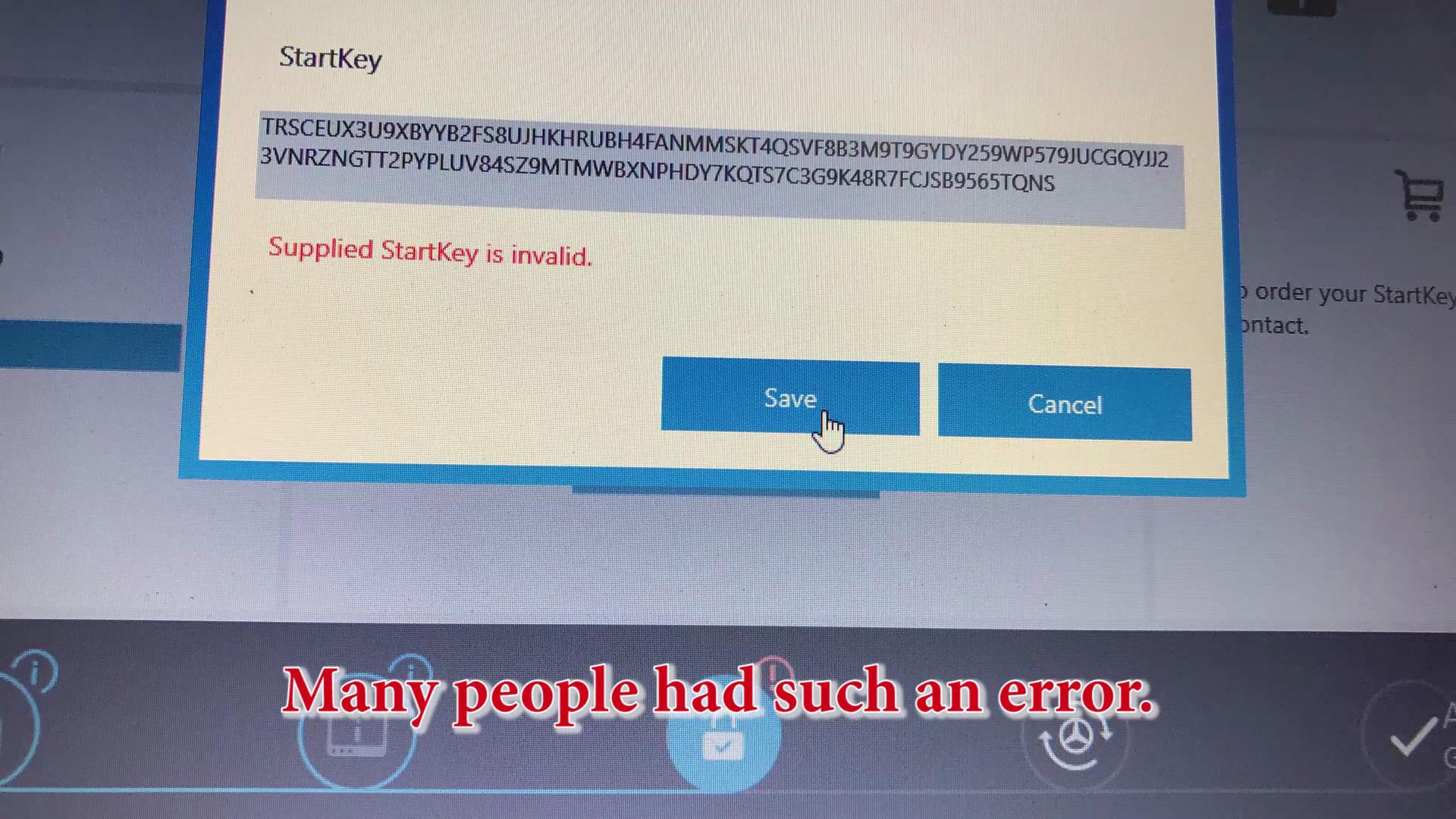
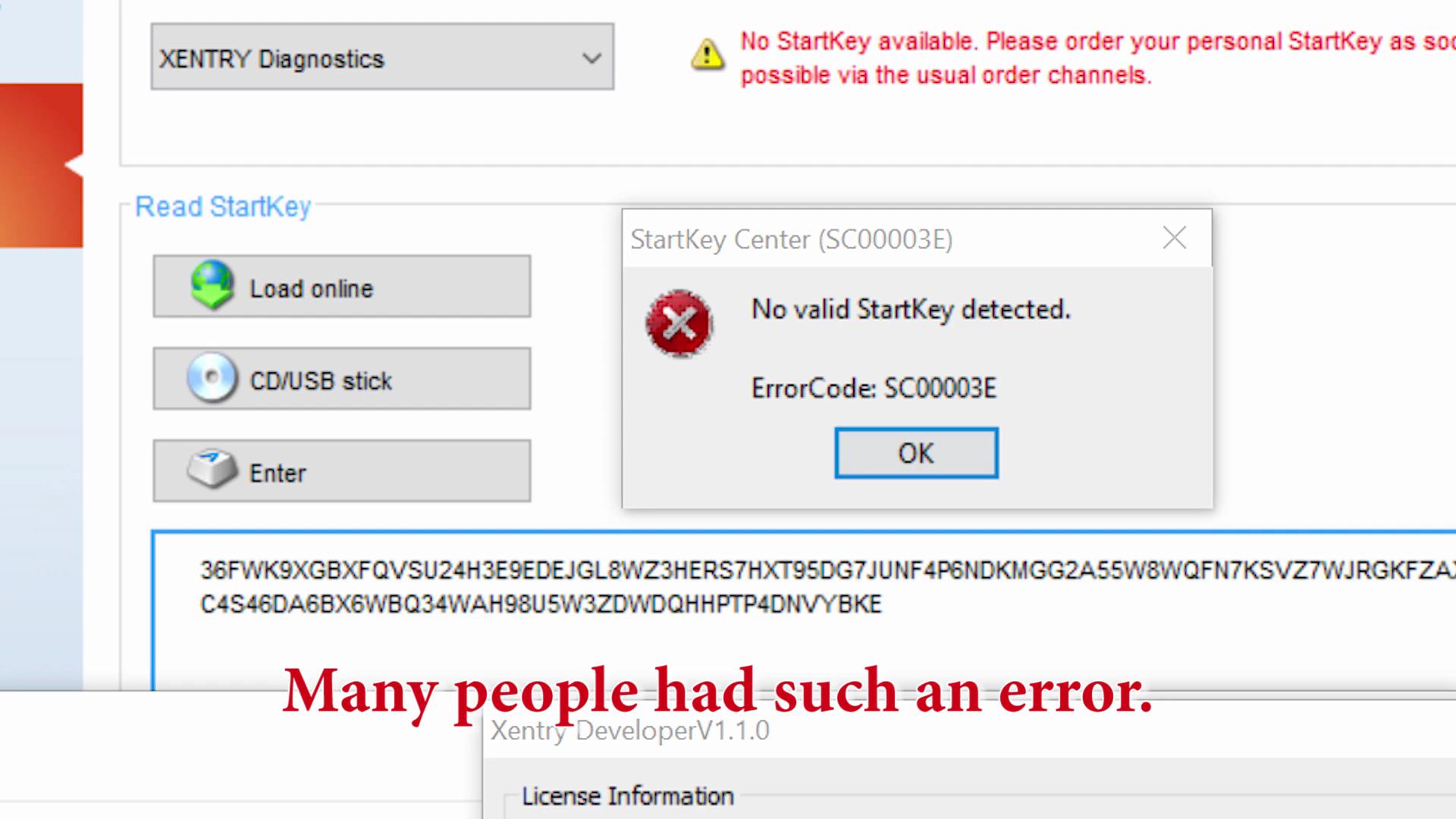
Many People had such an error

Xentry-Error-Supplied-StartKey-is-Invalid-Solution-8
Xentry-Error-Supplied-StartKey-is-Invalid-Solution-9
Xentry-Error-Supplied-StartKey-is-Invalid-Solution-10

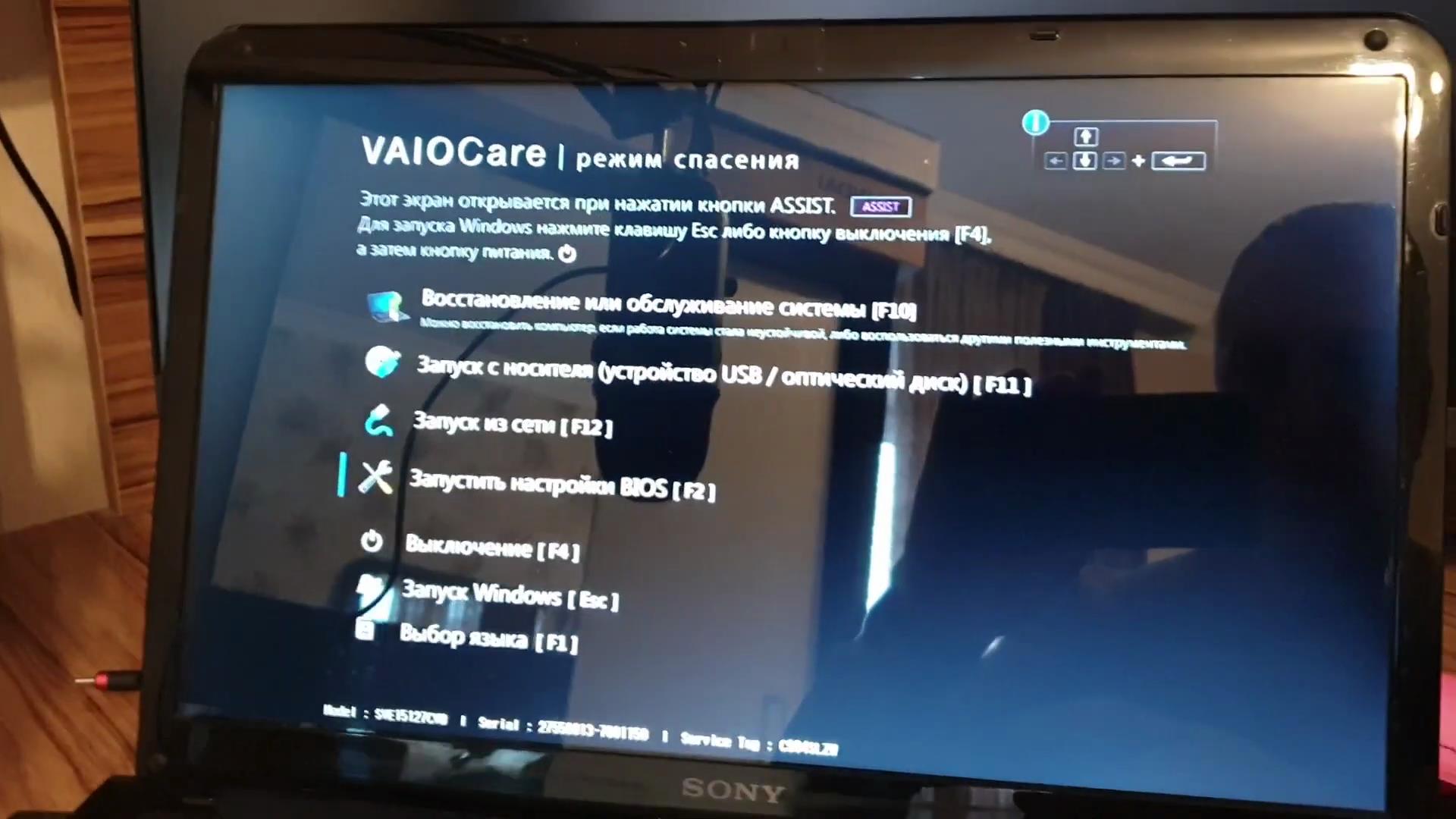
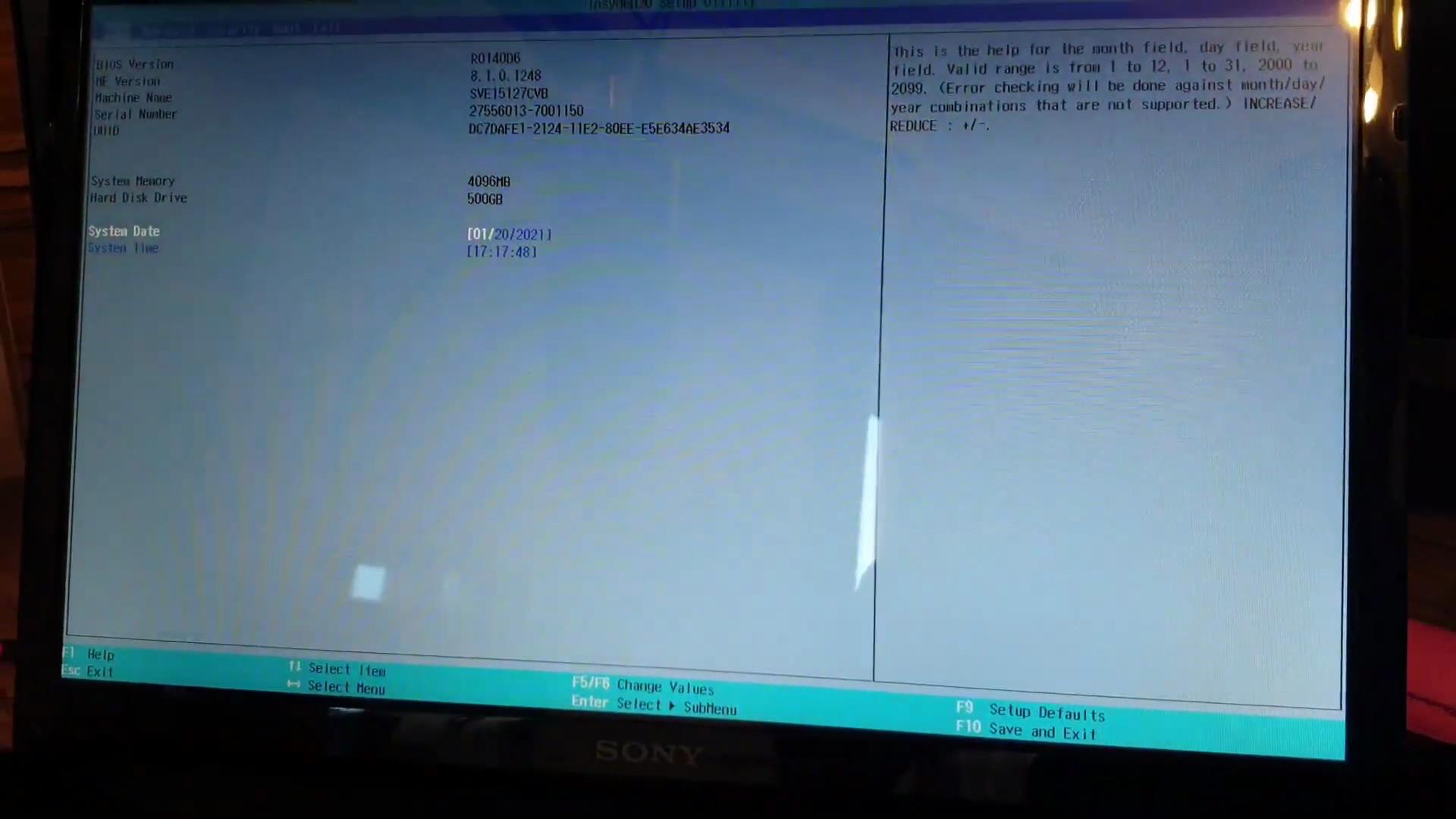
We reboot the computer and enter the BIOS. Either the F2 button or Delete

Xentry-Error-Supplied-StartKey-is-Invalid-Solution-11
Xentry-Error-Supplied-StartKey-is-Invalid-Solution-12

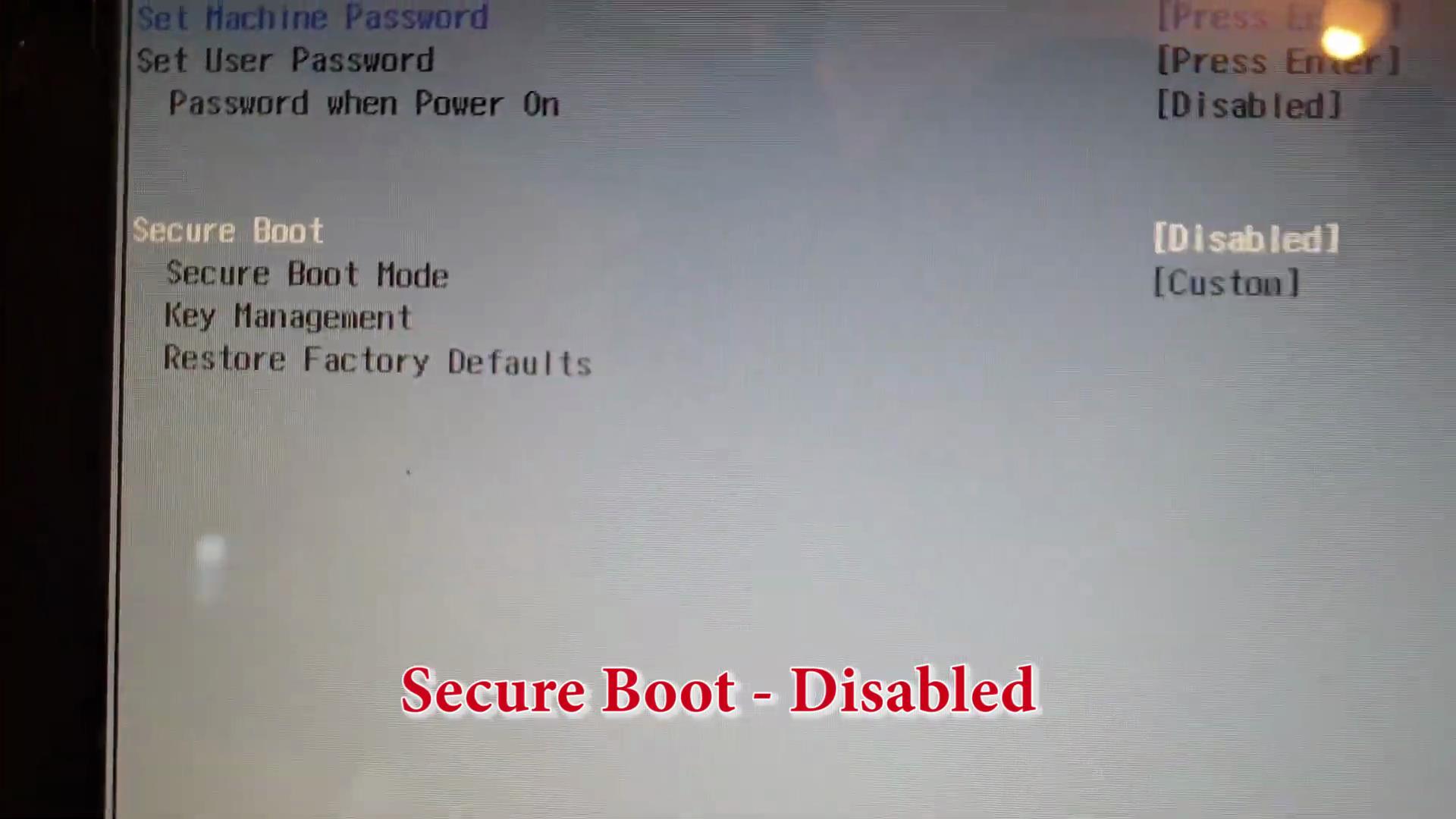
Secure Boot – Disabled

Xentry-Error-Supplied-StartKey-is-Invalid-Solution-13

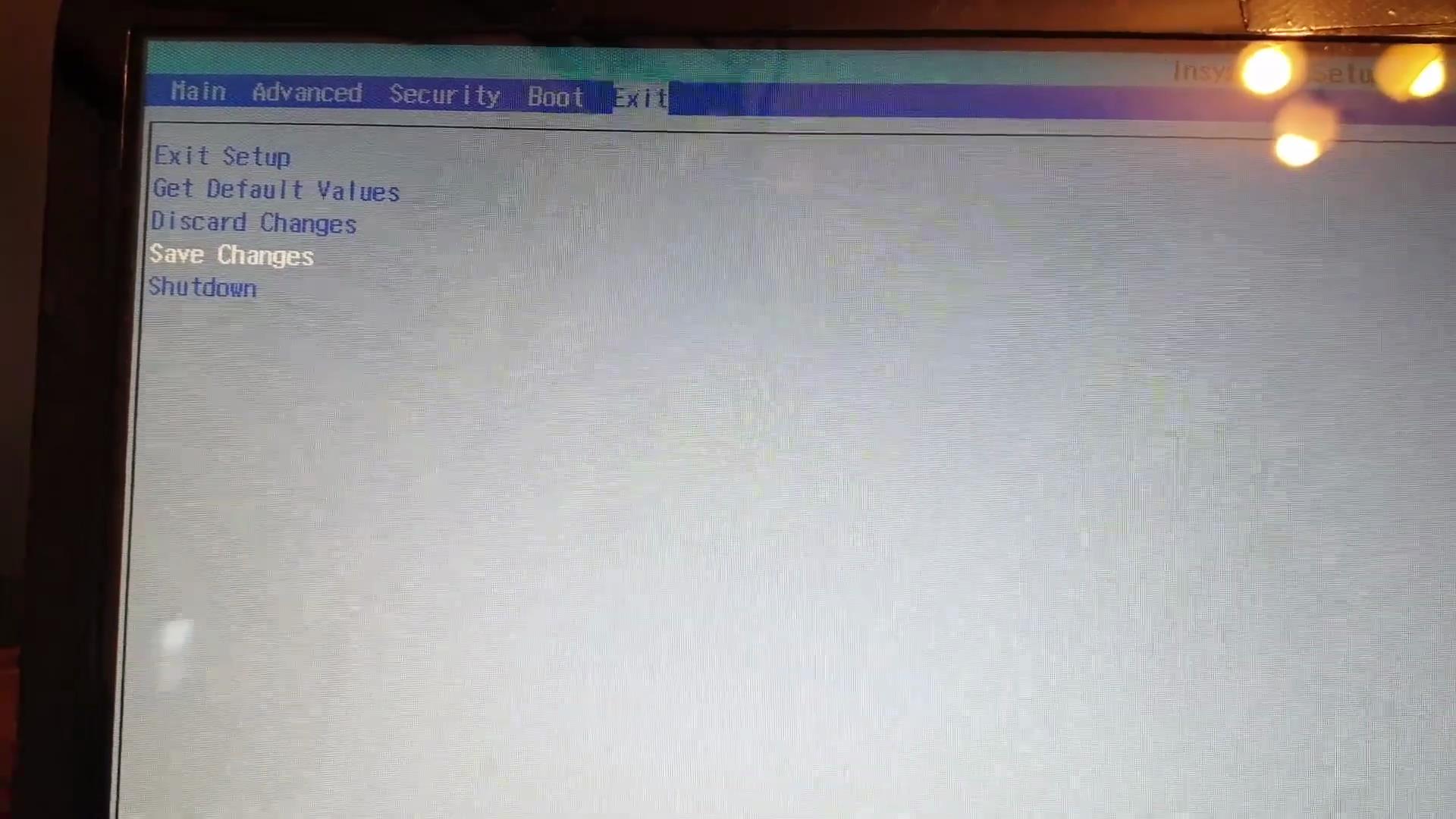
Save Changes

Xentry-Error-Supplied-StartKey-is-Invalid-Solution-14

Xentry-Error-Supplied-StartKey-is-Invalid-Solution-15


Xentry-Error-Supplied-StartKey-is-Invalid-Solution-16
Xentry-Error-Supplied-StartKey-is-Invalid-Solution-17
Xentry-Error-Supplied-StartKey-is-Invalid-Solution-18
Xentry-Error-Supplied-StartKey-is-Invalid-Solution-19

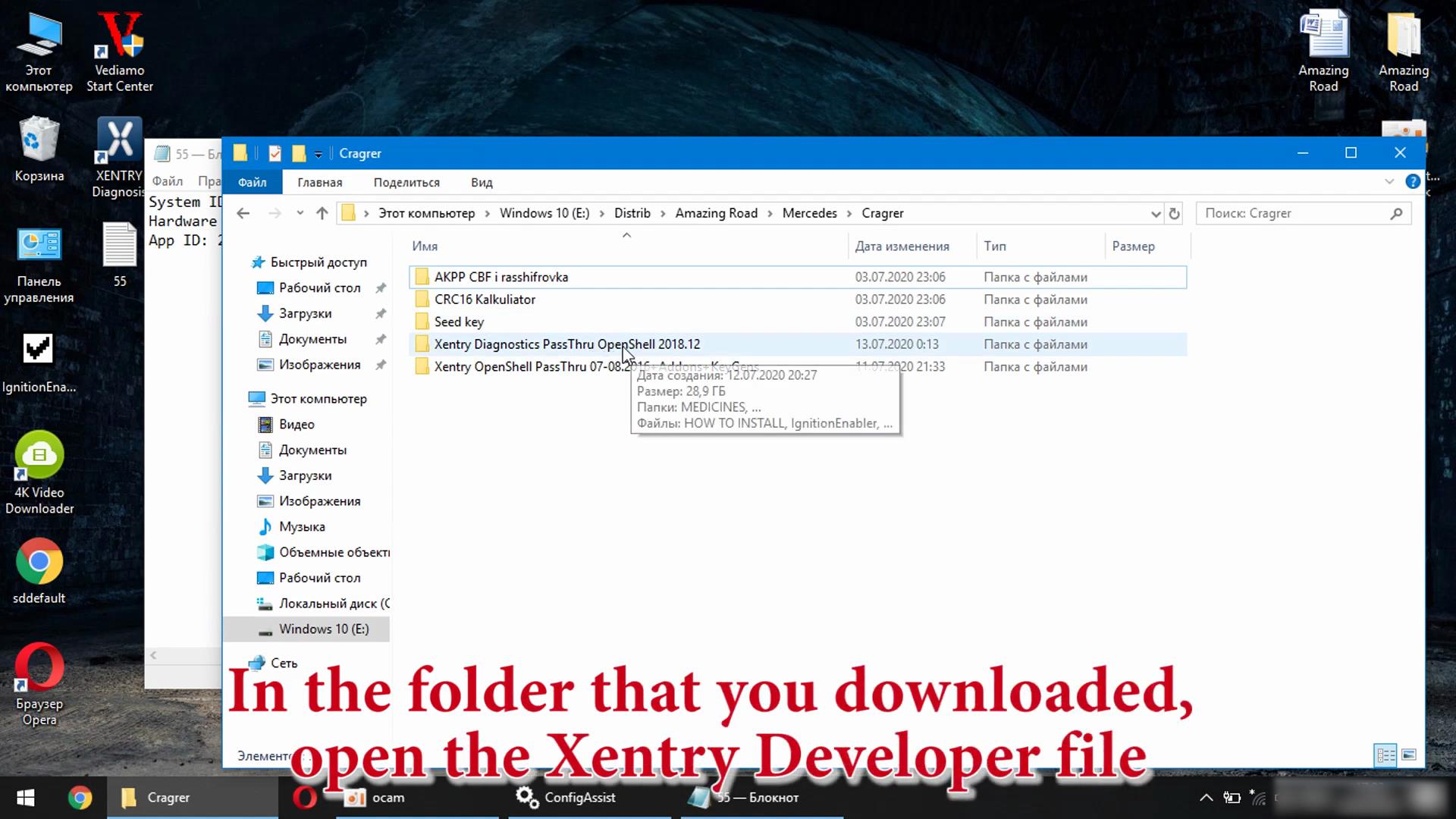
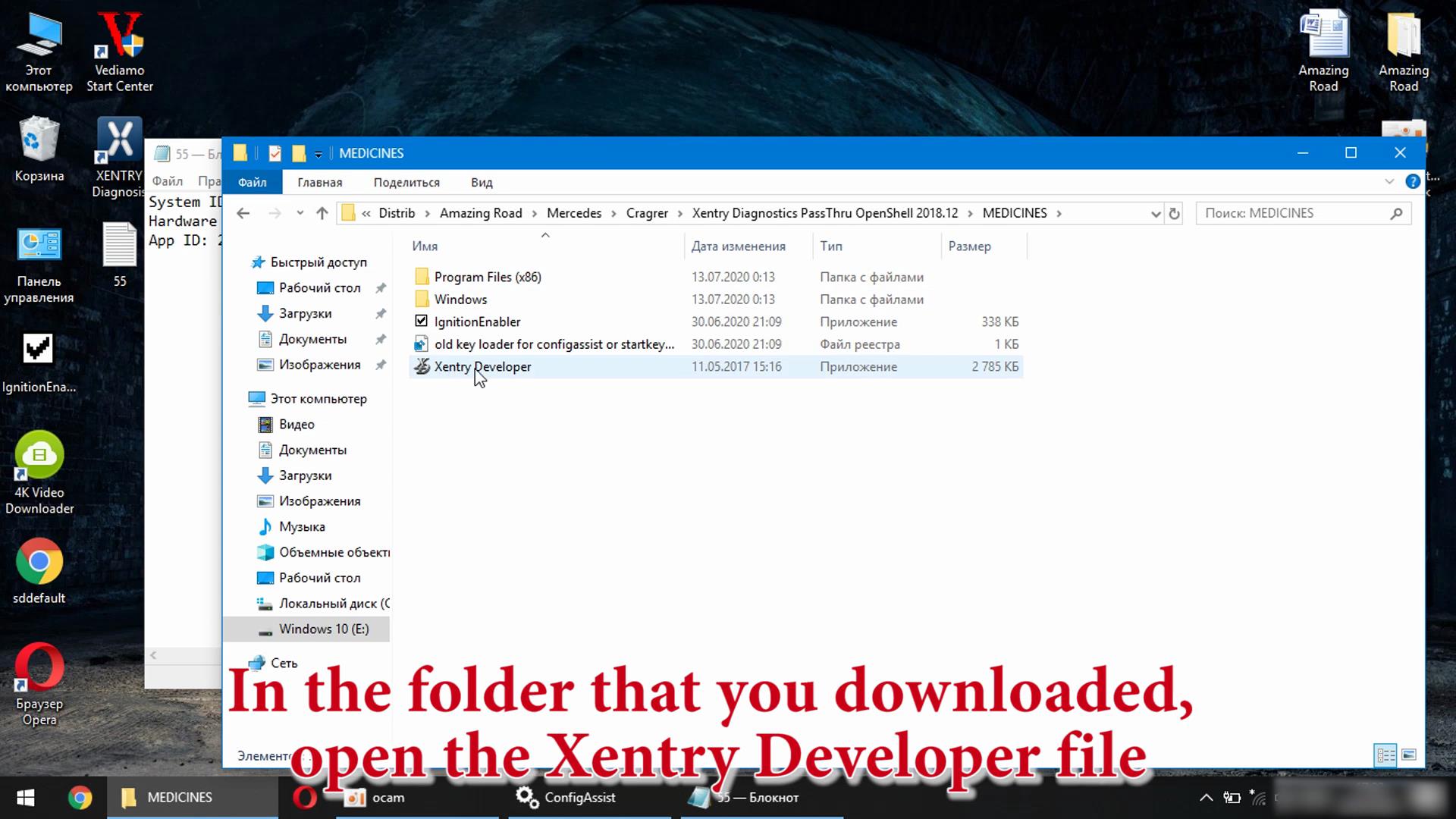
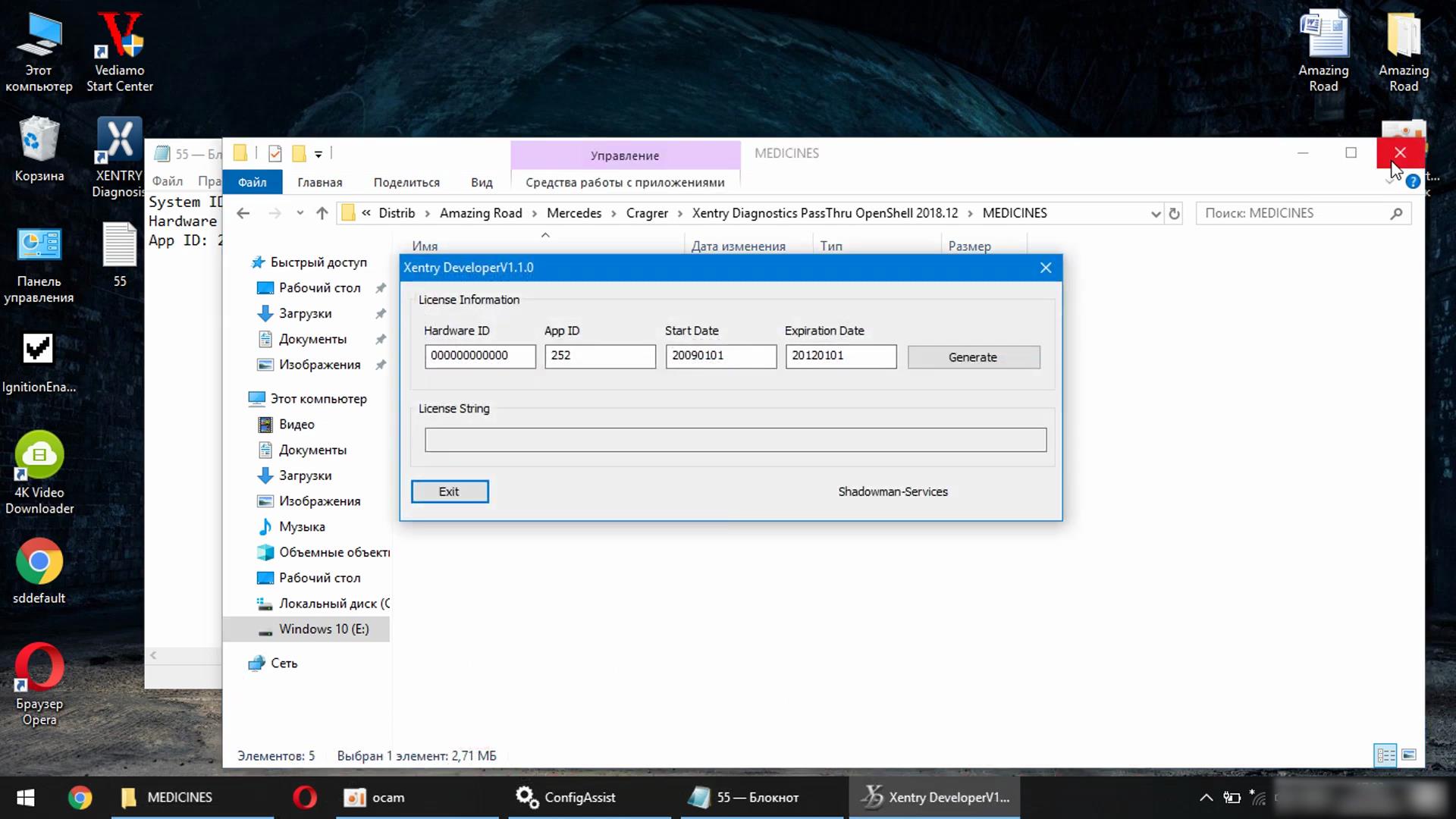
In the folder that you downloaded, open the Xentry Developer file

Xentry-Error-Supplied-StartKey-is-Invalid-Solution-20
Xentry-Error-Supplied-StartKey-is-Invalid-Solution-21
Xentry-Error-Supplied-StartKey-is-Invalid-Solution-22

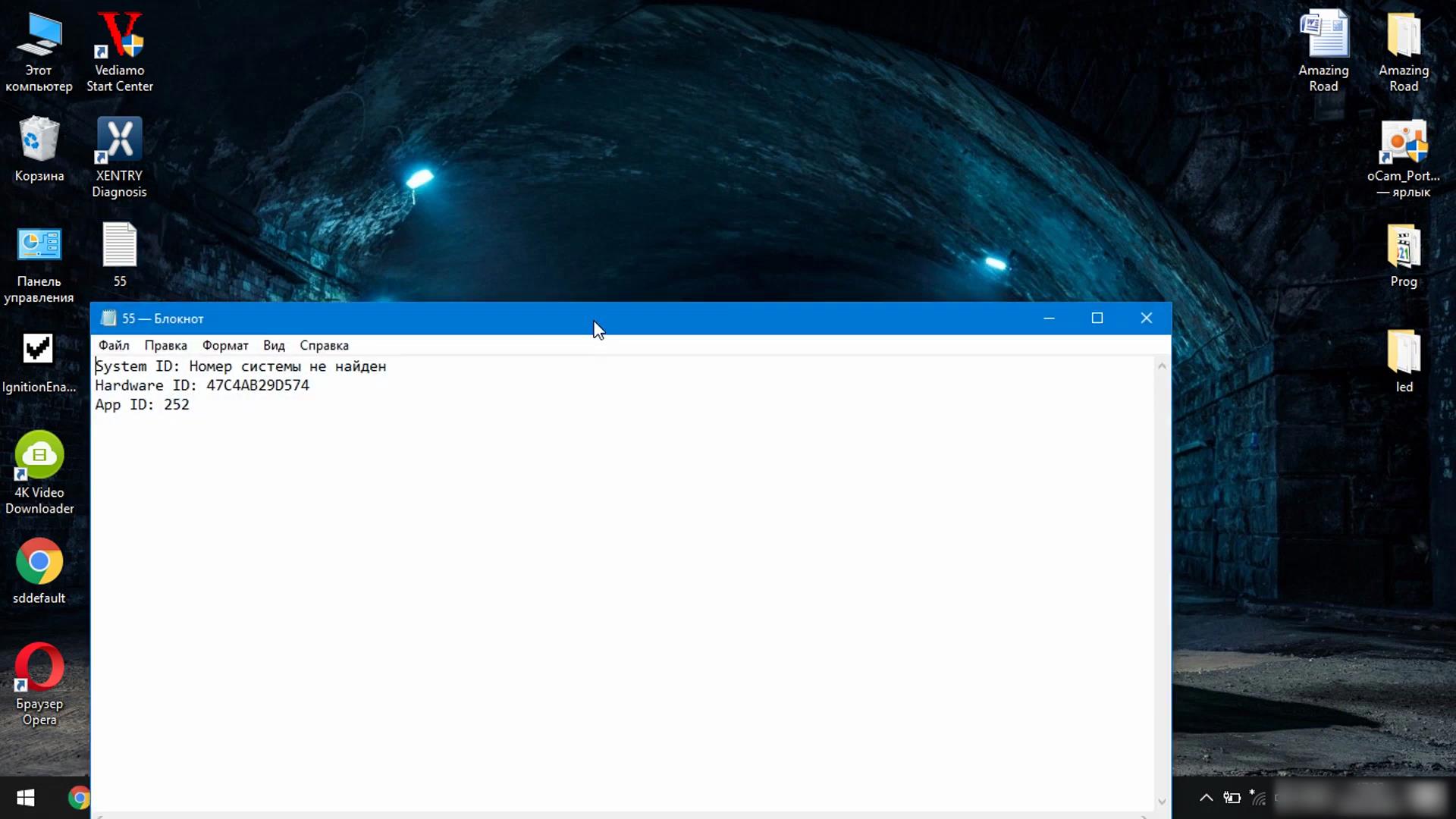
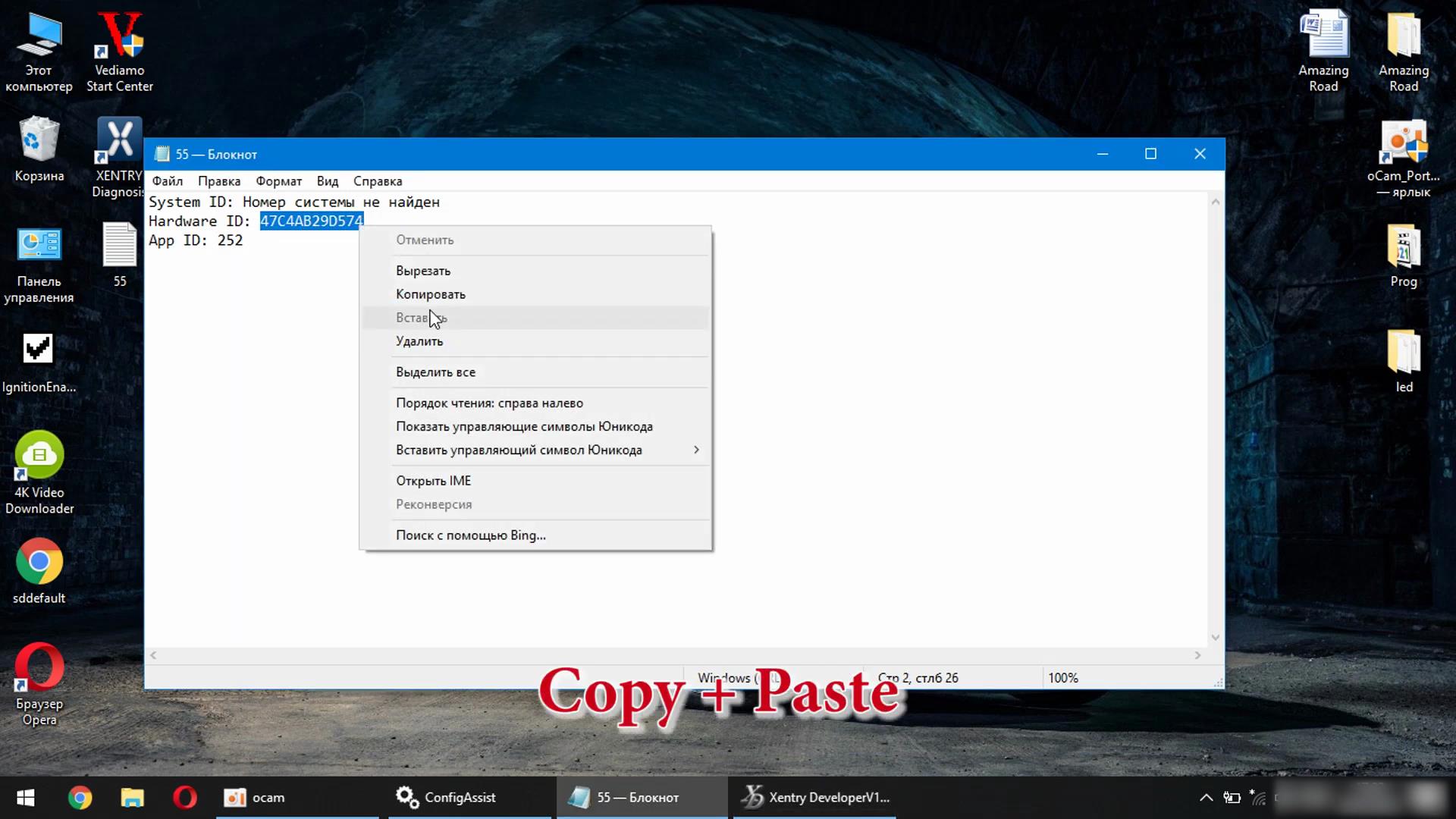
Copy + Paste

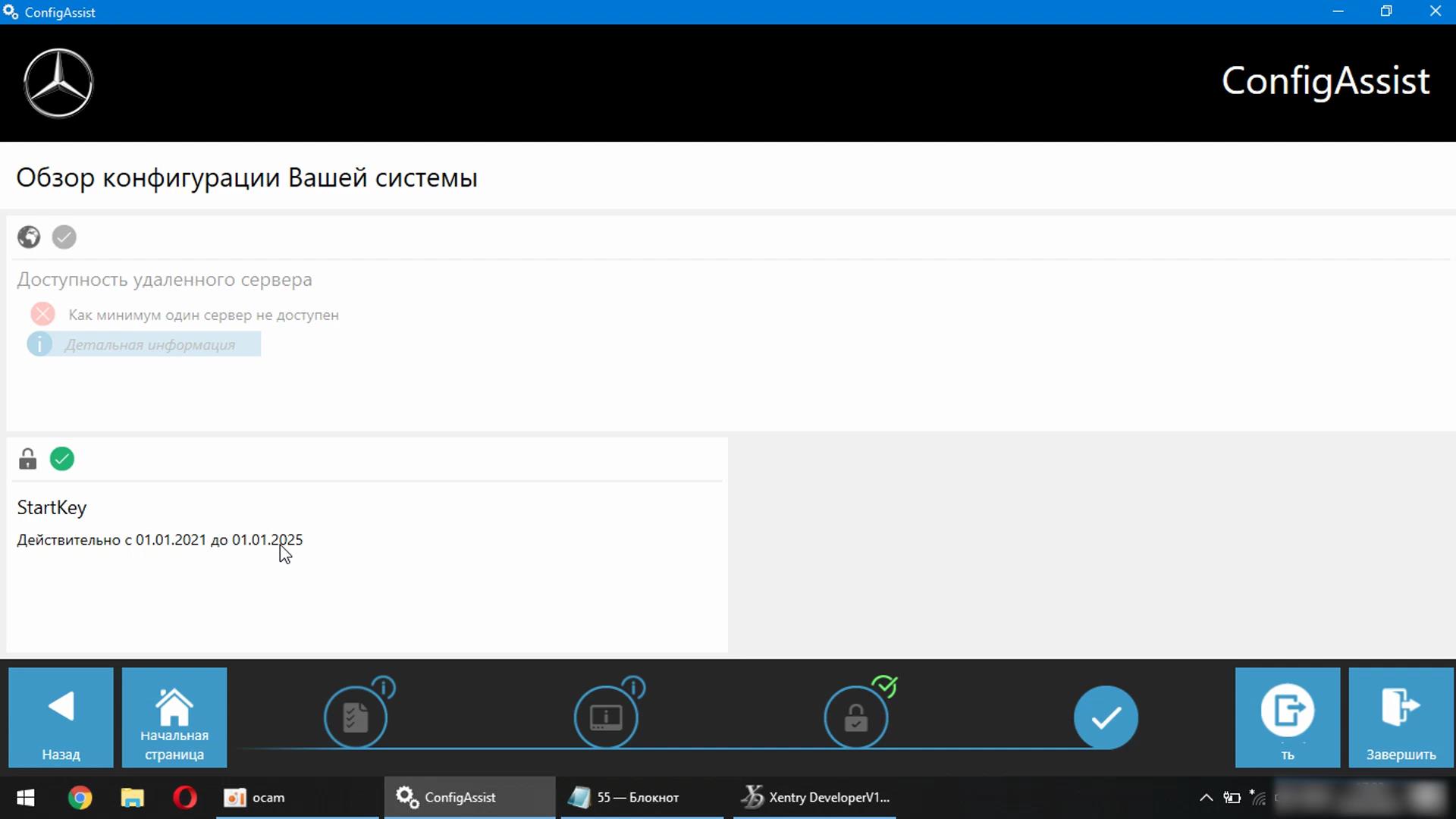
Xentry-Error-Supplied-StartKey-is-Invalid-Solution-23

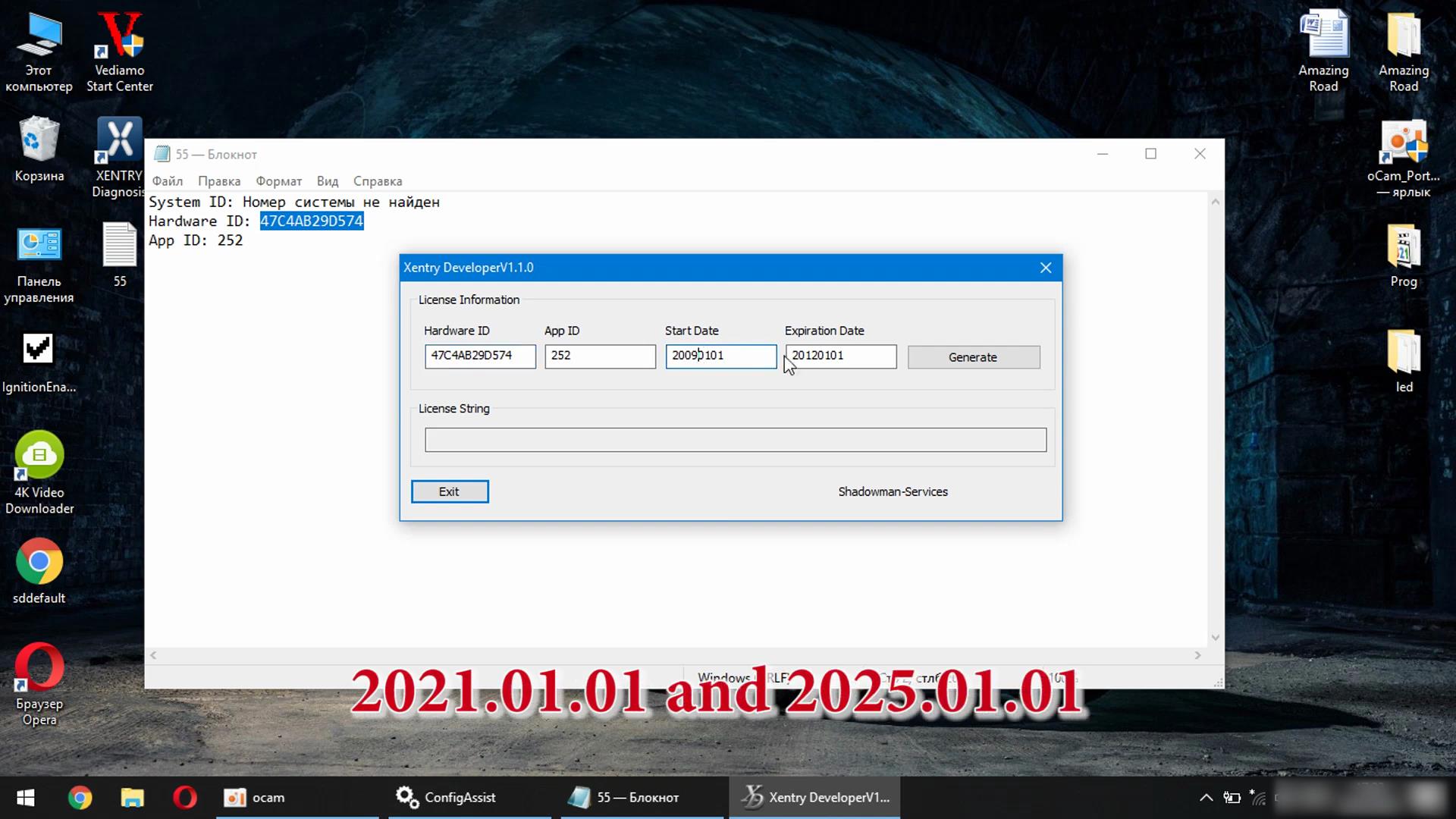
2021.01.01 and 2025.01.01

Xentry-Error-Supplied-StartKey-is-Invalid-Solution-24

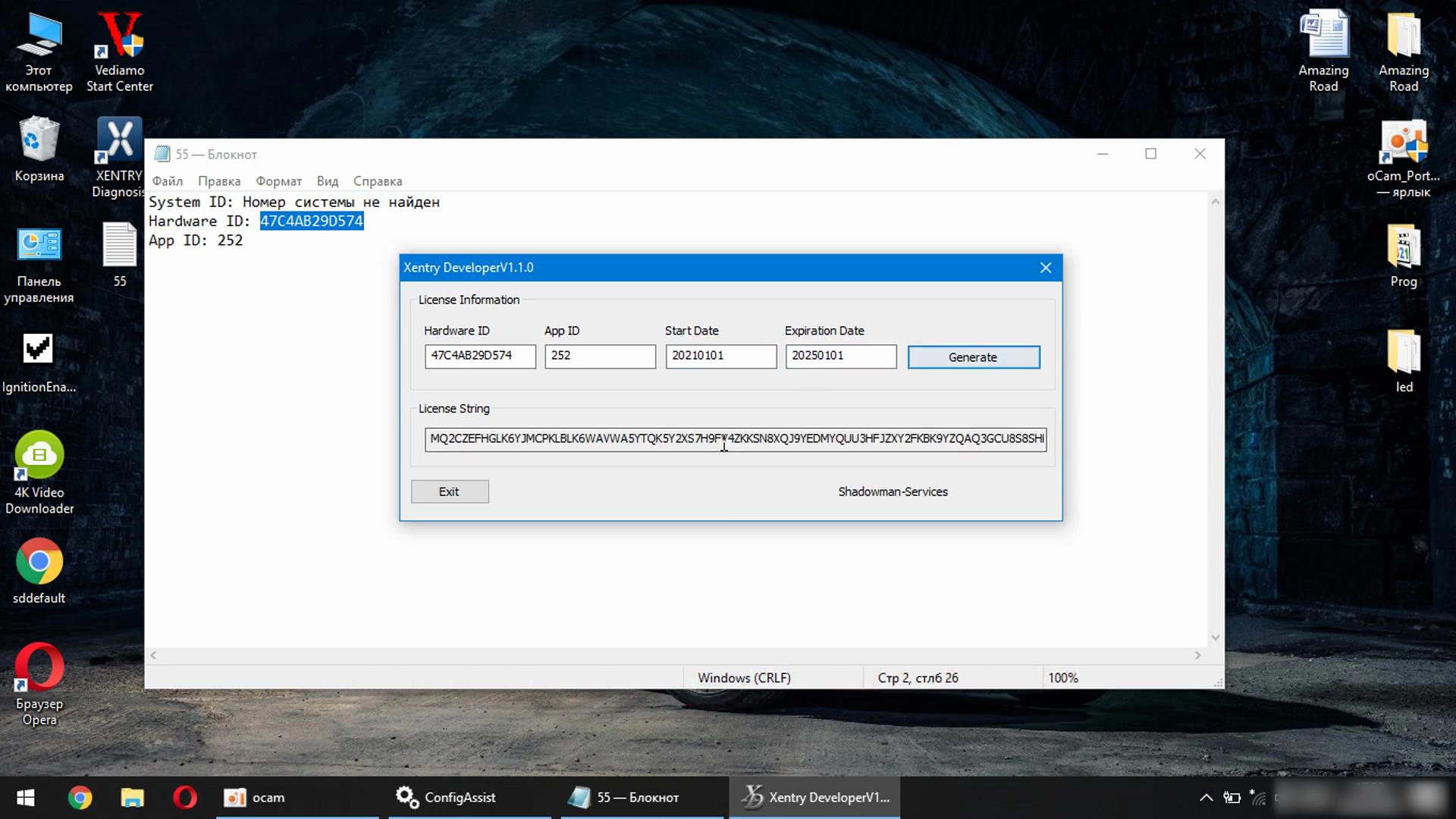
Click Generate

Xentry-Error-Supplied-StartKey-is-Invalid-Solution-25 Xentry-Error-Supplied-StartKey-is-Invalid-Solution-26

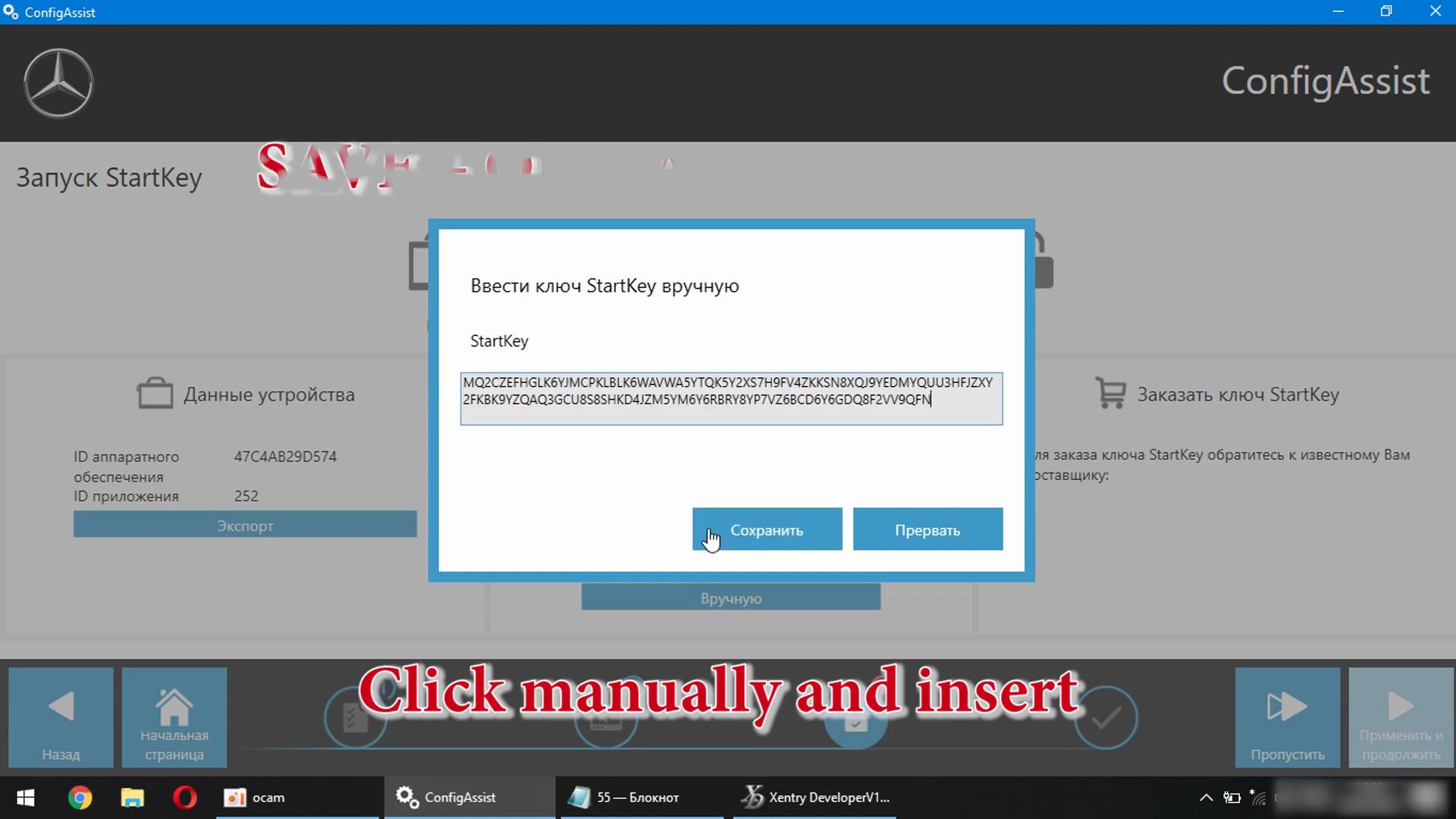
Click Mannually and insert

Xentry-Error-Supplied-StartKey-is-Invalid-Solution-27
Xentry-Error-Supplied-StartKey-is-Invalid-Solution-28

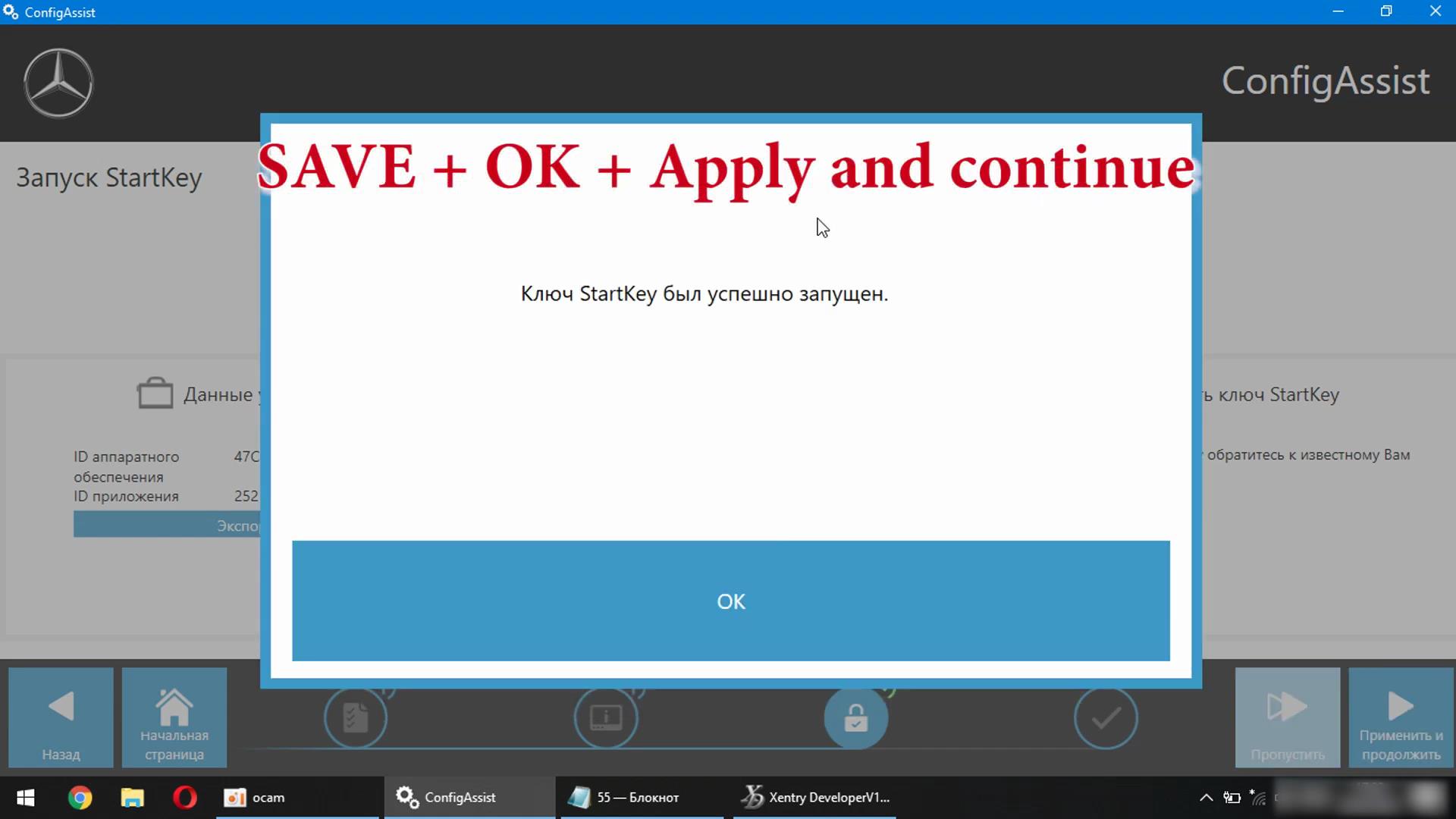
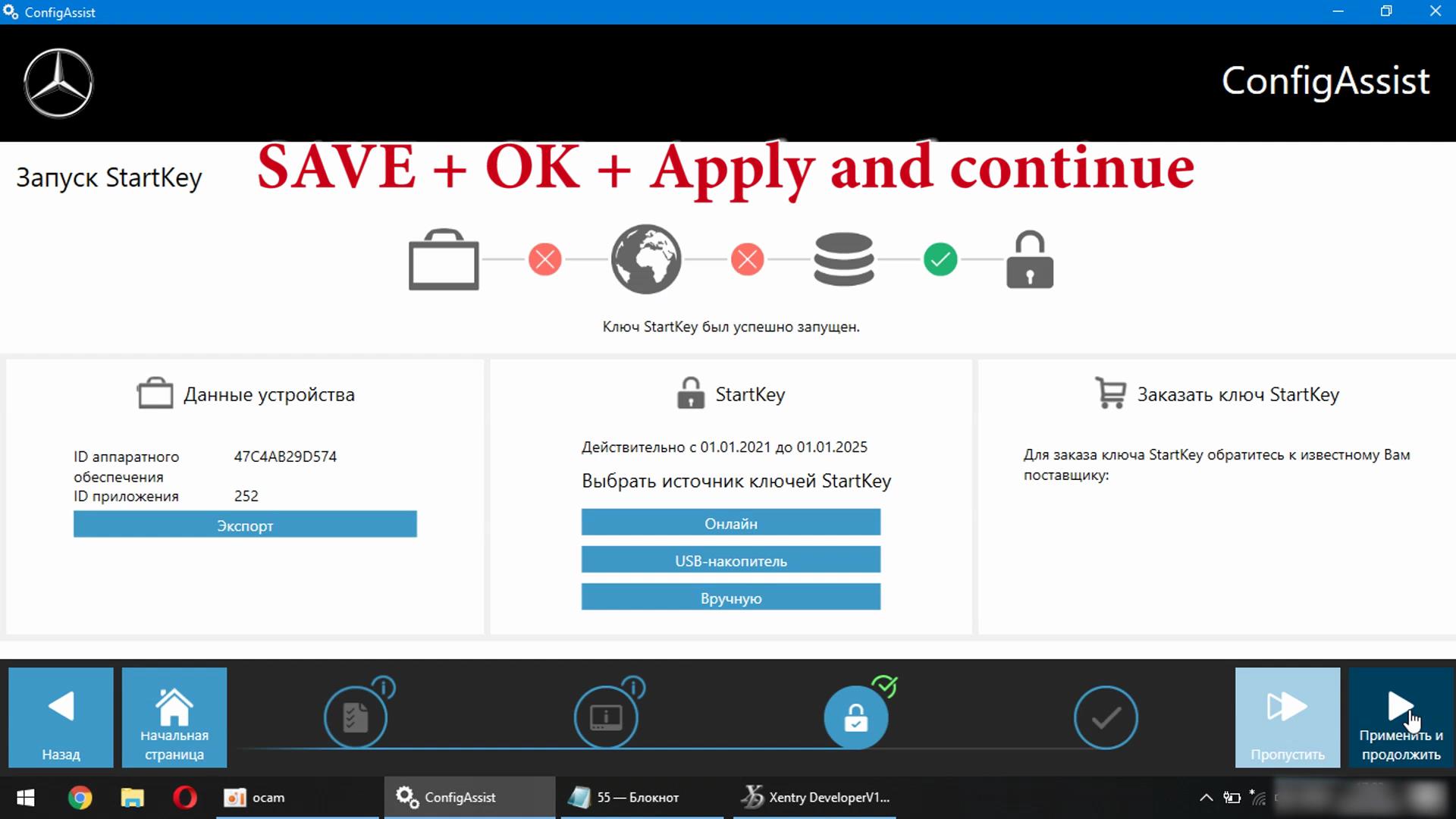
Save + OK + Apply and continue

Xentry-Error-Supplied-StartKey-is-Invalid-Solution-29
Xentry-Error-Supplied-StartKey-is-Invalid-Solution-30

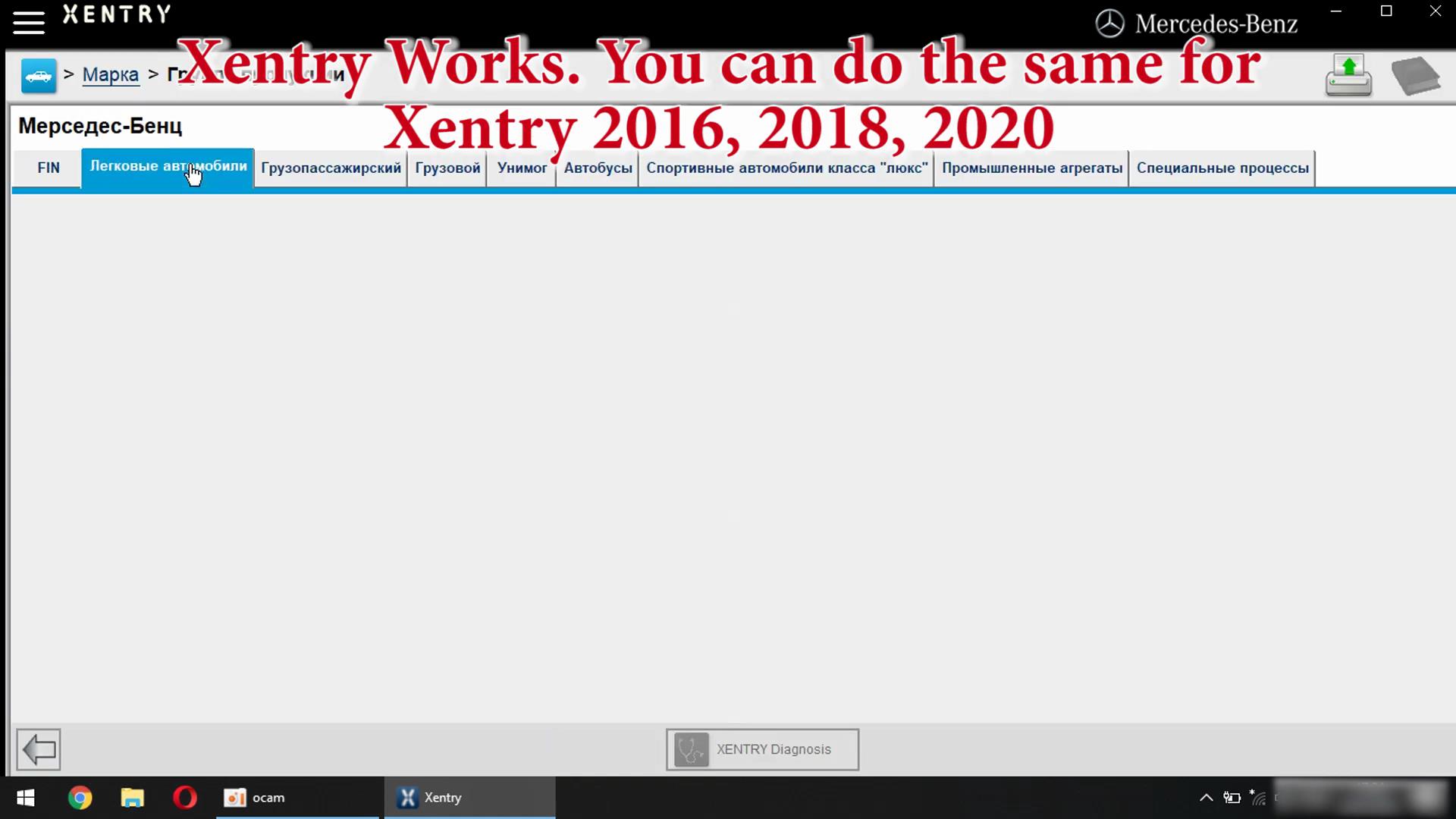
Xentry Works. You can do the same for Xentry 2016,2018,2020,2021

Xentry-Error-Supplied-StartKey-is-Invalid-Solution-31


Wednesday, September 8, 2021

Xentry“Supplied StarKey is invalid” -Solution

Recently we get a message from our customer, for SDC4 software error message “Supplied StarKey is invalid” as following, firtsly we try to activate again, then our customer found the solution on forum, thank you so much for sharing and thanks for good feedback!

Xentry“Supplied-StarKey-is-invalid”-Solution-1

Here is the story:
Q:
I send You again my Key – konfiguration

Xentry“Supplied-StarKey-is-invalid”-Solution-2

Hardware ID: 49b43b6c7587
App ID : 252
machine ID : 1059-5E02-00E3-6974-0C06-AFA8-9568-3587

I check it out it had no mistake
I have to go now offline – please send me by Email – Thanks
A:
Hello Friend, ok, here is the code: B5LJ-DY7W-2RRA-A322-VKT2-FPRW-LAXE-UZ57-LFSK-DZ5Y-AEU5-RKVN-22EH-8G58-RUS2-ZEVY-4FA8-CJ4C-PLRT-K3DG-3W5V-ABBD-P9U5-NZCT-3YSB-YW9U-JTUX-FPXH-95FG-6C39-SWZP-AWP5-PXJF-C7GG-EU4A-XM85-NJS5-LPFF-H75D-MBA
Q:
Thank You verry much!!
I found in a german Forum a Keygenerator and all works fine! The Transport without TAX works perfectly!
I had afraid that the German customs office confiscate the MB STAR C5 – they are verry striktly here.
I look for new customers, because i am satisfied with you!! Greetings from Germany

Monday, September 6, 2021

How to Solve Super MB Pro M6 Xentry Data Incomplete


Problem:

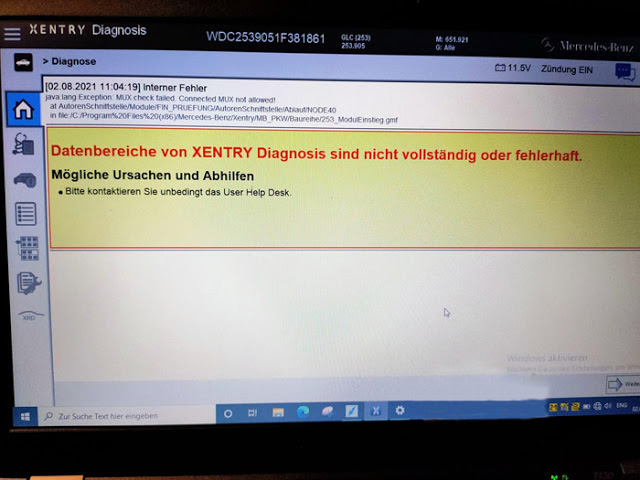
I recently got the Super MB Pro M6 with 06/2021 xentry hard drive. Unfortunately, this error message comes when reading a Mercedes GLC253.

“XENTRY Diagnosis data areas are incomplete or incorrect”, error pictures attached:


Solution and Feedback:

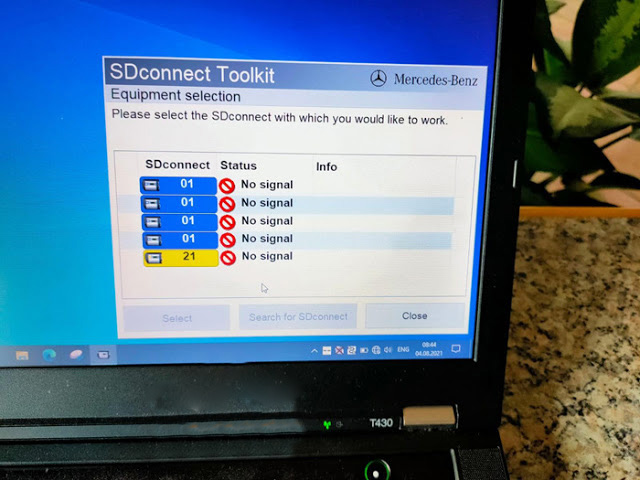
i found the bug. The multiplexer must be configured to 1 in SDConnect Toolkit, otherwise it won’t work and will cause an error.

Sunday, September 5, 2021

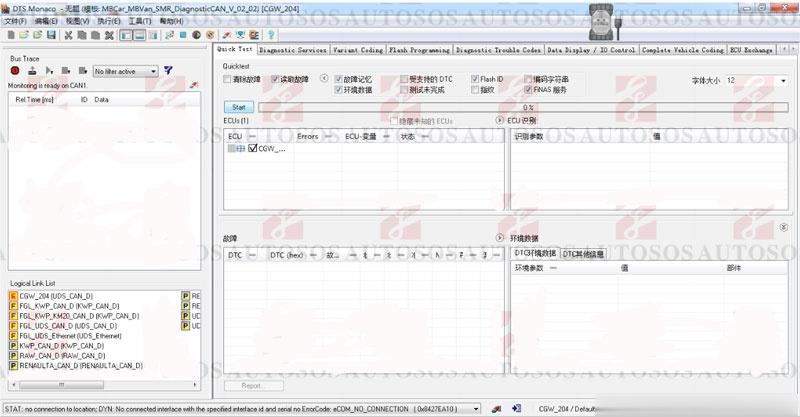
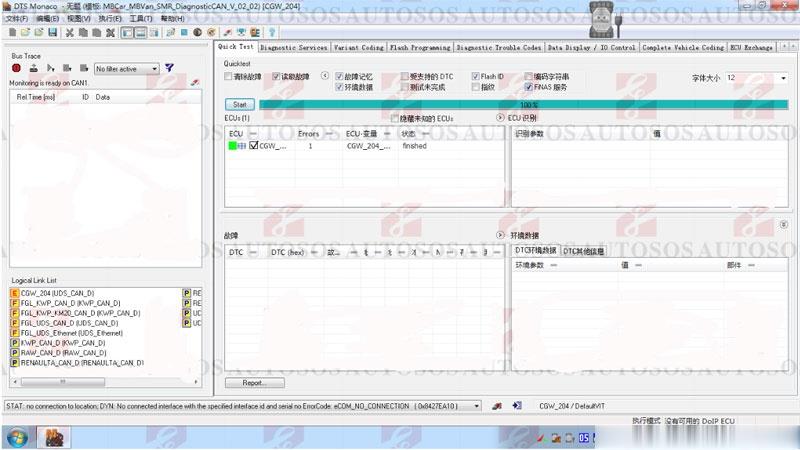
VXDIAG Benz C6 Cannot find CBF File in DTS Monaco


Question:

I am using Allscanner Vxdiag Benz C6 doip device with Mercedes W211.

I need to flash programming but can’t find W177 file.
First i use LAN cable but DTS Monaco don’t show workspace then i use USB cable it shows workspace but can’t find w177.

How to set up an interface in DTS monaco 8.13.029 ?
Should I use USB or LAN?

VXDIAG-Benz-C6-Cannot-find-CBF-File-in-DTS-Monaco-1
VXDIAG-Benz-C6-Cannot-find-CBF-File-in-DTS-Monaco-2

Solution:

1.How to set up DTS Monaco for VXDIAG C6?

2. VXDIAG uses USB connection when run DTS Monaco.

3.

vxdiag needs to configure CBF to work.

If you have W177 file, do following to find the CBF file:

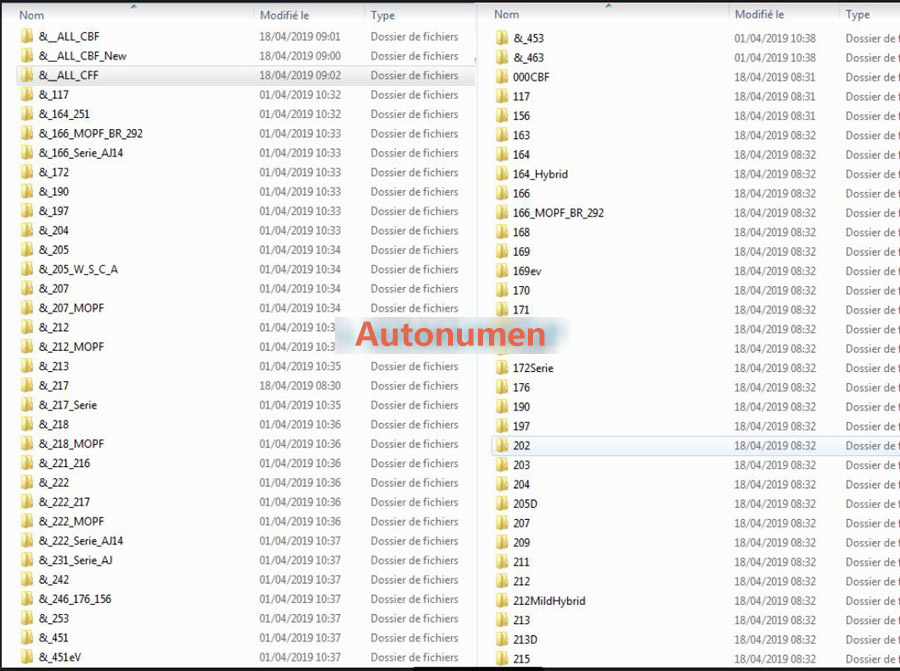
1). How to find CBF/SMR-d file:
CBF and SMR-D both access Licenses files.

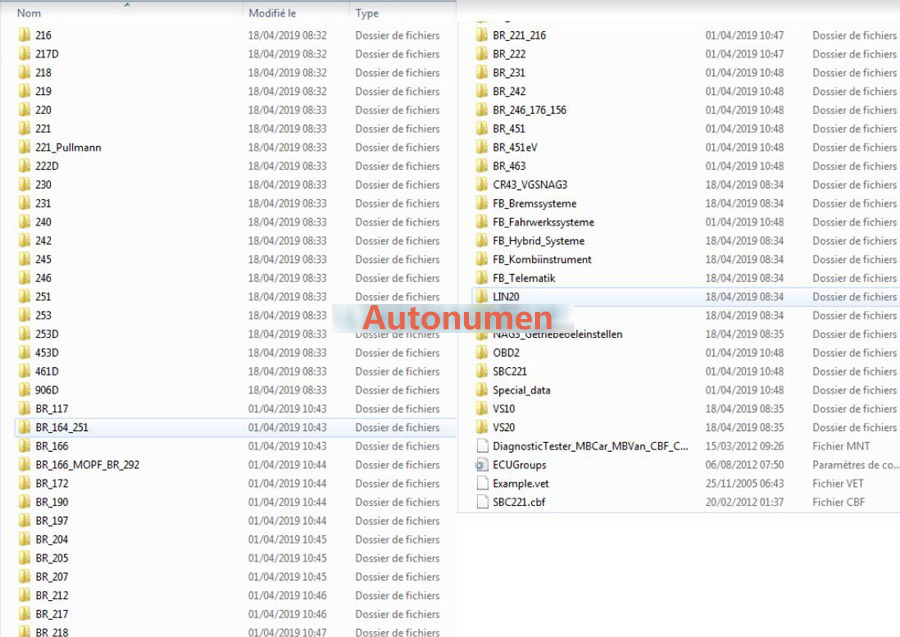
CBF is available for old cars, includes 117, 156, 163, 164, 166, 168, 169, 170, 171, 172, 176, 203, 204, 207, 209, 211, 212, 217, 218, 219, 220, 221, 245, 246, 230, 231, 251, 292, 240, 450, 451, etc.

SMR-D is suitable for new cars, includes 205, 253, 222, 453, etc.

CFF and SMR-F are programming files. CFF file is corresponding to CBF programming file, and SMR-F is corresponding to SMR-D programming file.

SMR-D file path: C:\Program Files (x86)\Mercedes-Benz\Xentry\ Kontexte\ODXProjekte\PKW_COMMON\dbr

CFF and SMR-F file path: C:\Program Files (x86)\ Mercedes-Benz\SDFlash\Release\PKW

The best solution is to create for each cariine one folder and put the corresponding CBFs inside.

WIN7system:

DAS CBF : C:\Program Files (x86)\Mercedes-Benz\DAS\comdat\pkw\cbf

Xentry SMR: C:\Program Files (x86)\Mercedes-Benz\Xentry\Kontexte\ODXProjekte

Xentry CBF: C:\Program Files (x86)\Mercedes-Benz\Xentry\MB_PKW\Caesar\cbf

CFF file: C:\Program Files (x86)\Mercedes-Benz\SDRash\Release\PKW

XP system:

DAS CBF: h\Programme\DAS\comdat\pkw\cbf

Xentry SMR: F:\Programme\Xentry\Kontexte\ODXProjekte

Xentry CBF: F:\Programme\Xentry\MB_PKW\Caesar\cbf

CFF file :F:\Programme\SDFIash\Release\PKW

CFF file:E:\Programme\SDFlash\Release\PKW

If you don’t have W177 file, you need to connect w177 vehicle and import 177 CBF file.

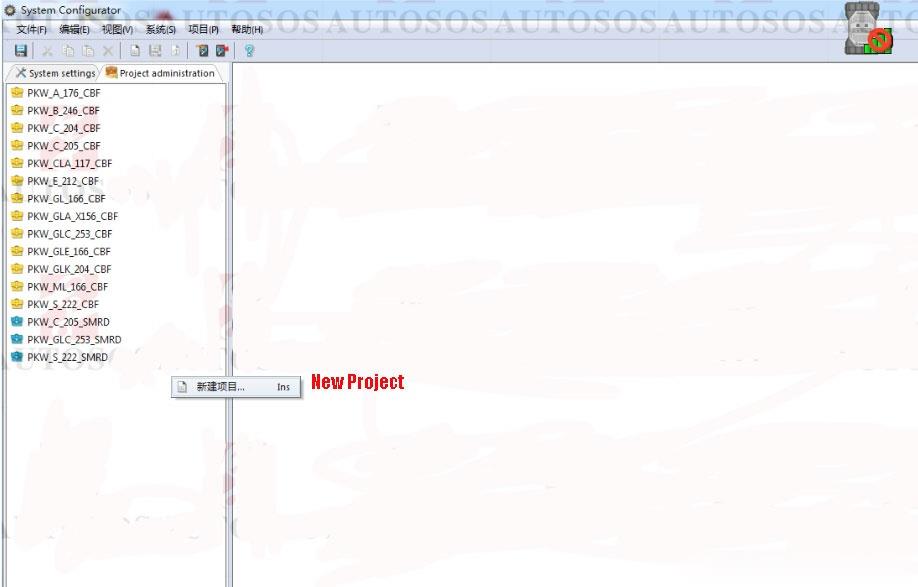
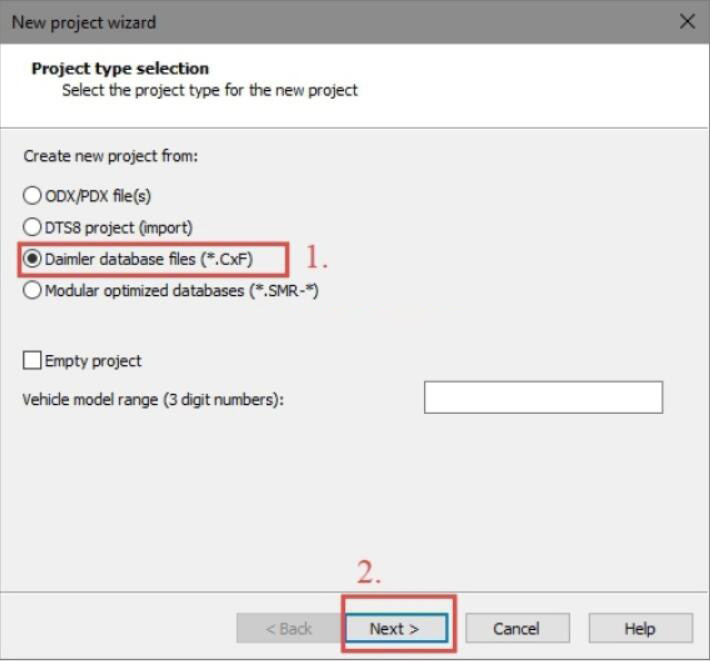
2). How to import CBF file:

VXDIAG-Benz-C6-Cannot-find-CBF-File-in-DTS-Monaco-3

Select “Daimler database files (*.CxF)”,then click “Next”

VXDIAG-Benz-C6-Cannot-find-CBF-File-in-DTS-Monaco-4

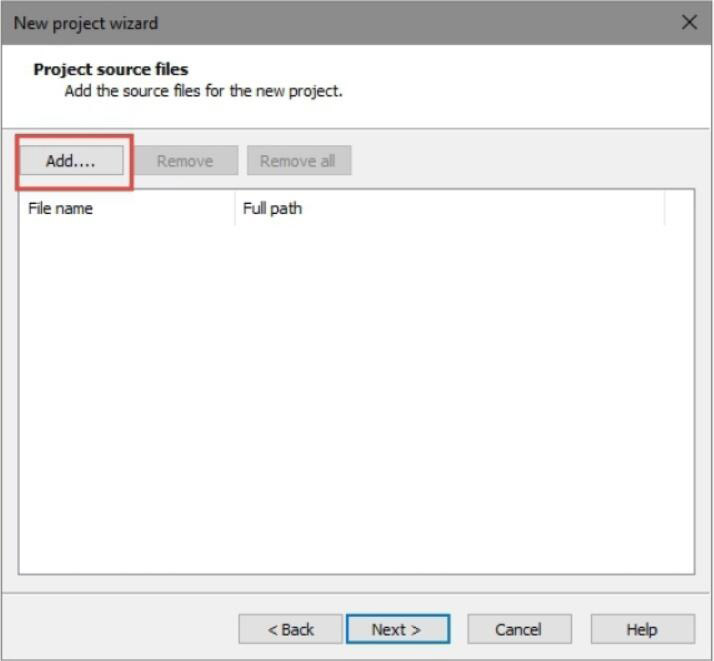
Click “Add” button

VXDIAG-Benz-C6-Cannot-find-CBF-File-in-DTS-Monaco-5

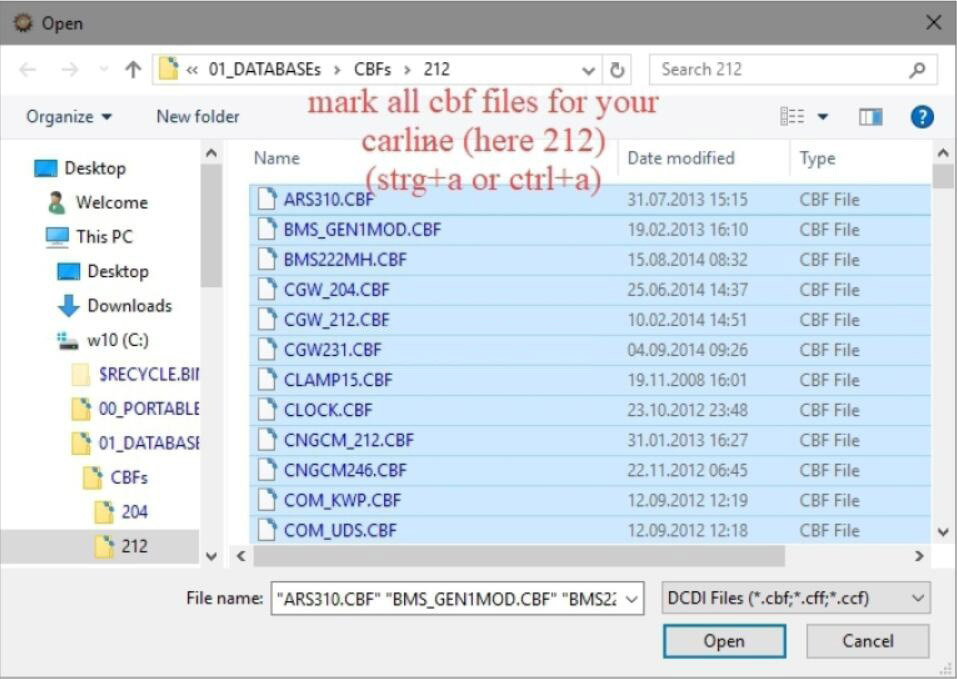
Mark all CBF file for your carline

VXDIAG-Benz-C6-Cannot-find-CBF-File-in-DTS-Monaco-6

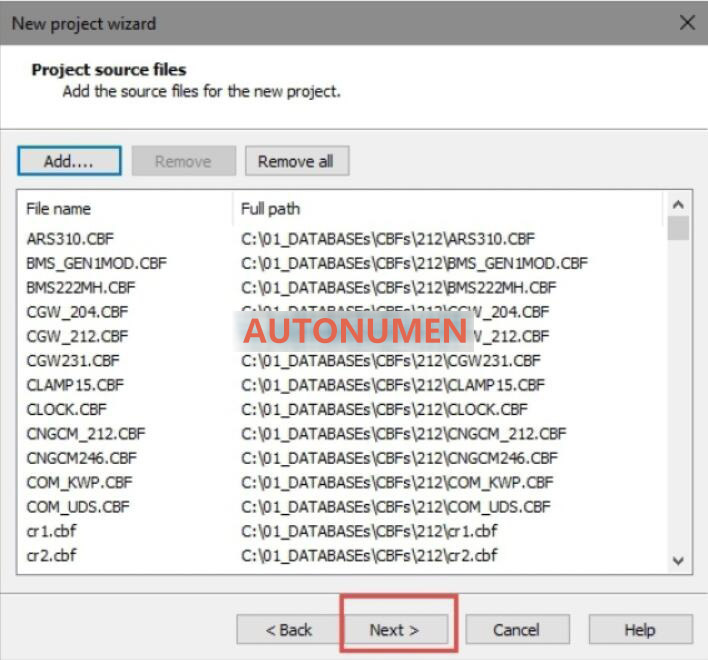
Then click “Next” to continue

VXDIAG-Benz-C6-Cannot-find-CBF-File-in-DTS-Monaco-7

Select project name and database format,then click “Next” to continue

VXDIAG-Benz-C6-Cannot-find-CBF-File-in-DTS-Monaco-8

After then click “Finish”

VXDIAG-Benz-C6-Cannot-find-CBF-File-in-DTS-Monaco-9

Now check the number of imported CBF files
Friday, September 3, 2021

How to Add SMR-d to Benz C6 DoIP VCI DTS Monaco


Here’s the instruction to add SMR-d and Configure DTS Monaco engineering software for OEM Benz C6 DoIP VCI.

Software HDD should be purchased alone (comes with keygen and DTS Monaco software).

Add DTS Monaco SMR-d operation:

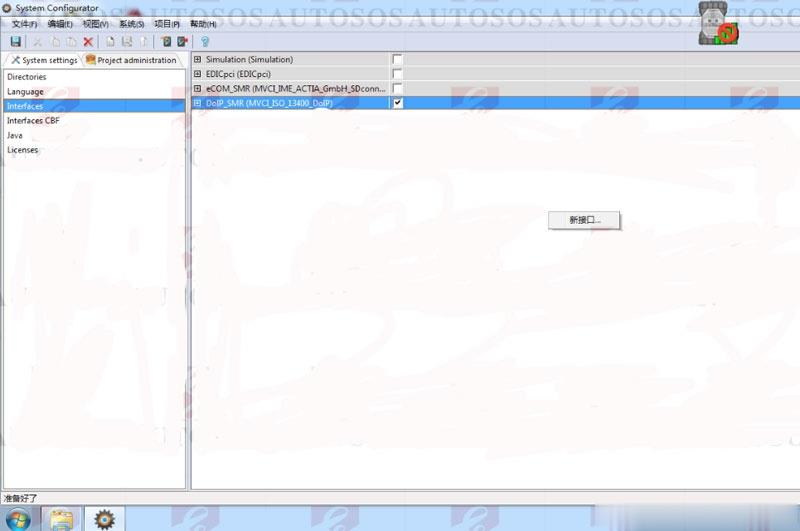
Open DTS System Configurator on desktop, select Interfaces, right click to open new interface

How-to-Add-SMR-d-to-Benz-C6-DoIP-VCI-DTS-Monaco-1 (2)

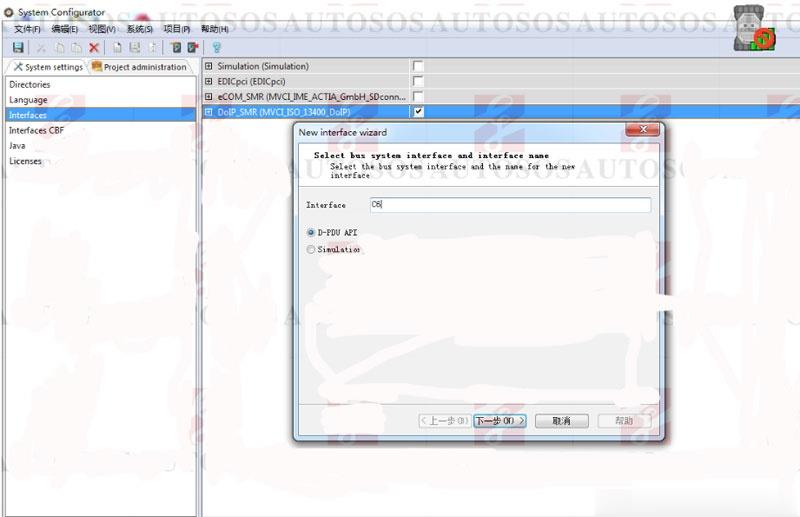
Manually enter Interface “C6“, press Next

How-to-Add-SMR-d-to-Benz-C6-DoIP-VCI-DTS-Monaco-2 (2)

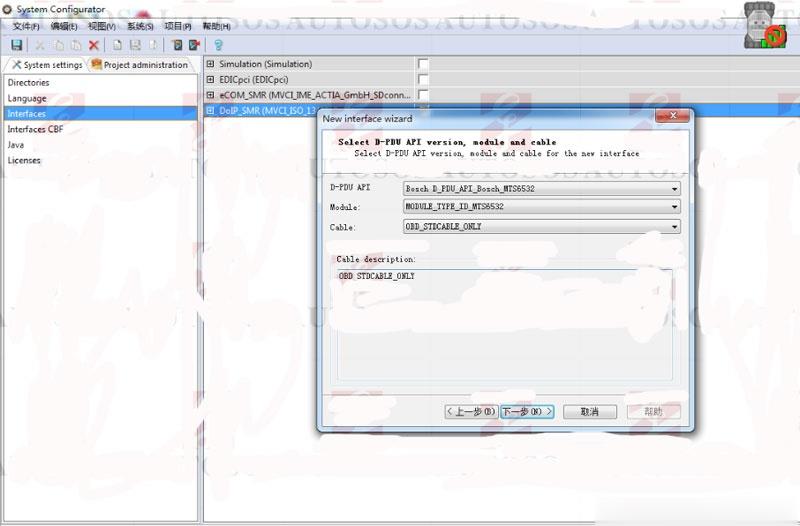
Configure Benz C6 VCI as picture below
D-PDU API: Bosch_D-PDU_APO_Bosch_MTS6532
Module: MODULE_TYPE-ID_MTS6532
Cable:OBD_STICABLE_ONLY

How-to-Add-SMR-d-to-Benz-C6-DoIP-VCI-DTS-Monaco-3 (2)

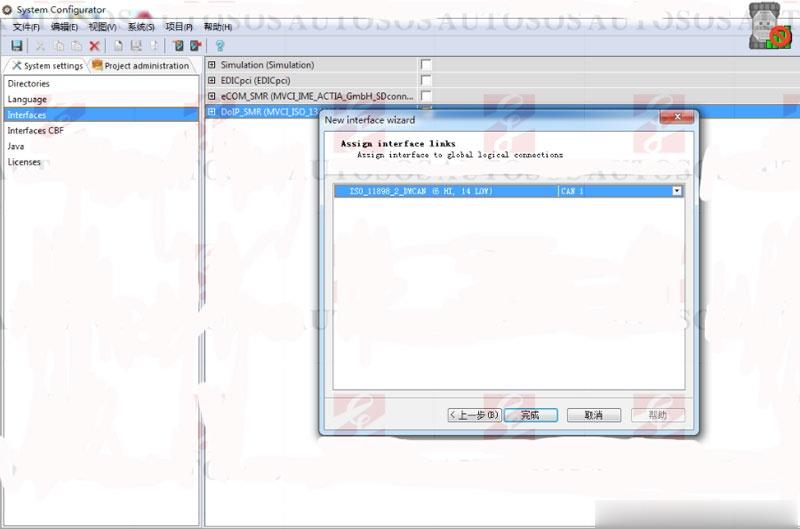
Select CAN I interface link

How-to-Add-SMR-d-to-Benz-C6-DoIP-VCI-DTS-Monaco-4 (2)

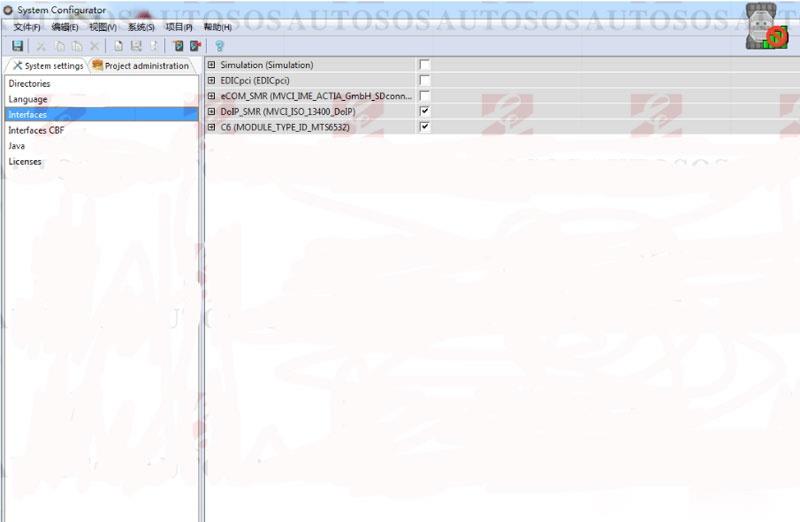
Enable Benz C6 DoIP as picture below

How-to-Add-SMR-d-to-Benz-C6-DoIP-VCI-DTS-Monaco-5 (2)

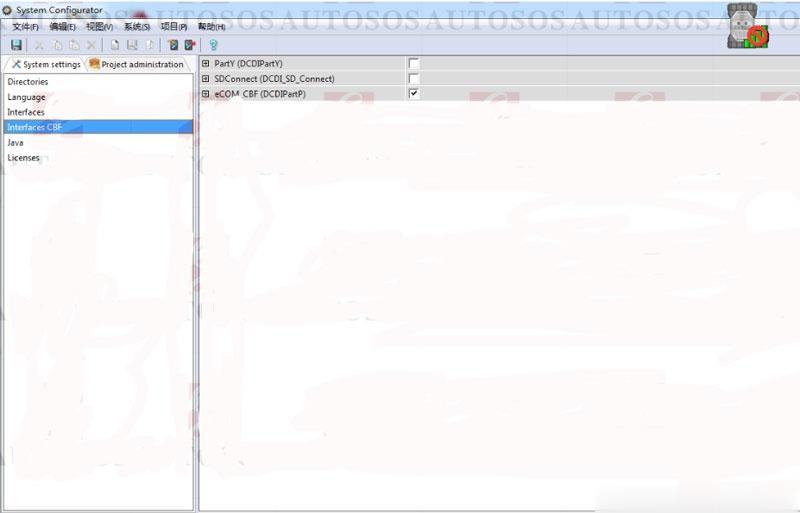
Choose eCOM CBF (DCDIPartP)

How-to-Add-SMR-d-to-Benz-C6-DoIP-VCI-DTS-Monaco-6 (2)

Select Project administrator, create new project

How-to-Add-SMR-d-to-Benz-C6-DoIP-VCI-DTS-Monaco-7 (2)

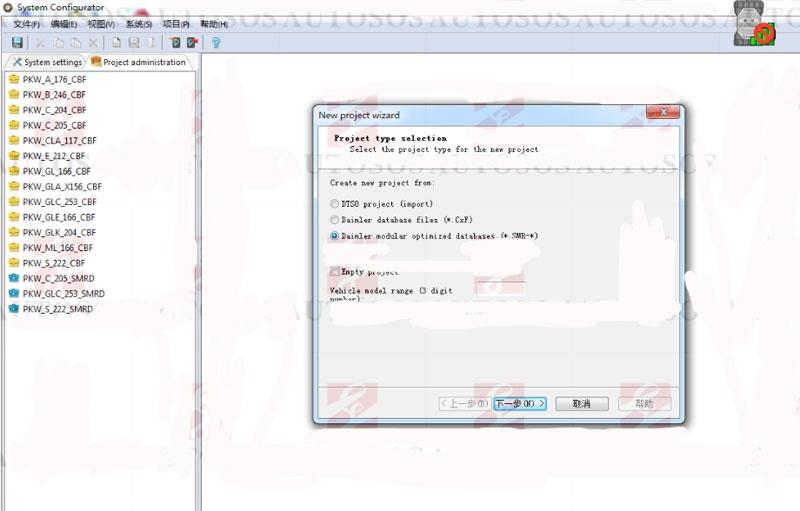
Select modular optimized database  (*.SMR-*)

How-to-Add-SMR-d-to-Benz-C6-DoIP-VCI-DTS-Monaco-8 (2)

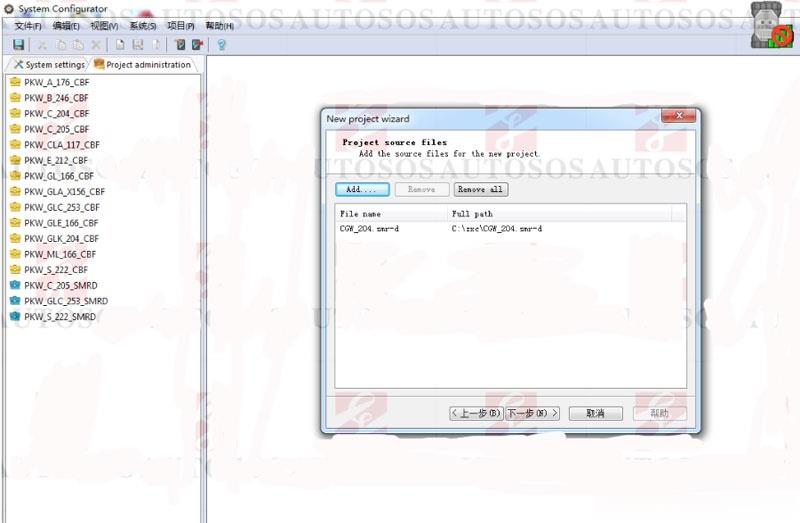
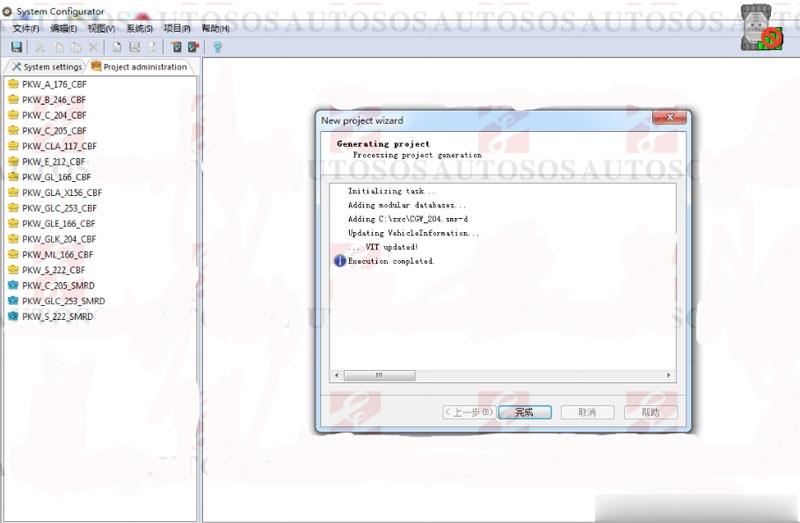
Add CGW_204.smr-d

How-to-Add-SMR-d-to-Benz-C6-DoIP-VCI-DTS-Monaco-9 (2)

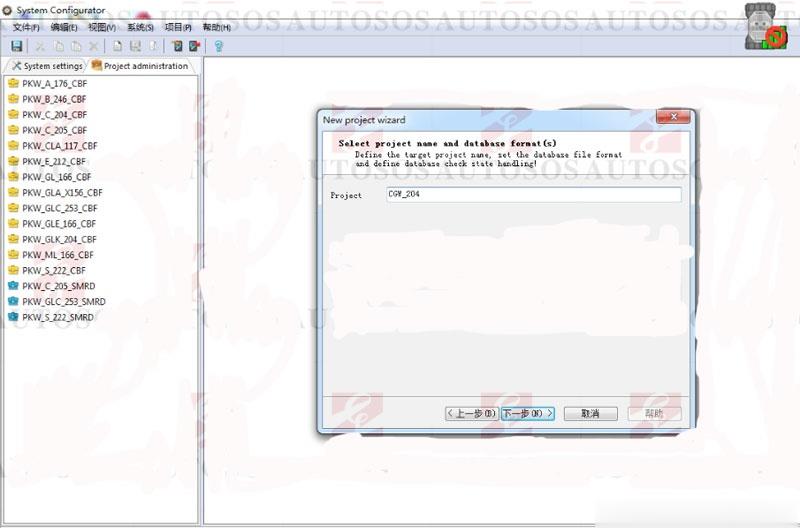
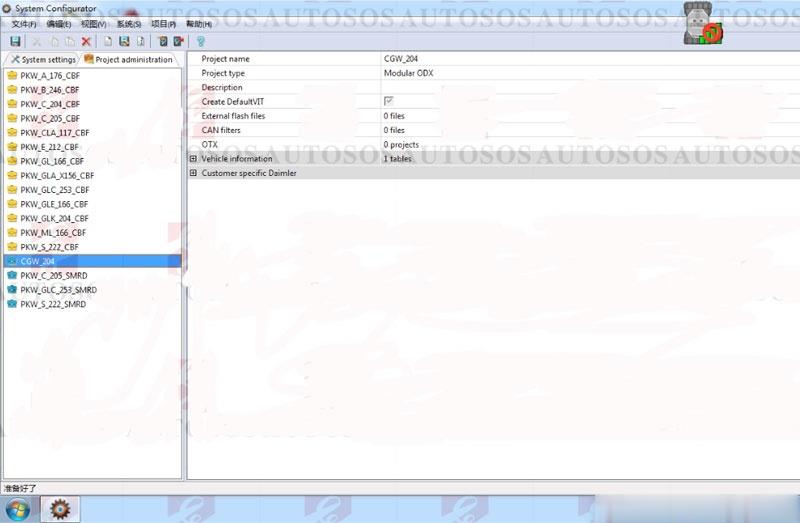
Project: CGW_204

How-to-Add-SMR-d-to-Benz-C6-DoIP-VCI-DTS-Monaco-10 (2)

Add CGW_204.smr-d success

How-to-Add-SMR-d-to-Benz-C6-DoIP-VCI-DTS-Monaco-11 (2)
How-to-Add-SMR-d-to-Benz-C6-DoIP-VCI-DTS-Monaco-12 (2)

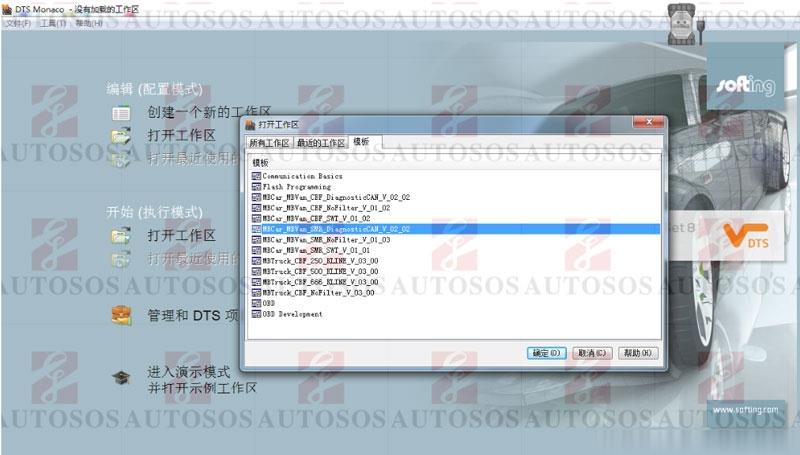
Enter DTS Monaco software

How-to-Add-SMR-d-to-Benz-C6-DoIP-VCI-DTS-Monaco-13 (2)

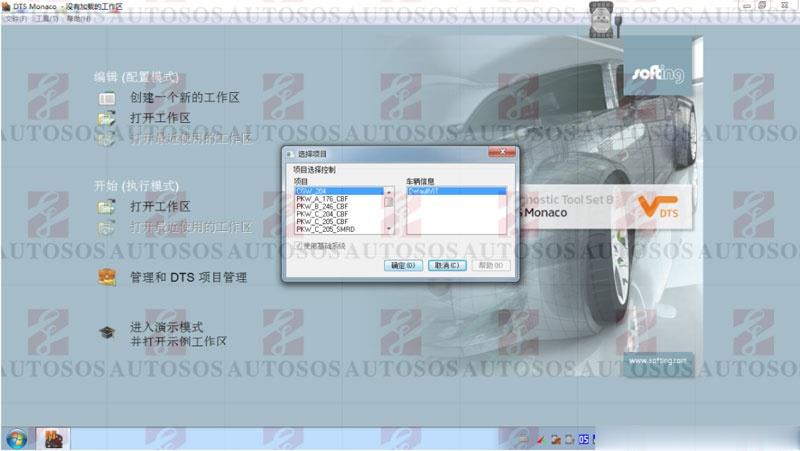
select CGW_204 project

How-to-Add-SMR-d-to-Benz-C6-DoIP-VCI-DTS-Monaco-14 (2)

login project

How-to-Add-SMR-d-to-Benz-C6-DoIP-VCI-DTS-Monaco-15 (2)
How-to-Add-SMR-d-to-Benz-C6-DoIP-VCI-DTS-Monaco-16 (2)

Now can you flash modules with the DTS Monaco software.
Done.

Wednesday, September 1, 2021

How to fix VXDIAG Benz C6 Xentry Diagnosis Connect Device Error
 

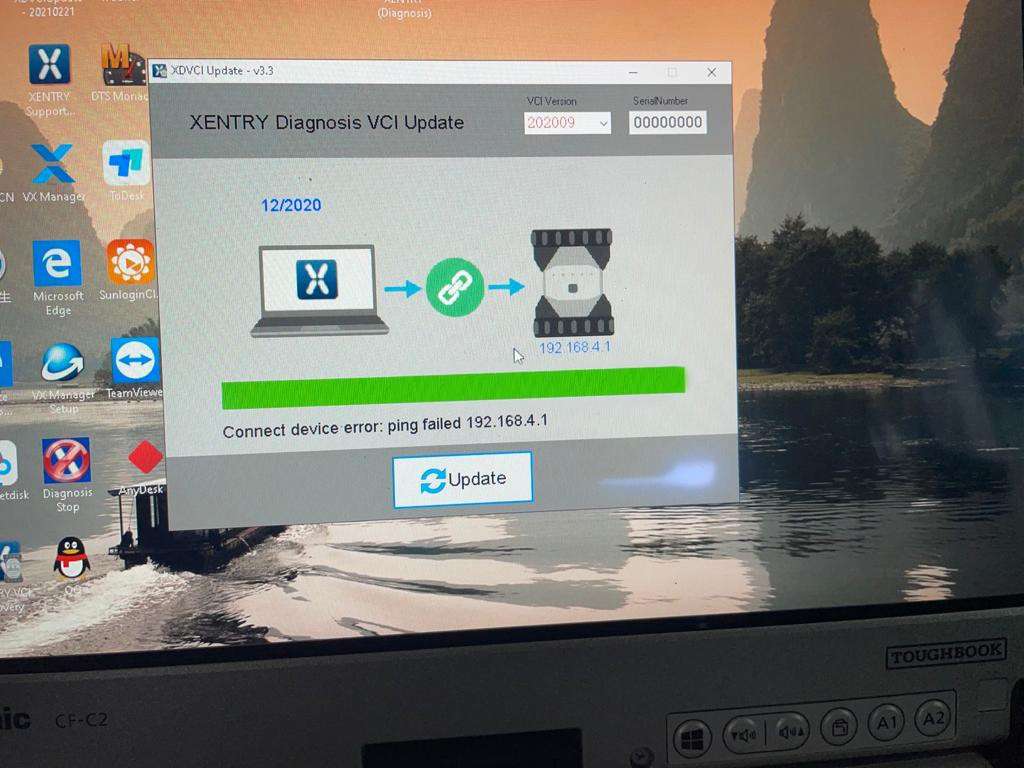
When I open XDVCI Update V3.3 to run Xentry Diagnosis VCI Update, it gave me error: connect device error: ping failed 192.168.4.1. I have VXDIAG Benz C6 with Xentry Diagnosis 12 / 2020.

Look at this error screenshot:

How-to-fix-VXDIAG-Benz-C6-Xentry-Diagnosis-Connect-Device-Error

Obd2tool.com engineer gave the solution:

1.  Connect your device to the car and the computer
2.  Go to www.vxdiag.net to download and install the latest version of vx manager 1.84 software
3.  Install the “XDVCIUpdate-20210221.exe” file by downloading from the mega below:

https://mega.nz/file/HUJxmCIA#z7YJ1-rDxD-bamXgL-jMO9BuD-2NjufGkMHWzoTMIMg