Tuesday, July 20, 2021

Super MB Pro M6 Benz Diagnostic Tool Review


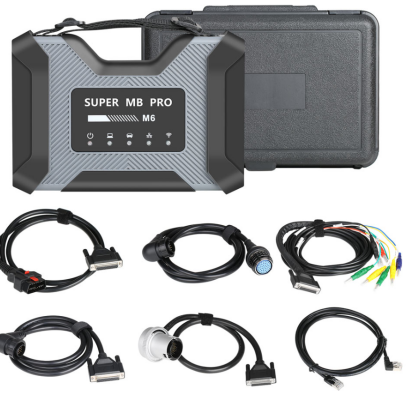
SUPER MB PRO M6 is new released mb star diagnsotic tool, it can support original Benz dealer diagnostic software, update firmware without installing the battery, also support Mercedes-Benz models, covering 12v car, 24v diesel truck & bus, MPV, etc. Moreover, it’s adopts the framework concept of original C6 diagnostic tool, perfectly replace normal MB SD C4/C5. It’s better to work with the original manufacturer software, It can work with V2021.6 SSD or V2021.6 HDD .

Super-MB-Pro-M6-Benz-Diagnostic-Tool-Review-1

Super MB Pro M6 Features:

1.ABS+PVT plastic structure adoption
1) Impact-proof & easy to carry
2) Lower consumption on product shell against wireless signal
3) Great advancement of wireless communication distance & stability

2. Built-in network interface prevents deformation and damage from impact.

3.It is the only diagnostic tool on the market that is highly consistent with the original MB Star C6:
1) Fully compatible with the original software.
2) You can directly upgrade the newest firmware without installing additional driver.

4.Compatible with the Mercedes Benz models with protocol DOIP, K-line, CAN Low, Can High, LIN, RS485, etc, works with the old cars and new cars.

Monday, July 19, 2021

WLAN Settings Tutorial for C4 / C5 Doip Plus & SD C4 / C5

This article explains in detail how to set up a Wlan connection for both DOIP SD C4 / C5 Doip Plus and SD C4 / C5, which provides great help for many users who use the tools for the first time. Generally speaking, the Wlan connection setting method of C4 / C5 Doip Plus is much simpler than that of SD C4 / C5.

Part 1. How to set up Wlan connection for Mercedes Star MB SD C4 / C5 Doip Plus?

Part 2. How to set up Wlan connection for old SD C4/C5?

Part 1. How to set up Wlan connection for MB SD C4 / C5 Doip Plus?

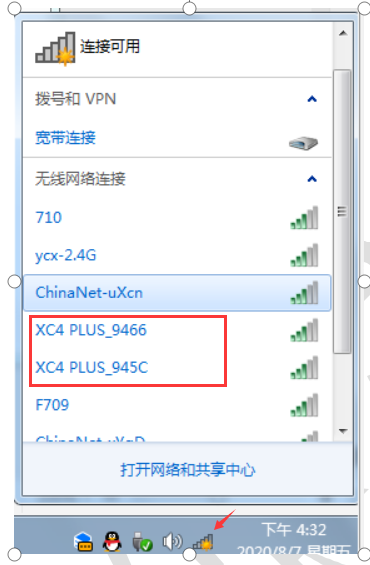
Firstly, to do IP Setting for LAN, then open Local Area Connection on task bar to find the available WIFI name of C4 or C5 Doip.

How-to-set-up-Wlan-connection-for-MB-SD-C4-C5-Doip-Plus-1

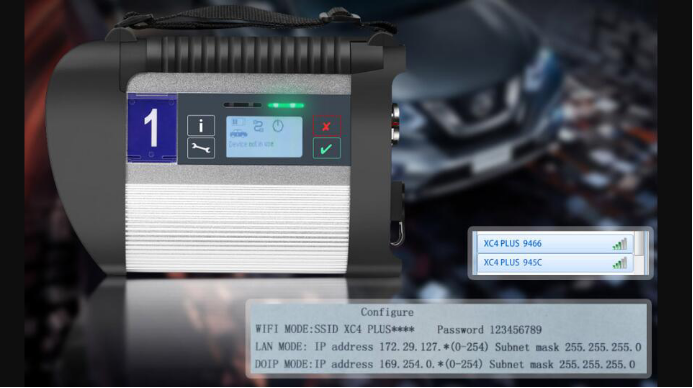
Select the correct one to connect, enter wifi password “123456789“, please set auto obtain IP.

How-to-set-up-Wlan-connection-for-MB-SD-C4-C5-Doip-Plus-2

SD C4/C5 DoIP Plus wireless setting is done.

Part 2. How to set up Wlan connection for old SD C4/C5?

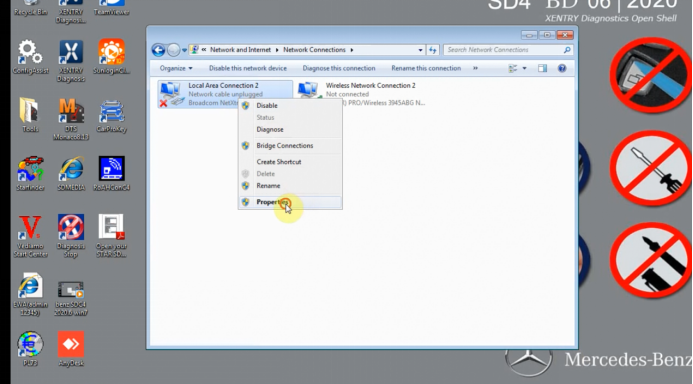
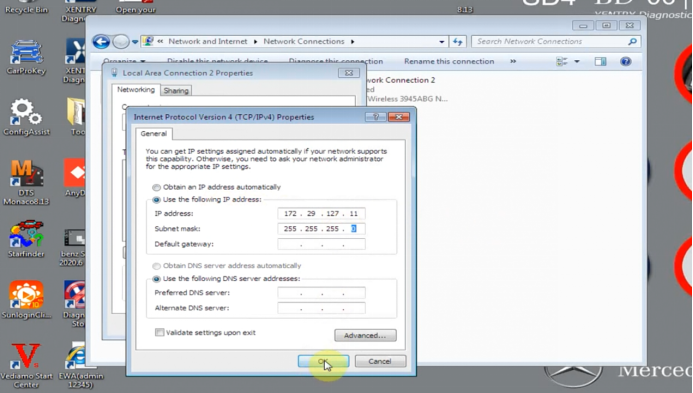
Step 1. Set IP for LAN, local Area Connection

How-to-set-up-Wlan-connection-for-old-SD-C4-C5-1
How-to-set-up-Wlan-connection-for-old-SD-C4-C5-2

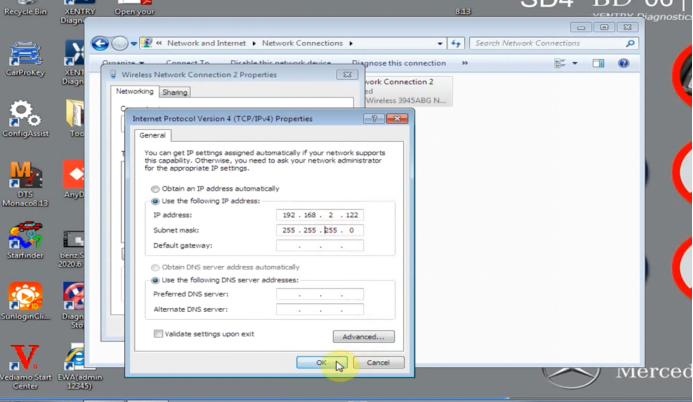
Step 2. Set wireless IP

How-to-set-up-Wlan-connection-for-old-SD-C4-C5-3
How-to-set-up-Wlan-connection-for-old-SD-C4-C5-4

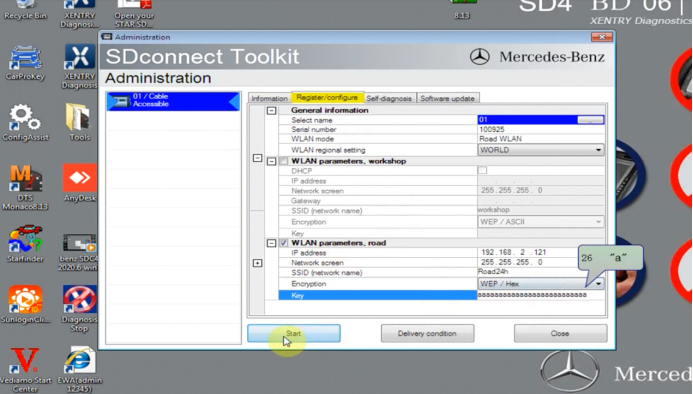
Step 3. Connect MB SD C4/C5 device to PC, open the “Administrator” of C4/C5, to set as required by following below information.

How-to-set-up-Wlan-connection-for-old-SD-C4-C5-5

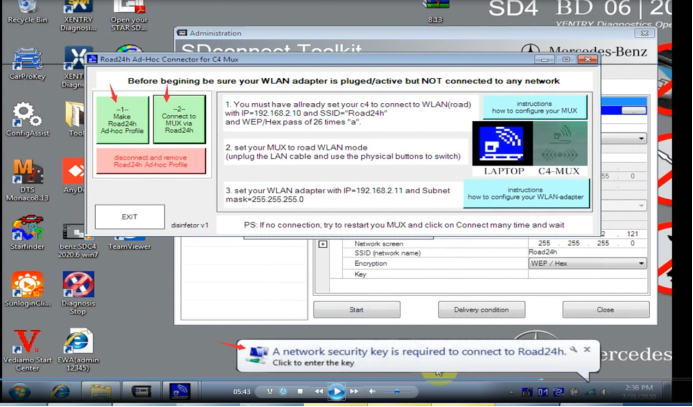
Step 4.Open Road24h Ad-Hoc Connector for C4 Mux

How-to-set-up-Wlan-connection-for-old-SD-C4-C5-6

Click –1– Make Road24h Ad-hoc Profile and –2– Connect to MUX via Road24h step by step.
How-to-set-up-Wlan-connection-for-old-SD-C4-C5-7

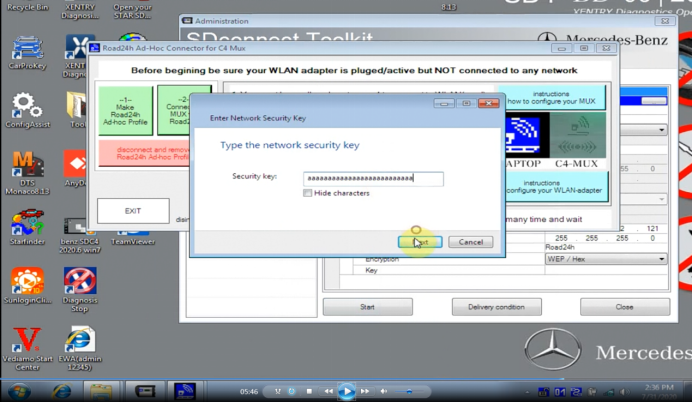
Step 5.Enter security key

Step 6. Disconnect the sd c4/c5 device, but don’t turn off the power.

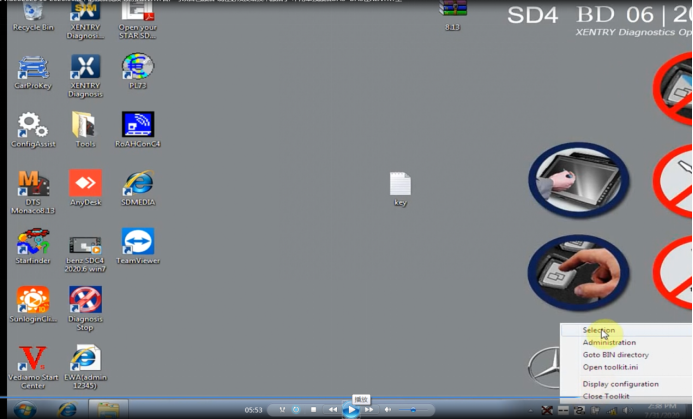
Step 7. Select “Selection” option on task bar.
How-to-set-up-Wlan-connection-for-old-SD-C4-C5-8
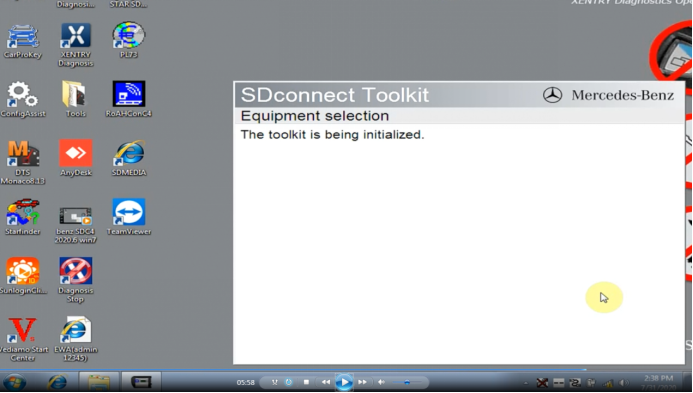
How-to-set-up-Wlan-connection-for-old-SD-C4-C5-9

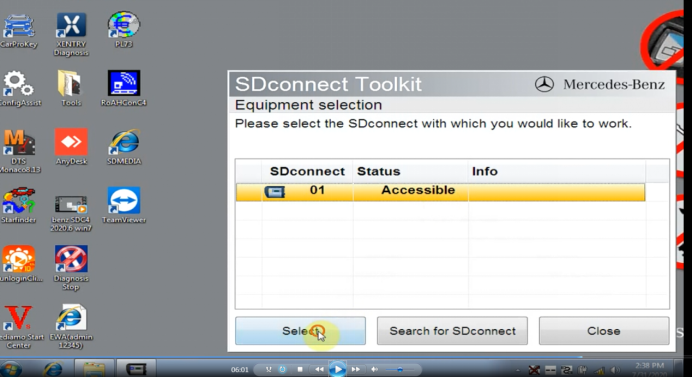
Step 8. Select the SD connect after opening the administrator.

WLAN setting is done!
How-to-set-up-Wlan-connection-for-old-SD-C4-C5-10


Sunday, July 18, 2021

FAQ SD C4 Plus WIFI working Update with Without Battery


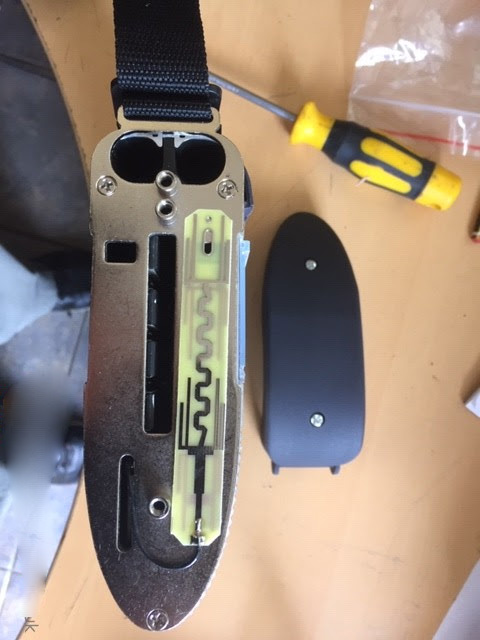
How to solve Chinese cloned SD Connect C4 DoIP : there is NO WiFi card inside, therefore wireless connection is not possible no ! There is NO 6 batteries holder/compartment no . Batteries are necessary for firmware upgrade if needed

In fact:
1. SD Connect C4 DOIP supports WIFI setting.ste
Take obdexpress.co.uk for example, the engineer made a operation guide on how to set SD Connect C4 DOIP WIFI on WIN10 & WIN7.

2.Mercedes Star Diagnostic SD connect C4 Plus firmware update does not require battery installation as the older sd c4.
Take this user’s feedback for example: I take a risk from here, only the battery pack is missing but work ok. I have it over an year and have no problems.

How to upgrade SD C4 Plus Xentry without battery?
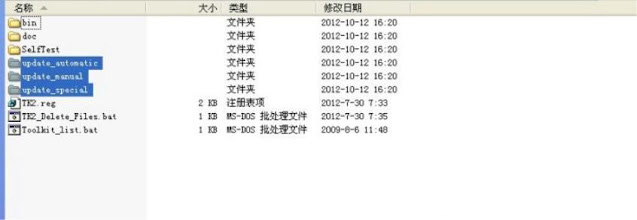
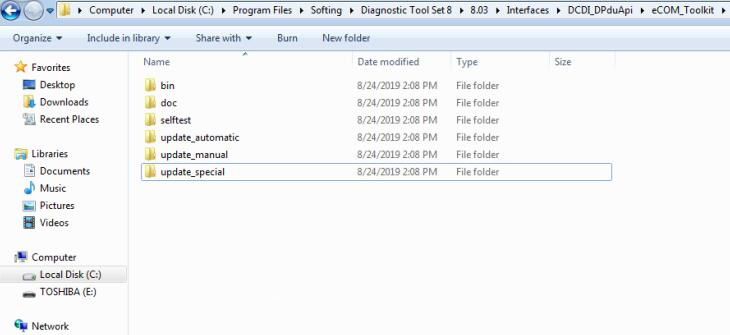
1. Open DAS software, enter the folder “C:\programm files\SDconnect
Toolkit”, check if there are the following three folders: Update_automatic, Update_manual
; Update_Special.. As shown in the figure below. If the name is wrong, please correct it.

How-to-upgrade-SD-C4-Plus-Xentry-without-battery-1
How-to-upgrade-SD-C4-Plus-Xentry-without-battery-2

2. Reboot the computer.

3. Start to upgrade the SD C4 Plus firmware, please follow the procedure below:
1) Closing Xentry Diagnostics/Xentry DAS diagnostics application
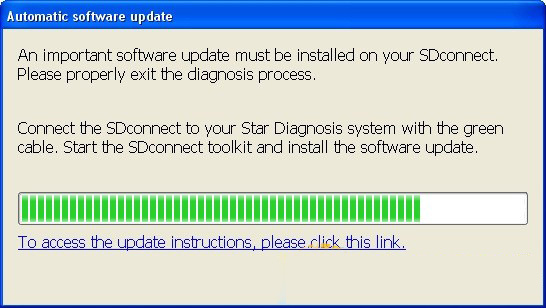
When accessing a vehicle in Xentry Diagnostics or Xentry DAS, the following message appears:

How-to-upgrade-SD-C4-Plus-Xentry-without-battery-3

Please exit the diagnostic application Xentry Diagnostics or Xentry DAS correctly and follow the next steps.

2) Connecting the SDconnect to the Star Diagnosis system
Connect the SDconnect to the Star Diagnosis system with the green LAN cable.
The SDconnect will be automatically selected and appear in the deskband on the Star Diagnosis system:

How-to-upgrade-SD-C4-Plus-Xentry-without-battery-4

3)SDnetControl
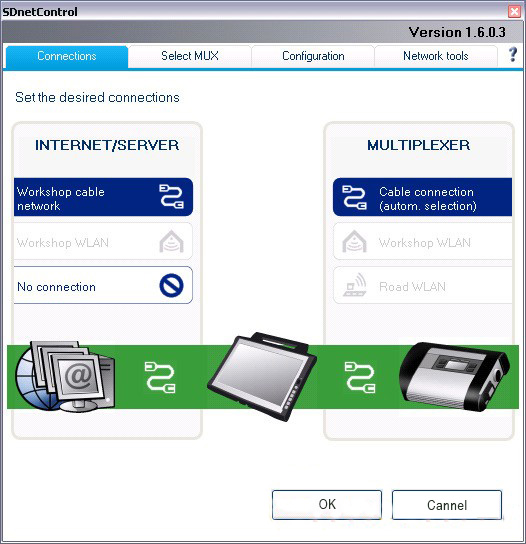
A) Start SDnetControl by clicking the deskband
Go to the “Connections” tab.
B)  Check whether automatic selection via the cable connection is active:

How-to-upgrade-SD-C4-Plus-Xentry-without-battery-5

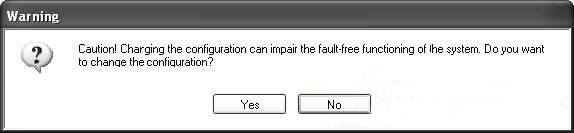
Go to the “Configuration” tab, and confirm the warning with “Yes”:
How-to-upgrade-SD-C4-Plus-Xentry-without-battery-6

4). Software update
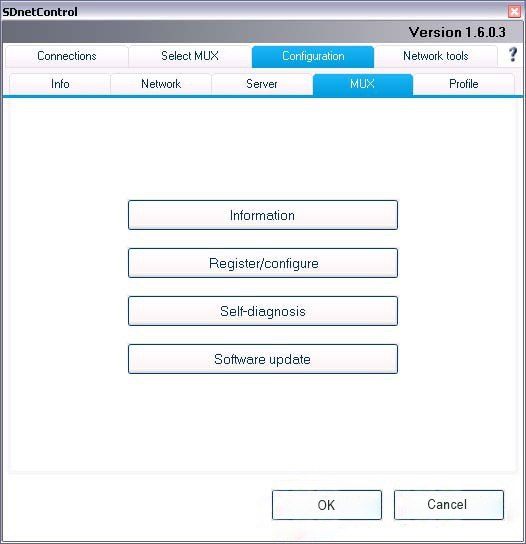
Go to the “MUX” tab in SDnetControl.
Click on the “Software update” button.

How-to-upgrade-SD-C4-Plus-Xentry-without-battery-7

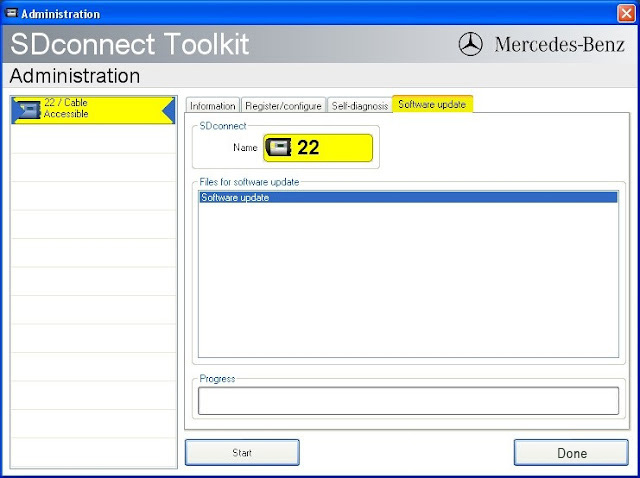
The “SDconnect Toolkit Administration” program will start.

Go to the “Software update” tab in the SDconnect Toolkit.
Your SDconnect is already selected on the left-hand side.
Select the “Software update” packet under “Files for software update”.
Click “Start” to start the process.

How-to-upgrade-SD-C4-Plus-Xentry-without-battery-8

The update process will start. This takes approx. 4 minutes.

5) Complete the installation
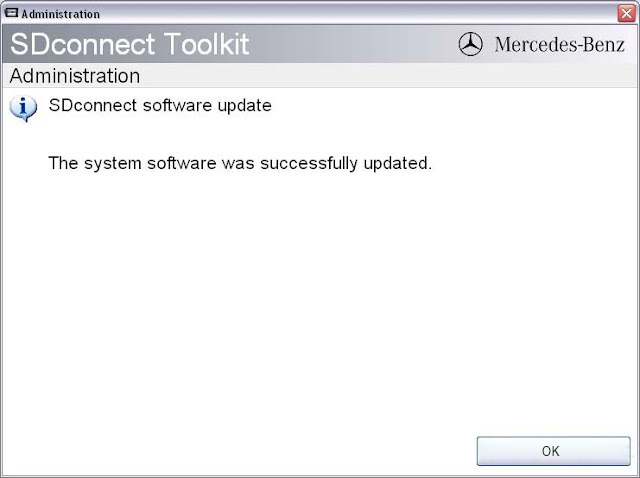
Confirm the successful completion of the update.
After a successful update, a message indicating the successful update completion appears.
Confirm the message by clicking “OK”.

How-to-upgrade-SD-C4-Plus-Xentry-without-battery-9

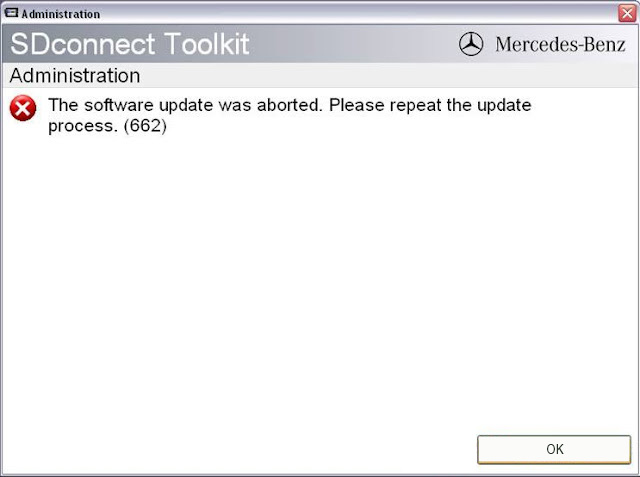
Update not successful
If the update was not successful, the message “The software update was aborted. Please repeat the update process” will appear.

Confirm this message by clicking “OK”. Check the SDconnect batteries if necessary and repeat the update process.

How-to-upgrade-SD-C4-Plus-Xentry-without-battery-10

6) Check the installed software
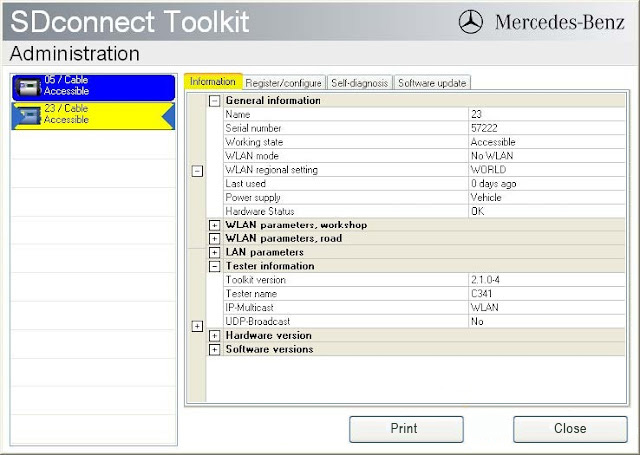
Go to the “Information” tab in SDconnect Toolkit
Select your SDconnect on the left-hand side.
• Check the information under “Software versions” at the right:
The versions of the Linux OS and the CommandServer must be at least 2:0:xxxxxx.

How-to-upgrade-SD-C4-Plus-Xentry-without-battery-11


Friday, July 16, 2021

How to update MB SD Connect Compact 5 /SD C4/ SD C4 PLUS


This post comes with the introduction to update MB SD Connect Compact 5 /SD C4/ SD C4 Plus.

Step 1: Change file name

There are two storage path for MB SD Connect Compact 4/ new SD C4 plus/ SD C5.

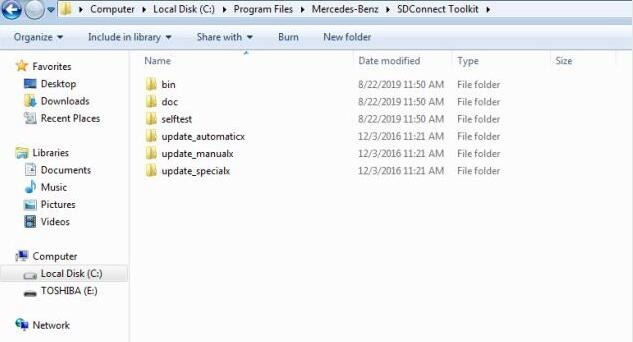
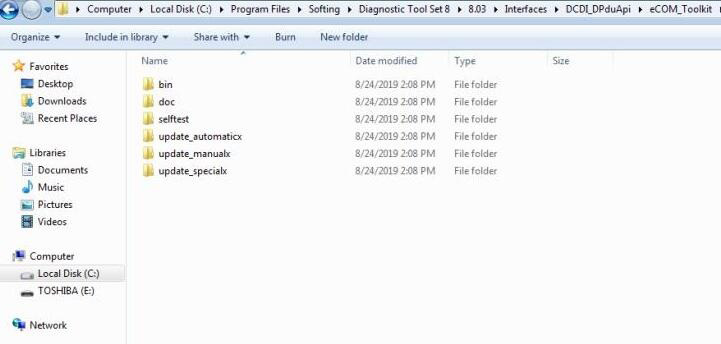
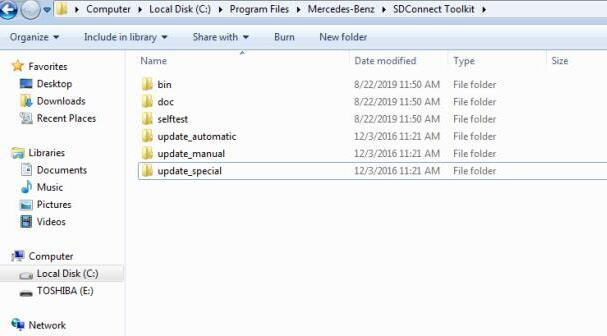
Path 1: C:\Program Files\Mercedes-Benz\SDConnect Toolkit

Path 2: C:\Program Files\Softing\Diagnostic Tool Set 8\8.03\Interfaces\DCDI_DPduApi\eCOM_Toolkit

Please modify the file name of “update_automaticx”, “update_manualx” and “update_specicalx” to “update_automatic”, “update_manual” and “update_specical”, it means remove the last letter of all the three file names.

How-to-update-MB-SD-Connect-C4-C5-1
How-to-update-MB-SD-Connect-C4-C5-2
How-to-update-MB-SD-Connect-C4-C5-3
How-to-update-MB-SD-Connect-C4-C5-4

Restart PC when finish modifying

Note:

1.You need to put 6 AA batteries into MB Star diagnostic tools MB SD C4 and SD C5 , but you don’t have to install batteries for DOIP MB SD C4 PLUS (Item No. SP100-E) firmware update.

2.Make sure OBD main cable connect to car or 12v power supply

Step 2: Update software

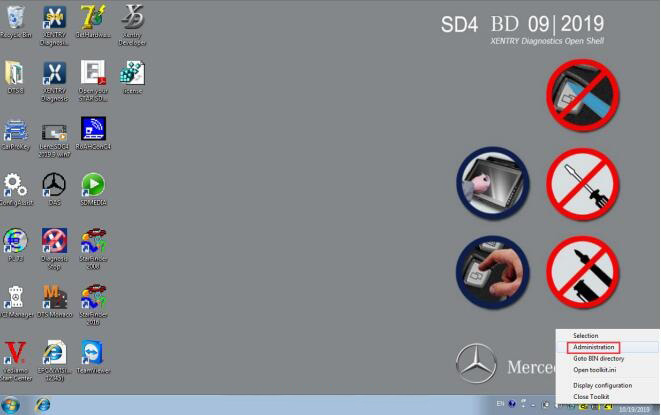
Right click at the right corner and select “Administration”-> “Software update”

How-to-update-MB-SD-Connect-C4-C5-5

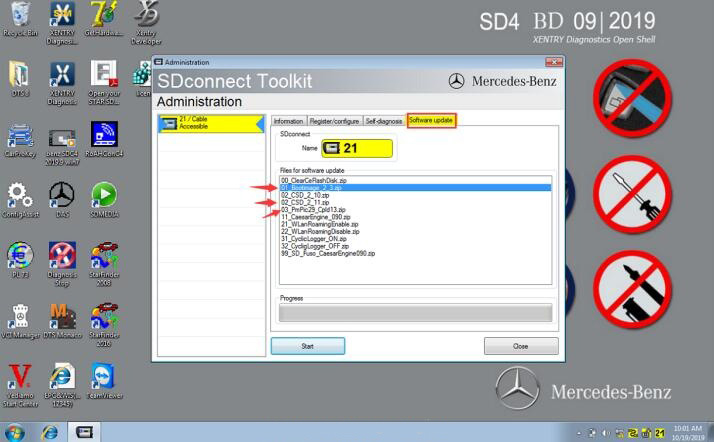
Mainly update the following three files in order:

“02_CSD_2_11.zip” -> “01_Bootimage_2_3.zip”-> “03_PmPic29_Cpld13.zip”

How-to-update-MB-SD-Connect-C4-C5-6

That’s all!

Saturday, June 26, 2021

VXDIAG Benz C6 Xentry Update to V2021.06


Vxdiag Benz C6 and VCX SE Benz Xentry new software 06/2021 was released in Junee 2021.

Software including:

BENZ  2021.06, xentry 29.8.2,

DTS 8.13.029

EPC/WIS
StarFinder
SDmedia

Supports Benz from year 2004-2021

VXDIAG Benz C6 Xentry Language List:
Bulgarian, Danish, Greek, Spanish, French, Italian, Korean, Polish, Romanian, Serbo-Croatian, Swedish, Chinese, Czech, German, English, Finnish, Hungarian, Japanese, Dutch, Portuguese, Slovenian, Turkish

Update via SSD or HDD

2021.06 Xentry Software Display:
VXDIAG-Benz-C6-Xentry-Update-to-V2021.06-1

VXDIAG-Benz-C6-Xentry-Update-to-V2021.06-3

VXDIAG-Benz-C6-Xentry-Update-to-V2021.06-4

VXDIAG-Benz-C6-Xentry-Update-to-V2021.06-5

VXDIAG-Benz-C6-Xentry-Update-to-V2021.06-6


Friday, June 25, 2021

MB SD Connect C5 or MB SD Connect C4 Which to Buy


Mercedes Benz MB Star C5 and MB STAR C4 which is better? Check user feedback below:

MB-SD-Connect-C5-or-MB-SD-Connect-C4-Which-to-Buy-1

2021.06V MB SD Connect C4/C5 Star Diagnosis Plus Lenovo T420 Laptop With Vediamo and DTS Engineering Software Support Offline Programming

1.The feedback was based on who has both xentry connect and sdconnect systems.
2.MB STRA C5 is actually another case in SD C4 (normal C4, not DoIP one).

SDConnect Pros:
simple to work interface
uses less obd 12v power
lighter
better internet speed while interface is connected
more flexible for playing with soft like dts or vediamo
compatible with latest software, SDconnect now works with 2021/06 (in June 2021).

SDConnect Cons:
software is on your laptop and if you are not tech savy there is a big possibility you delete something or your key stops working

Xentry Connect Goods:
almost all software is installed on interface’s ssd
less chance software is going to break or get virused

Xentry Connect Nagatives:
does not support new software, the last SW its from 2020/06

harder to work with when you are setting up everything at the beggining like license, updates etc., easy after everything is setup
uses more power from obd 12v
heavier
internet speed is slower when using this interface

Recommendation:
If you have SD C4/C5 DoIP it is better than XC (Xentry Connect). XC is so slow even after upgrade. If you have good PC, XDOS is much faster.  even though sdconnect interface is older than xentry connect, it is still supported even to 2021.06 version, while xentry connect xentry versions stopped at 2020.06.

XC don’t have problem with HHT, normal XDOS (win10 64bit) needs virtual machine etc.

MB STAR C4/C5 DoIP wifi:
Adds heat sink to improve the heat dissipation effect of the host to make MB DOIP C4 PLUS work more stably.

MB-SD-Connect-C5-or-MB-SD-Connect-C4-Which-to-Buy-2

MB-SD-Connect-C5-or-MB-SD-Connect-C4-Which-to-Buy-3
MB-SD-Connect-C5-or-MB-SD-Connect-C4-Which-to-Buy-4
MB-SD-Connect-C5-or-MB-SD-Connect-C4-Which-to-Buy-5