
Wednesday, June 23, 2021

Wednesday, June 16, 2021
SD Connect C4 C5 Software 2021.3 Xentry Download
This is the free link for download xentry
2021.3 xentry download link: https://share.weiyun.com/d9D1ht4V
password: fmochy
Size: 19.96GB
***This link is the installation package for customers whose xentry is damaged and need to reinstall.
Contributor: Obd2tool.com
Safety: 100% yes
The most worry-free way is: buy a hard drive with 2021.3 Xentry, wait for the seller to ship it, and plug and play without installation, only need to activate the EPC WIS.
– V2021.3 Xentry SSD 256GB Win 7 /10
– V2021.3 Xentry HDD 500GB Win 7 /10
Software includes:
Xentry 03.2021
DAS 03.2021
EPC 11.2018
WIS 11.2018
SDmedia offline 2014
HHT-WIN
Vediamo 5.01.01
Vediamo Database 2019
Star Finder 2008 & 2016
PL73 2019
DTS Monaco 8.13.029
Support Languages: English, Croatian, Czech, Danish, Dutch, Finish, French, German, Greek, Hungarian, Italian, Japanese, Korean, Polish, Portuguese, Romanian, Russian; Spanish, Swedish, Turkish, Chinese.
Here are some images of 2021.3 Xentry:


SD Connect C4:
https://www.obd2tool.com/goods-334-MB+SD+Connect+Compact+4+Star+Diagnostic+Tool+With+WiFi.html
SD Connect C5:
Monday, June 14, 2021
How to Change Bios to ACHI for MB SD C4 DoIP 2021.03 SSD
I ordered a DOIP MB SD C4 PLUS with software xentry 2021.3 and was able to use this hard drive for 2 hours then it crashes. I was told me to change Bios to ACHI . That did nothing.
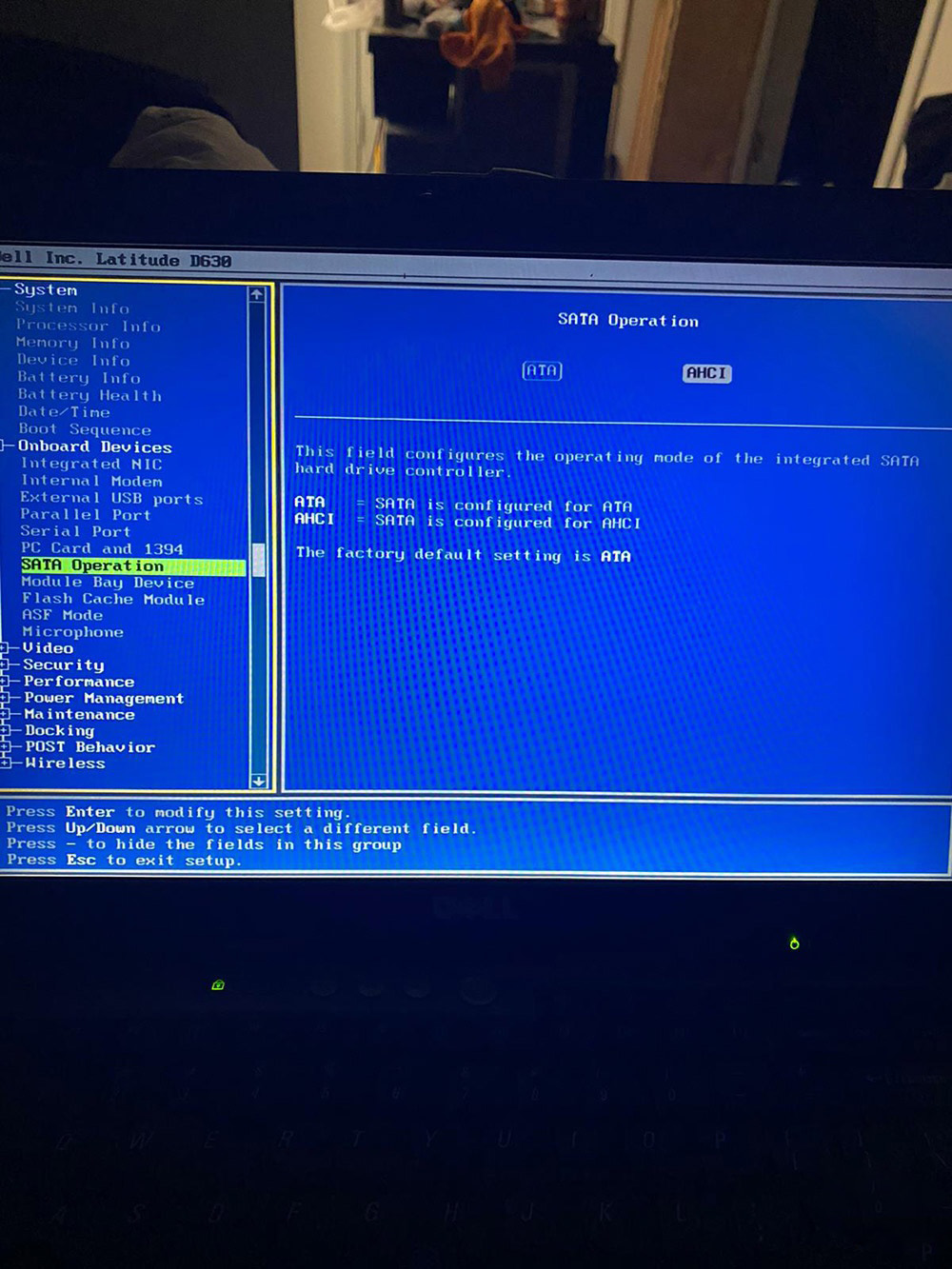
obd2tool.com engineer replied:
Please refer to the following operation steps to fix your system.
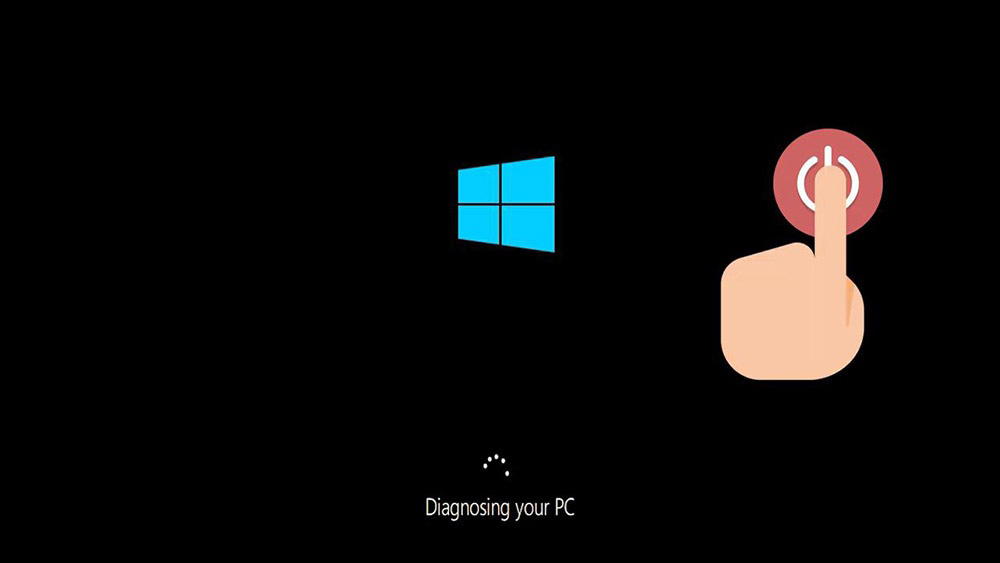
First start your PC and press the power button while it tries to load the windows to force it to shutdown, do this three times in a row to get the automatic repair screen.
You could also disconnect it from the outlet, click on advanced options.
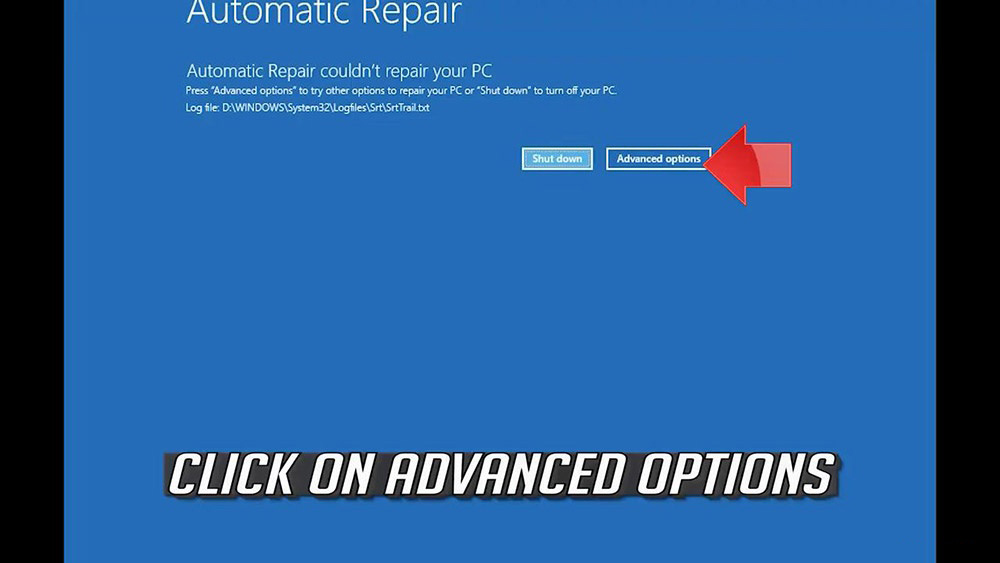
Click on troubleshoot.
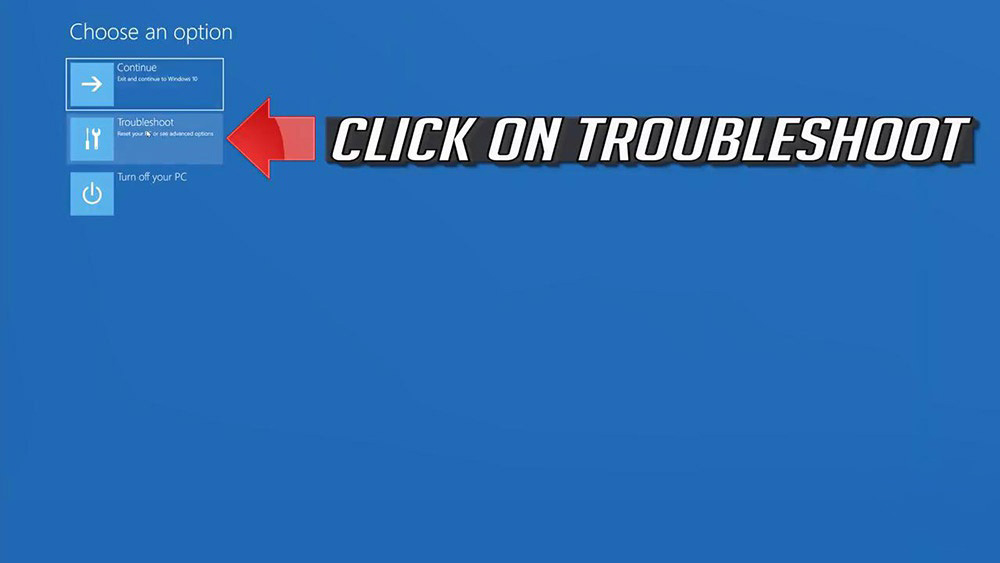
Click on advanced options.
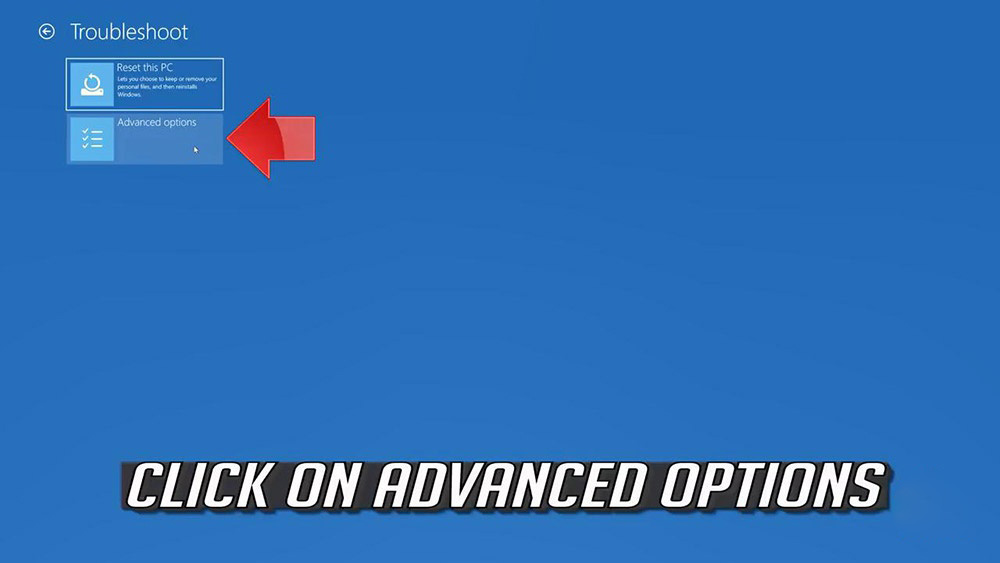
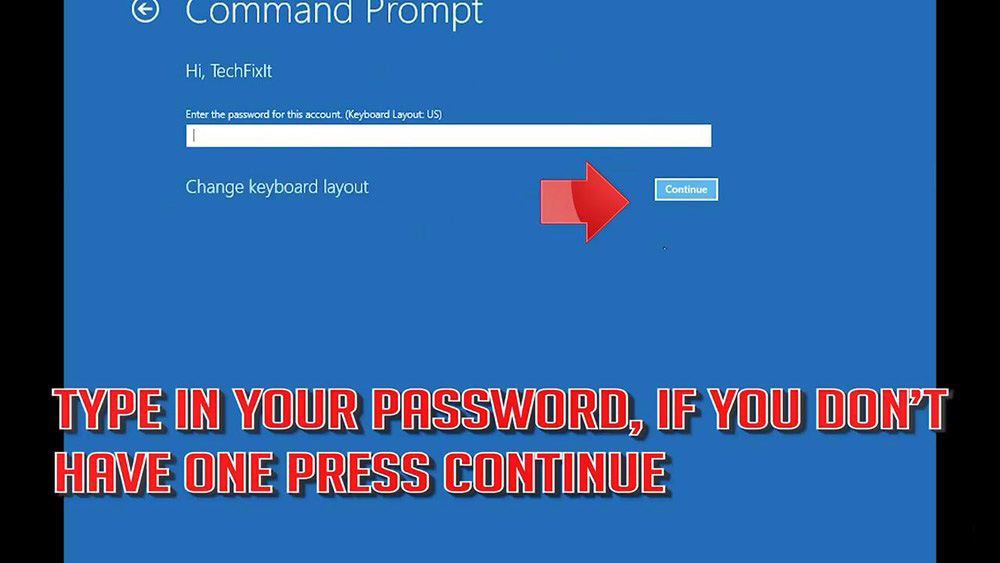
Click on command prompt.

Type in your password, and if you don’t have one just press continue.
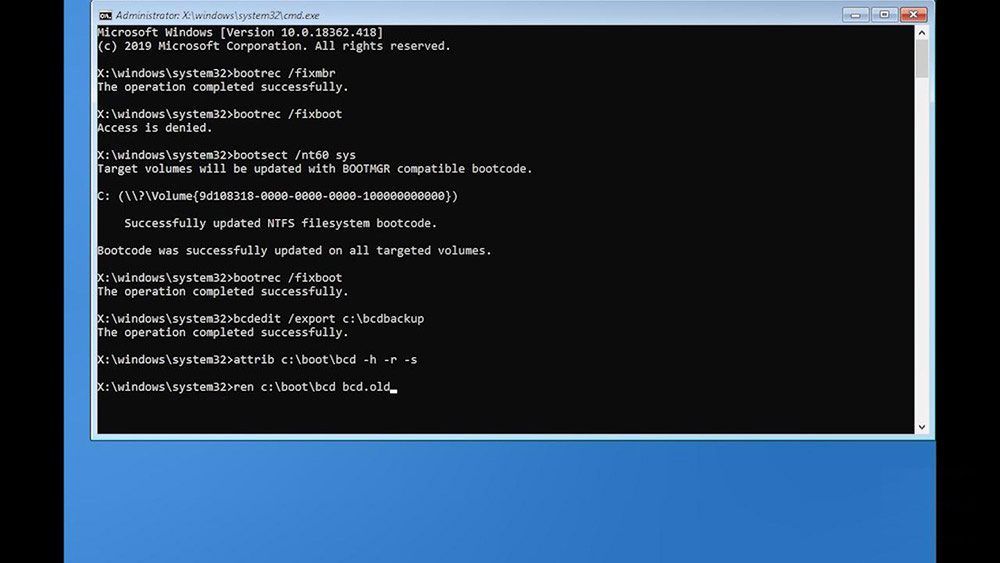
Now type BOOTREC / FIXMBR and then press enter.
Type BOOTREC / FIXBOOT and then press enter.
If you get access denied, type the following command and then try again.
Type: BOOTREC / FIXBOOT and then press enter.
Type: BCDEDIT /EXPORT C:\ BCDBACKUP and then press enter.
Type: ATTRIB C:\BOOT\BCD -H -R -S and then press enter.
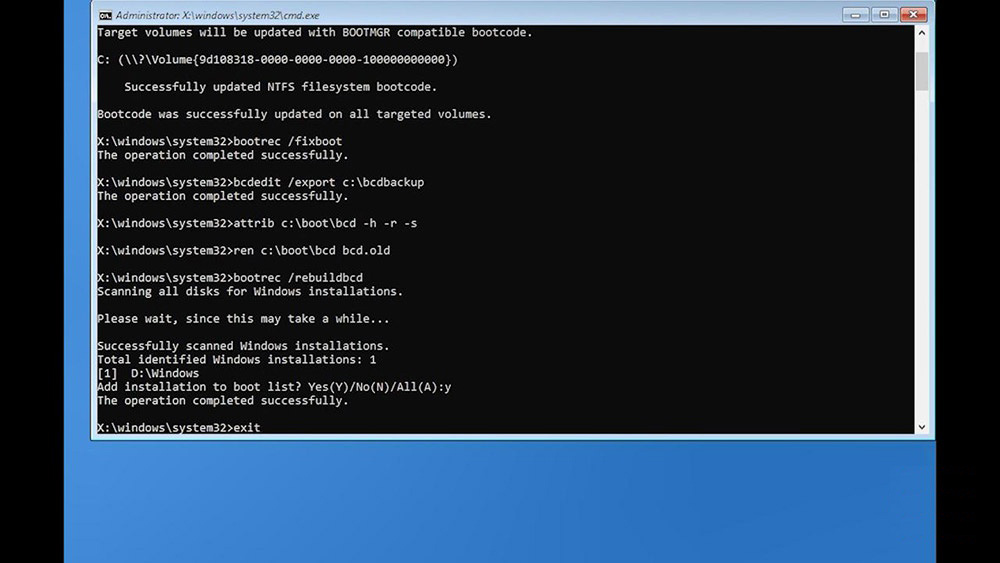
Type: REN C:\BOOT\BCD BCD.OLD and then press enter.
Type: BOOTREC / REBUILDBCD and then press enter..
Type: Y and then press enter.
Type Exit and then press enter
Press continue to restart.
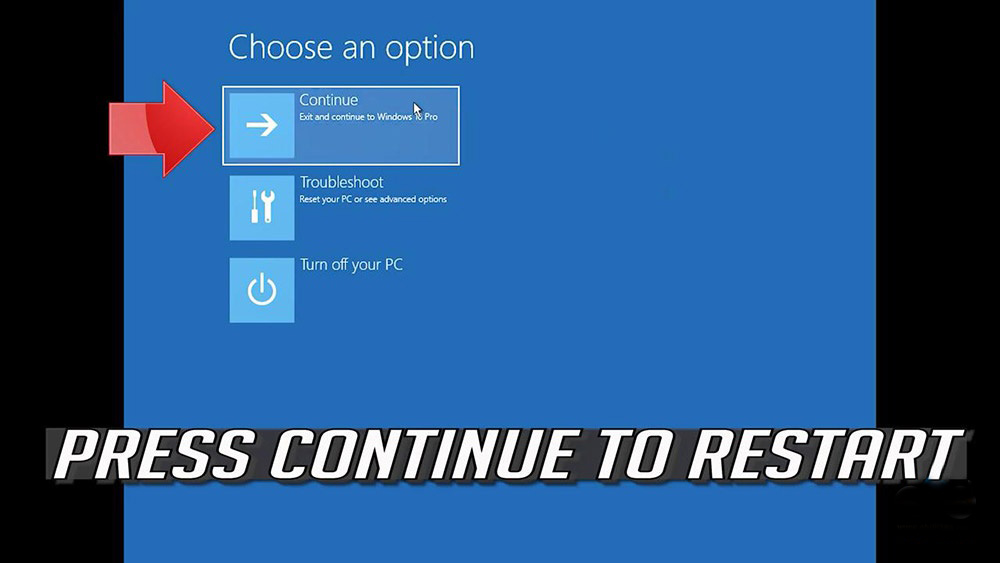
Using tips:
Alright, if not lucky to repair by following the above method, you can find a USB flash drive to make the system boot, if you have a USB flash drive, contact at obdii365.com engineer who can make a USB flash drive for you remotely by teamviewer, then you follow the above operation to repair your system.
After I make a USB flash drive for you, you can insert the USB flash drive into the computer that cannot start, and then enter the PE system to repair it.
Alright, this is how to repair the windows system for DOIP MB SD C4 PLUS with SSD software 2021.3.
Sunday, June 13, 2021
MB SD C5 Xentry 2012.11 Battery Too Low Solution
I need help want to activate my 2021 MB star SD C5 Mercedes xentry with Panasonic toughpad tab scanner with 2012.11 version of the software.
Have tried to update the mux but saying battery too low.
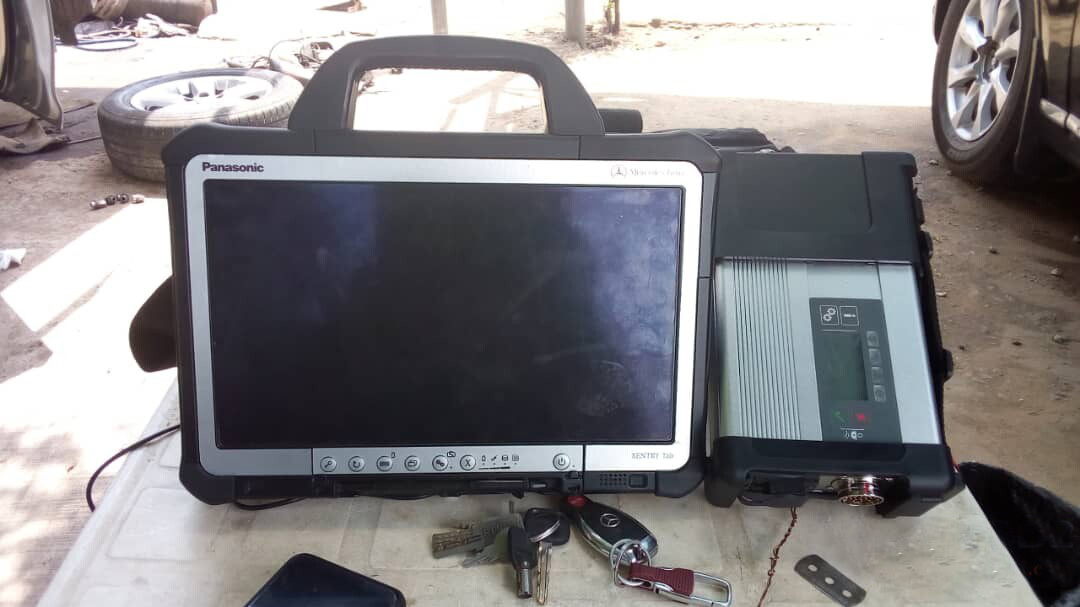

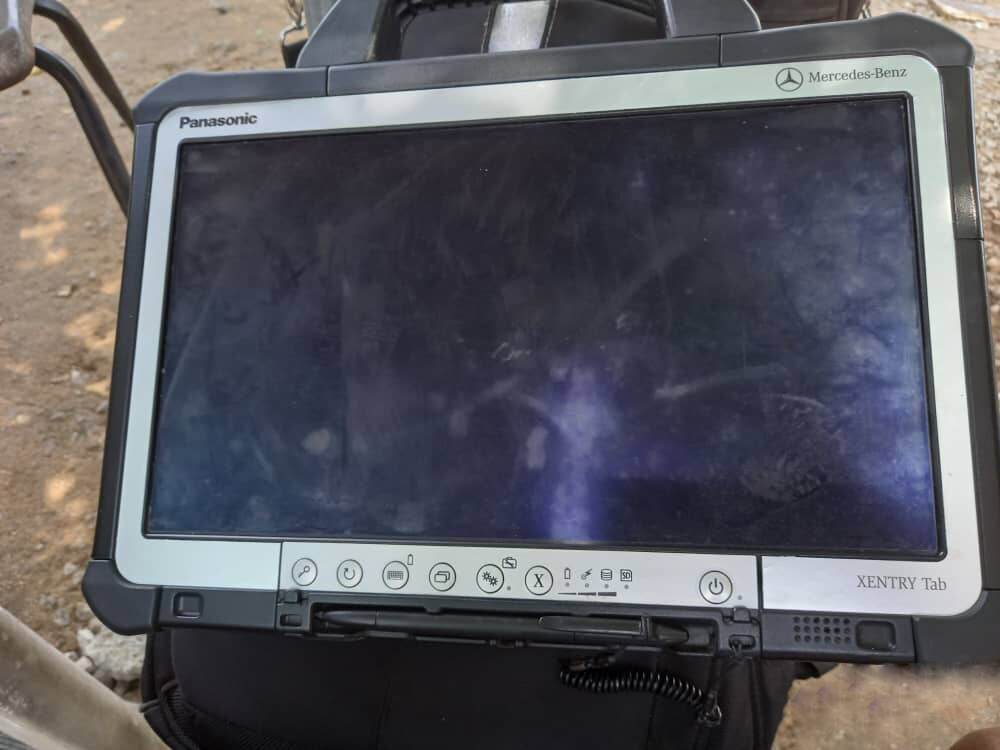
Obd2tool.com solution:
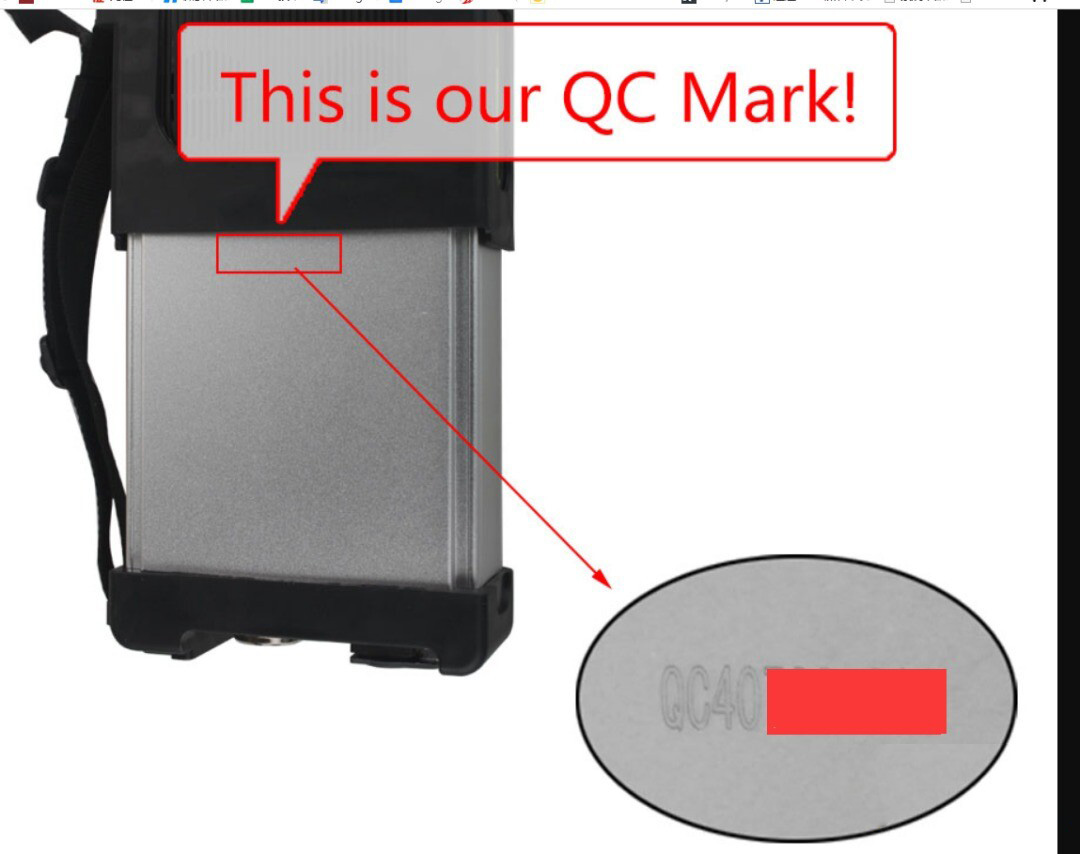
Your MB Star C5 host needs to install a new battery before proceeding with the firmware upgrade. Please buy new battery: 6 units Ni-MH Rechargeable batteries, Size: AA, Voltage: 1.2V.
Saturday, May 29, 2021
Fixed! MB SD Connect C4 Software Unable to Start on Win10
Problem
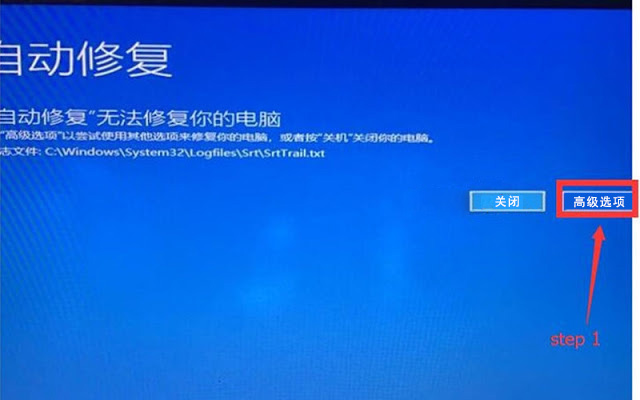
MB SD Connect C4 software unable to start or automatically repair on Win10.
Solution
Step1. Go to advanced options;
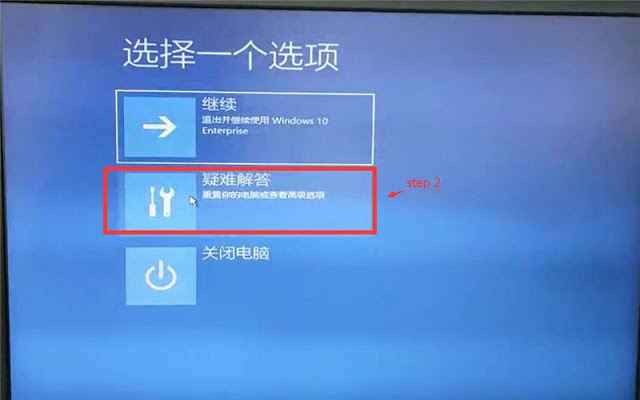
Step2. Go to troubleshooting;
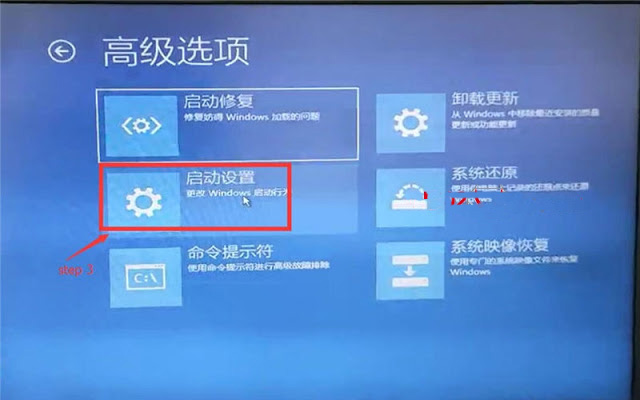
Step3. Go to start up settings;
Step4. Start PC;
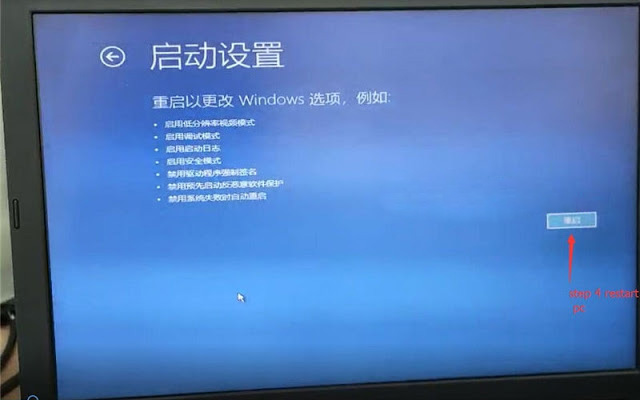
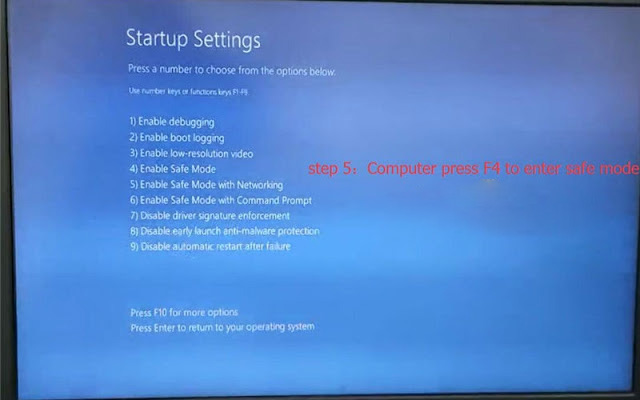
Step5. Computer press F4 to enter state mode;
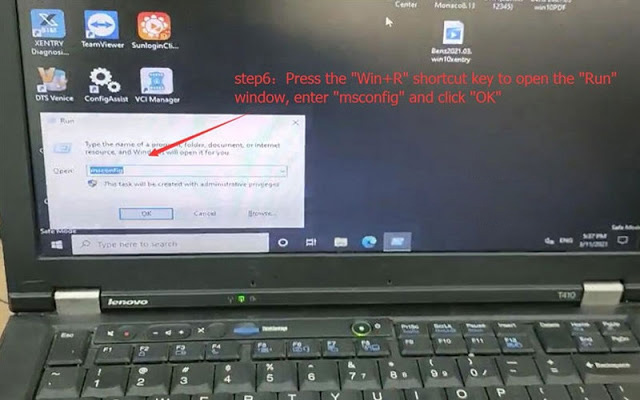
Step6. Press the “Win+R” shortcut key to open the “Run” window, enter “MSConfig”, click OK;
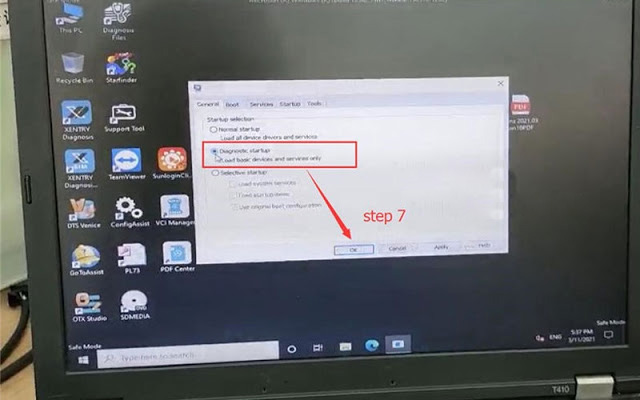
Step7. Select diagnostic start up, click OK.
Thanks to Obd2tool engineer, MB Star SD C4 software problem was solved!
Friday, May 28, 2021
MB SD Connect C4 Software Problems and Solutions
MB STAR Software works with MB SD Connect Compact 4 for the latest Mercedes Benz cars and trucks, incl. new car of B 246, CLS 218, SLK172, etc. Have collected some common errors received from customer recently, and offer the corresponding solutions here.
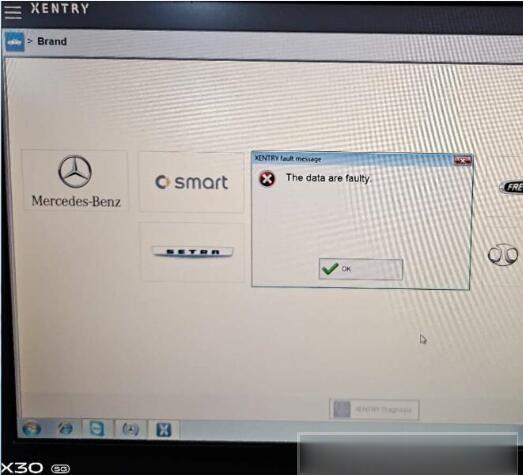
Error 1: When you run Xentry software with MB SD C4, the following error will be reported “The data are faulty” and cannot do any function.
Solution offered by Obd2tool.com engineer:
Caused the error reason: Click the upgrade icon as shown in the figure below.
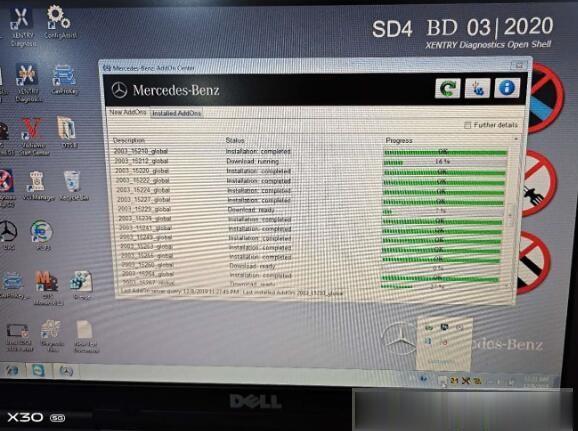
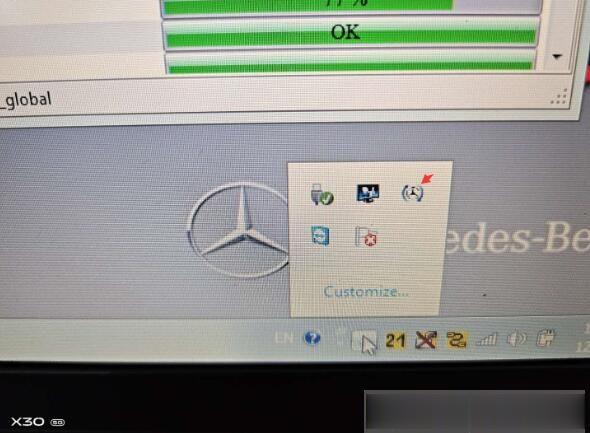
The solution:
1. Please don’t click the upgrade icon, otherwise it will update.
2. Change the file name “AddOnCenter.exe” to “AddOnCenter.ex_”, then it
will not update automatically. After modifying, restart the computer.
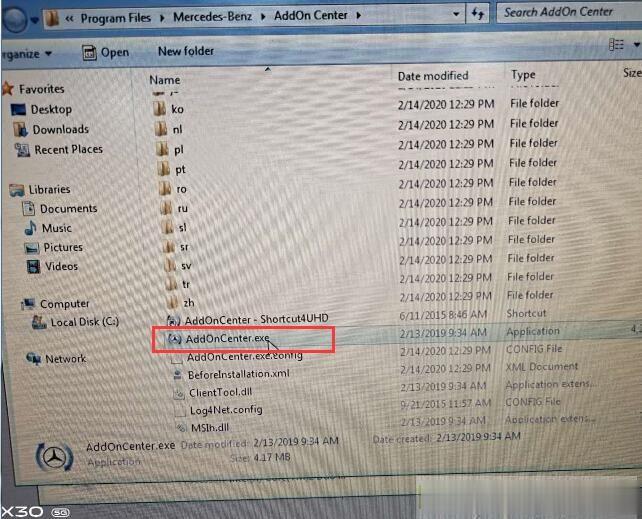
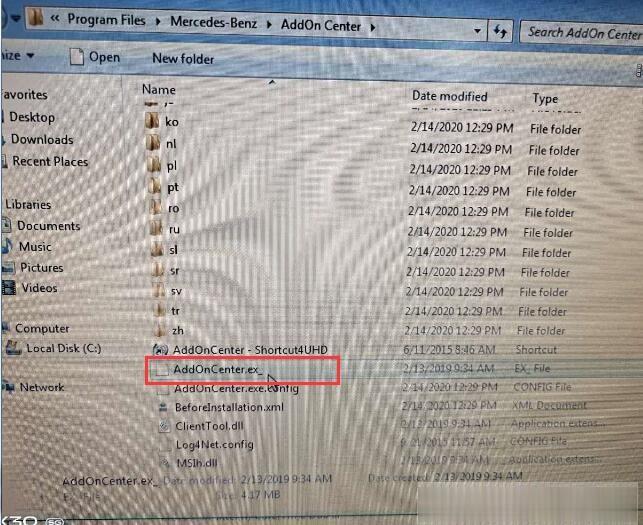
3.Free download the following link to fix.
Xentrypatch202003: https://share.weiyun.com/5uIxwgI
Password: eswr9a
Size: 2GB
Security: No risk!
4. After installing the Xentry patch to fix the error, please restart the computer and run Xentry software again.
For your convenience, here is the video of how to fix “The data are faulty” for 2020.03 MB SD Connect C4 software:
Note: The solution above is suitable for 2019.12 Xentry software “The data are faulty” error as well. But the Xentry patch download link is different.
Xentrypatch2019.12: https://share.weiyun.com/5dLTPWG
Password: mlpnqm
Size: 2.02 GB
Security: No risk!
Error 2: When running the file “C:\Program Files\Mercedes-Benz\Xentry\bin\XDConfig\set_SDconnect.bat”, the error message prompts “it may not have been possible to find the file”.
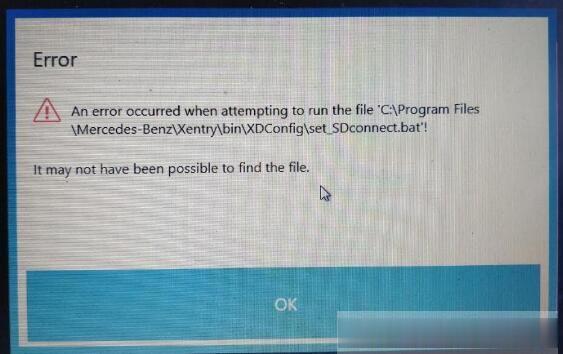
Solution offered by Obd2tool.com engineer:
Please follow the steps below to operate:
1.Press “WIN+R” keyboard shortcuts to open the run window
2. Enter “Services.msc” in the textfield to start the Configassist service
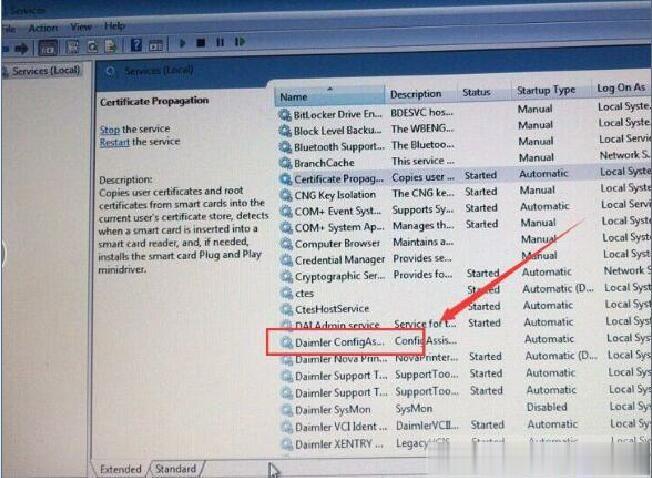
Please kindly notice:
2020.03 MB SD Connect C4 software cannot support online programming.
Please choose software version before 2019.12, such as 2019.09.
To be continued…
Thursday, May 27, 2021
MB SD C4 ewa-net Activation Unknown ID Error Solution
Customer Problem: I run Xentry software with my mb sd connect c4, when enter ewa-net to activate, an error message appears on the screen with “Current MAC address (LAN ID): Unknown LAN ID”. How to solve it?
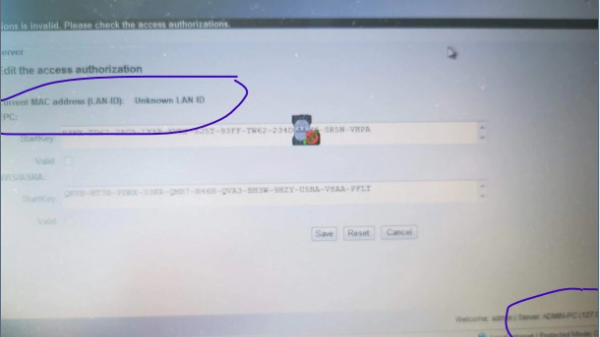
Solution offered by obd2tool.com engineer:
1.Open “Computer Management”
2.Right click “Device Manager” to select “Show hidden devices”
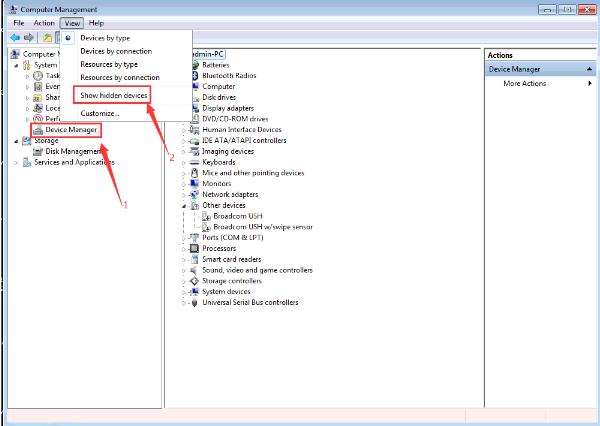
3.Uninstall all virtual network card drivers with # in the “Network adapters” option
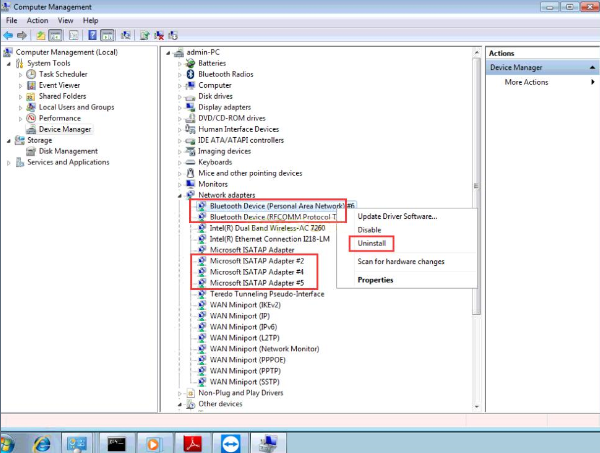
4.Restart ewa-net
Subscribe to:
Posts (Atom)